How to Remove Background Noise from Video Online

Audio quality often determines whether a viewer watches your content or scrolls past it. As a small business owner recording product demos at home, I know the frustration firsthand. You capture the perfect visual take, only to realize later that the audio is cluttered with the drone of an air conditioner, the rumble of passing traffic, or a persistent static hiss. It makes the video feel unprofessional, yet you likely lack the budget for expensive software or the time to learn complex audio engineering.
If you are searching for how to remove background noise from video online, you want an immediate solution, not a lecture on sound waves. You need a specific website that cleans up distractions without turning your voice into a robotic mess.
This guide compares the top free online tools available right now and offers a professional alternative for when you need unlimited processing.
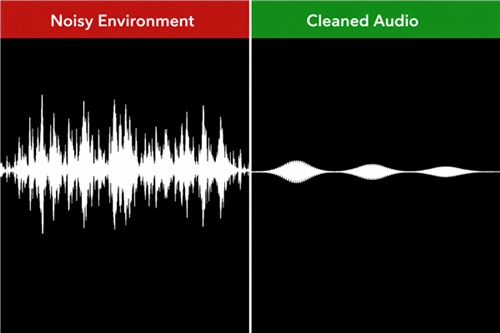
Noisy Environment vs. Cleaned Audio
We verified the following methods using a standard 1080p MP4 clip (200MB) recorded via a webcam microphone to replicate a typical user scenario.
Quick Comparison: Top 3 Tools for Noise Removal
We know you need a quick answer. Based on our testing, “online” tools vary wildly in their free limitations. Some require a login, others watermark your video, and some strip the video entirely, leaving you with just an audio file.
Here is the breakdown of the most effective tools to remove audio background noise from video free online, alongside a professional desktop alternative for heavier workloads.
| Tool Name | Free Tier Limits | Watermark? | File Type Output | Best Use Case |
| Adobe Podcast (Enhance) | 1 hour/500MB per upload | No | Audio only (WAV) | Top noise cancellation; re-sync audio later |
| CapCut Online | ~10 minutes/cloud-based limits | Yes (free tier) | Video (MP4) | Fast noise removal for short clips; creator-friendly |
| Kapwing | 7 minutes/export limits | Yes | Video (MP4) | Heavy editing before final export |
| FocuSee (Desktop) | Unlimited (disk space) | No | Video (MP4 / 4K) | Pro tutorials, sensitive or long-form |
Which Should You Choose?
- For pure audio quality: Use Adobe Podcast. It delivers the most impressive AI audio cleanup—especially for echo and heavy, constant noise. The trade-off is that it outputs audio only, so you’ll need to manually re-sync the cleaned track with your video.
- For speed: Use CapCut Online. It processes video and audio together directly in the browser, making it ideal for quick fixes and short clips. On the free plan, be prepared to export with a watermark.
- For professional work: If you need watermark-free exports, must process large files (over 500MB), or have strict privacy requirements, avoid cloud-based tools altogether and use Method 2 (FocuSee Desktop) for local processing and full control.
Method 1. Using a Free Online Tool
If you have a short clip (under 10 minutes) and want a quick, browser-based solution, CapCut Online is one of the most accessible free tools available. It offers built-in AI noise reduction and works directly in the browser, making it ideal for fast fixes without installing software.
Step 1. Access the Tool
Go to CapCut Online via your browser. You’ll need to log in with a free account (email, Google, or TikTok) to export your video.
Step 2. Upload the Video
Drag and drop your MP4 or MOV file into the editor. CapCut will automatically create a timeline with video and audio tracks.
Step 3. Note on Uploads
Because CapCut Online is cloud-based, upload speed depends on your internet connection. Large files (e.g., 300–500MB) may take several minutes before editing can begin.
Step 4. Apply Noise Reduction
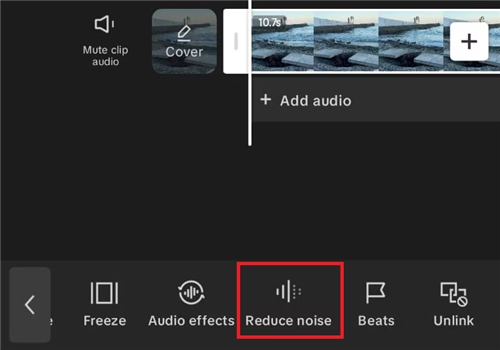
Apply Noise Reduction
Click on the video or audio track in the timeline. In the right-hand properties panel, open Audio settings and enable Noise Reduction. You can adjust the intensity if available, depending on your account and current feature rollout.
Step 5. Real-World Test
In our testing, CapCut Online handled consistent background noise—such as air conditioners or fan hum—very well. However, like most AI tools, it may struggle with overlapping sounds such as loud keyboard hits or sudden background speech.
Step 6. Export
Click Export to download your video. On the free plan, exports may include a CapCut watermark depending on resolution and account status.
When to Avoid This Method
Despite its convenience, CapCut Online isn’t ideal for every scenario:
- Over-processed Audio: Pushing noise reduction too aggressively can result in a slightly “flattened” or artificial voice, especially for podcasts or interviews.
- Privacy Concerns: Files are uploaded to CapCut’s servers. This is fine for personal or social content, but not recommended for confidential meetings or unreleased materials.
- Length & Complexity Limits: Long-form recordings (e.g., 30–60 minute webinars) or multi-track audio projects are better handled with desktop software for greater control and stability.
Method 2. Clean Up Video Audio with FocuSee
If you ran into a file size limit in Method 1, or if the idea of uploading sensitive business data to a cloud server makes you uncomfortable, FocuSee is the logical next step.
FocuSee is a desktop application that brings the ease of “one-click” online tools to your local computer. It creates a workflow that feels just as simple as a web tool, but without the internet bottlenecks or upload restrictions.
Why Users Switch from Online to Local
Many creators start with online tools and switch to FocuSee when they hit the “paywall” or “file limit” wall.
- No Upload Waiting: Because it uses your computer’s processor, you don’t wait for a 1GB video to upload to the cloud.
- No Watermarks: You get professional, clean video output immediately.
- Privacy First: Your video never leaves your hard drive. This is critical for business owners handling client data.
The Workflow
Step 1. Import or Record: Open FocuSee. You can drag in an existing video file or record your screen/webcam directly within the app.
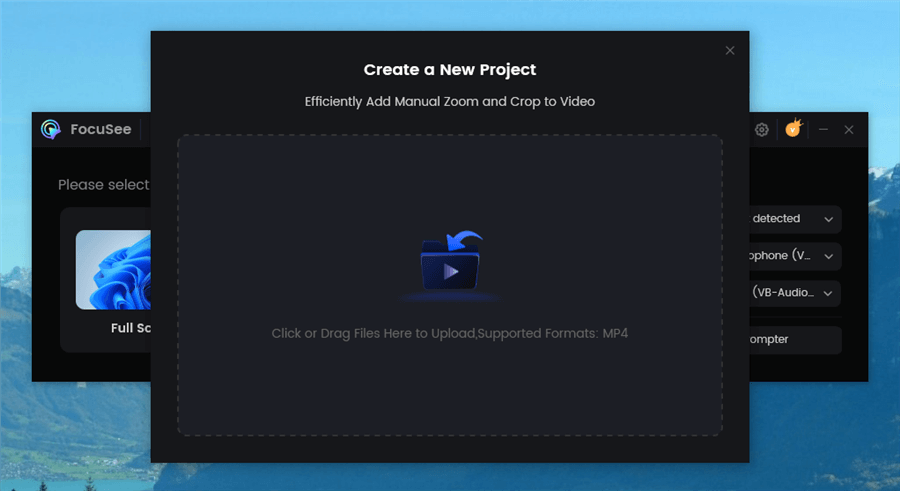
Upload Your Footage
Step 2. One-Click Enhancement: Navigate to the audio settings in the sidebar. Toggle “AI Audio Enhancement.”
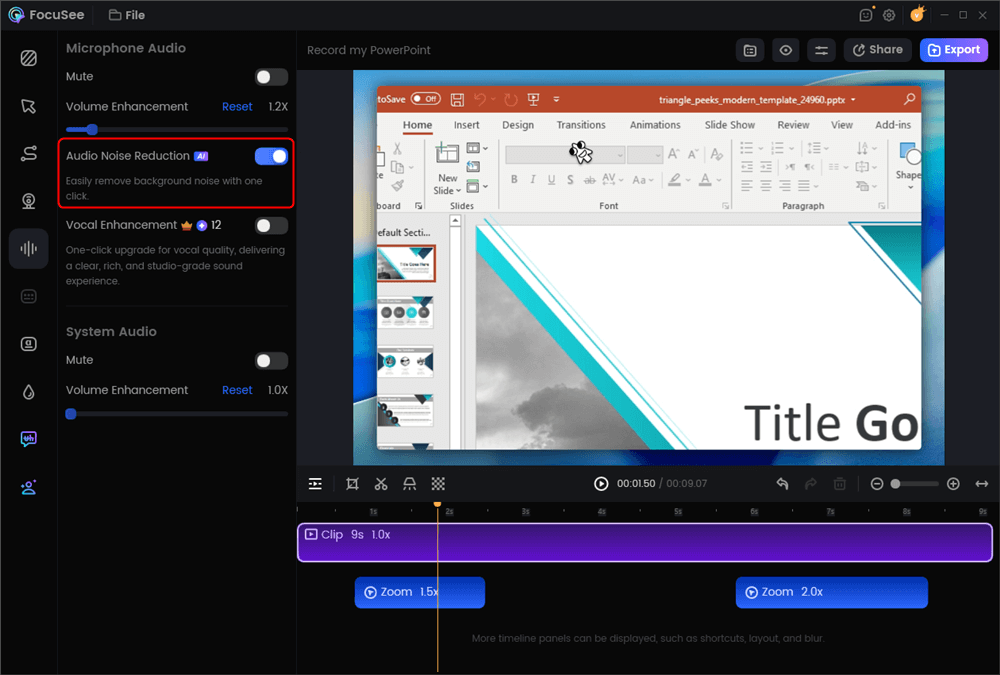
AI Audio Enhancement
This AI-powered system automatically analyzes the audio and video timeline to detect background noise, filler words, and unnecessary silent segments, then removes or reduces them without manual intervention.
Unlike manual editors, where you have to fiddle with “Noise Gates” and “High Pass Filters,” this feature automatically detects the noise profile and removes it.
Step 3. Export: Render the video in high definition (up to 4K) without worrying about file size caps.
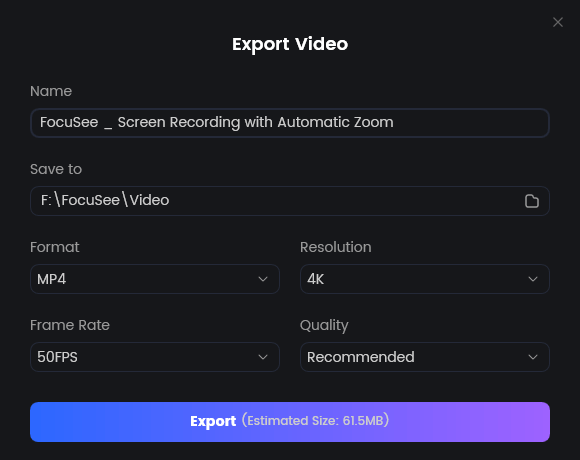
Export Your Video
Understanding Noise: Managing Expectations
Before you spend hours trying to fix a clip, it is helpful to know what AI can and cannot do. Not all noise is equal.
What AI Fixes Perfectly
AI denoise video online tools and FocuSee are incredible at removing constant, non-speech background noise.
- Success Stories: Air conditioners, computer fans, refrigerator hum, and distant highway traffic.
- Why: These sounds have a consistent pattern that the AI can easily subtract from the audio.
What AI Struggles With
Transient or complex noises are harder to clean without affecting your voice.
- Difficult Scenarios: A door slamming, a dog barking once, or a crowded room with other people talking (the “cocktail party effect”).
- The Risk: If the background noise overlaps with your speech (like a siren passing while you talk), the AI might accidentally cut out parts of your words, causing a “gating” effect where the ends of your sentences sound chopped off.
Pro Tips: Polishing Results (Without Being an Audio Engineer)
You don’t need a complex Digital Audio Workstation (DAW) to get great results. After using an online noise reduction video tool, use these simple tricks to make the audio sound natural again.
1. The “Background Music” Mask
This is the oldest trick in the book. Noise removal often creates “dead silence” between your words, which sounds unnatural. Add a gentle instrumental background track at 5-10% volume. This fills the silence and masks any small digital artifacts left behind by the AI. You can do this in almost any basic video editor.
2. Restore Warmth with Simple Sliders
Noise removal can sometimes strip the bass (low frequencies) from your voice, making you sound “thin” or like you are on a phone. You don’t need a parametric EQ. Look for a simple “Warmth” or “Bass Boost” slider in your video editor’s audio panel. A small +5% boost can bring the authority back to your voice.
FAQs About Video Audio Cleanup
Which online tool is truly free (no watermark)?
Most “free” online video tools add a watermark. Adobe Podcast (Enhance Speech) is the exception—it is completely free and watermark-free, but it only outputs an audio file. You will need to put that audio back into your video using a separate editor.
Can I remove background noise from a video online without installing software?
Yes. Tools like Veed.io or Kapwing run entirely in your browser (Chrome, Safari, Edge). They are perfect for users on work computers who are restricted from installing new programs.
Will online noise removal lower my video quality?
It can. To process files quickly over the internet, many online tools compress your video. If you upload a crisp 4K file, you might only get a 1080p or 720p file back on the free tier. For zero quality loss, local software like FocuSee is safer because it doesn’t need to compress files for upload.
Is it safe to upload my video to an online noise remover?
For general social media clips, yes. However, if your video contains confidential information, financial data, or internal company strategy, we advise against using free online cloud converters. Once a file is uploaded, it is subject to that company’s data handling policies.
Conclusion
Distracting background noise doesn’t have to ruin your take. If you have a short clip and don’t mind a watermark or some manual syncing, free tools like Adobe Podcast and CapCut are fantastic, accessible solutions to remove audio background noise from video free online.
However, if you are building a brand and need a reliable workflow that handles unlimited files, protects your privacy, and preserves 4K video quality, moving to a dedicated tool like FocuSee is the smart upgrade. It gives you the “one-click” simplicity you want with the professional power your content deserves.