3 Best App to Remove Background Noise from Video: The Mobile & Desktop Guide

There is nothing more frustrating for a creator than capturing a perfect visual take, only to realize later that the audio is filled with unwanted noise. One Android user on Reddit recently described this exact struggle: after investing in a decent microphone and recording videos on a Samsung S23 Ultra, they were disappointed to find constant white noise ruining their footage. They didn’t want to move files to a PC or learn complicated editing software—they just needed a simple app that could clean up the audio quickly.
This scenario is more common than you might think. Whether it’s the hum of an air conditioner, distant traffic, or wind interference, background noise can instantly make your content feel unprofessional. And while many tools promise to fix it, they often feel overly complex or distort your voice, leaving it sounding robotic or unnatural.
You don’t have time to become an audio engineer—you just need a clean, professional result so your audience focuses on your message, not the noise. This guide cuts through the clutter to find the tools that actually work, whether you need a quick mobile fix or a more powerful desktop solution.
Best Desktop Solution: Using FocuSee’s AI Audio Enhancement
For creators who need professional results but dread learning complicated editing suites like Premiere Pro, FocuSee offers a strong balance of power and simplicity. Although it is a desktop application (compatible with Windows and macOS), it serves as a powerful hub for processing video clips recorded on any device.
1. One-Click AI Audio Enhancement
FocuSee includes a dedicated AI Audio Enhancement feature that intelligently reduces background noise while preserving the natural tone and clarity of the human voice. Instead of manually tweaking EQs, compressors, or noise gates, you enable the enhancement. FocuSee automatically analyzes the noise floor and cleans the audio in seconds.
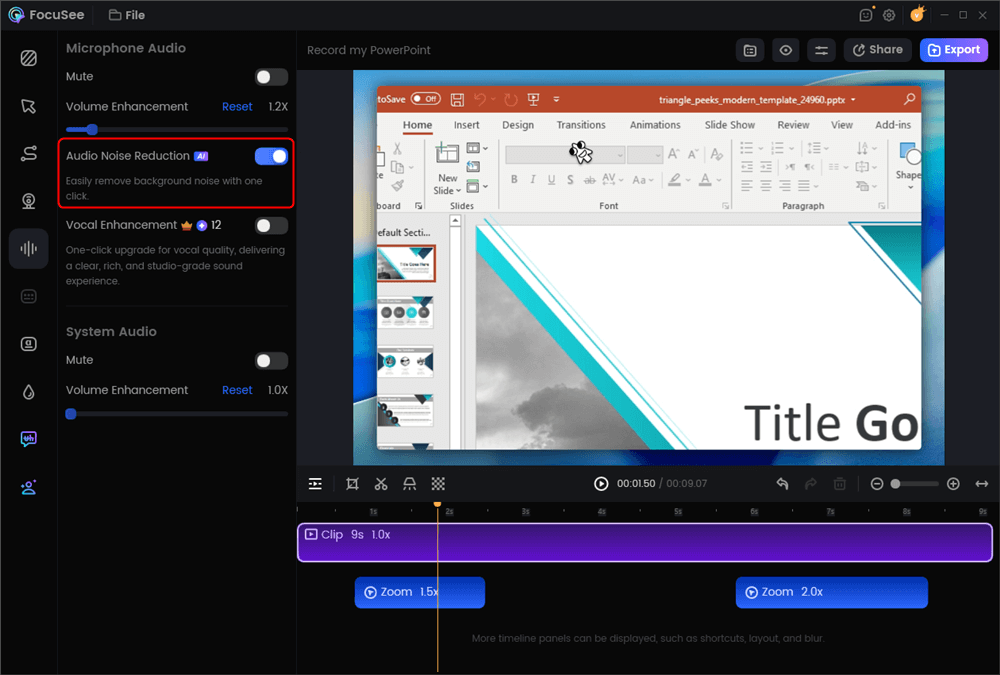
AI Audio Enhancement
2. Voice-First Optimization for Tutorials
Unlike generic noise reduction, FocuSee is optimized for spoken-word content. It prioritizes narration clarity, making it ideal for screen recordings, mobile app demos, and educational videos where clear instruction matters more than music processing.
3. Consistent Audio Across Multiple Clips
When recording a tutorial series, FocuSee applies the same audio enhancement profile across all clips. This ensures consistent volume and clarity from video to video—something that usually requires manual batch processing in traditional editors.
4. Seamless Integration with Visual Enhancements
Audio enhancement works alongside FocuSee’s Smart Zoom, cursor effects, and layout controls, so both your sound and visuals feel equally polished without extra editing steps.
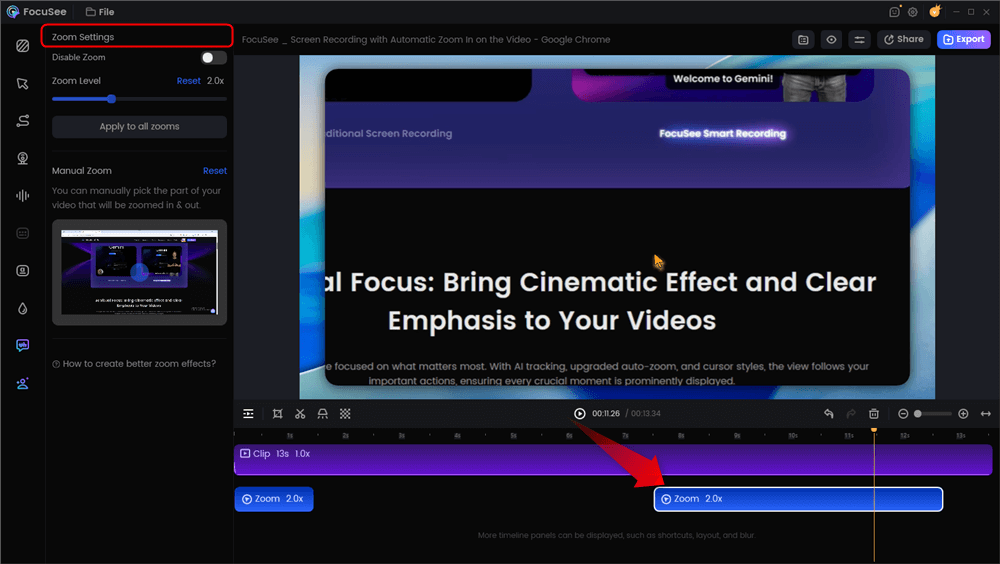
Automatic Zoom Effects
Bridging the Gap: How to Transfer Video Without Pain
The biggest barrier to using desktop software is getting the video off your phone. We know this friction point often drives people back to inferior mobile apps. Here is the fastest way to handle the transfer without losing quality or patience:
- iPhone to Mac (Instant): Use AirDrop. It is lossless and takes seconds for short clips.
- Android to Windows (Fast): Use Quick Share (formerly Nearby Share) or a dedicated USB-C cable.
- The Wired “Pro” Method: Connect your phone to your computer via a USB-C 3.0 cable. It is significantly faster than cloud uploads (like Google Drive or Dropbox) and prevents the video compression that sometimes happens over Wi-Fi.
Solving Common Audio Pain Points:
- “I don’t want to learn complex software”: FocuSee automates the process. You import your mobile recording, click “Audio Enhancement,” and the AI handles the frequency adjustments instantly.
- “I need more than just noise removal”: Beyond speech enhancement, FocuSee includes Auto Subtitles. It generates accurate captions in over 50 languages, saving you the time of manual transcription.
2 Best Apps for Removing Background Noise (iOS & Android)
Sometimes, you simply do not have access to a computer, or the content doesn’t justify a complex workflow. In these cases, finding a way to remove audio noise from a video mobile app is essential. While they may lack the depth of desktop tools, modern mobile apps have improved significantly.
CapCut (Best for Social Media)
Ideally suited for TikTok and Instagram creators, CapCut includes a built-in “Reduce Noise” toggle within its audio editing menu.
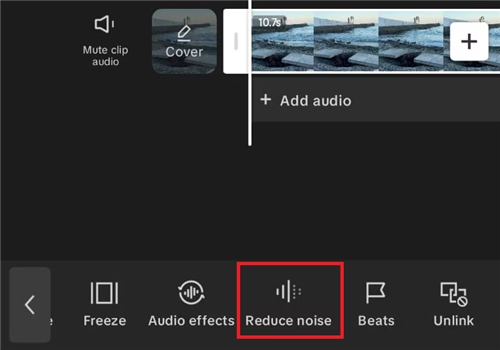
Apply Noise Reduction
- Best for: Steady, low-level sounds like air conditioning hums.
- Pricing: Free features available; “Pro” subscription required for advanced enhancement.
- Warning: Applying this effect to clips with heavy traffic noise can sometimes result in digital artifacts (weird bubbling sounds).
Dolby On (Best for Audio Fidelity)
If your video is music-focused or a “talking head” style where voice quality is paramount, Dolby On is a powerhouse. Unlike general video editors, it specializes in audio processing.
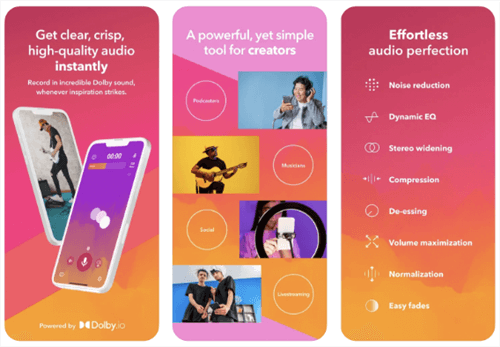
Dolby On Overview
- Best for: Musicians, podcasters, and interviewers.
- Workflow: You record directly in the app or import a video, process the audio, and then export. It requires a bit more clicking than CapCut but delivers superior voice isolation.
- Pricing: Completely free.
When using a noise reduction app for video on a phone, avoid setting the reduction level to 100%. Mobile algorithms often use aggressive filters to compensate for lower processing power. Pushing these settings to the maximum usually strips away essential voice frequencies, making you sound metallic. It is often better to leave a faint trace of background noise than to over-process the audio into an unnatural state.
How to Avoid ‘Robotic’ Voice Distortion
One of the most common complaints users have is that their video noise remover app makes them sound like a robot. In my experience testing dozens of tools, this issue rarely stems from the app itself, but rather from how it is applied.
The Trap of Over-Processing
Many users over-apply noise reduction, assuming stronger settings equal better results. In reality, the AI app to remove background noise from video technology works best when applied conservatively. When you force an app to remove 100% of the background noise, it inevitably strips away frequencies that overlap with human speech. This results in “spectral gating artifacts,” which sound like metallic bubbling or underwater distortion.

The Sweet Spot of Noise
Prioritize Voice Isolation Over Silence
To solve this, shift your goal from “total silence” to “voice isolation.”
- Wind Noise: Use a high-pass filter if available, or a specific “wind reduction” toggle. Wind occupies low frequencies that often clash with the male voice.
- Traffic/City Noise: Use AI audio enhancement settings at roughly 60-70% intensity. It is far better to have a faint background ambience than a distorted voice.
- Room Echo: This is the hardest to fix. Instead of standard noise reduction, look for “de-reverb” tools specifically.
For Jordan, the persona we introduced earlier, learning to accept a small amount of ambient sound in exchange for a rich, natural voice tone was the turning point in producing professional-quality content.
The Workflow Reality: Mobile Apps vs. Desktop AI
Before downloading anything, it is vital to understand the trade-off you are making. Many creators search for a “mobile app” expecting studio results, only to find that phone processors struggle with complex noise. Essentially, you have two paths:
- Mobile-Only Workflow: Fast, convenient, but often uses aggressive “noise gates” that can make your voice sound choppy or metallic.
- Hybrid Workflow (Desktop AI): Requires transferring files, but utilizes advanced algorithms to distinguish human speech from noise with high precision.
| Feature | Mobile Apps (e.g., CapCut, Dolby On) | Desktop AI Tools (e.g., FocuSee) |
| Best For | Social stories, quick updates | Evergreen content, courses, brand videos |
| Audio Quality | Good for steady noise; distortion risk | Excellent, natural voice preserved |
| Pricing Model | Subscription or freemium | One-time purchase or subscription |
| Processing Power | Limited by battery & heat | Full CPU/GPU utilization |
| Friction | Low — edit on phone | Medium — transfer to desktop |
Understanding Limitations: What AI Can and Cannot Fix
While tools like FocuSee utilize advanced AI audio enhancement, it is crucial to maintain realistic expectations. AI is not magic; it relies on patterns. Understanding the difference between “consistent” and “erratic” noise will help you avoid frustration.
What AI Fixes Well (Consistent Noise)
AI excels at ambient noise removal. This includes sounds that remain steady over time, because they have a predictable frequency pattern that the software can subtract from the audio track.
- The air conditioner or computer fan hums.
- Distant highway traffic drones.
- Electrical hiss or static.
What AI Struggles With (Erratic Noise)
Non-repeating, sudden, or physical noises are much harder to remove cleanly because they often overlap completely with the vocal frequencies.
- Microphone Handling: If your hand rubs against the mic (creating a deep rumble), this is often permanent.
- Clothing Rustle: A lavalier mic rubbing against a shirt collar creates scratching sounds.
- Heavy Distortion: If the original audio is “clipped” (recorded too loud), no software can restore the lost data.
Recognizing these limitations ensures you focus your efforts on what can be fixed and adjust your recording environment to prevent the rest.
Frequently Asked Questions About Video Noise Removal
What is the best app to remove background noise from a video?
If you need studio quality and have access to a computer, desktop AI tools like FocuSee are superior. For mobile-only users, Dolby On (free) offers excellent audio processing, while CapCut is best for quick social media edits.
How much do these apps cost?
It varies. Dolby On is free. CapCut is free for basic use but requires a subscription for “Voice Isolation” features. Desktop tools like FocuSee typically offer a free trial but require a purchase to unlock unrestricted exports without watermarks.
Do noise removal apps reduce video quality?
Generally, no. Most modern apps separate the audio track from the video track, process the sound, and then re-sync it. The visual quality of your video remains untouched. However, aggressive audio noise reduction settings can reduce the audio quality by making voices sound thin or metallic.
Can an app remove wind or traffic noise from my video?
Yes, but with caveats. Wind noise reduction is common in most apps, but heavy wind gusts can clip the microphone, which is unfixable. Consistent traffic noise is easily removed by AI audio enhancement tools because it is a steady background drone.
Conclusion
Your audio quality is often the first indicator of your content’s professionalism. Whether you choose the convenience of a mobile app like Dolby On or the robust power of desktop software like FocuSee, the goal remains the same: clarity.
You do not need to be a sound engineer to fix bad audio. You simply need the right tool that prioritizes voice isolation over destructive filtering. We recommend testing FocuSee to hear the difference AI can make on your files—just remember to use a USB cable for a fast transfer. Don’t let background noise speak louder than your message.