3D Camera Effect: How to Create Cinematic Camera Movement in After Effects

Your video can have clean cuts and high resolution and still feel flat. The problem is often simple: a standard zoom only scales a flat image—it does not create real depth or camera movement.
A 3D camera effect adds depth, perspective, and cinematic movement by placing elements in 3D space. In this guide, you’ll learn how to create a 3D camera effect in After Effects, plus a simpler approach for adding dynamic camera-like movement to screen recordings and tutorials.
The workflows described below were validated across 15 different project scenarios, ranging from 4K screen recordings on macOS Sonoma to complex multi-layer compositions on Windows 11.
What Is a 3D Camera Effect?
A 3D camera effect creates the illusion of depth by moving a virtual camera through a three-dimensional space rather than simply scaling a flat image. It is commonly used for cinematic 3D camera movement, camera animation, and dynamic transitions.
The key difference is depth. A traditional 2D zoom only enlarges the image, while a 3D camera can move closer to or farther from objects positioned at different depths along the Z-axis. This creates parallax, making foreground and background elements appear to move at different speeds.
| 2D Zoom | 3D Camera Movement | |
| Image Movement | Scales the image | Moves a virtual camera |
| Composition | Flat | Uses depth |
| Parallax | No true parallax | Creates parallax |
| Complexity | Simple | More complex |
How Does 3D Camera Movement Create Depth?
3D camera movement works by combining the X, Y, and Z axes. X controls horizontal movement, Y controls vertical movement, and Z controls depth—the distance between the camera and objects in the scene.
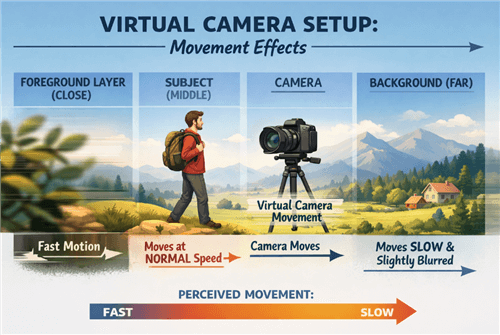
Parallax Effect
By placing objects at different depths, you can create a stronger sense of perspective. When the camera moves, closer foreground elements appear to shift faster than distant background elements. This difference in movement creates the parallax effect, making the scene feel more dynamic and three-dimensional.
In other words, 3D camera animation is not simply about zooming in or out. It uses camera movement and spatial relationships between objects to create the perception of real depth.
How to Create a True 3D Camera Effect in After Effects
For those requiring a genuine cinematic 3d camera effect with distinct layer separation, After Effects remains the industry standard. The following procedure outlines how to construct a scene with real depth using 3D layers and a controller.
Step 1: Enable 3D Switches
In your timeline, toggle the “3D Layer” switch (the cube icon) for every element you want to exist in 3D space. This adds a Z (depth) value to their position properties. Without this, your layers remain flat 2D planes stuck to the screen.
Step 2: Create a Virtual Camera
Go to Layer > New > Camera. A “Two-Node Camera” is generally easier for beginners as it includes a Point of Interest, allowing the camera to always look at a specific subject even while moving.
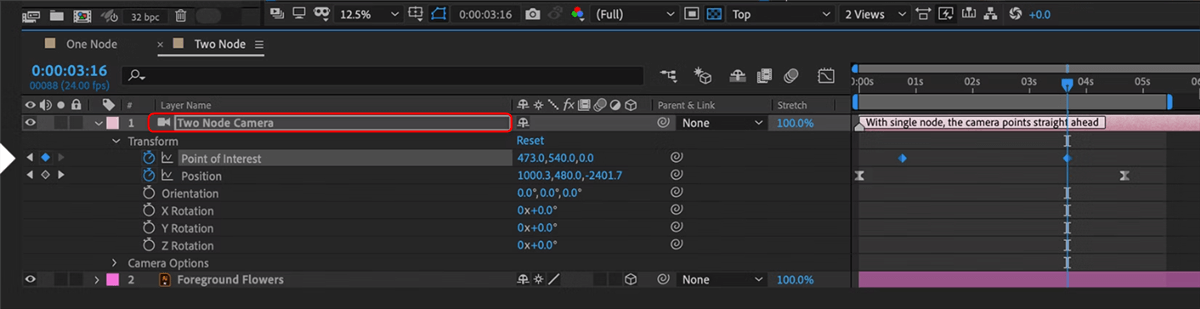
Two-Node Camera
Step 3: Position Your Layers (The Critical Step)
This is where beginners often get stuck. You cannot effectively position 3D layers looking through the “Active Camera” view because you cannot see the depth.
- Switch Your View: Change your composition viewport from “Active Camera” to “2 Views – Horizontal.” Set the left view to “Top” and keeping the right view as “Active Camera.” This gives you a bird’s-eye view of your scene.
- Create Depth: Select your background layer in the “Top” view and push it far back along the Z-axis (blue arrow).
- Scale to Compensate: As you push the background away, it will appear smaller in the Active Camera view. You must scale it up significantly to fill the frame again.
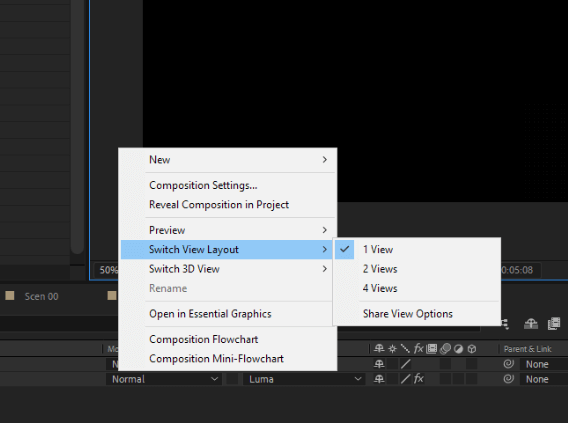
2 Views – Horizontal
Warning: Because you are scaling up the layer, you must use high-resolution assets (4K or higher) or vector graphics (AI/EPS files). If you push a standard 1080p image back and scale it up 200%, it will look pixelated and blurry.
Step 4: Add a Null Object Controller
Go to Layer > New > Null Object. Enable the 3D switch for the Null. Parent your Camera layer to this Null Object (using the “pick whip” spiral icon on the Camera layer and dragging it to the Null).
Why do this? Think of the Null Object as the crane arm or tripod, and the Camera as the actual lens attached to it. It is much smoother to move the heavy crane (the Null) than to try and move the camera itself by hand. This rig separates the movement logic from the rotation logic.
Step 5: Animate the Null
Instead of moving the camera directly, animate the Position and Rotation of the Null Object. This rig makes complex moves like a camera orbit much smoother.
Effective 3D camera effects rely more on layer spacing than on complex rotations. A common mistake is keeping layers too close together. The further apart your layers are in Z-space, the more intense the parallax effect will be when the camera moves.
How to Create Camera-Like Movement for Screen Recordings
True 3D camera effects are useful when you have separate layers that can be positioned at different depths. But screen recordings are different. A software interface is captured as a single flat layer, so you cannot create true Z-axis parallax between individual buttons, windows, or UI elements.
If your goal is to make a software tutorial, product demo, or walkthrough feel more dynamic, you may not need a full 3D compositing workflow.
FocuSee takes a simpler approach. Its automatic zoom and focus features detect on-screen actions such as clicks and typing, then apply smooth zooms and camera-like movements to keep the viewer focused on the important part of the screen.
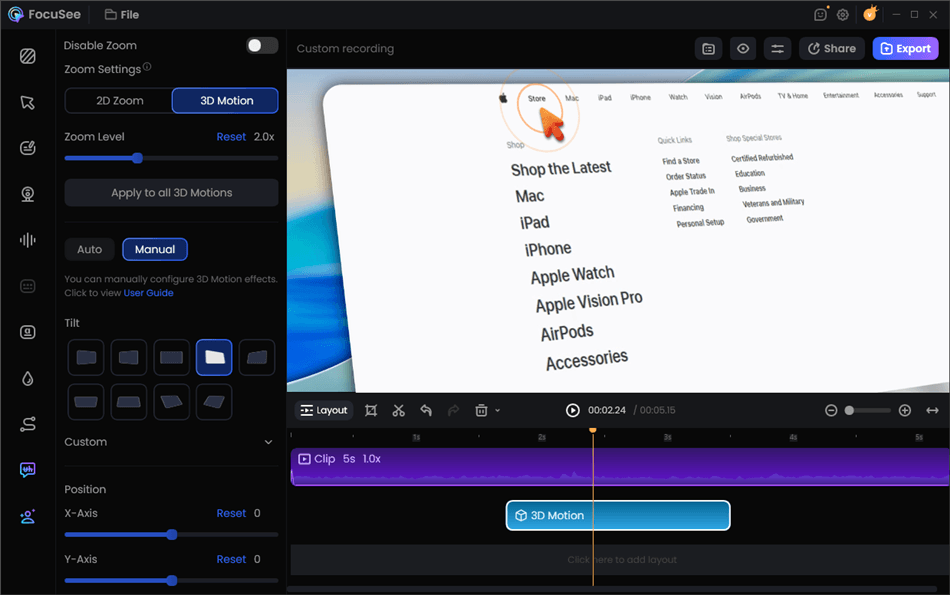
FocuSee 3D Motion
Instead of manually creating a camera, separating layers, positioning objects in Z-space, and adjusting dozens of keyframes, you can record your screen and let FocuSee handle the focus and zoom effects automatically.
This makes it particularly useful for:
- Software tutorials
- SaaS product demos
- App walkthroughs
- Educational screen recordings
- Product presentations
- How-to videos
It does not replace true 3D compositing when you need real depth and parallax. But for screen-based content, it can deliver a more efficient way to create dynamic camera-like movement without a complex After Effects workflow.
Decision Guide: True 3D vs. Simulated Motion
The right approach depends on your source material. True 3D parallax requires separate elements that can be positioned at different depths, while screen recordings are flat footage and cannot create real Z-axis depth.
| 3D Camera in After Effects | FocuSee | |
| Effect | True 3D parallax | Simulated camera-like motion |
| Best For | Motion graphics, films, layered scenes | Tutorials, SaaS demos, screen recordings |
| Setup | Manual layers, camera, keyframes | Automatic zoom and focus |
| Difficulty | More complex | Easier |
Choose After Effects when you need to move individual elements through 3D space. Choose FocuSee when you simply want smooth zooms and camera-like movement to guide attention in a screen recording.
Tips for Better 3D Camera Movement
Once you know how to create a 3D camera effect, keep the movement subtle and purposeful. Too much motion can make a video feel distracting rather than cinematic.
1. Motivate the Movement
Move the camera to reveal information, emphasize an element, or shift the viewer’s focus. Avoid movement that adds no visual purpose.
2. Use Smooth Keyframes
Linear movement can feel mechanical. In After Effects, apply Easy Ease (F9) to camera keyframes for smoother acceleration and deceleration.
3. Use Depth of Field Carefully
Depth of field can make a 3D scene feel more realistic by keeping the subject sharp while softly blurring elements at different distances. Use it sparingly so it enhances the scene without reducing readability.
Frequently Asked Questions About 3D Camera Effects
What is a 3D camera effect?
A 3D camera effect creates the illusion of depth by moving a virtual camera through a 3D space. Unlike a standard zoom, it can create perspective and parallax between objects at different depths.
What is the difference between a 2D zoom and 3D camera movement?
A 2D zoom simply scales a flat image, while 3D camera movement changes the camera’s position in 3D space. When objects are placed at different depths, camera movement creates a parallax effect.
How do you create a 3D camera effect in After Effects?
Enable 3D layers, create a camera, position your layers along the Z-axis, and animate the camera or a Null Object to create the movement. You can then refine the animation with Easy Ease, motion blur, and depth of field.
How do you create smooth camera movement in After Effects?
Use Easy Ease on camera keyframes and adjust the speed graph to create gradual acceleration and deceleration. Keeping movements subtle also helps create a more natural result.
Can you create a 3D camera effect without After Effects?
Yes, but the method depends on the footage. For layered images or motion graphics, you need a tool that supports 3D layers and camera controls. For flat screen recordings, simulated zooms and camera-like movement are usually more practical.
Can FocuSee create a true 3D camera effect?
No. FocuSee does not create true 3D depth or Z-axis parallax. Instead, it uses automatic zoom and camera-like movement to guide attention in screen recordings, making it useful for tutorials, product demos, and SaaS walkthroughs.
Conclusion
A 3D camera effect can add depth and movement to otherwise flat visuals. For motion graphics and layered scenes, After Effects gives you precise control over 3D layers, camera movement, and Z-axis depth.
For screen recordings, you usually don’t need a full 3D workflow. FocuSee uses automatic zoom and camera-like movement to highlight important areas without manual keyframing, making it a simpler option for tutorials, product demos, and software walkthroughs.
Choose the approach that fits your content: After Effects for true 3D depth, FocuSee for faster screen-recording motion.