3D Animated Cursors: The Complete Guide for 2026

You install a 3D animated cursor to customize your setup, but quickly hit a frustrating limit—it only works in your browser, not on your desktop or in games. Even worse, many “system-wide cursor packs” online feel unsafe and unreliable.
This guide clears up the confusion. You’ll learn the key difference between browser-based cursor effects and system-wide cursor themes, and how to safely choose the right option for Windows in 2026.
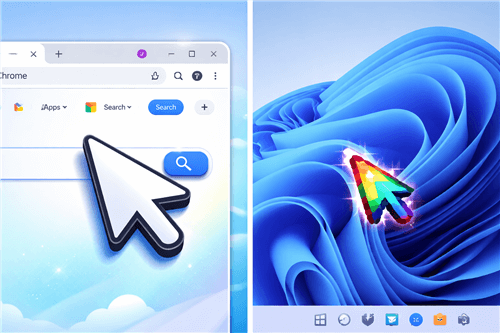
3D Animated Cursor on Different Platforms
Browser Effect vs. System Theme: Choose Your 3D Cursor Type
To get the result you want, it’s essential to understand the technology involved. Here’s a critical insight most guides don’t clarify: the term “3D animated cursors” describes two very different products. Your choice depends entirely on where you want the effect to appear.
For a True 3D Effect Inside Your Web Browser
If your goal is to have a dynamic, rendered 3D mouse cursor that rotates and interacts with your movements while browsing websites, you need a browser cursor extension. These tools use your browser’s rendering engine to overlay a 3D model that follows your pointer.
Uses browser technology (like WebGL) to render a 3D object. Strictly confined to the browser window (e.g., Google Chrome, Edge). It will not appear on your desktop, in file explorer, or within other applications.
This is the only method to achieve a true, rendered 3D effect.
For an Animated Cursor Across Your Entire System
If you want a custom cursor that appears everywhere in Windows—on your desktop, in applications, and during general use—you need a system-wide animated cursor pack.
These are not true 3D models. Instead, they are collections of small, animated 2D image files, typically in the .ani file format. Each file in the cursor pack corresponds to a different pointer state, like ‘Normal Select,’ ‘Working in Background,’ or ‘Text Select.’
Limitation: This is a 2D animation, not a rendered 3D object.
Key Feature: Creates a consistent cursor theme across your entire operating system.
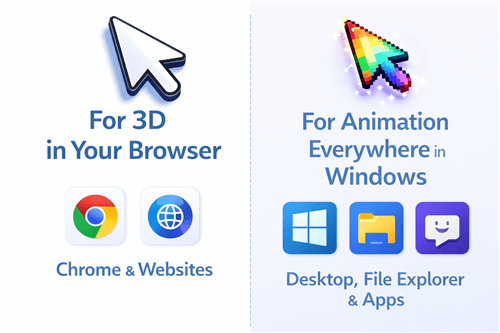
For 3D in Your Browser and Everywhere
Best 3D Cursors for Chrome: Safe Extensions That Work
When choosing a 3d cursor for Chrome, safety is the top priority. To mitigate malware risk, only install extensions from the official Chrome Web Store. We’ve tested several popular options, focusing on those that offer a good balance of visual flair, customization, and low performance impact. A poorly optimized 3d cursor extension can increase GPU/CPU usage, leading to noticeable cursor lag.
Here are our top recommendations for real, safe extensions:
- Custom Cursor for Chrome: This is one of the most popular and trusted extensions available, with a massive library of cursor packs ranging from games and movies to abstract animated designs. While not true 3D, its animated options are high-quality and it has a very low performance footprint.
- Sweety Cursors: A lightweight and simple option focused on cute, bright, and animated cursors. It’s easy to use and a great starting point if you want something fun without overwhelming settings.
- 3D-Sphere Cursor: For those who want an actual 3D effect, this extension replaces your pointer with a customizable, rotating 3D sphere. It offers adjustments for size and color and delivers on the promise of a rendered 3D model, though it can use slightly more resources than 2D options.
How to Install and Manage a Chrome Cursor Extension
Step 1. Open the Chrome Web Store and search for your chosen extension by name.
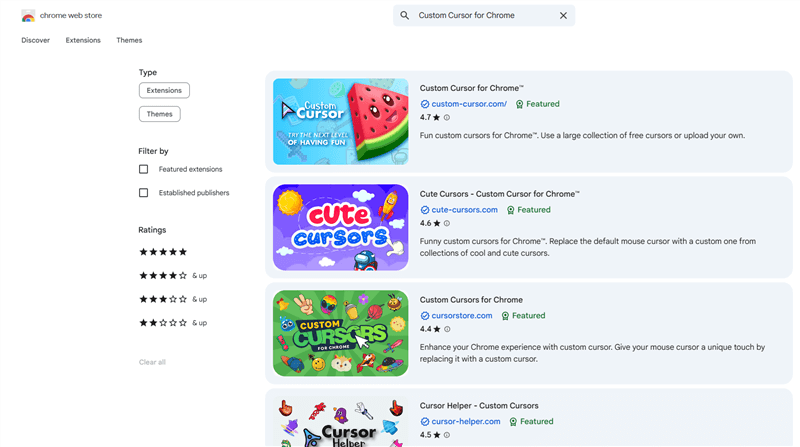
Custom Cursor for Chrome
Step 2. Click the “Add to Chrome” button on the extension’s page.
Step 3. A confirmation pop-up will appear. Click “Add extension.”
Step 4. Once installed, click the puzzle piece icon (Extensions) in your Chrome toolbar.
Step 5. Click on the newly installed cursor extension to open its settings panel, where you can select and customize your 3d cursor.
How to Install an Animated Cursor Pack on Windows 11
To apply a consistent animated mouse cursor across your entire operating system, you’ll need to install a cursor pack. These are folders containing multiple cursor files—primarily .cur files for static pointers and .ani files for animated ones. The safest way to install a Windows cursor scheme is by doing it manually through the legacy Control Panel mouse settings.
Where to Find Safe Cursor Packs
You were warned about sketchy downloads, so where should you look? Good places to start are established communities where artists share their work. We recommend:
- DeviantArt: A massive community for artists. Search for “cursor pack” in the Customization category to find thousands of unique, user-created themes.
- RW-Designer: A long-standing website dedicated to cursor creation and sharing. Its library is extensive, well-organized, and a trusted source for enthusiasts.
Step-by-Step Installation Guide
- Download and Unzip: Download your chosen animated cursor pack from a reputable source (like the ones above) and extract its contents. We strongly recommend creating a new folder for your cursors inside C:\Windows\Cursors so the files are not accidentally moved or deleted later.
- Open Mouse Properties: Press the Win + R keys to open the Run dialog, type main.cpl, and press Enter. This is the fastest way to open the Mouse Properties window.
- Navigate to Pointers: In the Mouse Properties window, click on the “Pointers” tab.
- Customize Each State: In the “Customize” box, select a cursor state you want to change (e.g., “Normal Select”). Click the “Browse…” button.
- Assign the New Cursor: Navigate to the folder where you saved your new cursor files. Select the corresponding .ani or .cur file for that state and click “Open.”
- Repeat and Save: Repeat this process for all the cursor states in the pack. Once finished, click “Save As…”, give your new cursor theme a name (e.g., “My Gaming Cursors”), and click “OK.”
- Apply Your Scheme: Click “Apply” and then “OK” to activate your new custom animated cursors.
Pro-Tip from Experience: After you install a system-wide pack, test it on a white background (like Notepad) and a dark background (like Discord or a settings menu). I once downloaded an awesome-looking “diamond sword” cursor, but the ‘Text Select’ cursor was just a thin black line that was completely invisible on dark mode apps. Make sure you check all the cursors in a pack before you commit.
Pro Tip for Creators: Make Your 3D Cursor Visible in Videos
Once you’ve perfected your PC’s aesthetic, the next step is often to show it off—whether in a tutorial, a YouTube video, or a livestream. But there’s a common problem: even the coolest 3D or animated cursor can be hard for viewers to follow in a screen recording.
That’s where FocuSee comes in. FocuSee is a screen recorder and video editor designed for tutorials and demos. Instead of changing your system cursor, it adds smart visual effects to the cursor inside the video itself, including:
- Automatic cursor highlight so viewers always know where to look
- Animated click effects to clearly show interactions
- Auto zoom and focus when you move to key UI elements

Show Mouse Cursor
This makes it ideal for recording software guides, gameplay setups, or PC customization showcases—without installing risky cursor overlays or system-level tools.
Troubleshooting Common Issues: Lag, Sizing, and Compatibility
Implementing a custom cursor can sometimes lead to unexpected issues. Here’s how to solve the most common obstacles, from performance problems to display glitches.
Fixing 3D Cursor Lag in Chrome
If your 3d cursor feels slow or unresponsive in Chrome, it’s likely due to high GPU/CPU usage.
- Solution 1: Try disabling other extensions to check for conflicts.
- Solution 2: Open the cursor extension’s settings and choose a simpler model or disable resource-intensive features like trails.
- Solution 3: Ensure hardware acceleration is enabled in Chrome’s settings (Settings > System).
Solving Tiny Cursors on High-Resolution Monitors
On a 4K monitor, a standard cursor pack can appear tiny. This is a high DPI scaling issue.
Solution: Right-click your desktop, go to Display settings, and find the “Scale” option. Increasing the scale (e.g., from 100% to 150%) will make everything larger, including your cursor. For a better experience, look for cursor packs specifically labeled as “high-DPI” or “4K.”
How to Restore the Default Cursor
If you want to revert to the standard pointer, the process is simple.
- For Chrome Extensions: Click the puzzle icon in the toolbar, find the cursor extension, click the three-dot menu, and select “Remove from Chrome.”
- For Windows Themes: Open Mouse Properties (
main.cpl), go to the “Pointers” tab, select “(None)” from the “Scheme” dropdown menu, and click “Apply.” This will restore the default cursor instantly.
Why Custom Cursors Don’t Work in Some Games
Many full-screen applications, especially video games, override the system’s mouse pointer and render their own for performance and aesthetic reasons. In these cases, your Windows cursor theme will be ignored. This is expected behavior and not a sign that your cursor pack is broken.
Frequently Asked Questions About 3D Animated Cursors
Do 3D animated cursors work on my entire Windows PC, or only inside Chrome?
This depends on the type. A 3d cursor extension from the Chrome Web Store only works inside the browser. A system-wide animated cursor pack (.ani files) works across all of Windows but is a 2D animation, not a true 3D object.
Is Custom Cursor for Chrome Safe?
Yes, Custom Cursor for Chrome is generally safe to use as long as you install it from the official Chrome Web Store.
Can I get a true 3D cursor effect on my Windows desktop?
No, a system-wide, rendered 3D cursor is not a native feature of Windows. The operating system uses 2D image files (.cur and .ani). The only way to get a true 3D effect is through a browser cursor extension.
Are animated cursor downloads safe?
They can be, but you must be cautious. Stick to well-known customization websites like DeviantArt and RW-Designer, and avoid clicking on misleading fake download buttons. Always scan downloaded files with antivirus software. For browser extensions, only install directly from the official Chrome Web Store.
Will 3D animated cursors drain my laptop battery?
A browser cursor extension rendering a complex 3D model can increase GPU usage, which may lead to a minor increase in battery consumption. System-wide .ani file cursors have a negligible impact on battery life.
Why is my cursor tiny or blurry on my high-resolution monitor?
This is a high-DPI scaling issue. Standard cursor image files don’t always scale well on 4K displays. The solution is to increase the display scale in your Windows settings or find a cursor pack specifically designed for high-DPI monitors.
Can I use these cursors on a Chromebook or MacBook?
For Chromebooks, you can use 3D cursor Chrome extensions since ChromeOS is browser-based. For macOS, you cannot use Windows cursor packs (.cur/.ani). You would need to find third-party Mac-specific applications to change the system cursor.
Do animated cursors affect mouse accuracy for gaming?
No. The visual representation of the cursor is separate from the underlying pointer position data. An animated cursor does not introduce input lag or affect precision. However, most modern games will override your system cursor with their own in-game pointer anyway.
Conclusion
Navigating the world of 3D animated cursors no longer has to be a frustrating experience. You now have a clear understanding of the two main solutions: browser extensions for true 3D effects and system-wide animated packs for a consistent theme. By following the safe installation procedures and using trusted sources mentioned in this guide, you can confidently customize your setup without worrying about performance issues or security risks.
And for those of you ready to share your unique aesthetic through videos, you now know how to approach it. Instead of letting your custom cursor get lost in a busy screen recording, you can use a tool designed to make every click clear and engaging. To see how smart recording features can automatically elevate your content, give FocuSee a try.