How to Create Training Videos That Employees Actually Watch in 2026

If you manage onboarding, you likely face overloaded documents, repetitive live sessions, and inconsistent learning outcomes that waste time and get ignored. Many teams struggle because employees don’t engage with the material—not due to effort, but because the content isn’t approachable.
The solution is shifting to short, focused training videos. You don’t need advanced editing skills or a large budget—just a clear process and the right tool to turn complex onboarding into scalable learning.
How to Create Training Videos
The key principle is that training fails due to cognitive overload, not production quality. Effective videos follow microlearning: 2–6 minutes long, each covering one clear objective. This structure improves engagement and retention significantly.
The automated video creation procedures outlined in this guide have been tested across dozens of high-turnover onboarding scenarios. Testing was performed primarily on desktop and laptop devices (Windows PCs, MacBook Air/Pro, iMac) used for creating and managing training content, alongside smartphones for recording quick soft-skills clips. The workflow performs reliably for scaling teams regardless of the specific OS (Windows 10/11 and macOS 12+).
Comparing the Best Training Video Software for Beginners in 2026
Before jumping into recording, you must decide on your technical approach. A major obstacle for many managers is not knowing which tools to use. You do not need a professional production agency, but you do need software that matches your team size, budget, and learning curve.
Instead of forcing a single solution, here is a breakdown of three distinct software options depending on your operational needs.
Comparison Table: Top Video Software Options
| Loom | FocuSee | Camtasia | |
| Best Used For | Quick, informal updates & basic screen sharing | Automated screen tutorials & software demos | Complex, multi-track L&D courses |
| Budget | Free / Low | Medium | High |
| Learning Curve | Very Low | Low | Medium |
| Key Feature | Instant link sharing; no rendering required | AI smart cuts and automatic mouse-click zooms | Advanced timeline editing and interactive quizzes |
- For Zero-Budget, Quick Updates: Loom is exceptional for rapid communication. If you need to send a quick one-minute update to your team about a new policy, Loom lets you record your screen and face simultaneously and provides an instant sharing link.
- For Automated Polished Tutorials: FocuSee bridges the gap between basic recorders and complex editors. It automatically highlights clicked areas and uses AI to trim out filler words (“um”, “uh”), making it ideal for managers who lack technical editing skills but want a clean, professional look.
- For Robust Instructional Design: Camtasia is a powerhouse for dedicated L&D professionals. It requires more manual timeline editing but offers unmatched control over annotations, transitions, and audio syncing for formal corporate training videos.
How to Create Training Videos: A 4-Step Procedure
Building effective training modules requires a systematic approach. Many guides gloss over the actual “how-to” of production, leaving managers confused about how to structure a script or transition between software tabs. Follow these four actionable steps to build your content.
Step 1: Segment Your Workflow and Plan the Script
Before writing, identify your specific use case. A screen recording requires a very different setup than a talking-head video.
Screen Recording Tutorials: Best for software walkthroughs (e.g., how to submit an expense report). The focus is on clear cursor movement and interface visibility.
Talking-Head & Soft-Skills: Best for compliance updates, welcoming new hires, or customer service roleplay. The focus is on human connection, requiring good eye contact and adequate lighting.
Once you know your format, use a strict microlearning script template. Do not improvise. Organizing your content beforehand ensures you never deliver confusing instructions.
Actionable 3-Minute Script Example (Scenario: Salesforce Onboarding)
The Hook (15 seconds): State the exact problem.
Example: “Are your leads getting lost in the pipeline? Today, you will learn the exact three clicks needed to log a new lead in Salesforce so you always get credit for your prospects.”
The Core Lesson (2 minutes): Show the exact procedure.
Example: “First, click the blue ‘New Lead’ button in the top right corner. Notice the required fields marked in red: Name, Company, and Email. Type your prospect’s information here. Do not worry about the ‘Secondary Contact’ tab today; just focus on the core details. Finally, hit the green ‘Save’ button at the bottom.”
The Recap (45 seconds): Summarize the single objective and provide a next step.
Example: “To summarize: use the blue button, fill out the three mandatory red fields, and click save. Your next step is to log your first test lead using the sandbox link located directly below this video.”
Step 2: Record Screen and Voiceover Narration
Capturing excellent footage requires intention. Do not simply hit record and hope for the best.
For Screen Recordings:
Prepare your digital environment. Close all unnecessary browser tabs. Turn off desktop notifications, Slack alerts, and email pop-ups to protect sensitive company data and prevent distractions. If you need to transition between two different websites, do not record the awkward loading screens. Pause your recording, click to the new tab, let the page load completely, take a breath, and resume recording. This makes you look incredibly professional with zero editing required.
For Talking-Head & Roleplay Videos:
Lighting and camera placement matter. Sit facing a window so natural light hits your face, rather than sitting with a window behind you (which turns you into a silhouette). Most importantly, look directly into the camera lens—not at your screen or your own video preview. Looking at the lens creates the illusion of direct eye contact with the viewer, instantly building trust.
Step 3: Edit for Clarity, Not Flashiness
Editing should focus strictly on removing friction for the learner. If you are using an automated tool like FocuSee, allow the software to process the recording and generate automatic captions. Captions are critical, as many employees watch training materials in busy offices with the sound muted.
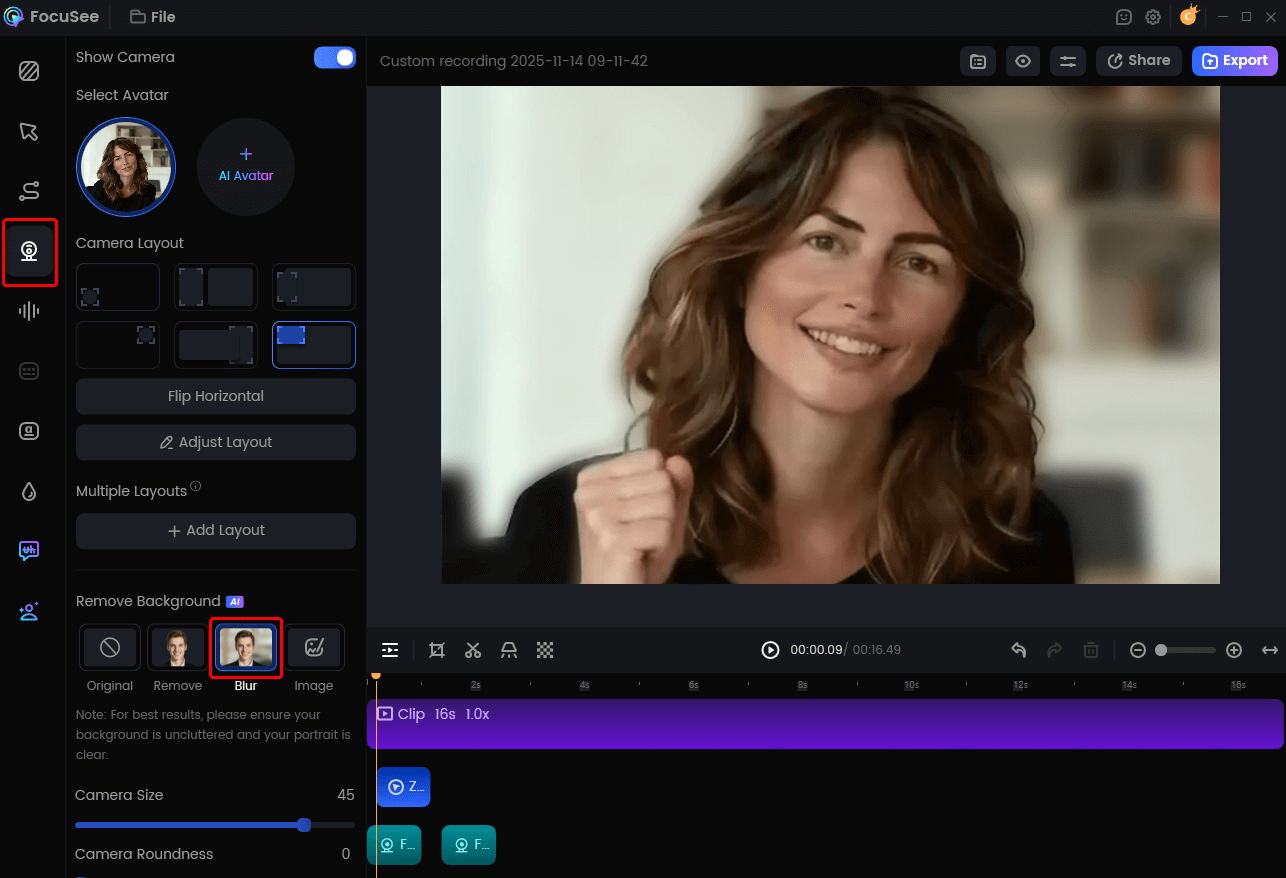
Remove Camera Background
If you are editing manually in a tool like Camtasia, focus on cutting out dead air and mistakes. If you stumble over a sentence during recording, simply pause for three seconds, smile, and restate the sentence. During the editing phase, that three-second silent gap creates a clear visual spike on your audio waveform, making it incredibly easy to find and slice out the mistake.
Step 4: Export and Publish
Export your finished file in a widely accepted format, typically an MP4 file. Ensure your training modules are sized correctly (1080p resolution is the standard for crisp text readability) so they fit seamlessly into your specific learning platforms. Upload the file to your Learning Management System (LMS) or secure intranet.
How to Measure the Effectiveness of Your Content
After publishing your educational content, you must track its performance. Providing your stakeholders with hard data transforms basic video creation into a measurable, scalable corporate education strategy.
A Learning Management System provides direct insight into how staff interact with your training modules. Focus heavily on specific video engagement data.
Warning: High drop-off rates usually indicate confusing content, not unmotivated employees. If your completion rate drops severely at the 2-minute mark of a software demo, that timestamp is telling you exactly where your instructions stopped making sense.
Key Metrics to Track:
- Completion Rate: The percentage of viewers who watch the video from start to finish. High completion rates prove your microlearning strategy is succeeding.
- Drop-off Points: The exact timestamp at which viewers stop watching or rewind frequently. If viewers constantly rewind a specific step, that topic likely requires a dedicated, secondary video.
- Quiz Scores: Post-video assessments, consisting of just two or three quick questions, to measure actual knowledge retention.
Frequently Asked Questions
When researching how to structure educational materials, managers frequently encounter similar operational obstacles. Below are concise answers to common questions.
What are corporate training videos?
They are specialized educational recordings designed to teach employees specific skills, explain policies, or demonstrate software. Examples include brief screen recordings showing how to submit expenses, or short camera presentations welcoming new hires to the organization.
How long should these modules be?
Based on microlearning principles, aim for two to six minutes. Keeping the duration short prevents cognitive overload and vastly improves information retention.
Can I produce professional modules on a tight budget?
Yes. You do not need expensive camera gear. Using simple screen recording software (like Loom), a standard USB microphone, and structured scripts keeps your production budget extremely low.
Where should I host or share the files?
For internal staff, host your files on a secure Learning Management System (LMS) or a private company intranet portal. This ensures sensitive company data remains secure and allows you to track employee viewing metrics directly.
What are examples of effective instructional formats?
Great examples include software walkthroughs that highlight cursor movements, safety compliance updates delivered via brief talking-head presentations, and short customer service roleplay scenarios. The common factor among all successful formats is a single, clear learning objective.
Conclusion
Building an onboarding system does not require you to remain stuck with outdated, boring text documents or expensive external agencies. By shifting to short, targeted microlearning modules, you directly solve the frustration of employees tuning out. You no longer have to worry about lacking a clear script; simply apply the 100-word template provided above.
The procedure outlined in this guide gives you complete control over your instructional design. Pick a tool that fits your budget, segment your workflow, and focus strictly on delivering one clear objective at a time. Start by outlining your first 3-minute video today to regain control of your learning and development process.