5 Best Software for Creating Tutorial Videos (2026)

Creating a tutorial video should not require four different apps and hours of editing.
Yet many creators still record with one tool, edit with another, manually add captions, and spend more time polishing videos than actually teaching. As your library of tutorials grows, this workflow quickly becomes a bottleneck.
The best tutorial video software is not necessarily the one with the most features—it is the one that helps you record, edit, and publish faster.
In this guide, we compare the best software for creating tutorial videos in 2026, including options for SaaS demos, online courses, training videos, and YouTube tutorials. You’ll see which tools save the most time, which are easiest for beginners, and which are worth the cost.
Top 5 Software for Creating Tutorial Videos
| Best For | Annotations & Callouts | Cursor Tracking | Zoom & Effects | Keystroke Display | |
| FocuSee | Tutorials, SaaS demos, onboarding | ✓ Built-in | ✓ Automatic | ✓ Automatic | ✓ Automatic |
| Descript | Script-based tutorials | Basic | Limited | Basic | ✗ |
| Camtasia | Technical training | ✓ Advanced | ✓ Customizable | ✓ Manual & Custom | ✓ Available |
| Loom | Quick walkthroughs | Basic | Limited | Basic | ✗ |
| Screen Studio | YouTube tutorials & demos | Limited | ✓ Automatic | ✓ Automatic | ✓ Available |
To ensure you find the right fit for your budget and workflow, I compared four completely different tools. Here is how they stack up.
1. FocuSee — Best for Creating Professional Tutorials Fast
Pricing: Free trial; Starts at $19.99/month (or $49.99/year).
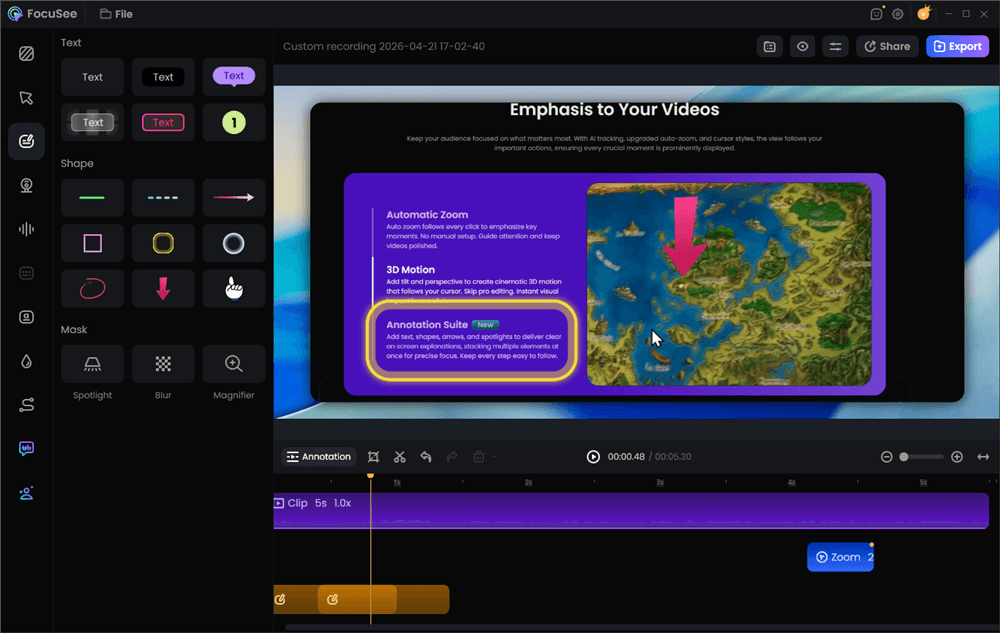
Add Annotations for Clarity
FocuSee is built specifically for creators who produce software tutorials, product walkthroughs, and educational videos. Instead of spending hours manually adding zoom effects, cursor highlights, captions, and callouts, it automatically enhances recordings to make on-screen actions easier to follow.
For tutorial creators, clarity matters more than cinematic editing. FocuSee helps viewers stay focused by automatically emphasizing clicks, cursor movements, and important interface elements, making lessons easier to understand without extensive post-production work.
Key Features
- Automatic cursor tracking and smart zoom effects
- Click highlights and keyboard shortcut visualization
- AI-generated captions into more than 55 languages for accessibility
- Built-in annotations, callouts, and visual emphasis effects
- One-click aspect ratio switching for YouTube, courses, and social media
- Screen recording and editing in a single workflow
Best For
- Software tutorials
- SaaS onboarding videos
- Product walkthroughs
- Online course lessons
- YouTube educational content
- Trainers who need to publish tutorials regularly
Drawbacks
- Advanced timeline editing options are more limited than traditional editors
- Less suitable for highly customized motion graphics projects
My Testing Experience: When I exported a 10-minute 4K training module on my MacBook Pro M3, FocuSee rendered the final file in just under 4 minutes. I did notice the auto-captions struggled slightly with niche industry acronyms (like “PaaS”), but correcting the text in the side panel only took a few seconds.
2. Descript — Best for Script-Based Editing
Pricing: Free plan available; paid plans start at $12/month.
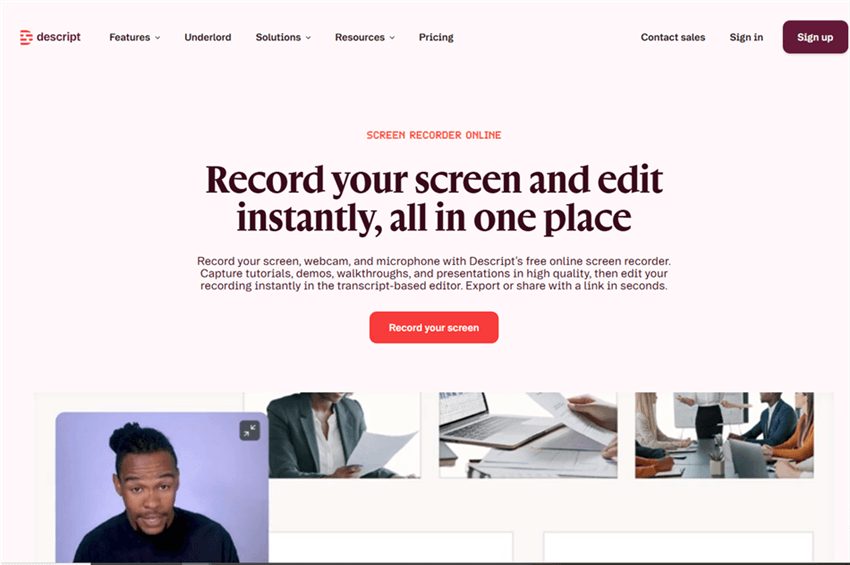
Best Tools for Making Tutorial Videos – Descript
Descript approaches video editing differently. Instead of editing on a timeline, you edit the transcript. Delete a sentence from the text, and the corresponding video section is automatically removed.
Key Features
- Text-based video editing
- Automatic transcription and captions
- Studio Sound audio enhancement
- AI filler-word removal
- Built-in teleprompter
- Screen recording and webcam capture
Best For
- Online course creators
- Educators and trainers
- Podcast video production
- Teams creating script-driven tutorials
Drawbacks
- Less control over advanced visual effects
- Large projects can become resource-intensive
- AI transcription may need manual review for technical vocabulary
My Testing Experience: Descript is incredible for course creators who rely heavily on scripts. Its “Studio Sound” feature completely removed the background hum of my computer’s cooling fans during a test recording. It also includes a built-in teleprompter, ensuring you can read your scripts while looking directly at the camera.
3. Camtasia — Best for Advanced Technical Tutorials
Pricing: $299 lifetime license or annual subscription.
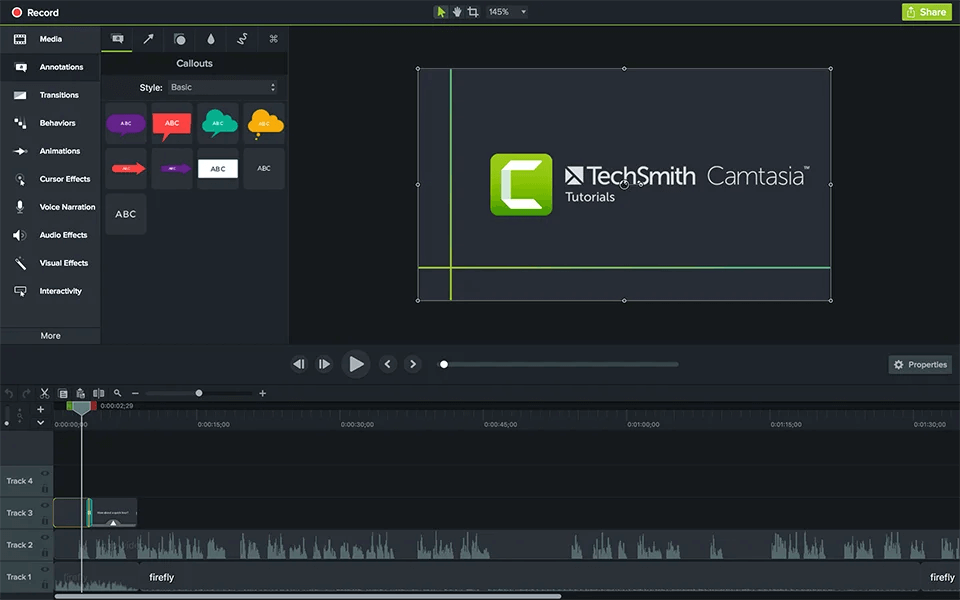
Best Tools for Making Tutorial Videos – Camtasia
Camtasia remains one of the most powerful dedicated tutorial video editors available. It combines screen recording with a traditional timeline editor and offers extensive annotation and animation capabilities.
Key Features
- Advanced timeline editing
- Interactive quizzes and hotspots
- Detailed cursor customization
- Extensive annotation library
- Multi-track editing
- Professional transitions and animations
Best For
- Corporate training teams
- Technical documentation videos
- Internal learning programs
- Instructional designers
Drawbacks
- Steep learning curve
- Higher upfront cost
- Longer editing and export times
- Requires more powerful hardware
My Testing Experience: While powerful, Camtasia has a steep learning curve. It is much heavier on system resources; during testing, rendering that same 10-minute 4K video took over 12 minutes on my Windows 11 machine. It’s best suited for corporate instructional designers who need pixel-perfect control over every frame.
4. Loom— Best for Quick Screen Sharing
Pricing: Free plan available; paid plans start at $12.50/month.
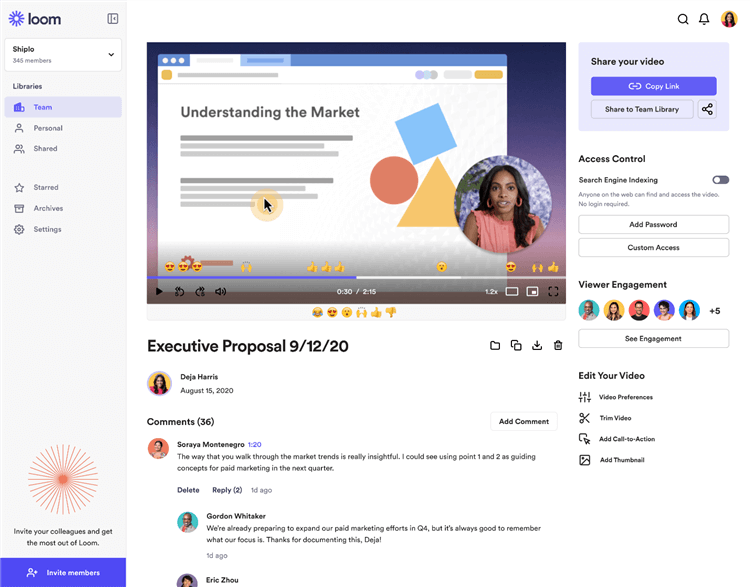
Best Tutorial Video Maker – Loom
Loom focuses on speed rather than production quality. It allows users to record their screen, webcam, or both and instantly generate a shareable link.
Key Features
- Instant cloud recording
- Browser-based capture
- Team collaboration tools
- Viewer engagement analytics
- AI meeting summaries and transcripts
Best For
- Internal communication
- Customer support responses
- Product feedback
- Async team updates
Drawbacks
- Limited editing capabilities
- Minimal branding customization
- Not suitable for polished courses or professional onboarding libraries
My Testing Experience: I use Loom daily for internal team feedback. However, its editing capabilities are incredibly basic, making it unsuitable for paid online courses or professional SaaS onboarding libraries.
5. Screen Studio — Best for Premium Mac Tutorials
Pricing: $29.99/month or $108/year.
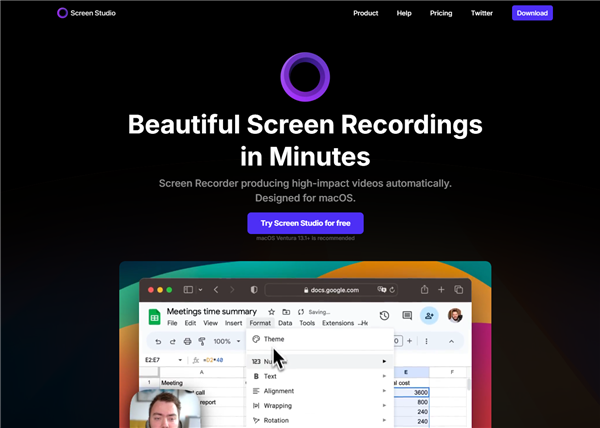
Screen Studio
Screen Studio has become popular among creators who want visually polished screen recordings without spending hours editing. The software automatically applies smooth camera movements, zoom effects, and cursor enhancements.
Key Features
- Automatic cinematic zooming
- Cursor smoothing and motion effects
- High-quality screen recording exports
- Beautiful presets and layouts
- Fast post-production workflow
Best For
- YouTube creators
- Product launch videos
- Startup founders
- Marketing tutorials
- Demo videos for landing pages
Drawbacks
- Mac-only
- More expensive than some alternatives
- Limited editing flexibility compared to full editors
- Less suitable for large-scale training projects
Matching Your Needs: Software for Educational Videos, SaaS Demos, and YouTube
Different tutorial environments demand distinct technical capabilities. Categorizing software for recording tutorial videos by specific use cases ensures you select the correct tool for your exact requirements.
SaaS Demos and Customer Onboarding
For SaaS marketers producing onboarding materials, highlighting user interface details is critical. The best app for making tutorial videos in this sector must include automated cursor highlighting, precise zoom effects, and privacy blurring. Software like FocuSee excels here because it automatically captures and displays keyboard shortcuts used during recording. Furthermore, privacy masking easily blurs sensitive company or client data without manual tracking.
Online Course Production
Educators require features that maintain consistent, high-quality delivery. If you struggle with memorization, tools like Descript offer a built-in teleprompter that ensures scripts are read without retakes . Alternatively, if you want to scale production without sitting on camera, tools like Synthesia offer an AI Virtual Avatar. This eliminates the need to record live video every day while maintaining a professional brand presence across numerous modules.
YouTube and Social Media Tutorials
YouTubers prioritize delivery quality, relying heavily on 4K/60fps multi-platform exports and optimized video compression. A top-tier screen recording and editing software for tutorials allows creators to apply background removal and blur without a green screen, ensuring a professional look even when recording in an ordinary home office.
Traditional Editors vs. Modern Tutorial Video Tools
When choosing tutorial video software, many creators focus on feature lists instead of workflow efficiency. In reality, the biggest bottleneck is usually editing—not recording.
Traditional video editors like Premiere Pro and Final Cut offer powerful creative control, but they often require manual zoom effects, annotations, cursor highlights, captioning, and timeline adjustments. While these tools are great for advanced video production, they can significantly slow down tutorial creation.
Modern tutorial video tools take a different approach. Features such as cursor tracking, click highlights, captions, and zoom effects are generated automatically, reducing hours of repetitive editing work and making tutorials easier to produce consistently.
| Traditional Video Editors | Tutorial Video Software | |
| Learning Curve | High | Low |
| Editing Speed | Slower | Faster |
| Annotations & Effects | Manual | Often Automated |
| Screen Recording | Separate Tool Required | Usually Built In |
| Best For | Advanced Video Production | Tutorials, demos, training |
For most educators, SaaS teams, and content creators, an automated workflow is often more valuable than advanced editing features. The less time spent adjusting timelines and effects, the more time you can spend creating and teaching.
Automating the Process: Software for Recording Tutorial Videos (Short & Long-Form)
Modern video hosting spans multiple formats, requiring creators to adapt to both short-form social media constraints and long-form training videos. You shouldn’t have to buy two separate apps just to make a 60-second TikTok and a 60-minute deep-dive course.
Creating a quick Instagram Reel involves completely different technical specifications than an extensive online module. Short-form content demands a vertical 9:16 aspect ratio, rapid pacing, and bold automatic subtitles to capture immediate attention. Long-form videos require a standard 16:9 widescreen format, structured chapters, and consistent branding to support deep learning.
Advanced tools solve this dual requirement through software scalability:
* Reusable Video Templates: Save your preferred recording and editing settings. Whether you are producing a quick social media tip or a deep-dive module, your team maintains a uniform style.
* Multi-Platform Export: Change the aspect ratio with a single click. Tools like FocuSee and Descript support various formats, meaning no extra resizing is required.
* Import & Re-Edit: You can import existing local videos to apply effects or change aspect ratios, giving older content a fresh look.
This flexibility simplifies scaling your educational content, allowing you to transition between different video lengths and formats without starting the production procedure from scratch .
[Image: Export interface showing aspect ratio toggles between 16:9 and 9:16. Alt-text: Export screen of the best software for online course videos demonstrating multi-platform format options.]
FAQs About Screen Recording and Editing Software for Tutorials
What is the best software for creating tutorial videos?
The ideal choice depends entirely on your specific use case. For fast, automated SaaS demos, FocuSee is highly recommended. For course creators needing teleprompters and script-based editing, Descript is the best choice. For deep, highly technical annotations, Camtasia remains a strong contender.
Do I need separate tools for recording and editing?
No. Modern automated software combines screen capture and timeline editing into a single application, directly solving the problem of multi-tool workflows and simplifying your entire procedure.
What software is best for screen tutorials?
Tools that include automatic cursor tracking, click animations, and zoom effects (like FocuSee) are the best fit. These features ensure viewers can easily follow your on-screen navigation without requiring you to manually keyframe animations.
What tools automatically add captions?
Solutions equipped with AI speech recognition automatically generate accurate subtitles. Most modern tools offer built-in captioning, which saves you hours of manual transcription and formatting.
Which software is best for YouTube tutorials?
For YouTube, you need a tool that supports 4K/60fps exports, background noise reduction, and easy video annotations. An all-in-one tool allows you to export high-quality, platform-ready videos instantly without needing external audio cleaning.
What tools work best for SaaS onboarding videos?
SaaS demos require clear UI highlights. Software that offers smart focus, automatic zooming, and privacy blurring is ideal for protecting sensitive client data while teaching users how to navigate a software dashboard.
Can beginners create professional tutorials?
Absolutely. Automated tools are designed specifically for users with low technical skill. By removing complex timelines and using one-click AI enhancements, beginners can produce professional-grade videos immediately.
How much should tutorial video software cost?
Pricing varies widely based on functionality. Quick async tools like Loom offer free tiers, AI-driven editors like Descript and FocuSee average between $12 to $20 a month, and heavy-duty traditional editors like Camtasia can cost nearly $300 upfront. When evaluating options, weigh the subscription cost against the hours of manual editing time you will save.
Regain Control of Your Content Creation
You no longer need to be trapped by a process where your export times drag on for hours. When traditional editing software feels too complicated, the right modern tool removes the technical friction entirely.
By comparing your actual needs against the specific strengths of tools like FocuSee, Descript, and Camtasia, you can eliminate the need to split your time between dozens of disjointed apps. It is time to regain control of your schedule, automate your zoom effects and captions, and solve your production bottlenecks. Evaluate the software that best fits your budget and workflow today, and start producing high-quality educational content effortlessly.