Video Email Marketing: The Ultimate Guide to Boost Replies in 2026

Sending a hundred well-written emails only to get two replies is a common frustration for sales and marketing professionals. You know your message has value, but it gets lost in a sea of text, leading to the anxiety that your efforts are invisible. This guide provides a tested, reliable solution to that problem.
We will detail the most effective video email marketing strategy for 2026, including a complete embed video in Gmail and Outlook guide that works every time. The core of this strategy is a universally compatible technique that bypasses common technical failures, ensuring your message is seen and felt. It’s designed to turn passive recipients into engaged prospects and finally get you the replies you need.

Video Email Marketing
The ‘Pseudo-Player’ Method: Your Animated GIF Email Marketing Strategy
Many professionals first try to embed a video file (like an MP4) directly into an email. This approach almost always fails. Security restrictions and file size limits across major email client rendering engines prevent it from working. This technical limitation is the source of the ‘Broken Box Fear’—the worry that your recipient will see an error instead of your video. The belief that videos should autoplay in an inbox is also a myth; clients like Gmail and Outlook block this function for security reasons.
The correct and universally compatible solution is the ‘Pseudo-Player’ method. This is the cornerstone of any successful animated GIF email marketing strategy. Instead of embedding a video file, you embed an image that looks and functions like a video player.
This technique has three parts:
- An Animated GIF: A short, looping clip (2-3 seconds) from your video that shows movement to capture attention.
- A Static Play Button Overlay: A universally recognized symbol that signals the image is clickable and leads to a video.
- A Hyperlink: The entire image links to a dedicated landing page where your full video is hosted and can be tracked.
This method is ideal for click-through rate (CTR) optimization. It loads instantly on any device, bypasses deliverability issues, and guides the user to a controlled viewing environment.
Technical Guide: Creating Thumbnails That Convert on Mobile
A successful video email hinges on its animated thumbnail. This preview must be compelling enough to earn a click, especially on mobile devices where most emails are first opened. Here are the key technical steps to create a high-converting GIF yourself.
Conduct a Dark Mode Thumbnail Audit
Most mobile operating systems default to Dark Mode, which can make your thumbnail look unprofessional if it’s not designed correctly. A transparent GIF with dark text can become nearly invisible. To prevent this, always design your thumbnail with a subtle, light-colored border or place it on a solid, contrasting background. This ensures it looks sharp in both light and dark interfaces.
[Image: A side-by-side comparison of a video thumbnail in Light Mode vs. Dark Mode. The ‘bad’ example is illegible in Dark Mode, while the ‘good’ example has a thin white border that makes it stand out. Alt-text: A comparison showing how a thumbnail with a border is visible in email dark mode.]
Balance GIF Size and Quality
To ensure fast load times and avoid consuming your recipient’s mobile data, your GIF file must be compressed. The industry standard is to keep the file size under 2MB. Aggressive compression can make the image appear pixelated, so you need the right tool.
Instead of searching for a random converter, we recommend a reliable free tool like EZGIF. Here’s a simple process to get a crisp GIF under 2MB:
- Record a short (3-5 second) clip from your full video.
- Go to EZGIF’s “Video to GIF Converter” and upload your clip.
- Set the frame rate to 10 FPS and the size to “640xAUTO.” This is the sweet spot for quality and file size.
- Convert it and check the output file size. If it’s still over 2MB, use their “Optimize” tool with a compression level of 30-50.
This gives you a lightweight, high-quality GIF that is ready for the next step.
Add a Clear Play Button Overlay
Your GIF needs a play button to signal that it’s clickable. You don’t need complex design software for this. A free tool like Canva works perfectly.
- Create a new design in Canva with custom dimensions (e.g., 640×360 pixels).
- Upload the optimized GIF you just created and add it to the canvas.
- In the “Elements” tab, search for “play button” and choose a simple, transparent icon.
- Place the play button in the center of your GIF.
- Download the finished design as a GIF.
Now you have a professional-looking, universally compatible thumbnail ready to be embedded in your email.
Apply the ‘First 3 Seconds’ Rule
Personalization and motion are what drive conversions. The most effective thumbnails show immediate, personalized movement in the first few seconds. For example, holding a small whiteboard with the prospect’s name written on it, giving a friendly wave, or pointing to text on the screen. This visual hook confirms the email is specifically for the recipient, which dramatically increases their curiosity and the likelihood they will click.
Decision Guide: Manual Methods vs. Personalized Video Email Software
Once you adopt the ‘Pseudo-Player’ method, you must decide how to create your assets. The choice between a manual, do-it-yourself (DIY) approach and dedicated software depends on your needs for scale, speed, and analytics.
| Criteria | Manual Method (DIY) | Dedicated Software (e.g., FocuSee) |
| Time Per Video | 15–20 minutes | 2–3 minutes |
| Deliverability Risk | Moderate to high | Low |
| Analytics & Tracking | None | Detailed (views, watch time, clicks) |
| Brand Consistency | Hard to maintain | Easy (templates, brand kits) |
Success Rate & Deliverability: The manual method can work, but it offers no guarantee of optimal rendering. Dedicated personalized video email software for sales is engineered to produce perfectly optimized GIFs and landing pages tested across all major email clients.
Time Cost: The DIY process is time-intensive. Recording, trimming, converting, adding a play button, uploading, and linking can take over 15 minutes per video. A dedicated tool automates this entire workflow into a few clicks.
Technical Skill Required: Manual methods require comfort with multiple tools and file management. Software solutions are designed for non-technical users with intuitive interfaces that handle the complex steps automatically.
Safety Risk: Manually created assets can sometimes trigger spam filter triggers. Professional platforms are built with deliverability in mind, ensuring their output complies with email standards.
How to Automate Your Video Email Workflow with FocuSee
For professionals who decide a dedicated tool is the right choice, FocuSee is designed to solve the most common challenges in video email creation. It directly addresses the friction points that lead to frustration and inaction.
FocuSee overcomes ‘Production Paralysis’—the feeling that every video must be perfect—with its AI-powered Smart Cut feature, which automatically removes filler words (“um,” “ah”) and awkward pauses. This lets you record naturally without worrying about mistakes, saving significant editing time.
For consistency and speed, the software includes a built-in teleprompter and blur masking to protect sensitive on-screen information.
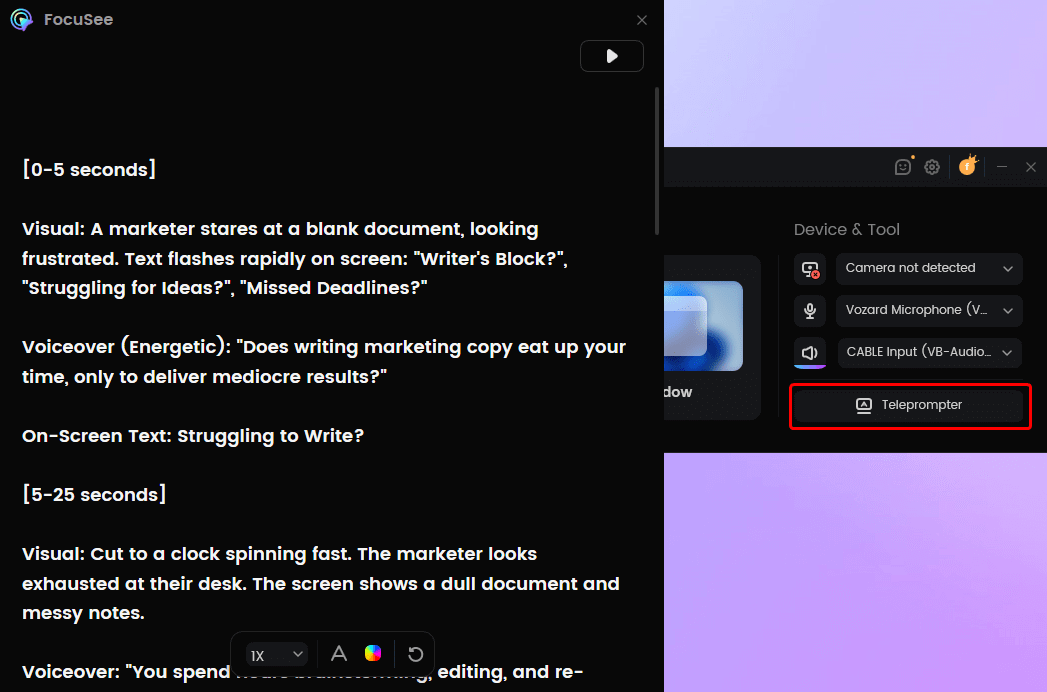
FocuSee Teleprompter
Most importantly, FocuSee eliminates the ‘Broken Box Fear’ entirely. Its one-click sharing function automatically generates a perfectly optimized animated GIF and a shareable link to a hosted video landing page. This process ensures your video email renders correctly for every recipient, every time.
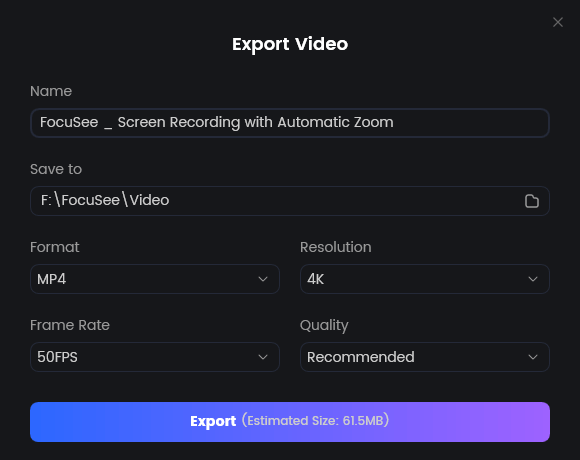
Export Your Video
Video Email Marketing Best Practices for 2026
Following the right technical method is only half the solution. These platform-agnostic best practices will help you craft compelling messages and ensure they reach the inbox.
Proven Video Prospecting Scripts for B2B
The Quick Demo: “Hi [Name], I recorded this 45-second video to show you how [Your Company] helps teams like yours solve [Specific Problem]. Click below to watch.”
The Connection Reference: “Hi [Name], I saw your recent post about [Topic] and recorded a short video with a related thought you might find useful. Let me know what you think.”
The Post-Meeting Follow-Up: “Hi [Name], it was great speaking with you. I made this personalized video to recap our key points and outline the next steps.”
Pre-Send Deliverability Checklist
Keep Video Length Concise: Aim for 45–60 seconds. This is long enough to provide value but short enough to maintain attention.
Optimize Email Body Copy: Avoid spammy words (“free,” “guarantee”) and excessive exclamation points. Keep the text brief and focused on encouraging a click.
Clear Call-to-Action (CTA) Placement: State your primary CTA verbally in the video and include it as text in the email body (e.g., “Click here to watch my video for [Name]”).
Plan for Static Fallbacks: Some older corporate versions of Outlook block animated GIFs entirely, showing only the first frame. To ensure your message is never lost, design the first frame of your GIF to be a clear, static image. It should include your friendly face, the personalization (like the whiteboard), and the play button, so it works even without animation.
Authenticity Over Perfection: A genuine delivery is often more effective than a flawless studio production. This mindset also helps you overcome production delays.
Frequently Asked Questions
Can I play a video directly inside an email on Outlook?
No. Due to security protocols, most versions of Microsoft Outlook and Gmail do not support embedded HTML5 video playback. Attempting to embed a video directly will almost always result in a broken experience for the recipient. The ‘Pseudo-Player’ method is the industry-standard solution.
Does adding video to email hurt my deliverability or sender reputation?
When done correctly using the ‘Pseudo-Player’ method, it does not hurt deliverability. You are only embedding a lightweight image and a standard link. However, attempting to attach large video files will cause your emails to bounce, which will negatively impact your sender reputation over time.
What is the difference between embedding a video and using a GIF thumbnail?
Embedding a video means placing the actual video file into the email’s code, which is unsupported by most email clients. Using a GIF thumbnail involves placing a small, animated image that links to a video hosted on a webpage. The GIF method is universally compatible and the recommended best practice.
How long should a sales video be to maximize retention?
For cold outreach and prospecting, the ideal length is between 45 and 60 seconds. This provides enough time to introduce yourself, state your value proposition, and include a clear call-to-action without losing the viewer’s attention.
What equipment do I need to record professional video emails from my desk?
You don’t need a full studio. All you need is a reliable webcam (most modern laptop cameras are sufficient), a good microphone to ensure clear audio (an external USB mic is a great upgrade), and good lighting (a simple ring light or facing a window works well).
Conclusion
Adopting a video email marketing strategy doesn’t have to be a technical struggle. By replacing the flawed direct-embed approach with the reliable ‘Pseudo-Player’ method, you eliminate the ‘Broken Box Fear’ for good. This technique ensures your message arrives intact and engaging, encouraging the click that starts a conversation.
For those ready to implement this strategy efficiently, tools like FocuSee are designed to remove every obstacle. It automates the technical complexities, from editing to GIF creation, solving production paralysis and allowing you to focus on your message. Start creating video emails that get replies and solve your outreach problem in minutes, not hours.