3 Best Screen Recording Software Online: A Tested Guide to Browser Native Tools

Facing a silent video playback after presenting a 10-minute client tutorial is incredibly frustrating. Customer success managers frequently need to send quick walkthrough videos explaining software features or troubleshooting product issues. You search for an online screen recorder because you want a fast, zero-install solution on your work laptop. You simply want to open a tab and capture your screen.
Instead, you often encounter deceptive web tools demanding hidden extensions, imposing strict 2-minute recording limits, or operating with confusing permissions that block your microphone and background audio entirely. These obstacles create immense stress during time-sensitive tasks. If you are concerned about privacy, laggy playback, or simply need a tool that works consistently on both Mac and Windows natively, this guide provides a clear resolution.
We tested the top web-based options to help you choose the right tool for your specific workflow, configure your computer’s permissions correctly, share files instantly, and execute a flawless recording procedure in minutes.
Top 3 Online Video Screen Recorders (No Install Required)
If your workflow strictly requires a fast tool for single-use tasks, several genuine browser-based options exist. A major issue in search engine results is that many platforms claim to be “online” but immediately ask you to download a launcher file.
The options listed below operate entirely natively within your browser. To help you make a fast decision, we segmented these tools by their best use case and included the exact technical specifications missing from most software reviews.
1. ScreenApp: Best for Extended Client Tutorials
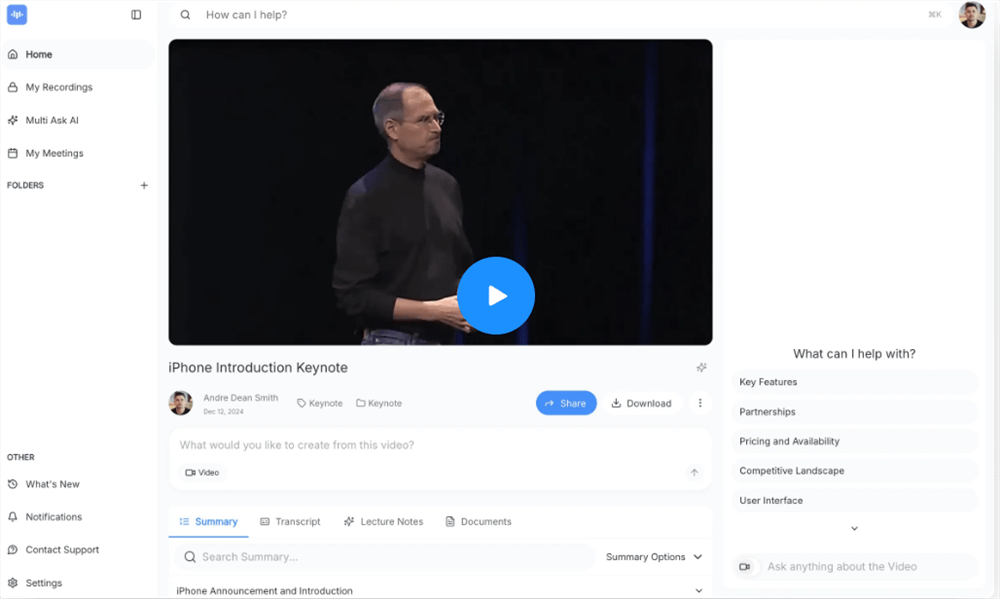
Free Screen Video Recorder Online – ScreenApp
ScreenApp is a browser-based recording tool designed for professionals who need longer, stable recordings without installing software. It focuses on simplicity while maintaining solid video quality for tutorials and presentations.
Key Features:
- Fully browser-based recording with no installation
- Supports screen, webcam, and microphone capture
- Simple UI optimized for fast start and stop recording
- Basic built-in sharing and MP4 export
- Works well for multi-tab workflows and tutorials
Technical Specifications:
- Best Use Case: 30-minute client demos and training videos
- Resolution: Up to 1080p
- Frame Rate: 30 FPS
- Time Limit: Up to 1 hour (free tier)
- Output Format: Local MP4 download (WebRTC processing)
- Watermark: None
Testing Notes:
During a 20-minute SaaS walkthrough test, the tool remained stable even with frequent tab switching. Exported video quality was consistent and suitable for client-facing documentation.
2. RecordCast: Best for Quick Bug Reports
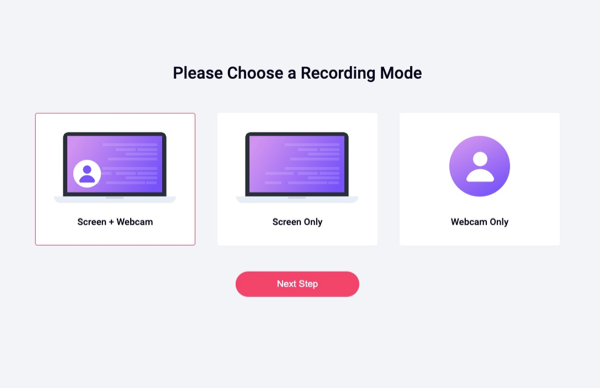
RecordCast Online Screen Recorder
RecordCast is a lightweight online recorder with an integrated basic editor. It is designed for users who need quick screen captures with minimal setup and light post-editing.
Key Features:
- Browser-based screen recording with webcam and mic support
- Built-in trimming and simple editing tools
- Quick export without complex configuration
- Suitable for short, repeatable recordings
- No installation required
Technical Specifications:
- Best Use Case: 2–5 minute bug reports or status updates
- Resolution: Up to 1080p
- Frame Rate: 30 FPS
- Time Limit: 5 minutes (free tier)
- Output Format: MP4 download via WebRTC
- Watermark: None
Testing Notes:
Performance remained lightweight during testing, with low CPU usage. Slight webcam latency appeared under fast screen motion, but audio sync stayed accurate. The editor significantly speeds up final trimming.
3. FocuSee Online Screen Recorder: Best for Instant No-Setup Recording
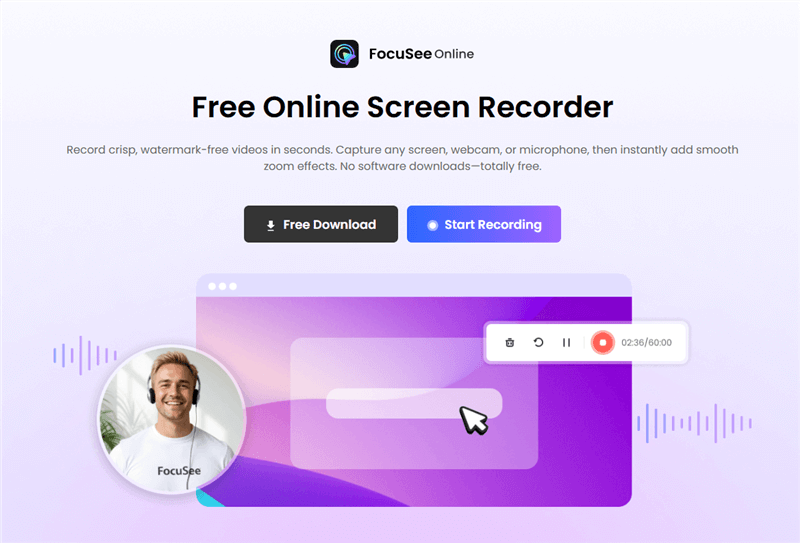
FocuSee Online Screen Recorder Free
FocuSee Online Screen Recorder is a true no-install browser recorder built for users who need immediate capture without extensions, accounts, or setup complexity. It is designed for fast workflows where simplicity is more important than advanced editing.
Key Features:
- No installation, runs directly in the browser
- One-click recording start for instant capture
- Supports screen tab and window recording
- Lightweight interface with minimal setup steps
- Local video export for privacy-focused workflows
Unique Advantage – Online Video Zoomer:
- Add smooth zoom-in effects after recording without re-editing the timeline
- Highlight key actions instantly with cinematic focus transitions
- Turn flat screen recordings into guided, attention-driven walkthroughs
- Ideal for tutorials, SaaS demos, and product explanations
👉 Instead of re-editing your video, you simply apply zoom effects in seconds after recording.
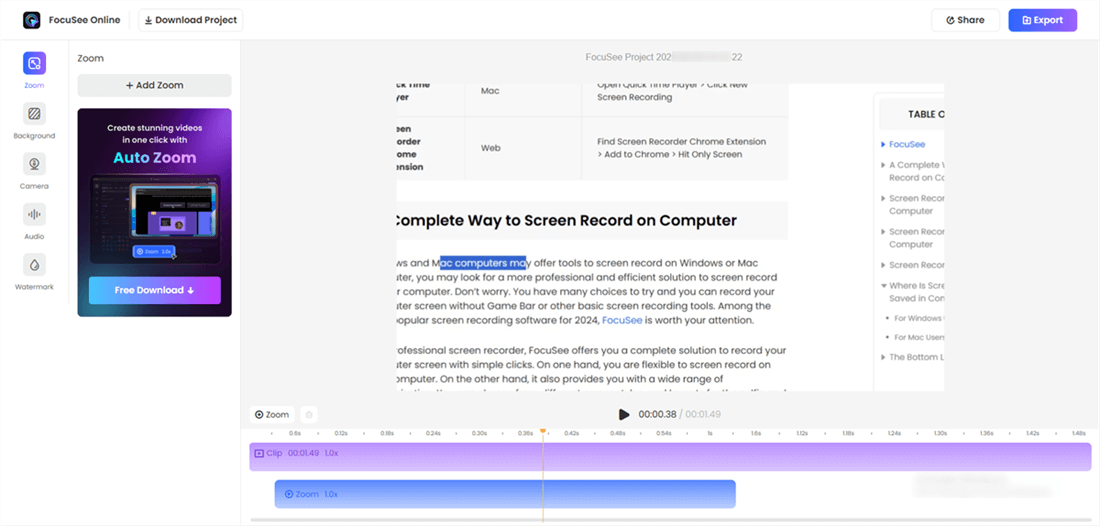
Preview & Export
Technical Specifications:
- Best Use Case: Quick demos, screen captures, instant walkthroughs
- Resolution: Up to 1080p (browser dependent)
- Frame Rate: Stable up to 30 FPS under normal conditions
- Time Limit: No fixed limit (depends on browser/session)
- Output Format: Local video download
- Watermark: None
Testing Notes:
Setup time is nearly zero, making it ideal for urgent recordings or ad-hoc demos. Performance is stable for standard tab recording, with smooth capture during typical UI navigation tasks.
How to Execute a Native Browser Recording (and Fix Mac Permissions)
To use these platforms effectively without triggering unwanted downloads or system errors, you must follow a precise sequence. Many guides skip critical operating system steps, leaving Apple users completely stuck.
If you are on a Mac, your browser prompt will fail instantly if you have not granted system-level access. As someone who constantly battles Apple’s privacy settings to record demos, here is the essential workflow to guarantee success:
Step 1. Mac Users Only: Before opening your browser, click the Apple Menu > System Settings > Privacy & Security > Screen Recording. Toggle the switch next to Google Chrome or Microsoft Edge to grant access. You may need to quit and reopen your browser for this to take effect.
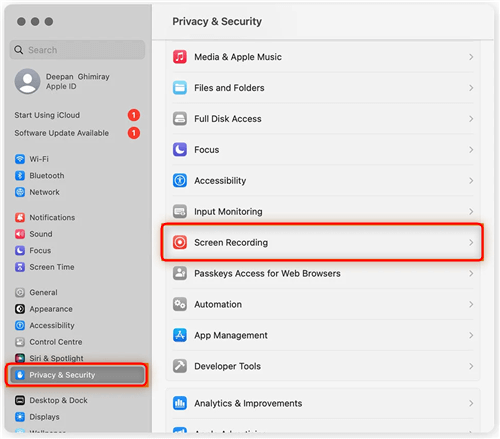
macOS Screen Recording Menu
Step 2. Open your chosen web-based screen recorder (such as ScreenApp or RecordCast).
Step 3. Click the primary “Start Recording” button on the webpage.
Step 4. Your browser will prompt a native permissions dialog box asking to share your screen.
Step 5. Select whether to share a specific “Chrome Tab,” a “Window,” or your “Entire Screen.”
Step 6. Once finished recording, click “Stop Sharing” and download your MP4 video file.
Overcoming Browser Security: How to Record System Audio
Many users experience severe frustration when their web recorder captures their microphone but fails to record internal computer sounds (like a video playing on screen or software notification chimes).
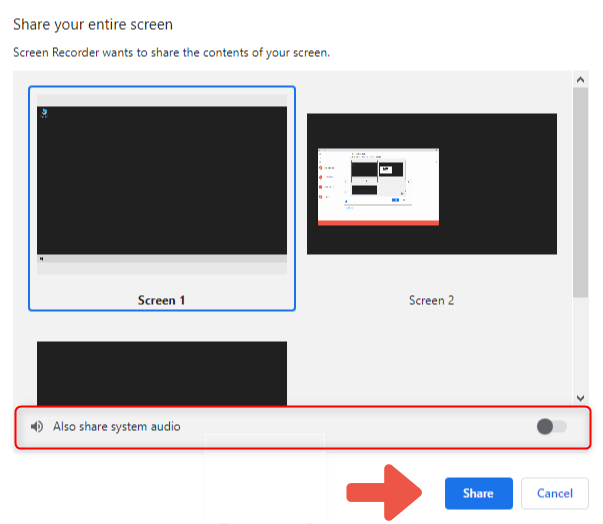
Share Your Entire Screen
Here is a critical expert insight: the biggest limitation of online screen recording software is browser-level security architecture, not the web applications themselves. Modern browsers heavily restrict full system audio capture to protect your privacy against malicious websites eavesdropping on background applications.
PRO-TIP: The Google Chrome Audio Fix
When you try to record system audio on macOS or Windows using a web tool, Google Chrome specifically isolates the audio output. Chrome strongly prefers tab-based capture. If you select “Entire Screen” in the permissions dialog, the browser intentionally blocks system audio.
To successfully capture internal sound: You must click the “Chrome Tab” option in the browser dialog box. At the bottom of that specific prompt, physically check the “Also share tab audio” box. Understanding this security mechanism helps you choose the right tab to record, ensuring flawless audio capture every single time.
Privacy and Security: Is Online Screen Capture Safe?
Corporate users and managers frequently ask whether sensitive client recordings are stored online. The safety of a web tool depends entirely on its underlying data architecture. You must verify whether a tool relies on local rendering or cloud processing. Do not leave your client’s data to chance.
Local WebRTC Recording (The Safer Option):
Secure web recorders like ScreenApp and RecordCast use WebRTC (Web Real-Time Communication) technology. This framework processes the video data entirely within your local browser’s active memory. The video never uploads to an external server. Once you stop capturing, the browser generates the MP4 file directly onto your hard drive. This method presents a very low privacy risk.
Cloud Recording (The Faster Sharing Option):
Other platforms operate via remote cloud recording. In this method, the video data streams live to the company’s external servers. This allows the service to instantly generate a shareable hyperlink for fast distribution via email or Slack. However, it requires you to trust the platform’s data encryption and privacy policies. If you require an instant sharing link instead of a downloaded file, you must accept the minimal privacy trade-offs associated with cloud storage.
When to Upgrade to a Dedicated Desktop Tool
Before starting a massive project, you must determine whether an online tool or a dedicated desktop application fits your requirements. Browser tools are fantastic for rapid, no-install tasks. Yet, if your goal is a highly polished client presentation spanning multiple monitors, relying solely on a web browser introduces performance risks.
To help you decide when it is time to upgrade, here is a direct technical comparison:
| Web-Based Tool (e.g., ScreenApp) | Dedicated Desktop Tool (e.g., FocuSee) | |
| Ideal Scenario | Single-tab walkthroughs, quick bug reports, strict “no-download” IT policies | Complex multi-app tutorials, high-stakes client pitches, intricate video editing |
| Export Quality | Up to 1080p / 30fps; UI may appear slightly compressed | Up to 4K / 60fps; crisp UI and text rendering |
| System Audio | Browser-limited; often tab-specific capture only | Full system audio capture across all apps |
| Post-Production | Manual export, trimming, and editing required | Automated editing: auto-zoom, cursor highlight, AI noise removal |
FocuSee: The Premium Alternative for High-End Needs
If you repeatedly hit the 5-minute limit with free browser tools or notice your webcam lagging during a critical 45-minute presentation, transitioning to a desktop solution is highly recommended.
For professionals who cannot afford low-quality visuals, FocuSee stands out as a reliable premium desktop solution for Windows and macOS. It solves the pain point of pixelated exports by supporting native 4K/60fps rendering, guaranteeing your software interfaces look sharp.
Additionally, FocuSee removes the manual labor of post-production. The software includes an advanced Smart Focus & Auto-Zoom feature that automatically highlights your mouse clicks and emphasizes key actions on the screen. It also features an AI Smart Cut function that instantly removes filler words (like “uh” and “um”) from your audio track, producing a concise final video without requiring any video editing experience.
Key Features:
- Smart Focus & Auto-Zoom: Automatically highlights clicks and guides viewer attention
- AI Smart Cut: Removes filler words and pauses for cleaner narration
- Annotation Tools: Add text, arrows, shapes, and spotlight effects directly onto recordings to explain steps clearly without external editing software
- Custom Cursor Effects: Enhance visibility with highlights, click animations, and cursor styling
- 4K/60FPS Export: Delivers ultra-sharp visuals for professional presentations
- AI Virtual Avatar (Optional): Replace webcam with a digital presenter for consistent branding
- Automatic Subtitles (50+ languages): Generate accurate captions for global accessibility
Final Thoughts
Navigating deceptive web tools delays your daily workflow when you simply need to communicate visually with your clients. Finding a method that captures your voice perfectly and works consistently across Apple and Windows devices does not have to be a frustrating experience.
By identifying your specific need—whether using a WebRTC tool like ScreenApp for a quick, secure MP4 download, or deploying a premium desktop app like FocuSee for an automated, 4K client presentation—you regain total control over your production process. Configure your Mac permissions correctly, remember to isolate your Chrome tabs for pristine system audio, and experience a stress-free recording workflow that protects your data.