Which Mac Video Recording Software is Ideal for Recording Product Demos I Can Share with Clients?

If you are a customer success lead or sales professional, you know the absolute exhaustion of repeating the exact same live onboarding walkthroughs for prospects over Zoom. The live calls consume hours of your week, and despite your best efforts, clients often forget the steps the moment they log off. You need a better async communication method.
To escape this endless cycle, you need the right Mac screen recording software for product demos. You want a tool that lets you record a polished walkthrough once, complete with a picture-in-picture webcam overlay to keep it personal, crisp cursor highlights, and captions—and share it instantly. In this guide, we map out the best Mac screen recorder options to help you reduce repetitive meetings, eliminate blurry dashboard text, and deliver client-ready presentations without needing a degree in professional video editing.
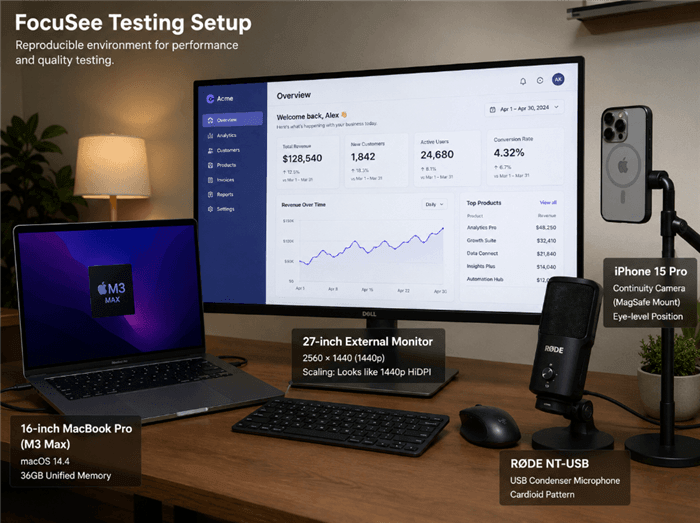
Mac Setup for Recording SaaS Product Demos
Comparing Mac Demo Tools: Time Cost vs. Professional Quality
Before you download the first application you find, you have to evaluate software based on workflow friction rather than just a long feature list. The fundamental choice always comes down to time cost versus professional quality. Are you looking for a simple “record-and-send” tool, or a “record-edit-produce” method?
To make an informed decision, evaluate these tools across four critical business metrics:
- Success Rate: How reliably the tool captures a clean screen recording with synchronized system audio and microphone input without dropping frames.
- Time Cost: The minutes or hours required to go from hitting the stop button to delivering a polished client presentation.
- Technical Skill: The learning curve required to navigate the timeline interface, balance audio, and apply a zoom effect.
- Safety Risk: The ability to quickly apply privacy blurring to hide sensitive client data during a screen share.
The Spectrum of Video Recording Software
- Manual Methods (e.g., QuickTime Player): High technical skill required for post-production. Low success rate for professional polish because it lacks built-in annotation tools, auto-zooms, or a picture-in-picture webcam.
- Simple Record-and-Send Tools (e.g., Loom): Lowest time cost. Excellent for quick internal updates or bug reports, but often lacks the deep customization and high-resolution export control needed for a high-stakes sales enablement asset.
- Complex Broadcasting Tools (e.g., OBS Studio): Maximum flexibility but highest technical skill requirement. Ideal for live streaming, but operational friction makes async recording highly inefficient for busy teams.
- Professional Automated Tools (e.g., FocuSee, Descript): Balances low time cost with high output quality by using AI to automate cursor highlights, auto-zooms, and transcriptions.
Automating Polish: The Best Mac App for Recording Client Demo Videos
For SaaS professionals who require both speed and high quality, FocuSee is an incredibly strong contender for Mac product demo recording. FocuSee is an automated video creation tool that captures your screen, webcam, and microphone, then instantly transforms the raw capture into a polished tutorial.
The core advantage of this solution is its ability to eliminate manual post-production. Here is how its automated features directly solve the most common demo recording obstacles:
Smart Focus & Auto-Zoom: To address the struggle with blurry text and unreadable UI elements, the software automatically zooms in and highlights the clicked area. This keeps viewers focused on important steps without you having to drag keyframes on a timeline manually.
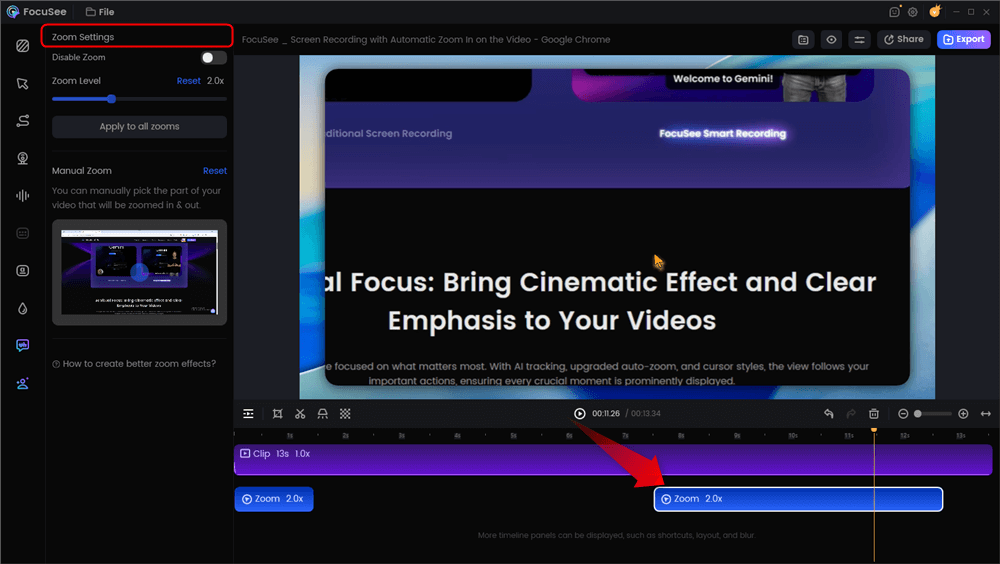
Automatic Zoom Effects
Customizable Cursor Effects: The tool automatically hides your cursor when it is inactive and applies clear click animations when you interact with a dashboard.

Show Mouse Cursor
AI Smart Cut & Subtitles: It instantly trims out filler words (“uh,” “um”) and awkward pauses. Alongside this, speech recognition generates highly accurate captions, making your UI walkthrough accessible for multilingual audiences.
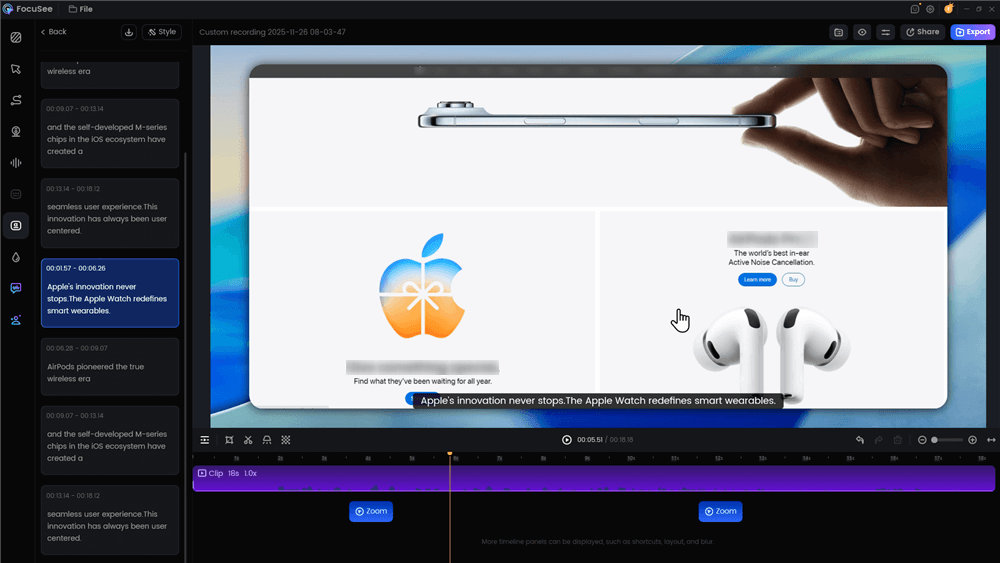
Automatic Subtitle Generation
Screen Annotation: Add text, shapes, arrows, and spotlights to deliver clear on‑screen explanations, stacking multiple elements at once for precise focus. Keep every step easy to follow.
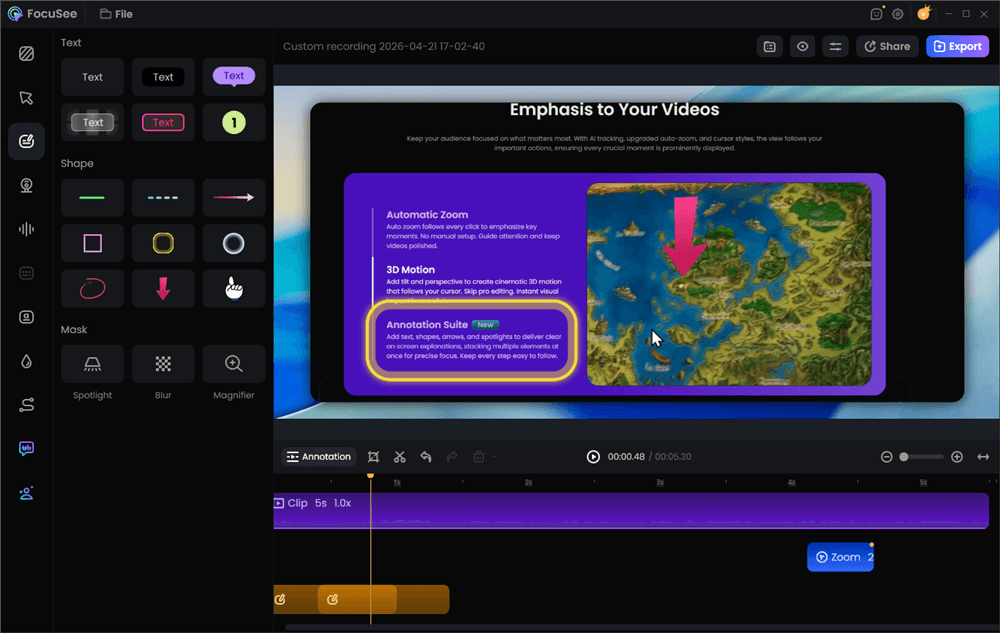
Add Annotations for Clarity
Multi-Platform Export: It supports 4K recording exports, allowing you to record once and output instantly as an MP4 or GIF.
The Drawbacks: An Objective Look
While it is an excellent tool, it is not a magical cure-all. Before committing to FocuSee or similar automated software, consider a few limitations:
- Subscription Costs: Unlike QuickTime or OBS, unlocking high-resolution exports without watermarks requires a paid subscription.
Pro-Tips: Perfecting System Audio, Webcam Routing, and 4K Exports on Mac
Even the best Mac video capture software will fail if your system settings are incorrect. One of the biggest complaints from SaaS operators is that capturing a demo on a Mac is uniquely frustrating compared to a PC.
Critical Warning: Mac Recording Permissions
Modern macOS versions (like Sonoma and Sequoia) enforce incredibly strict privacy controls. Before initiating your first product walkthrough, navigate to System Settings > Privacy & Security > Screen & System Audio Recording and ensure your chosen software has the toggle enabled. Failing to do this will result in a 20-minute recording of a completely black screen. You must restart the application for the permissions to take effect.
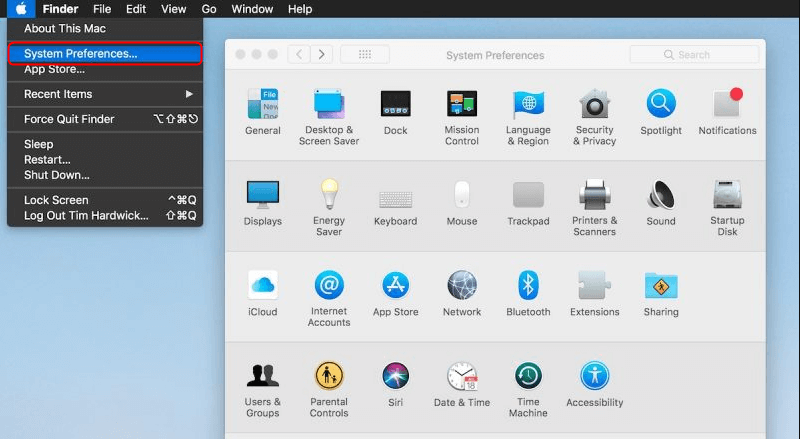
System Preferences
The Truth About Mac Audio Routing
Recording your voice via a USB microphone and internal system audio (like a notification sound or a video playing within your product) simultaneously is notoriously difficult on macOS. Native tools alone will not work.
You cannot simply use the native macOS Audio MIDI Setup utility on its own to capture system audio. To fix this, you need a third-party virtual audio cable.
1. Download a trusted tool like BlackHole (free/open-source) or Rogue Amoeba’s Loopback (paid, but highly intuitive).
2. Open the macOS Audio MIDI Setup utility, click the “+” icon, and create a “Multi-Output Device.”
3. Check both your standard headphones and the virtual cable (e.g., BlackHole 2ch) in the list.
4. In your recording software, set your audio input to capture both your physical microphone and the BlackHole virtual cable. This routes everything perfectly without echo.
Upgrading Your Webcam with Continuity Camera
Instead of relying on an older, grainy built-in MacBook camera, use Continuity Camera (a native macOS feature) to wirelessly pair your iPhone’s superior lens as your webcam overlay.
- Framing: Mount your phone at eye level. Looking down at a laptop screen breaks the personal connection with the prospect.
- Battery Drain: Continuity Camera aggressively drains your iPhone’s battery during long recording sessions. Always keep your iPhone plugged into power via USB-C or MagSafe while recording client presentations.
Exporting for Readability
SaaS demos should usually be recorded at 1440p or 4K. When you export, ensure your bitrate is set high (at least 15-20 Mbps). This guarantees that tiny dashboard text and complex UI elements stay incredibly crisp when compressed and embedded into a sales email.
Workflow Templates: Matching the Tool to the Task
We mentioned earlier that evaluating tools is about workflow friction. To make this practical, here are three blueprints for the most common SaaS recording scenarios.
1. The 3-Minute Async Bug Report / Internal Update
- The Tool: Loom or Droplr.
- The Goal: Speed. You need to show an engineer a bug or give your team a quick status update without clogging their calendar.
- The Workflow: Hit record, talk through the issue naturally, hit stop. Do not edit. Copy the auto-generated cloud link and paste it directly into Slack or Jira. Visual polish does not matter here; speed is the only metric.
2. The Daily Client Onboarding Walkthrough
- The Tool: FocuSee, Descript, or Tella.
- The Goal: Professionalism and retention. You want a personalized asset that a client can re-watch later.
- The Workflow: Load your script into a built-in teleprompter. Record the screen and your Continuity Camera webcam simultaneously. Let the AI remove your “ums” and “ahs.” Apply an automated zoom effect to highlight the specific dashboard menu you are clicking. Export as a 1440p MP4 and email it to the client.
3. The High-Stakes Feature Announcement
- The Tool: ScreenFlow or Camtasia.
- The Goal: Reusability and maximum polish. This video will live on your website’s landing page or be sent to 10,000 users in a newsletter.
- The Workflow: Record isolated tracks (screen, webcam, mic, system audio separately). Use the timeline editor to manually adjust keyframes for perfectly smooth camera pans. Drop in branded B-roll, custom lower-third graphics, and background music. Export at maximum resolution.
Why QuickTime and OBS Studio Often Fall Short for Client Presentations
When trying to record product demos on Mac, it is tempting to jump to extremes: using the free built-in tool or downloading the most powerful open-source broadcasting software available. However, both paths create severe roadblocks for busy customer success teams.
The Limitations of QuickTime Player
Because QuickTime is too basic, it lacks vital features required for modern SaaS demos. It does not support a native picture-in-picture webcam, meaning you cannot build a personal connection with your prospect. Furthermore, it offers no annotation tools, cursor highlighting, or captions. The resulting screen share is often static, hard to follow, and lacks the polish necessary for high-value client communication.
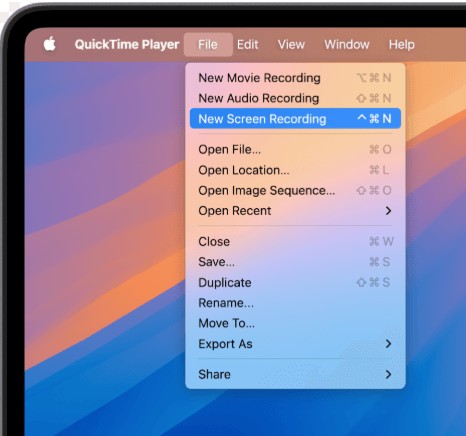
Screen Record on Your Mac Computer
The Overkill of OBS Studio
Conversely, OBS Studio is incredibly powerful for live streaming, but it actively slows down non-technical teams. Creating a simple browser recording requires managing canvas resolutions, audio mixers, multi-track outputs, and complex scene setups. For a customer success lead, managing OBS Studio’s intricate interface creates unnecessary friction when the simple goal is a clean, shareable video.
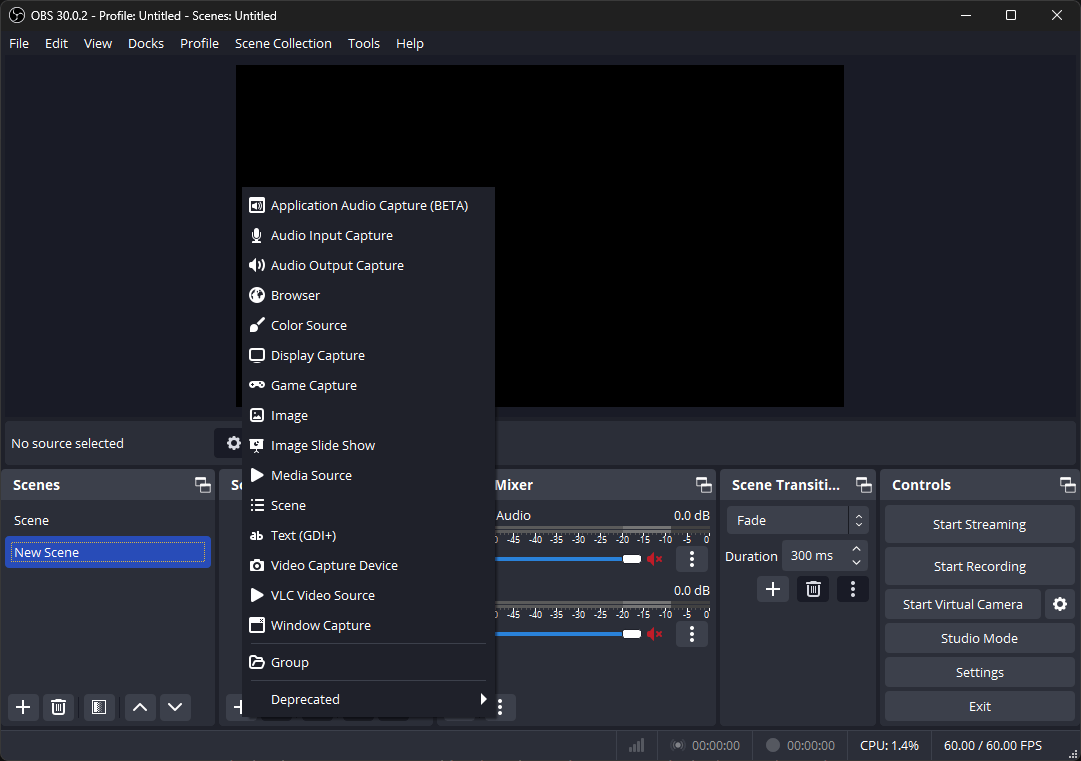
Choose Display Capture
Frequently Asked Questions About Mac Demo Video Software
What is the best Mac software for recording product demos?
The ideal tool depends entirely on your workflow speed. For quick internal messages, Loom is excellent. For highly produced marketing assets, ScreenFlow or Camtasia is an industry standard. However, for most SaaS professionals who need automated polish, high-quality zoom effects, and fast exports without heavy editing, tools like FocuSee or Descript are highly recommended.
Do I need a separate video editor after recording?
Not necessarily. Research around AI-assisted workflows suggests that tools with built-in searchable transcripts, auto-captions, and automatic filler-word removal eliminate the need for a secondary editing application like Premiere Pro for day-to-day client demos.
Can I record both my screen and webcam at the same time on Mac?
Yes. Using a dedicated recording application allows you to capture your screen, system audio, microphone, and a picture-in-picture webcam overlay simultaneously. Just remember to leverage Continuity Camera for the best webcam quality.
Can I record 4K product demos on a MacBook Air?
Yes. Modern Apple Silicon Macs, such as the MacBook Air M2, M3, or M4, possess powerful unified memory architectures. They can comfortably handle 4K recording, system audio capture, and browser rendering simultaneously without dropping frames or overheating.
Conclusion
Escaping the endless cycle of live Zoom meetings requires a tool that balances workflow speed with professional quality. Relying on basic screen capture leaves your clients confused by unreadable UI elements, while heavy broadcasting software adds hours of unnecessary editing time to your busy schedule.
By choosing a specialized automated solution, configuring your audio routing properly, and using the right workflow template for the job, you regain complete control over your workday. You can record a flawless client presentation once, deliver it instantly, and make your customer onboarding more efficient and engaging than ever before.