Facing a tight deadline when you need to record audio instantly—but cannot download new software—can be incredibly stressful. If you are working on a restricted company laptop, you probably cannot install third-party applications. Searching for a simple browser-based tool often results in frustration. You worry a site will secretly demand an email sign-up right as you try to export, or cut off your recording after three minutes. Even when you find a functional free web recorder, the audio can end up sounding muffled, and navigating microphone permissions feels confusing.
You need a trustworthy method that works consistently across Windows and Mac, ensuring clean audio without hidden paywalls or extra steps. This guide provides exact techniques to achieve excellent browser audio capture, explains exactly what limits apply to the top tools, and shows you how to bypass frustrating operating system blocks.
We tested across Windows and Mac devices (plus limited iPad testing) using built-in and USB microphones, focusing on how Chrome, Edge, Safari, and Firefox handle permissions on Windows 10/11 and macOS 12+.
The 9 Best Free Web Voice Recorders (Tested & Verified)
If you need an immediate, no-install solution, several reliable browser-based recorders are available. We tested each tool specifically for hidden limits, sign-up friction, export quality, and privacy handling.
Online Voice Recorder (123Apps)
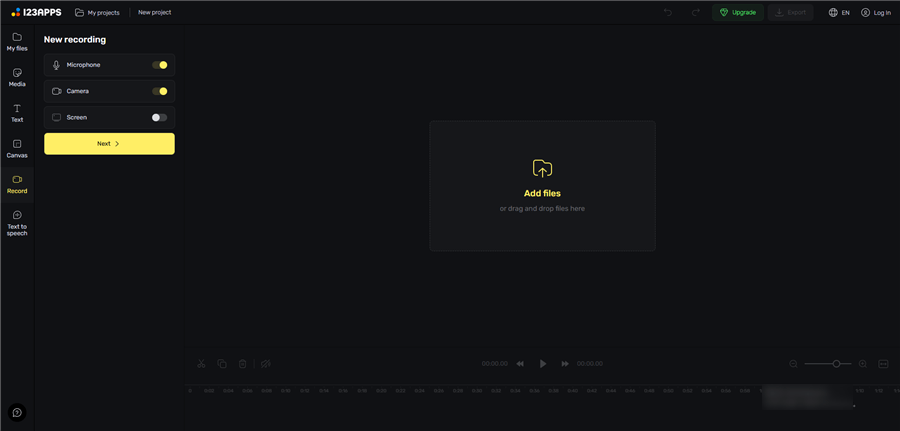
123Apps Online Screen Recorder
Best for: Everyday quick recordings with simple trimming
A widely used browser recorder focused on simplicity and fast MP3 output, with a built-in trimming tool for basic cleanup.
Key Features:
- One-click recording with clean UI
- Built-in trimming for removing silence
- Automatic local processing for privacy
- Fast MP3 export
Specs & Limits:
- Time Limit: None (browser memory dependent, tested up to 45 min)
- Sign-Up Required: No
- Export Format: MP3
- Privacy: Fully browser-based processing
Vocaroo
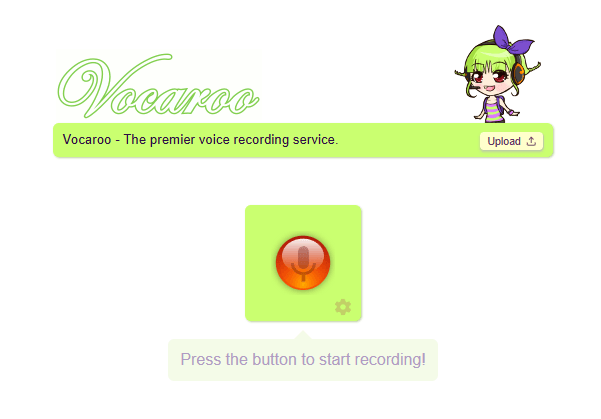
Online Audio Recorder – Vocaroo
Best for: Instant sharing via link
A minimalist recorder designed for fast voice sharing without downloads, ideal for quick messaging or feedback.
Key Features:
- Instant shareable link generation
- No account or setup required
- Extremely fast recording workflow
- Simple one-button interface
Specs & Limits:
- Time Limit: No strict limit (short messages recommended)
- Sign-Up Required: No
- Storage: Temporary links (expire after inactivity)
FocuSee Online Microphone Recorder
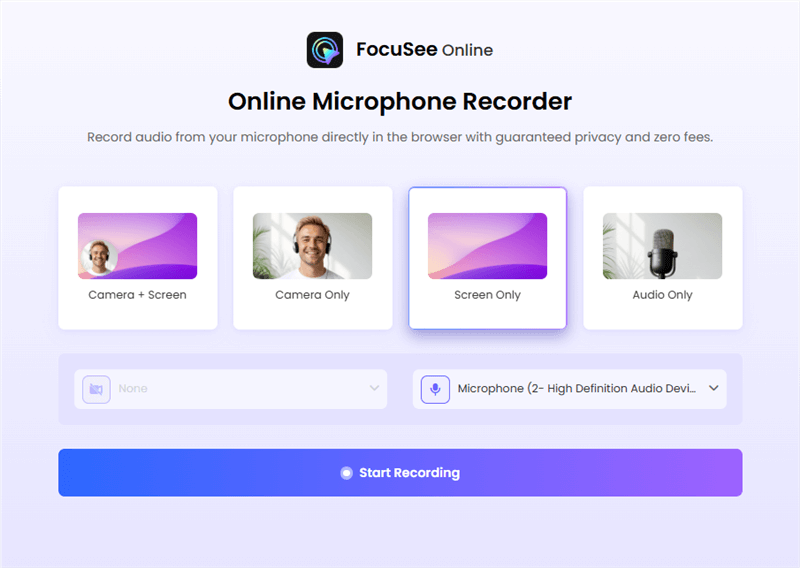
Choose The Recording Model
Best for: Fast, no-install microphone recording with clean output
A lightweight browser-based microphone recorder designed for instant voice capture without installation, accounts, or setup friction. Ideal for quick notes, voice drafts, and simple audio recording tasks.
Key Features:
- One-click microphone recording
- No installation or extension required
- Clean, distraction-free interface
- Instant local audio export
- Privacy-focused browser processing
Specs & Limits:
- Time Limit: No fixed limit (browser dependent)
- Sign-Up Required: No
- Export Format: Browser-dependent audio download
- Privacy: Audio stays local in-session
Rev Online Voice Recorder
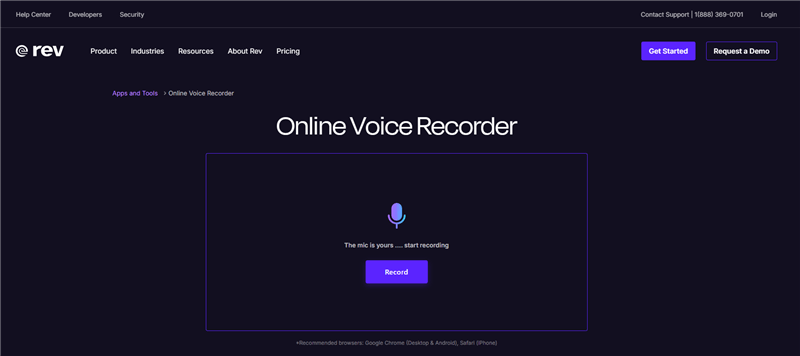
Online Audio Recorder – Rev
Best for: High-quality audio + optional transcription
A professional-grade browser recorder from a transcription platform, optimized for clean audio capture and reliability.
Key Features:
- High-quality MP3 recording
- Optional paid transcription service
- Stable browser performance
- Simple download workflow
Specs & Limits:
- Time Limit: None
- Sign-Up Required: No (only for transcription)
- Export Format: MP3
Also Read: How to Record High-Quality Remote Podcast Interviews >
Reverb Record
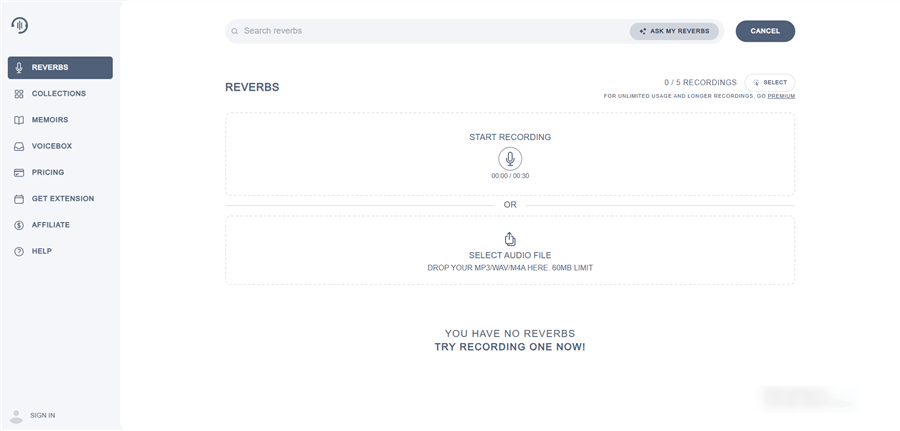
Online Voice Recorder – Reverbs
Best for: Embedded audio sharing
A recorder designed for creators who want to embed voice notes directly into websites or blogs.
Key Features:
- Easy embed player for websites
- Shareable audio links
- Lightweight browser-based recording
- Optional account for management
Specs & Limits:
- Time Limit: 10 minutes (free users)
- Sign-Up Required: Optional
- Export Format: MP3
VirtualSpeech

Online Voice Recorder – VirtualSpeech
Best for: Privacy-focused temporary recordings
A privacy-first recorder that stores audio only in browser memory and deletes it after the session ends.
Key Features:
- Zero server storage (fully local processing)
- Automatic deletion on tab close
- Simple export options
- Strong privacy design
Specs & Limits:
- Time Limit: Browser memory dependent
- Sign-Up Required: No
- Export Formats: OGG, WAV
SpeakPipe
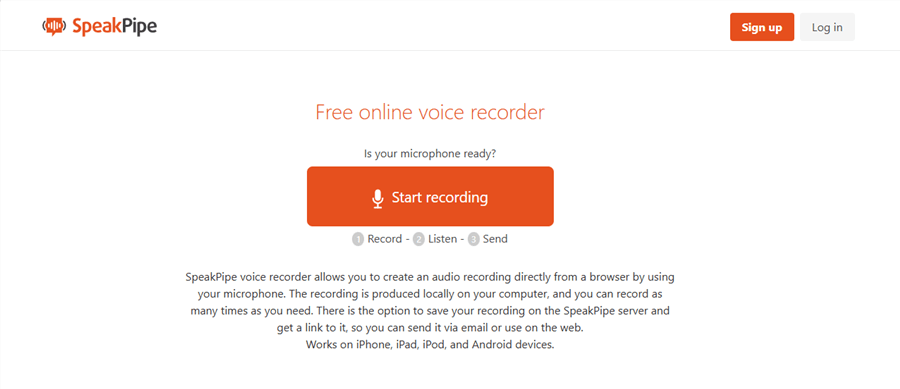
Online Voice Recorder – SpeakPipe
Best for: Collecting audience voice messages
A voice message tool designed for websites, allowing users to send audio feedback directly through an embedded widget.
Key Features:
- Website-embedded voice recorder
- Audience feedback collection tool
- Easy message management dashboard
- No login required for senders
Specs & Limits:
- Time Limit: 5 minutes per message
- Sign-Up Required: Only for owners
Bearrecord
Online Voice Recorder – BearRecord
Best for: Advanced audio format control
A flexible browser recorder aimed at users who need technical control over audio output settings.
Key Features:
- Adjustable sample rate and channels
- Multi-format export support
- High customization for audio workflows
- Lightweight browser execution
Specs & Limits:
- Time Limit: Browser memory dependent (tested up to 1 hour)
- Sign-Up Required: No
- Export Formats: MP3, OGG, WAV, WMA
Sodaphonic
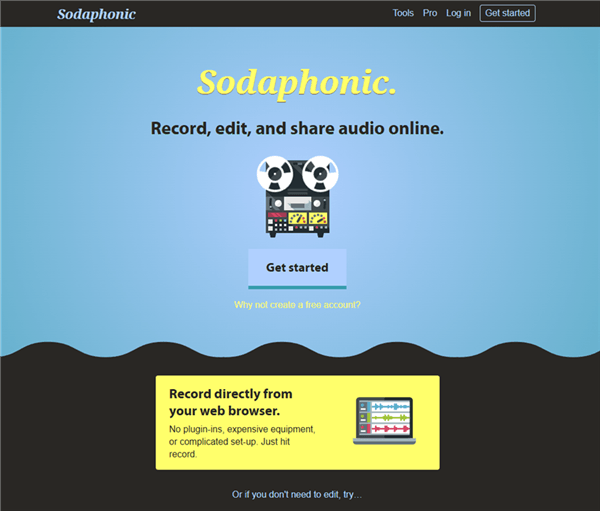
Online Voice Recorder – Sodaphonic
Best for: In-browser audio editing
A lightweight online audio editor that functions like a simplified DAW directly in your browser.
Key Features:
- Timeline-based editing interface
- Cut, fade, and trim tools
- Real-time audio manipulation
- No installation required
Specs & Limits:
- Time Limit: Best under 10 minutes (memory-heavy editing)
- Sign-Up Required: No (optional save feature)
- Export Formats: MP3, WAV
How to Fix Microphone Permissions (Browser and OS-Level)
One of the most common reasons users abandon online recording tools is a completely silent microphone. Often, clicking the padlock icon in your browser’s URL bar and setting the “Microphone” toggle to “Allow” is not enough.
If your browser says it has permission, but the site still cannot hear you, your operating system is likely blocking the browser entirely. Here is the exact procedure to fix OS-level blocks:
Windows 10 & 11 Fix:
1. Press the Windows Key + I to open Settings.
2. Navigate to Privacy & security > Microphone.

Press Windows Key and I
3. Ensure the master “Microphone access” switch is turned ON.
4. Scroll down to the section labeled “Let desktop apps access your microphone”. You must turn this ON. (Browsers like Chrome and Firefox fall under the “desktop apps” category). Refresh your web page.
macOS Fix (Monterey & Newer):
1. Click the Apple menu and select System Settings (or System Preferences).
2. Click Privacy & Security, then select Microphone.
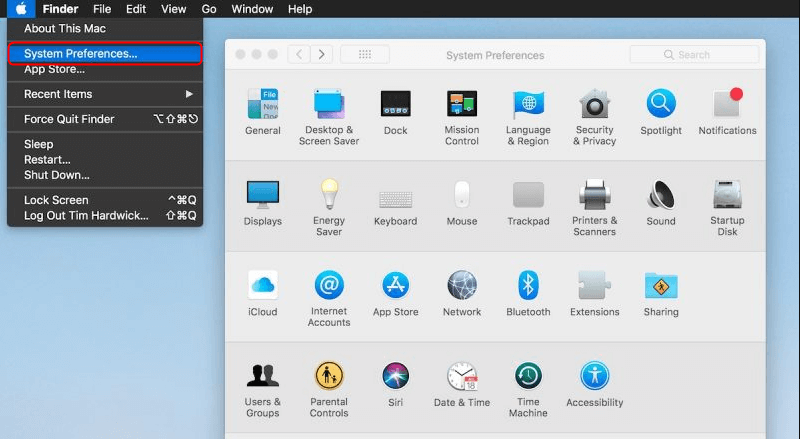
System Preferences
3. You will see a list of applications that have requested access. Find your browser (e.g., Google Chrome, Safari) in the list and toggle the switch to the ON position.
4. You may be prompted to quit and reopen the browser for the changes to take effect.
Overcoming Browser Limits: Why Your Audio Sounds Muffled
Here is a critical tip you should know before hitting record: the biggest hidden limitation of web recording is not the website itself, but browser-level constraints.
Many users blame a website for robotic, underwater, or muffled audio quality. In reality, the real bottleneck is the browser’s Web Audio API. Browsers often apply aggressive noise cancellation, echo reduction, and auto-gain control to your microphone by default. This automated process heavily compresses your voice.
You can significantly improve your results by following these specific technical steps:
Step 1: Choose the Right Format: When a web tool gives you the choice, always select WAV output instead of MP3. A WAV file bypasses heavy compression algorithms, preserving the authentic, uncompressed sound of your microphone.
Step 2: Disable OS Enhancements (Windows): Windows often applies extra processing. Right-click your volume icon > Sound settings > More sound settings. Go to the Recording tab, right-click your microphone, select Properties, and go to the Advanced tab. Uncheck “Enable audio enhancements.”
Step 3: Disable Voice Isolation (Mac): During recording, click the Control Center icon in your upper-right menu bar. Click “Mic Mode” and change it from “Voice Isolation” to “Standard” to capture uncompressed audio.
Addressing these limits is the most effective technique for capturing professional-sounding audio through an internet browser.
Upgrading to Dedicated Software: When You Need More Power
Web tools are excellent for quick, simple tasks. Eventually, you might outgrow them. Real-time browser audio recording can crash if your tab reloads or your Wi-Fi drops. If you need absolute local stability, multi-track editing, or automated post-production features, it is time to upgrade to a dedicated desktop application.
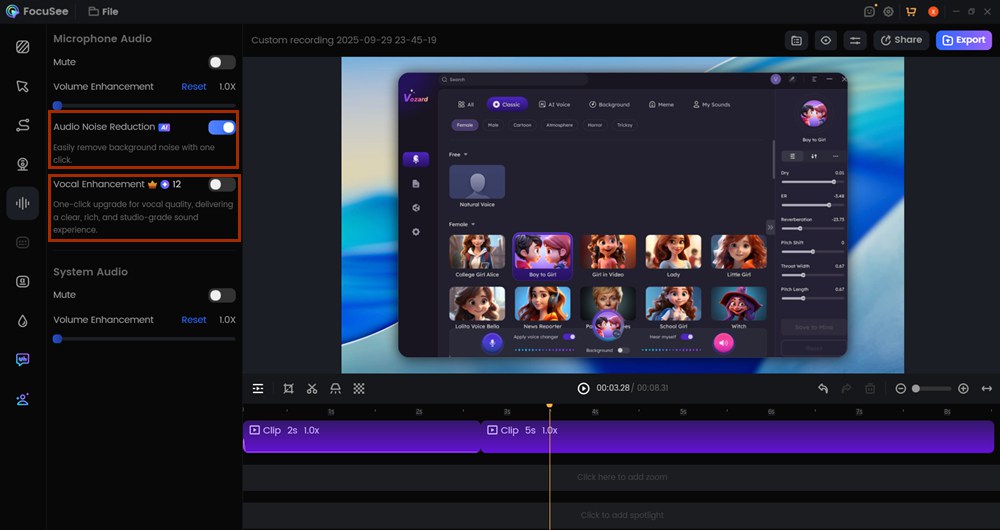
AI Audio Enhancement
Transparency Note: FocuSee is a premium, paid application built for serious creators, distinguishing it from strictly free web-based apps.
If you are tired of dealing with confusing browser limitations, hidden time limits, and noisy files that require separate editing applications, FocuSee proves its value exactly in these scenarios. To address the common frustration of poor sound quality, FocuSee offers AI Audio Enhancement and Noise Reduction. This feature automatically removes background noise, ensuring clear audio even in ordinary environments.
FocuSee also includes an AI Smart Cut feature, which immediately solves editing headaches by automatically trimming out filler words and long pauses. It provides an offline, secure desktop-based method with flexible export formats. For users ready to move beyond web constraints and secure a polished, professional outcome with zero manual editing effort, downloading FocuSee is a highly effective next step.
Frequently Asked Questions About Browser Audio Capture
Navigating browser audio capture can still bring up a few technical questions. Below are clear answers to ensure your recording session is successful.
What is the best free web recorder I can use right now?
The 123Apps Online Voice Recorder is highly recommended for its simplicity and lack of strict time limits. Vocaroo is best for generating an instant, shareable link.
Do I need to install anything to use these tools?
No. A true web-based recorder operates entirely within your browser window (like Chrome or Safari) and requires zero software downloads.
Is it safe to record audio using a browser-based tool?
Yes, reputable tools (like VirtualSpeech and 123Apps) process your audio locally using your browser’s cache. This means your data remains on your computer and is not uploaded to external servers.
Why is my microphone not working in the browser?
The issue is usually OS-level permissions. Check your Windows Privacy & security settings or macOS System Settings to ensure your browser is allowed to access the microphone, then refresh the page.
Which format should I choose: MP3 or WAV?
Choose MP3 for smaller file sizes and easy email sharing. Choose WAV for uncompressed, high-quality audio, which is highly recommended if you plan to edit the file in another program later.
Can I edit or trim recordings directly online?
Yes. Tools like 123Apps and Sodaphonic provide built-in interfaces for cutting out silence and making basic trims without needing separate desktop software.
Can I record system audio or only my microphone?
Free web tools generally only capture your microphone input. Recording your system audio (like capturing the sound from a YouTube video or Zoom meeting) usually requires dedicated desktop software or specific browser extensions.
Will my recordings be saved privately?
Most top-tier web options process files locally and do not save your files permanently. Always verify the platform’s data retention policy. For instance, Vocaroo stores files temporarily on its servers for sharing, but you can delete them manually after generating the link.
