6 Best Online Mic Recorder Tools (Tested for 2025)

As a professional writer, you might urgently need to capture interview snippets instantly. You search for a fast, free online tool to record your microphone because you want to avoid installing bulky software on your laptop. Soon, you experience major frustration. Many options claim to operate in your browser but secretly demand sketchy extensions. Even more annoying, your recording quality sounds surprisingly poor, thin, or distorted. You are left worrying about confusing browser permissions, restrictive time limits cutting off your meetings, and whether your private data remains secure.
You just want a reliable method to capture an audio file securely and get back to work. This article provides the exact procedure to solve these frustrations. We evaluated multiple applications to help you record your voice effortlessly, understand output formats, and perform basic editing.
Comparison Table for Top Online Microphone Recorder
| Best For | Max Recording Time | Output Format | Privacy & Storage | Key Strength | |
| Online Voice Recorder (123Apps) | Quick voice notes | Unlimited (browser session) | MP3 | Local processing | Trim waveform editing |
| Rev Online Voice Recorder | High-quality speech recording | Unlimited | MP3 | Local (optional cloud transcription) | Stable + transcription option |
| Vocaroo | Instant sharing | ~50MB (~45–60 min) | MP3, WAV, OGG, FLAC | Cloud-based | Shareable link generation |
| Reverb Record | Simple voice capture | Unlimited | MP3 | Cloud storage | Instant share, no signup |
| VirtualSpeech Recorder | Privacy-first recording | Unlimited | WAV, OGG | Fully local | Secure local recording |
| FocuSee Online Microphone Recorder | Clean UI & fast recording | Unlimited (session-based) | Standard audio export | Local-first browser processing | No ads, no watermark, smooth UX |
The 6 Best Online Mic Recorders (Free, No Download Needed)
When you need to test your microphone quickly or record a short voice note, a browser-based application is highly efficient. Based on hands-on testing, here is a categorized list of the top tools to help you choose the right solution for your specific needs, complete with the actual technical limitations you need to know.
Online Voice Recorder (123Apps)
Best for: Quick Voice Notes
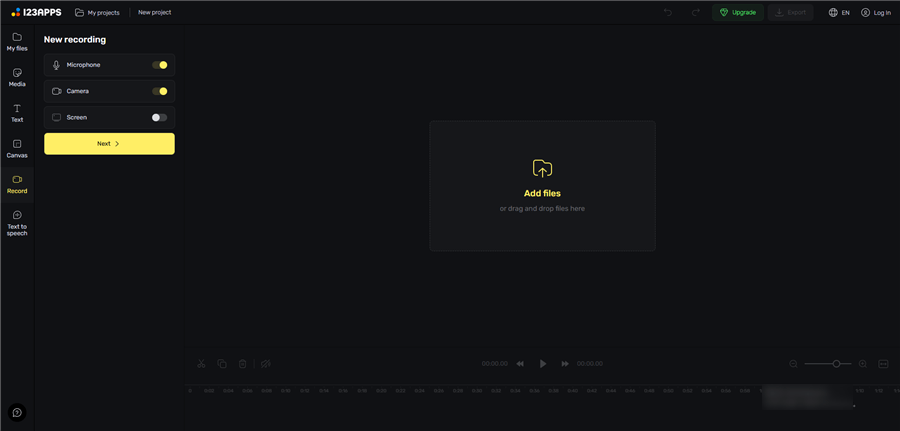
123Apps Online Screen Recorder
This application is perfect for immediate, short recordings. When you land on the page, the interface is incredibly minimal—just a red microphone button. After you stop recording, a visual waveform timeline immediately appears. You simply drag the left and right handles to trim dead air before hitting save.
- Max Recording Time: Unlimited (as long as your browser tab remains open and active).
- Output Formats: MP3 only.
- Privacy & Storage: Strict Local. Audio processes locally on your computer’s RAM.
- Account Required: No.
Rev Online Voice Recorder
Best for: High-Fidelity Output
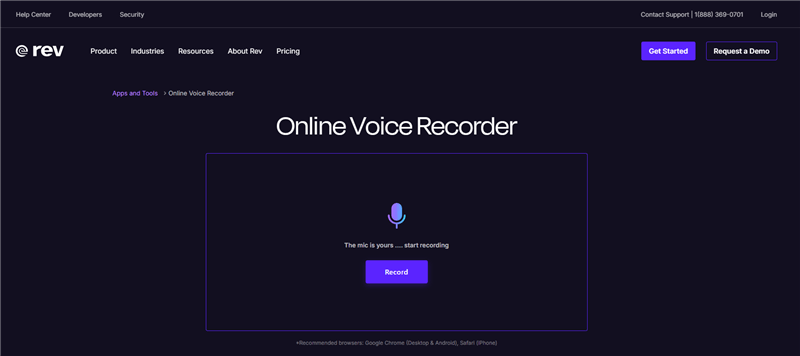
Online Audio Recorder – Rev
If you require reliable stability, Rev provides an excellent free tool. It is highly dependable for capturing clear speech during crucial interviews. The interface features a simple recording animation, and the audio waveform updates smoothly in real-time with virtually zero noticeable latency.
- Max Recording Time: Unlimited.
- Output Formats: MP3 only (defaults to standard compression to save storage space).
- Privacy & Storage: Hybrid. Audio is processed locally for download, though Rev offers an optional paid transcription service that requires cloud upload.
- Account Required: No.
Vocaroo
Best for: Interviews
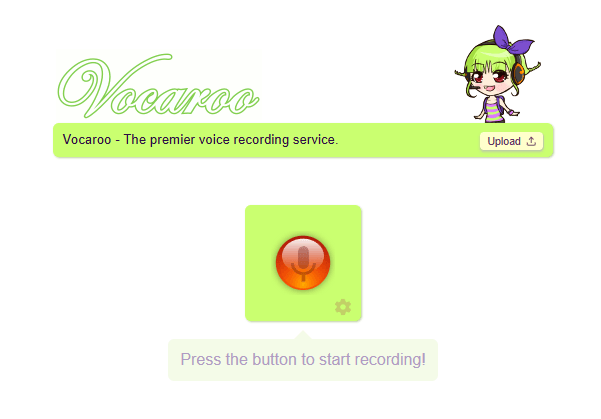
Online Mic Recorder – Vocaroo
Vocaroo is widely recognized for instant sharing. You click record, capture your thoughts, and immediately generate a shareable URL. A crucial observation from my testing: Vocaroo applies a layer of audio compression upon uploading the file to their servers. If you record high-fidelity music, you will hear a noticeable dip in quality. For spoken voice, the compression remains acceptable.
- Max Recording Time: Varies based on file size, typically capped around 50MB (roughly 45–60 minutes of compressed audio).
- Output Formats: MP3, OGG, FLAC, WAV (available via direct download after generation), plus a shareable link.
- Privacy & Storage: Cloud. Audio is hosted publicly via the generated link, making it unsuitable for highly confidential meetings.
- Account Required: No.
FocuSee Online Microphone Recorder
Best for: Clean UI & Instant Recording
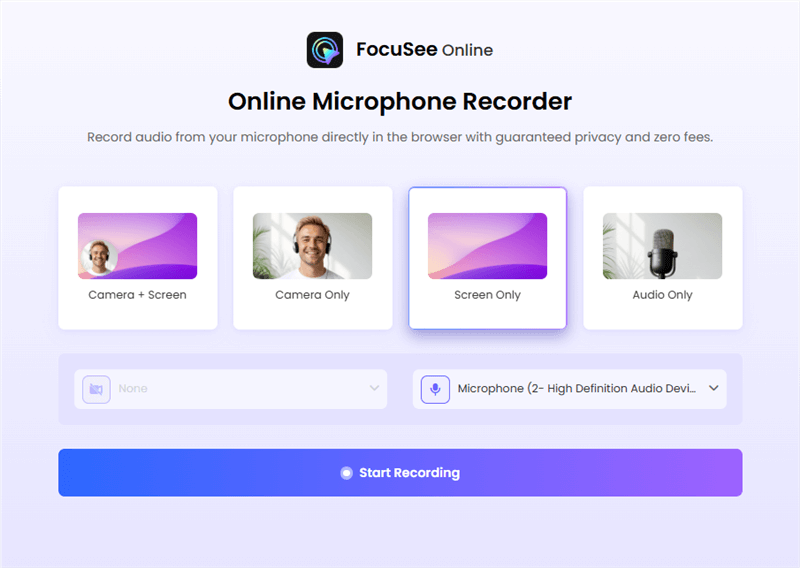
FocuSee Online Microphone Recording
If you want a fast, no-friction recording experience with a modern interface, FocuSee’s online microphone recorder is a strong choice. It is designed for users who need to capture voice instantly without dealing with cluttered dashboards or unnecessary setup.
During testing, the tool stood out for its minimal UI and immediate responsiveness—you can start recording with a single click, and the process feels smooth even on lower-end devices. Unlike cloud-heavy tools, it focuses on lightweight browser-based performance, making it ideal for quick voice capture, drafts, or casual recordings.
- Max Recording Time: No fixed limit (depends on browser/session stability).
- Output Formats: Standard audio export (browser-based processing).
- Privacy & Storage: Local-first processing in browser (no forced upload).
- Account Required: No.
Reverb Record
Best for: Simple Audio Capture
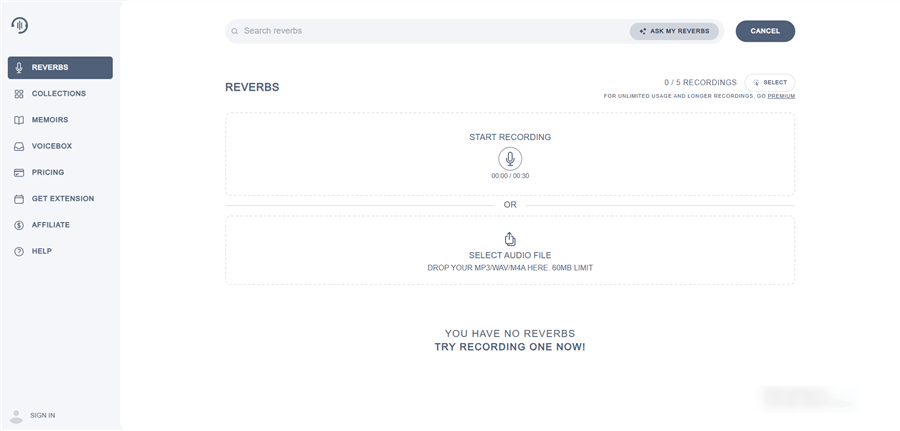
Online Voice Recorder – Reverbs
Reverb provides an exceptionally clean, distraction-free interface. You click the record button and capture your thoughts instantly. If you need an application that strictly focuses on generating a link for a voice note quickly, Reverb delivers.
- Max Recording Time: Unlimited per session, but anonymous cloud storage deletes files after a period of inactivity.
- Output Formats: Shareable link or direct MP3 download.
- Privacy & Storage: Cloud.
- Account Required: No (but creating a free account is recommended to prevent your links from expiring).
VirtualSpeech Recorder
Best for: Guaranteed Privacy

Online Voice Recorder – VirtualSpeech
This website is designed strictly for local processing. Your audio data never leaves your computer, making it the most secure choice for sensitive tasks. During testing, the VirtualSpeech layout proved to be the most transparent about file formats, offering clear buttons for uncompressed audio right on the main screen.
- Max Recording Time: Unlimited (limited only by your computer’s available local memory).
- Output Formats: WAV or OGG.
- Privacy & Storage: Strict Local.
- Account Required: No.
Free Online Mic Recorders vs. Professional Desktop Tools
Choosing between a browser application and a desktop application depends entirely on your specific requirements. Many users start searching for a fast method to bypass complex installations, but they soon discover that browser limitations can negatively impact audio quality.
Here is a breakdown of how manual browser methods compare against dedicated solutions:
| Feature | Browser-Based Tools | Dedicated Desktop Software |
|---|---|---|
| Success Rate | Depends entirely on internet connection and web browser stability. A sudden tab crash results in lost audio. | High success rate. Audio saves directly to your local drive, safeguarding long sessions automatically. |
| Time Cost | Instant access. You merely grant permissions and click record. | Requires an initial download period, but saves significant time during post-production and editing. |
| Technical Skill | Zero technical skill required. Highly accessible for beginners. | Requires a basic understanding of audio interfaces and file routing. |
| Safety Risk | High variance. You must carefully verify if a tool uses local processing or cloud uploads. | Highly secure. Processing happens locally, removing cloud storage security risks entirely. |
Online tools are fast and cost-effective. At the same time, they often struggle with automatic audio adjustments imposed by web browsers. You must weigh the convenience of instant access against the reliability of installed software.
How to Fix Poor Browser Audio Quality
The biggest limitation of online recorders is not the website itself—it is your browser’s audio processing chain. Modern browsers (like Chrome and Edge) apply WebRTC recording protocols designed for live video calls. These protocols enforce automatic gain control, background noise suppression, and aggressive audio compression. Although these features clarify voices during a chaotic video meeting, they severely degrade standalone recording quality, making your voice sound robotic, distorted, or artificially quiet.
To fix this, follow these exact steps:
1. Use Hardware First: Always select an external USB or XLR microphone instead of your laptop’s built-in microphone.
2. Adjust OS Gain: Open your computer’s System Settings. Manually set your microphone input volume to exactly 75%. This prevents the browser from aggressively pushing the volume up and down (peaking or clipping).
3. Disable OS Audio Enhancements: On Windows 11, go to Settings > System > Sound > Properties (for your mic) and turn “Audio enhancements” strictly to Off. On macOS, ensure “Voice Isolation” is turned off in the Control Center during recording. Because Chrome hides its internal automatic gain toggles, overriding these OS-level enhancements is the only reliable way to stop the browser from compressing your voice.
4. Choose WAV: Whenever an online tool provides a format option, always click WAV instead of MP3 to preserve maximum uncompressed fidelity.
Why Is My Microphone Not Working? (Quick Permissions Fixes)
A very common obstacle when using an online audio tool is dealing with confusing browser permissions. Furthermore, users often forget to select the correct microphone inside the web tool’s dashboard.
Follow these step-by-step instructions to fix access on Windows 10/11 and macOS:
1. Select the Correct Input in the Web App
Before troubleshooting your system, look closely at the recording website’s interface. Most tools feature a small gear icon or a dropdown menu next to the record button. Click this to ensure your external microphone (e.g., “Blue Yeti” or “Focusrite Scarlett”) is selected, rather than “Default System Mic.”
2. Check Browser-Level Permissions (Chrome and Edge)
Look at the address bar at the top of your web browser. Click the small padlock or settings icon situated next to the website URL. A menu will drop down. Locate the “Microphone” setting and toggle the switch to “Allow.” Refresh the page and attempt your recording again.
3. Check Browser-Level Permissions (Safari)
Open Safari and click “Safari” in the top menu bar, then select “Settings for This Website.” In the pop-up window, locate the Microphone option and change the dropdown menu from “Ask” or “Deny” strictly to “Allow.”
4. Check OS-Level Permissions (macOS)
If the browser is allowed but the audio still fails, open System Settings. Navigate to “Privacy & Security,” then click “Microphone.” Ensure the toggle next to your specific web browser is turned on.
5. Check OS-Level Permissions (Windows)
Open your Windows Settings and navigate to “Privacy & security.” Scroll down to “Microphone.” Verify that “Microphone access” is turned on, and ensure the toggle for “Let desktop apps access your microphone” is also enabled.
When to Upgrade to Desktop Software (FocuSee)
If your recording sessions grow longer than 15 minutes, or if you cannot risk losing an interview to a sudden browser crash, you need a dedicated offline solution. FocuSee is a premium, subscription-based screen-recording and video creation tool designed specifically for Windows and macOS. It serves as an incredibly reliable application for professionals who cannot risk data loss or heavy audio file compression.
FocuSee directly solves the common problems associated with browser-based tools. To address the fear of your audio sounding poor or distorted, FocuSee features advanced AI Audio Enhancement and Noise Suppression. This feature automatically removes background noise, heavy breathing, and mouth clicks, delivering crisp sound for your audience.
For users who want basic editing without switching applications, FocuSee includes an AI Smart Cut feature. This automatically removes filler words and long silent pauses from your recordings, producing smooth media and significantly reducing your manual editing time.
Additionally, to provide maximum flexibility in post-production, FocuSee features Separate Audio Track Recording. This method allows you to record your microphone and your computer’s system audio independently. By selecting a dedicated tool like FocuSee, you guarantee high-quality, reliable results for your professional projects.
Frequently Asked Questions About Web Mic Recorders
Users often have lingering doubts regarding the safety, formats, and hidden restrictions of online tools. Here are direct answers to the most common questions.
What is the best online mic recorder?
The best tool depends on your goal. For strict privacy and local uncompressed processing, VirtualSpeech is excellent. For fast audio sharing, Vocaroo is highly recommended. For absolute professional quality with automatic noise reduction, a dedicated offline tool like FocuSee is superior.
Do I need to install anything?
No. A genuine browser-based tool requires zero software installation. You only need a modern web browser and a functioning microphone to start capturing sound. Web browser APIs update frequently. Therefore, we regularly revisit these five tools to confirm they still process MP3/WAV files locally without introducing new hidden download requirements.
Is it safe to use these websites?
Yes, provided you choose a reputable application. Tools like 123Apps and VirtualSpeech use local processing, meaning your audio data remains entirely within your browser’s temporary memory and never uploads to a remote server.
Which format is better: MP3 or WAV?
WAV is the superior choice for high-fidelity audio because it is an uncompressed format. MP3 uses heavy compression, making the file size smaller but sacrificing audio bitrate quality. Always choose WAV if you plan to edit the audio later.
Can I record high-quality audio using a browser?
Yes, but you must bypass default browser compression. Use an external USB microphone, turn off OS-level audio enhancements, and manually adjust your input gain to 75% to prevent the browser from artificially squashing your voice.
Can I use these tools on Mac and Windows?
Yes. Browser-based tools are platform-independent. They operate correctly on macOS, Windows, ChromeOS, and Linux, provided you use an updated web browser.
Final Thought
You no longer need to tolerate distorted audio, confusing browser settings, or fake applications that demand software installations. By selecting a reliable method from our recommended list, you easily bypass restrictive time limits and hidden cloud storage risks. Regain command of your workflow and solve your audio capture problems securely in minutes.