Best Online Camera Recorder 2026: Top Picks for Instant Video Capture

Picture this: You found a dream job opening, but the application requires a 60-second video introduction submitted today. You open your corporate laptop, ready to record, only to find that IT has blocked all software installations. You search for a tool, record a take, and realize too late that the audio is silent or a massive watermark obscures your face.
When you need to record video with a webcam online, these technical hurdles can be frustrating barriers. Whether you are sending a quick status update, a sales pitch, or a job application, finding the best online camera recorder that works instantly without complex setup is critical.
This article guides you through specific browser-based tools that actually work, the camera + microphone permissions required to avoid black screens, and how to repurpose your content for platforms like LinkedIn. We also discuss professional alternatives for those who use personal devices when quality cannot be compromised.
This guide is the result of hands-on testing across Windows 11 Enterprise (locked down), macOS Ventura, and ChromeOS. I have personally verified the permission workflows, export quality, and privacy policies for every tool listed below to ensure they work for casual users and professionals alike—even when IT blocks software installation.
At a Glance: Which Online Recorder Fits Your Needs?
Before diving into the detailed list, use this decision logic to select the right tool immediately. Understanding the trade-offs between “Cloud” (easier sharing) and “Local” (better privacy) is essential.
| Max Resolution | Watermark (Free) | Time Limit | Storage Type | |
| Loom | 720p (free) / 1080p (paid) | No (branding on page) | 5 minutes | Cloud (instant upload) |
| Clipchamp | Up to 1080p | No (1080p export) | Unlimited | Cloud + local |
| Veed.io | Up to 1080p | Yes | 10 minutes | Cloud |
| ScreenPal | Up to 720p (free) | Yes | 15 minutes | Cloud + local |
| FocuSee (Online) | Up to 1080p (browser-limited) | No | Flexible | Local + Cloud |
| Canva | Up to 1080p | No (premium assets may apply) | Flexible | Cloud |
| Screenity | Up to 1080p | No | Unlimited | Local (export-based) |
| Kapwing | 720p–1080p | Yes | 7 minutes | Cloud |
The Quick Decision:
- Need a shareable link instantly? Choose Loom. It uploads as you record.
- Need a raw file for privacy (No Cloud)? Choose Webcam Test. It processes entirely in your browser cache.
- Need to add text or edit the video? Choose Clipchamp or Canva.
- Need to record a very long video? Choose ScreenPal (formerly Screencast-O-Matic).
Browser-Based vs. Professional Software
The tools listed below utilize WebRTC technology to capture video directly within Chrome, Edge, or Safari. They are the ideal solution when you are on a restricted device. However, if you are on a personal device and need 4K resolution or cursor effects, a desktop application like FocuSee is superior.
8 Best Free Online Webcam Recorders (No Download Required)
For users in a locked-down environment, the immediate need is an online camera recorder with no download that produces a shareable file. We have expanded our testing to bring you the top 8 options, explicitly detailing the constraints of their free tiers so you aren’t surprised by a watermark after recording.
Loom: The Standard for Quick Sharing
Loom is the industry leader for a reason. It allows you to record video with a webcam online and instantly generates a link to share via email or Slack.
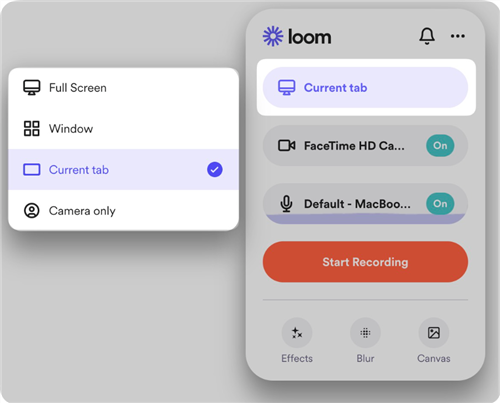
Loom Extension
Best For: rapid internal communication.
Quick Specs:
- Time Limit: 5 minutes (Free).
- Watermark: None (Loom branding on the player page).
- Storage: Cloud (Instant Upload).
The Catch: The 5-minute limit is strict. If you go over, you cannot save the video without upgrading.
Clipchamp: The Windows Native
Now integrated into the Windows ecosystem but also available as a webcam recorder for Chrome, Clipchamp is a full video editor in your browser.
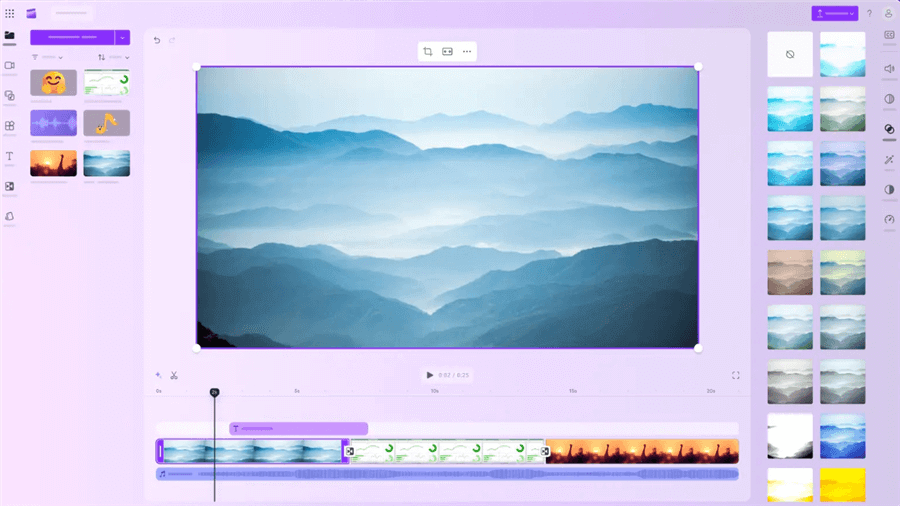
Clipchamp Interface
Best For: Users who need basic editing (trim, captions).
Quick Specs:
- Time Limit: Unlimited (check storage space).
- Watermark: None on 1080p exports (Free).
- Storage: Cloud/Local Hybrid (Processed in browser, saved to cloud if enabled).
The Catch: It is resource-heavy. On older Chromebooks or laptops with 4GB of RAM, the preview window may lag significantly.
Veed.io: The Creative Suite
Veed is excellent for social media content because of its auto-subtitle feature.
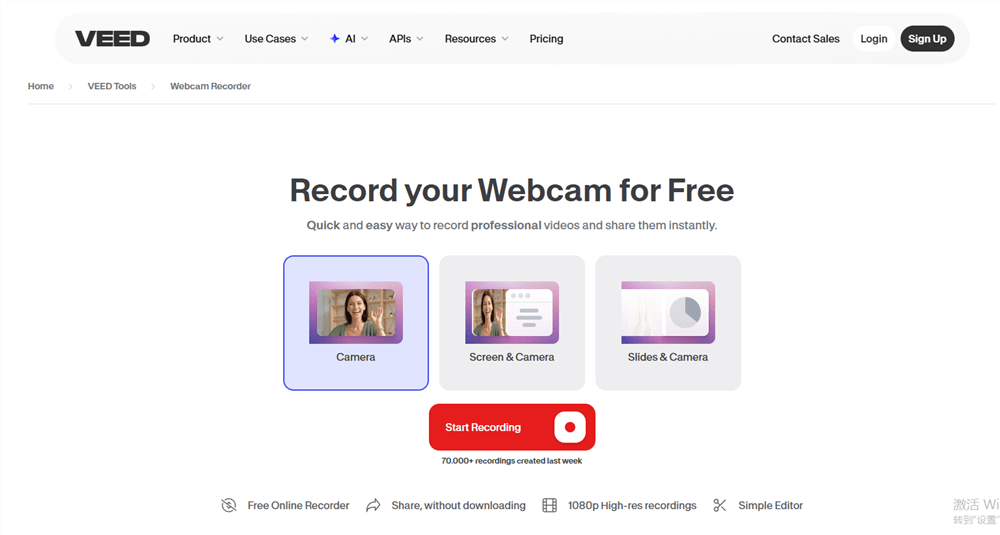
Free Online Webcam Recorder – Veed
Best For: Creating content for TikTok or Instagram from a browser.
Quick Specs:
- Time Limit: 10 minutes (Free).
- Watermark: Yes (Visible watermark on free exports).
- Storage: Cloud.
The Catch: The watermark is intrusive. Use this only if you plan to crop the video later or if the branding doesn’t matter for your use case.
ScreenPal (formerly Screencast-O-Matic)
A veteran in the space, ScreenPal offers a reliable web launch recorder.

Free Online Webcam Recorders – ScreenPal
Best For: Longer recordings that require a script (teleprompter feature).
Quick Specs:
- Time Limit: 15 minutes (Free).
- Watermark: Yes (Bottom left corner).
- Storage: Cloud or Local Download.
The Catch: You must launch their “Web Launch” agent, which technically doesn’t require admin install rights, but strict IT firewalls might still block the plugin initiation.
FocuSee Online Camera Recorder
FocuSee also offers a browser-based online camera recorder that allows users to quickly capture webcam video without installation, while keeping the option to upgrade to its full-featured desktop experience.
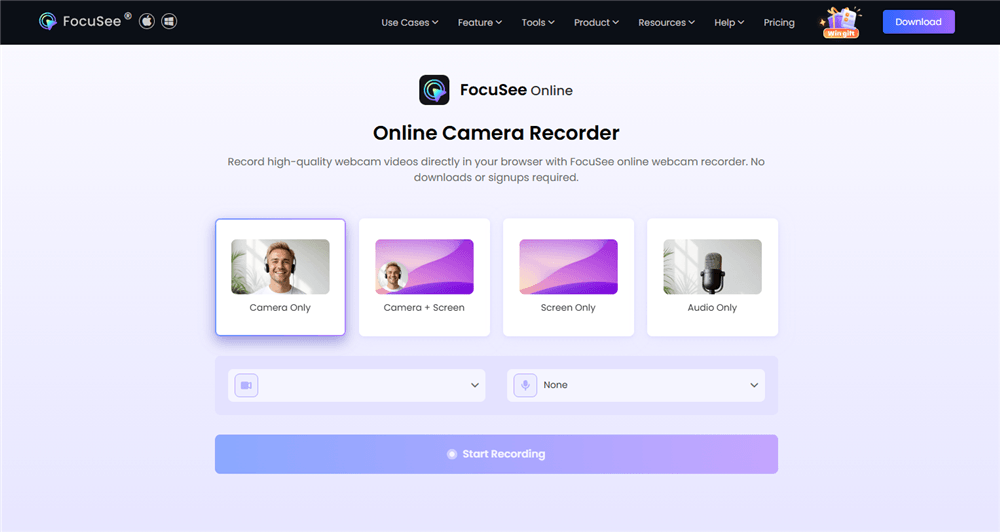
Free Online Webcam Recorder – FocuSee
Best For: Users who want a simple online recorder with a clear upgrade path to professional-quality video.
Quick Specs:
- Time Limit: Flexible (depends on browser/session)
- Watermark: None (clean output)
- Storage: Local + optional cloud workflow
The Catch: While the online tool is great for quick recordings, advanced features like AI zoom, auto editing, and 4K export are only available in the desktop version.
Canva Online Video Recorder
Most people know Canva for design, but its built-in studio allows for webcam recording directly into a presentation.
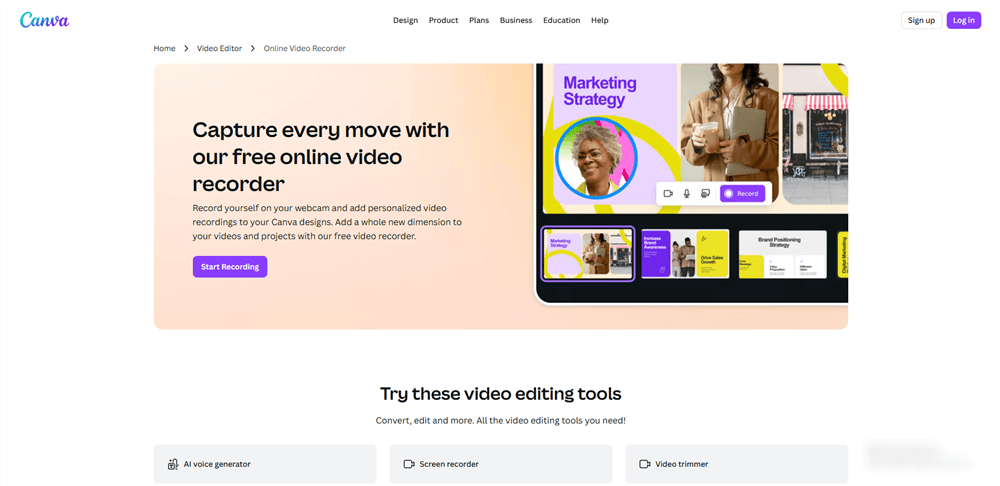
Canva Online Video Recorder
Best For: Job applications where you want your face next to your resume slide.
Quick Specs:
- Time Limit: Generous (varies by browser memory).
- Watermark: None (unless you use premium assets).
- Storage: Cloud.
The Catch: The interface can be cluttered if you just want a simple “record and save” workflow.
Screenity: The Lightweight Open-Source Alternative
Screenity is a free, open-source browser recorder that offers surprisingly powerful features without requiring an account or cloud dependency.
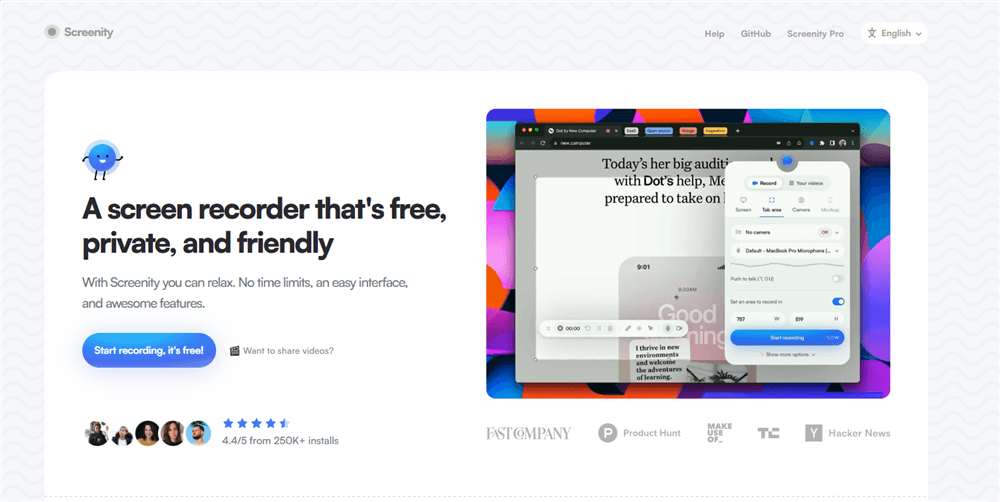
Free Online Webcam Recorder – Screenity
Best For: Users who want a lightweight, privacy-friendly recorder with annotation tools.
Quick Specs:
- Time Limit: Unlimited
- Watermark: None
- Storage: Local (with optional export)
The Catch: It lacks built-in cloud sharing and advanced editing, making it less suitable for polished or presentation-ready videos.
Kapwing
Kapwing is a powerful browser-based timeline editor that includes a camera capture feature.
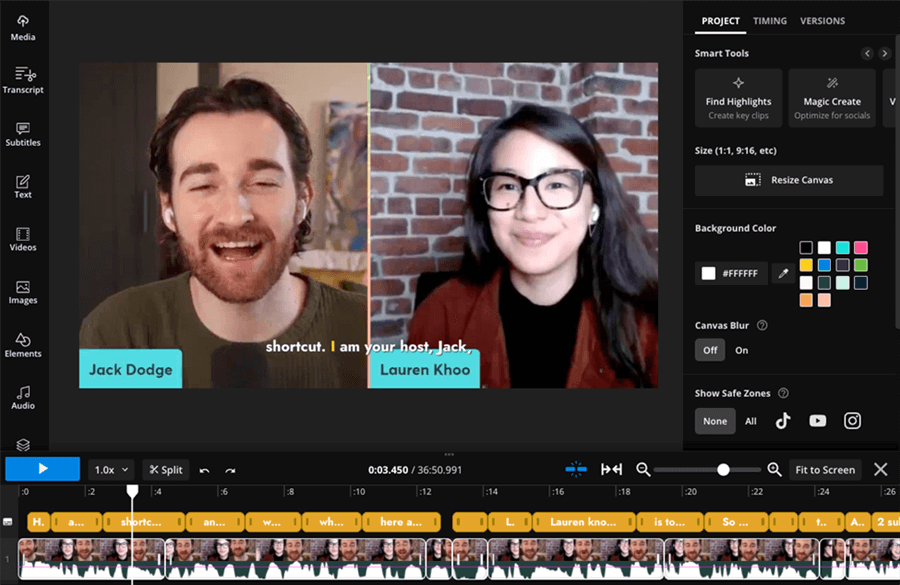
Click Resize Canvas
Best For: Repurposing content (resizing for different social platforms).
Quick Specs:
- Time Limit: 7 minutes (Free).
- Watermark: Yes (Free version adds a watermark).
- Storage: Cloud.
The Catch: Like Veed, the watermark is the main trade-off for the advanced editing features available in the browser.
The 30-Second Pre-Flight Check: Perfect Audio & Video Every Time
Most frustration with online camera recorder tools isn’t caused by the software itself, but by browser permissions and input selection. If you have ever recorded a perfect take only to find the audio silent, follow this 30-second expert check.
Clear the Deck
Close other applications like Zoom, Teams, or Skype. Browsers cannot access the webcam if another app has “locked” the hardware resource.
Grant Permissions (and Reset if Needed)
When the browser pop-up asks to use your camera, click “Allow.” If you previously blocked it, look for a “lock” icon or a “camera with a red X” in the URL bar. Click it to reset your camera + microphone permissions.
Select the Correct Input (Crucial Step)
This is where most users fail. Do not assume the browser chose the right mic. Manually check the audio input selection dropdown in the recorder’s settings. Ensure your external USB mic or headset is selected, rather than the poor-quality “Realtek Audio” or default laptop mic which picks up fan noise.
The 10-Second Test
Never jump straight into a 5-minute recording. Record a 10-second test clip, speak at normal volume, and watch it back. This confirms your echo/noise reduction is working and that you aren’t clipping (distorting) the audio.
Lighting Check
Position a light source in front of you (a desk lamp works wonders). A simple front-facing light often improves perceived quality more than upgrading to a 4K camera. Avoid having a bright window behind you, or you will appear as a dark silhouette.
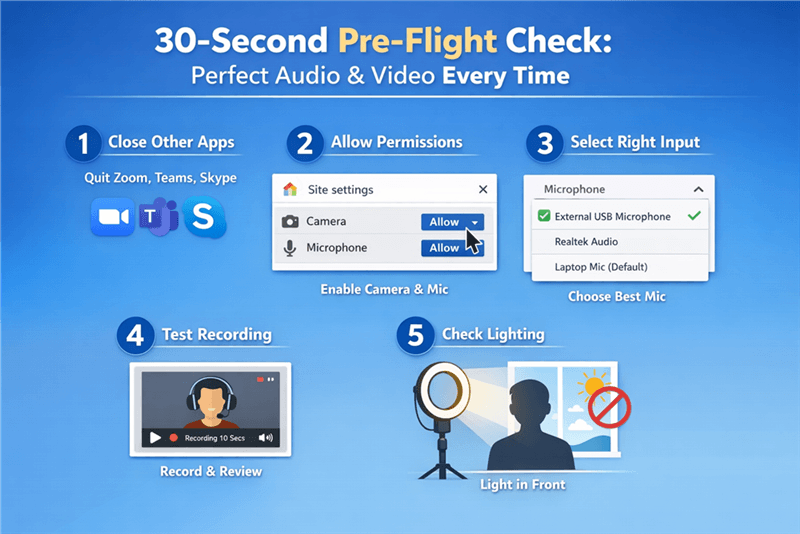
Checklist of the Chrome Site Setting Permission
Privacy & Storage: Where Does Your Video Go?
When you use a browser camera recorder, you are granting a website access to your camera. Understanding privacy (where recordings are saved) is vital, especially for work-related content.
Local Processing (Maximum Privacy)
Tools like Webcam Test and the initial capture phase of the Clipchamp process video locally in your browser’s cache. The video file is constructed on your machine, and you download MP4 / WebM directly.
- Pros: The video never touches a third-party server until you choose to upload it somewhere.
- Cons: If your browser crashes, the video is lost instantly.
Cloud Uploads (Maximum Convenience)
Tools like Loom, Veed, and Kapwing upload the data packet-by-packet to their servers as you record.
- Pros: You get a share link instantly; your computer’s storage isn’t filled.
- Cons: Your video lives on their server. For sensitive internal documents, ensure you delete the video from their cloud dashboard after you have downloaded it.
Expert Tip: After finishing your session, it is good security practice to click the lock icon in your browser address bar and revoke camera permissions.
Beyond the Browser: When to Use a Desktop Tool
If you are on a locked corporate laptop, the 8 tools above are your lifeline. However, if you are using a personal device (MacBook or Windows Home) and the quality of browser recording feels “flat,” you have better options.
Browser recorders are limited by internet bandwidth and browser resource caps (often limiting quality to 720p). For high-stakes tutorials, product demos, or interviews where you want to look your absolute best, a dedicated tool like FocuSee is a strong alternative.
Why Switch to a Desktop Recorder?
- No Internet Lag: Recording happens offline, ensuring no frame drops or audio sync issues.
- High Fidelity: Support for 4K/60fps recording, which browsers struggle to handle.
- Automated Editing: FocuSee uses “Smart Zoom” to automatically pan and zoom into where your mouse clicks, making static screen recordings feel dynamic without manual editing.
If you have the administrative rights to install software, moving away from browser tools can solve the “blurry video” complaints common with WebRTC. But for “Jordan” and anyone else stuck behind an IT firewall, the browser tools listed above remain the best path forward.
Workflow: How to Repurpose Your Recording
Once you have downloaded your video from a tool like Loom or Clipchamp, the job isn’t always done. You might need to get that video onto LinkedIn or TikTok. Here is a quick workflow to repurpose your webcam footage.
Converting WebM to MP4
Many browser tools (especially on Chrome/Android) export in .webm format. Apple devices often struggle to play this.
Solution: Use a free converter like CloudConvert or HandBrake (if installable) to switch the wrapper to .mp4 for maximum compatibility.
Adding Captions for LinkedIn
80% of LinkedIn videos are watched on mute.
Solution: If you used Clipchamp or Veed, use their auto-caption feature before exporting. If you used a raw tool like Webcam Test, upload the file to YouTube (as private), let YouTube generate captions, and download the .srt file.
Cropping for Mobile (TikTok/Reels)
If you recorded in landscape (16:9) but need a vertical video.
Solution: Use Canva or Kapwing. Upload your landscape video, select a “Mobile Video” template, and drag your video to center the subject. This ensures you don’t look tiny in the middle of a vertical screen.
Frequently Asked Questions
What’s the best online camera recorder that is 100% free?
Webcam Test is completely free but basic. Loom is the best free tool for quick sharing, provided you stay under the 5-minute limit.
Why does my video look low quality (blurry)?
Browser recorders rely on your internet connection and browser efficiency. If bandwidth drops, the browser lowers the resolution to keep recording. Ensure good lighting; low light forces the camera to boost “gain,” resulting in grain and blur.
Can I record webcam video online with audio?
Yes. All 8 tools listed capture audio. Always check the input selector before starting to ensure it is using your good microphone, not the laptop default.
Which online recorder has no watermark?
Loom, Webcam Test, and Clipchamp (mostly) allow watermark-free recording on their free tiers. Veed and Kapwing generally add watermarks unless you pay.
Why isn’t my camera working in Safari?
Safari has stricter privacy protocols than Chrome. You may need to go into System Settings > Privacy & Security > Camera on your Mac and ensure your browser has permission to access the hardware.
Conclusion
Recording a video update shouldn’t be a panic-inducing event. By selecting the right tool for your specific constraints, you can bypass the common errors that stop most users in their tracks.
If you need a shareable link immediately and have 5 minutes or less, Loom is your best bet. If you need privacy and a raw file without cloud uploads, use Webcam Test. And if you need to polish your video with text and cuts, Clipchamp offers a robust editor directly in your browser.
Select the tool that fits your current device restrictions and hit record with confidence.