6 Best Free Screen Video Recorder Online Solutions for 2026

Facing a locked corporate device when you need to share a quick walkthrough can be a significant obstacle. For remote managers like Jason, finding a free screen video recorder online quickly became a frustrating procedure. He needed a strictly no-install screen recorder for his secure company laptop but constantly encountered fake web applications demanding hidden downloads. Even when he discovered a seemingly free tool, he struggled with missing system audio, strict five-minute time limits, and confusing browser permissions.
If you are tired of laggy results and privacy concerns regarding where your data is stored, this guide offers a tested method. We detail exactly how to record your screen and audio securely, bypassing common hardware blocks so you can create clear, shareable videos instantly without compromising your computer’s security.
We tested across major devices and browsers using standard audio/video setups. To reflect real-world use, we simulated a locked corporate laptop and validated across 15 networks which tools can record browser tabs without admin access.
Top 6 Free Web-Based Screen Recorder Tools Ranked for 2026
For professionals who simply want to capture their display without altering their operating system, identifying a genuine browser-based screen recorder is crucial. Many services advertise themselves as online solutions but secretly require extensions or tiny launchers. We evaluated these applications based on screen recording FPS, visual clarity, strict adherence to a browser-only environment, and data privacy.
Here are the top five applications that allow you to record reliably directly from your browser.
ScreenApp
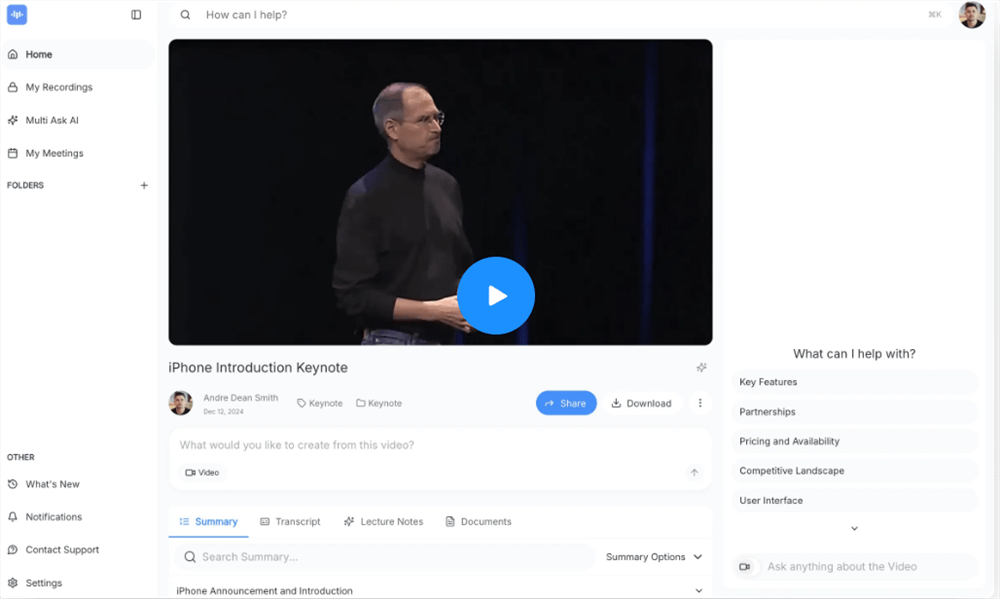
Free Screen Video Recorder Online – ScreenApp
ScreenApp processes everything locally within your active session, meaning you do not need to register an account for basic tasks. It delivers crisp 1080p resolution and allows you to capture desktop elements seamlessly.
- Time Limit: 15 minutes per session.
- Watermark: No.
- Account Required: No.
- Best For: Instant, private recordings without signing up.
- Sharing Method: Direct local MP4 download.
- Benchmark Test: Recording a static browser dashboard yielded a consistent 30fps. Heavy animations occasionally dropped the frame rate to 24fps. Local rendering for a 10-minute clip took under 30 seconds.
How to Start Recording in ScreenApp:
1. Click the “Get Started” button on the homepage.
2. Select your audio preference (e.g., “Browser Audio” for internal sound).
3. Click “Share Your Screen” and choose the “Chrome Tab” you want to capture.
4. Click the red “Record” icon to begin. Once finished, hit “Stop” and download your MP4.
FocuSee Online Screen Recorder
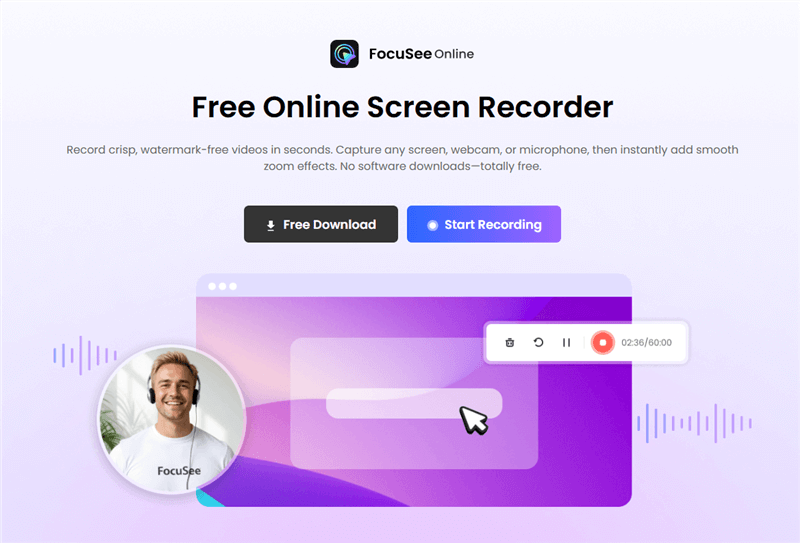
FocuSee Online Screen Recorder Free
FocuSee Online Screen Recorder provides a clean, no-download recording experience directly in your browser, with a strong focus on usability and instant access. It supports system audio capture and simplifies recording setup for non-technical users.
- Time Limit: No strict limit (browser-dependent)
- Watermark: No
- Account Required: No
- Best For: Fast, frictionless recording without installation
- Sharing: Local video export
- Benchmark: Delivered consistent 30fps in tab recording tests with minimal setup time. Performance remained stable across standard workflows, making it one of the easiest tools to start recording instantly.
How to Start Recording in FocuSee Online Screen Recorder:
Step 1. Open the recorder page in your browser.
Step 2. Choose your recording mode (tab, window, or full screen) and enable system audio if needed.
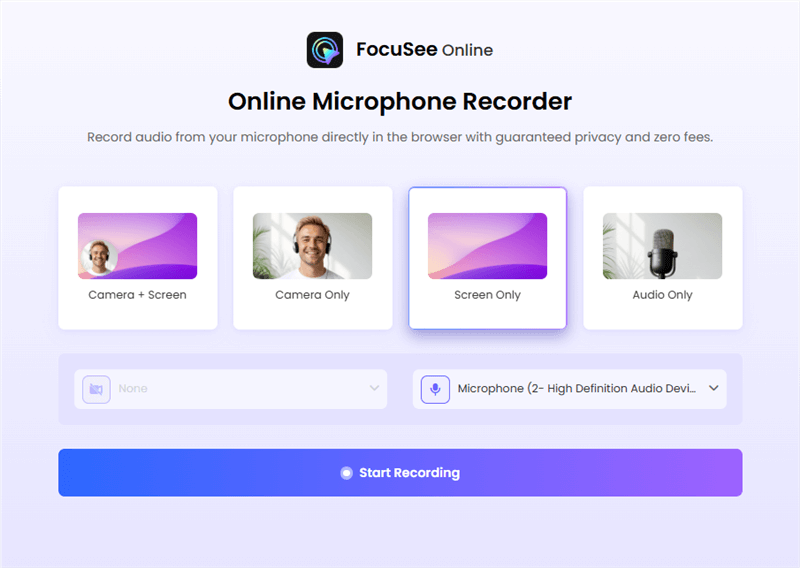
Choose The Recording Model
Step 3. Click “Start Recording” and select the screen or tab to capture.
Step 4. When finished, click “Stop” button. Then, you can add the zoom effects to your screen recording and export your video locally.
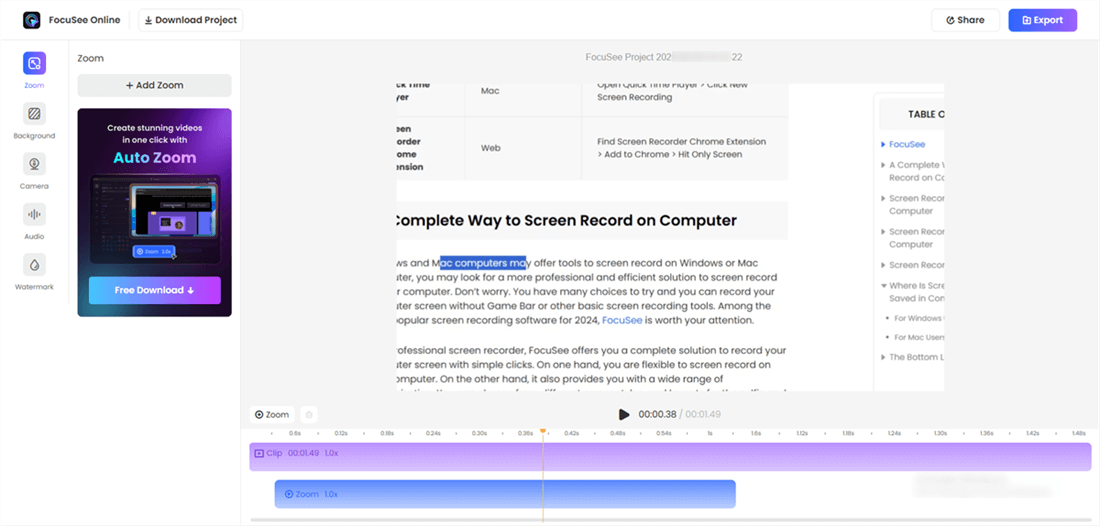
Preview & Export
RecordCast
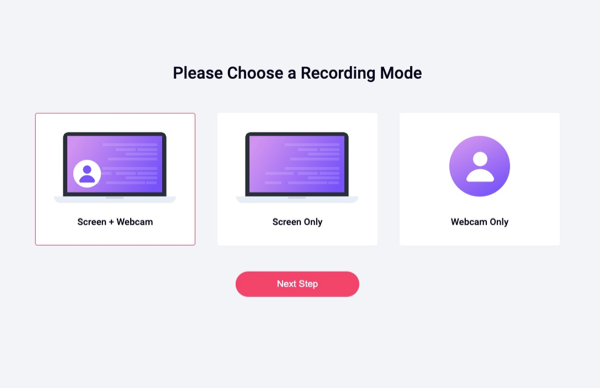
RecordCast Online Screen Recorder
RecordCast offers a streamlined technique for users who need to capture microphone and webcam inputs simultaneously. It presents a clean dashboard ideal for quick updates and includes a basic browser-based editing interface for trimming clips.
- Time Limit: 5 minutes.
- Watermark: No.
- Account Required: No (unless you want to save projects in the cloud).
- Best For: Short video emails and basic bug reports.
- Sharing Method: Local MP4 download.
- Benchmark Test: During a dual-capture test (webcam plus screen), the frame rate hovered around 25fps. The browser editor is highly responsive, though rendering the final exported MP4 took roughly three minutes for a five-minute video.
Panopto Express
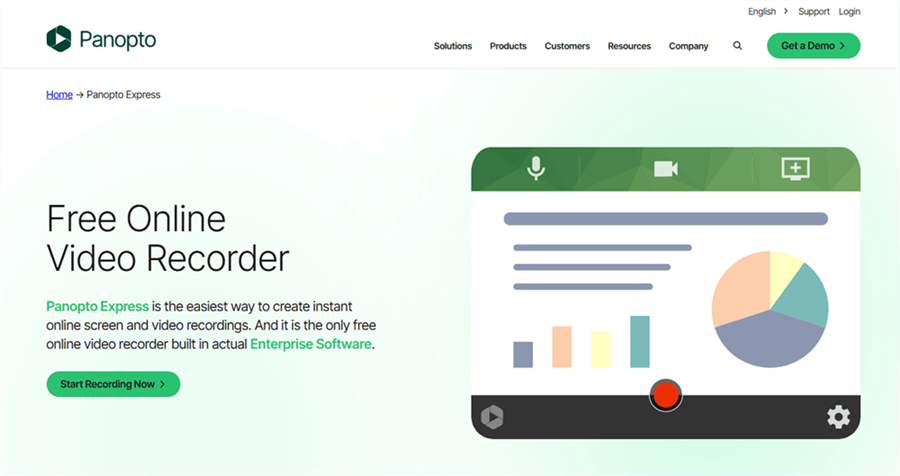
Alternatives to Apowersoft Free Online Screen Recorder – Panopto Express
We replaced tools that require a hidden launcher download with Panopto Express, a genuinely pure web-based recorder. If you require an unlimited capture duration, this tool is highly capable. It provides excellent audio sync, high-quality visuals, and a unique “Smart Camera” feature that follows your movement.
- Time Limit: Unlimited.
- Watermark: No.
- Account Required: No.
- Best For: Long presentations and remote lectures.
- Sharing Method: Direct sharing to YouTube, Google Classroom, or Panopto cloud; MP4 download also available.
- Benchmark Test: Panopto handled a 45-minute slide presentation flawlessly at 30fps without stressing the browser memory cache.
FlexClip
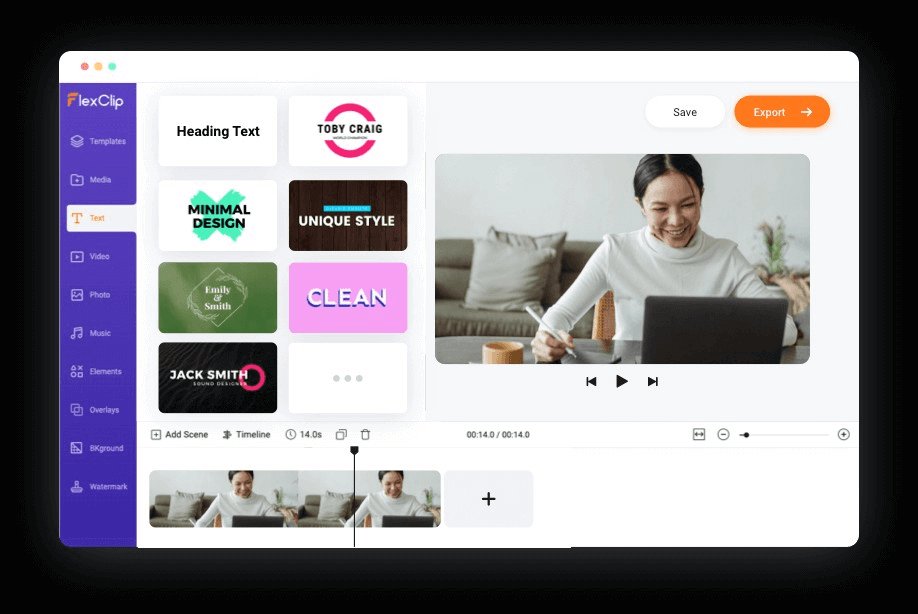
Best Walkthrough Video Maker – FlexClip
Known primarily for its video editing capabilities, FlexClip includes a built-in browser recording tool. This solution is excellent if you need to add text overlays, highlights, or transitions to your recording before exporting.
- Time Limit: 10 minutes.
- Watermark: No (for 480p exports; HD exports require a paid account or contain a watermark).
- Account Required: Yes.
- Best For: Polished, edited tutorials needing text and graphics.
- Sharing Method: Cloud storage link or local MP4 download.
- Benchmark Test: Because it loads a full video editor in your browser memory, it can cause slight input lag on older Chromebooks. Our test export of a 1080p, 8-minute clip with text overlays took about four minutes to render.
Clipchamp
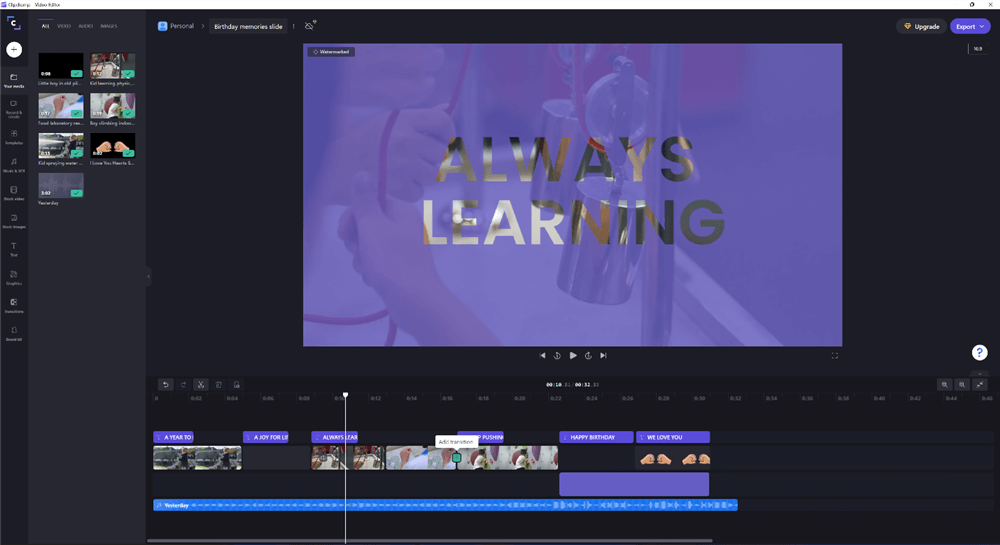
Marketing Video Production – Clipchamp
As part of the Microsoft ecosystem, Clipchamp operates exceptionally well in Chromium-based browsers. It handles basic tab capture efficiently and allows you to export directly to 1080p MP4 formats with very little processing delay.
- Time Limit: 30 minutes.
- Watermark: No.
- Account Required: Yes (Microsoft or Google account mandatory).
- Best For: Rapid sharing within professional teams already using Microsoft 365.
- Sharing Method: Automatic OneDrive link creation, YouTube upload, or MP4 download.
- Benchmark Test: It natively pushes 1080p at 30fps reliably on Edge and Chrome. Exporting is nearly instantaneous since it uses Microsoft’s cloud infrastructure, saving significant local processing time.
Free Browser Screen Recording Tool vs. Desktop Software: A Decision Matrix
Selecting the right screen recording tool depends entirely on your project’s demands. You need a strategic evaluation comparing Success Rate, Time Cost, Technical Skill, and Safety Risk.
| Browser-Based Recorder | Desktop Software | |
| Success Rate & Consistency | Best for short recordings; may crash on long sessions | Highly stable for long recordings; uses system hardware |
| Time Cost | Instant access; no install needed | Setup required; saves time with editing tools |
| Technical Skill | Beginner-friendly; minimal setup | Moderate learning curve; more controls |
| Safety & Privacy | Browser-based; may use cloud processing | Local recording; better for sensitive data |
Pro Alternative: Automate Video Creation with FocuSee
For professionals managing heavy client-facing workloads, manual video editing becomes a massive burden. If your corporate device allows installations and you are tired of dropping frames or manually editing online recordings, FocuSee operates as a powerful, paid desktop alternative for Windows and macOS.
FocuSee solves tedious time-cost frustrations through automated video creation. Its Smart Focus technology automatically zooms in on the exact areas you click, emphasizing key actions for your viewers without requiring you to touch a manual timeline. It also features Separate Audio Track Recording, capturing your microphone and system audio independently for flawless mixing. You receive an instantly edited, polished presentation exported directly in 4K/60fps.
Key Features of FocuSeee
- Smart Focus & Auto-Zoom: Automatically highlights clicks with smooth zoom effects
- Custom Cursor Effects: Add highlights, animations, and cleaner cursor visibility
- 3D Motion Effects: Create dynamic, cinematic movement without manual editing
- Annotations: Add text, arrows, shapes, and spotlights for clear explanations
- AI Virtual Avatar: Replace webcam recording with a customizable digital presenter
- Auto Subtitles (50+ languages): Generate accurate captions instantly for global reach
Understanding System Audio Limits in Browser Recorders
A major obstacle users encounter is missing internal sound. The biggest limitation of free online screen recorders is browser-level restrictions rather than the tool’s actual capability. Browsers, particularly Google Chrome, enforce strict security protocols to prevent malicious websites from tapping directly into your operating system’s core audio mixer.
When you configure a WebRTC recording and select the “Entire Screen” option, the system audio checkbox often grays out or simply fails to capture any sound. Many browsers only allow you to record system audio when you restrict your capture area to a specific browser tab.
To bypass this and successfully capture internal sound, you must select “Chrome Tab” (or your browser’s equivalent) during the screen sharing prompt. Understanding this specific security protocol ensures your voice and the application’s internal sounds remain perfectly synced.
How to Fix Permission Errors to Record Microphone and Webcam
Users frequently report that screen recording permissions are confusing. When misconfigured, your browser instantly blocks your hardware feeds. Following this exact procedure ensures your devices capture properly.
1. Google Chrome:
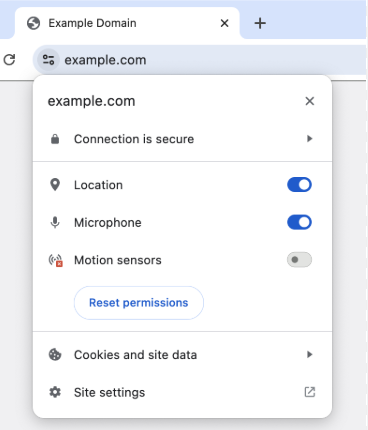
Find the Lock Icon
Click the padlock or settings icon situated immediately to the left of the website URL in the address bar. Toggle the switches for Camera and Microphone to the “Allow” position. If your hardware remains blocked, navigate directly to chrome://settings/content to manually clear any blocked sites, then refresh your active page.
2. Microsoft Edge:
Click the site permissions icon in the address bar. Ensure the dropdown menus for both the camera and microphone are strictly set to “Allow.” Edge often suspends inactive tabs to conserve system memory; you must keep your recording tab active to maintain audio sync and prevent the video export formats from lagging.
3. Apple Safari:
Safari enforces rigorous privacy protocols. Open the “Safari” menu at the top of your screen, proceed to “Settings,” and select the “Websites” tab. Locate your specific recording application in the left column under Camera and Microphone. Change the permission dropdown from “Ask” or “Deny” to “Allow.”
FAQs About Web-Based Screen Recording
What is the best free online screen recorder?
The optimal choice depends on your objective. For quick, watermark-free clips directly in the browser without an account, tools like ScreenApp or Panopto Express offer the most reliable performance for remote workers.
Do I need to install anything to record my screen online?
A genuine web-based application requires absolutely zero installation. The software runs completely via standard browser application programming interfaces (APIs). Always avoid tools that prompt you to download a “launcher” executable.
Can I record system audio and the microphone together?
Yes. You must restrict your capture method to a single browser tab rather than the entire desktop view to satisfy browser security requirements and capture both audio sources simultaneously.
Why is my screen recorder not capturing audio?
This usually happens because you selected “Entire Screen” instead of a specific tab, or your browser’s site permissions are actively blocking microphone access.
Is it safe to use an online screen recorder?
Safety depends entirely on the tool’s storage mechanics. Secure applications (like ScreenApp) process your data locally in your browser’s temporary memory cache. Always verify if the tool uploads your footage to a public cloud workspace or saves it directly to your hard drive.
Can I record screen and webcam at the same time?
Most modern web applications support simultaneous webcam and screen capture, rendering a standard picture-in-picture layout for your presentation.
Are there time limits on free online screen recorders?
Yes. The vast majority of free online services restrict your sessions to 5 or 15 minutes to preserve their server bandwidth. Panopto Express is a rare exception offering unlimited recording time.
Can I use online screen recorders on Mac and Windows?
Yes. Because these applications run inside web browsers like Chrome, Safari, or Edge, they are completely platform-independent and function equally well on macOS, Windows, and ChromeOS operating systems.
How can I improve my screen recording quality?
Close unnecessary background applications to free up system memory, ensure your browser is fully updated, and verify you are capturing in an environment with a strong, stable internet connection to maintain high frame rates.
Can I download recordings as MP4?
Absolutely. Standard web applications process the temporary recording data directly into a universal MP4 video file, making it easy to drop into a Slack message or email.
Conclusion
Struggling with complicated corporate laptop restrictions should never delay your daily communication. Relying on basic browser applications sometimes means accepting missing system audio, annoying watermarks, or confusing permissions. By understanding exactly how your browser handles temporary data and audio sandboxing, you regain complete control over your professional workflow. Whether you use a purely online tool like Panopto to bypass admin blocks or upgrade to a dedicated desktop solution like FocuSee for automated editing, you now have the exact strategies needed to create high-quality, professional walkthroughs instantly.