6 Best Free Online Voice Recorder Tools: Your Guide to Web-Based Recording

Facing strict hardware restrictions on a school-issued laptop or office computer when you urgently need to create an audio file can be incredibly frustrating. Consider the experience of Emily, a remote teacher trying to prepare her lessons. She needed an instant tool to capture a quick voice explanation for her students without downloading any software. Instead of finding a quick solution, she encountered hidden paywalls, confusing microphone permissions, and recordings ruined by background noise.
If you share these struggles, you are in the right place. Finding a reliable free online voice recorder should not require technical expertise. This guide offers a tested procedure for capturing high-quality audio directly from your browser. You will discover how to bypass low-quality web compression, avoid unnecessary account sign-ups, and find a simple tool that works instantly.
This guide is based on hands-on testing across Windows 11 PCs, MacBook Air/Pro, iMacs, and Chromebooks, using both built-in and external USB microphones (e.g., Blue Yeti). Additional tests were done on iPads and mobile browsers.
The 6 Best Free Online Voice Recorders (Tested & Verified)
Navigating the search results for a free audio tool can be overwhelming. Many websites disguise paid services behind deceptive buttons. The following list categorizes the top five truly free online voice recorders by their best use-case.
To ensure complete transparency, I have included maximum recording times, exact data privacy handling, and real observations from my hands-on testing.
Vocaroo
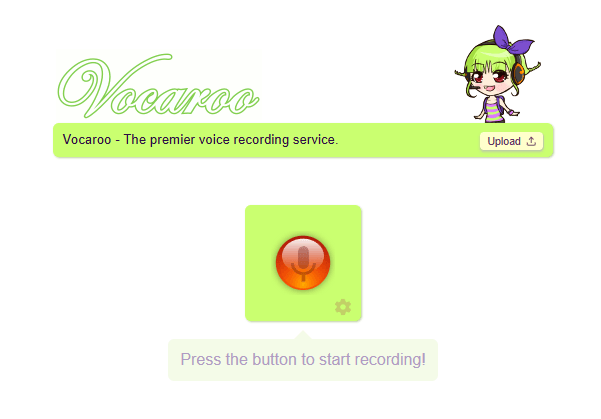
Online Audio Recorder – Vocaroo
Vocaroo is a straightforward, zero-install tool. It is perfect for users who just need to quickly record a message and send it out immediately. The interface is incredibly minimal, featuring a single prominent record button.
- Maximum Recording Time: No strict limit is officially stated, but during my testing on a Chromebook, the audio buffer dropped out around the 45-minute mark. I highly recommend keeping Vocaroo recordings under 20 minutes to prevent data loss.
- Data Privacy: Server-side storage. Your audio uploads to their servers to generate the shareable link.
- Key Benefit: Generates instant shareable links and QR codes.
- Limitation: It lacks advanced noise suppression and editing capabilities.
- Best For: Sending quick audio messages to colleagues or students.
FocuSee Online Microphone Recorder
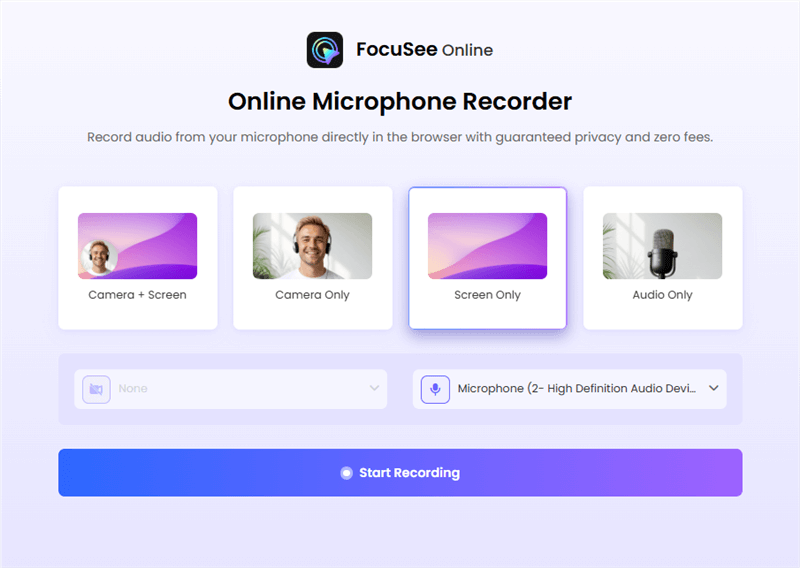
Choose The Recording Model
FocuSee is designed for users who want a fast, distraction-free recording experience directly in the browser. During testing, it stood out for its minimal interface and immediate start-up speed, making it ideal for quick voice capture, lecture notes, or spontaneous recordings.
Unlike trimming-focused tools like 123Apps or transcription-oriented tools like Rev, FocuSee prioritizes instant usability over post-processing features, reducing friction when speed matters most.
- Maximum Recording Time: No fixed limit (depends on browser session stability)
- Data Privacy: Local-first browser processing (audio is not forced to upload)
- Key Benefit: Clean UI with zero setup and no distractions
- Limitation: No built-in advanced editing tools
- Best For: Users who need to record quickly without configuration
123Apps Online Voice Recorder
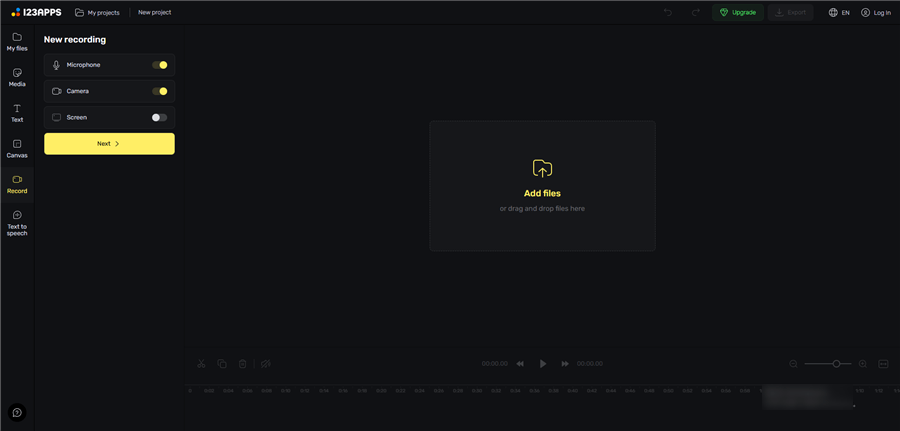
123Apps Online Screen Recorder
This tool excels at browser audio capture and includes a highly intuitive built-in trimming feature. It requires absolutely no account sign-up and allows you to save your final file directly to your desktop.
- Maximum Recording Time: Limited only by your browser’s available memory. I tested trimming a 30-minute audio file. The browser experienced a slight visual lag when adjusting the sliders, but the final export worked flawlessly.
- Data Privacy: Local storage. All processing and trimming happen within your browser cache, meaning your audio is never uploaded to their servers.
- Key Benefit: A visual waveform editor allows you to precisely cut silence from the beginning or end of your clip.
- Limitation: Exports primarily in MP3 format, resulting in minor audio compression.
- Best For: Users who need to trim mistakes from their audio before sharing.
Rev Online Voice Recorder
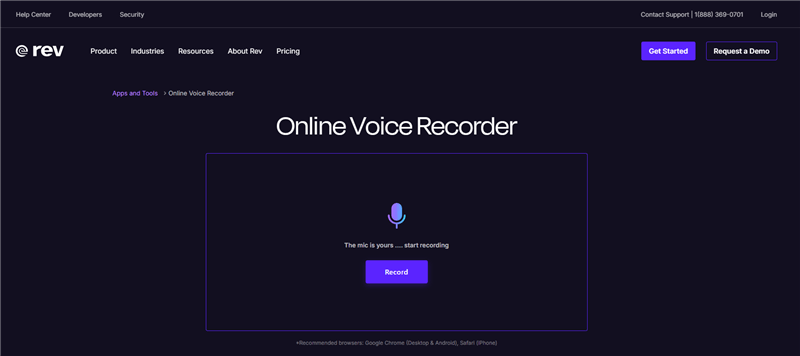
Online Audio Recorder – Rev
Rev offers an excellent recording experience and allows you to download an MP3 completely free, without any watermarks.
- Maximum Recording Time: I tested this tool for a continuous 60 minutes without any stability issues or lag.
- Data Privacy: Server-side storage. Rev securely stores the file on their servers, which is necessary if you choose to use their transcription service.
- Key Benefit: Integrates seamlessly with their paid option to transcribe your recorded audio into text.
- Limitation: The free tier focuses solely on recording; actual transcription requires payment.
- Best For: Journalists and students recording interviews that will later need text conversion.
Reverb Record
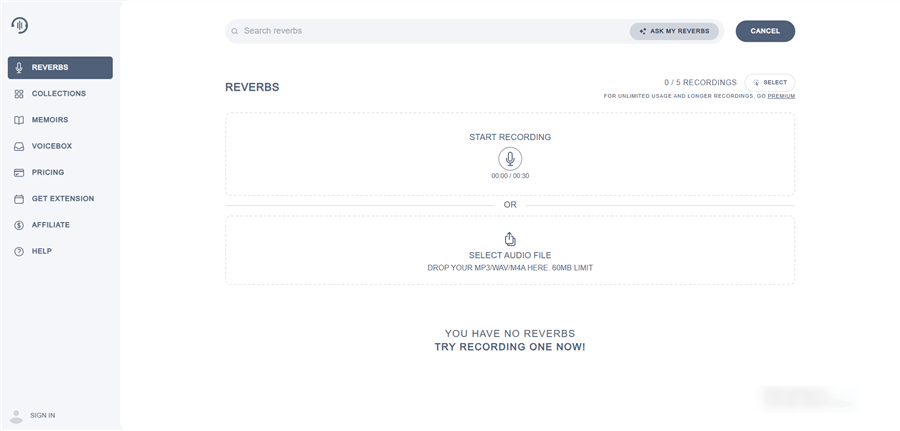
Online Voice Recorder – Reverbs
Reverb functions as an excellent voice note tool. It requires no sign-up for basic use and allows you to embed the recording link directly into emails, forums, or digital documents.
- Maximum Recording Time: Anonymous recordings without an account should be kept under 10 minutes, as you cannot manage or delete them later.
- Data Privacy: Server-side storage. Audio is hosted on Reverb’s servers to facilitate link sharing.
- Key Benefit: Integrates seamlessly with social media platforms and email clients.
- Limitation: It focuses heavily on link sharing rather than providing robust local file downloads.
- Best For: Creating voice notes to embed in digital workspaces.
Riverside.fm Basic
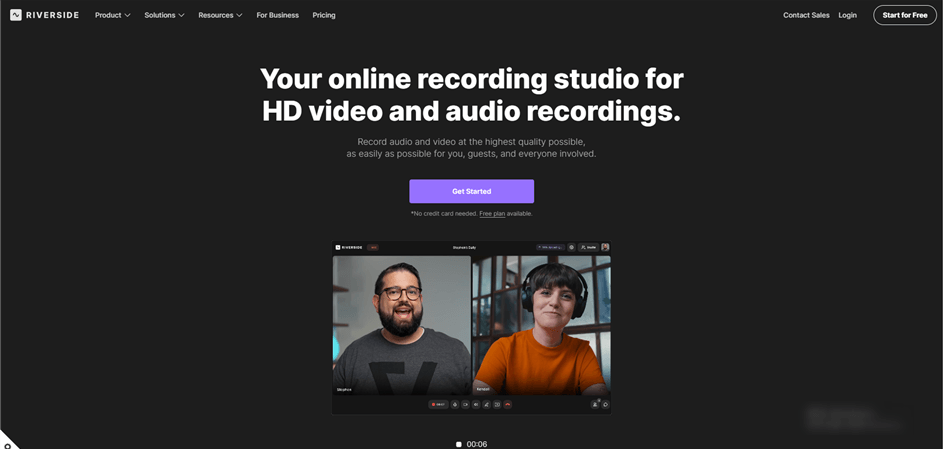
AI Screen Recorder – Riverside
For users wanting higher audio bitrate options, Riverside offers a basic free tier. Note: Unlike the other tools on this list, Riverside does require you to create an account. Even though this violates the strict “no sign-up” preference, its audio quality makes it essential for this list.
- Maximum Recording Time: The free tier allows up to 2 hours of separate audio/video track recording.
- Data Privacy: Local processing first, then server storage. It records locally on your device via the Web Audio API to prevent internet dropouts, then uploads to your cloud dashboard.
- Key Benefit: Ensures your audio remains crisp without relying entirely on internet speed.
- Limitation: The mandatory account creation process takes a few extra minutes.
- Best For: Podcasters and professional voiceover artists testing browser setups. “
Resolving Microphone Permissions for Browser Audio Capture
A common obstacle when using an online voice recorder is getting stuck at the permissions prompt. If your browser cannot access your hardware, the tool will simply refuse to function. Follow this reliable procedure to fix your connection immediately. “
For Windows 10/11 Users
- Open your web browser (Chrome or Edge).
- Navigate to your chosen free online voice recorder site.
- Click the small padlock or settings icon situated next to the URL address bar.
- Locate the “Microphone” setting in the drop-down menu and toggle it to “Allow.”
- Refresh the page and attempt to record again.
For Mac Users (macOS Monterey or newer)
- Open Safari or Chrome.
- Click the Apple menu and select System Settings (or System Preferences on older versions).
- Navigate to Privacy & Security, then select Microphone. “
- Ensure the toggle next to your specific web browser is turned on.
- Return to the browser, click the padlock icon in the URL bar, and confirm the site has permission.
Expert Insight: Improving Audio Quality & Fixing Bitrates
Even with a top-tier web tool, your recordings might sound distant, muffled, or full of echoes. The biggest hidden limitation of browser recording is default audio processing.
Browsers naturally apply automatic gain control to microphone inputs. This artificially compresses your voice. To fix this, you must adjust the core settings on your actual computer.
How to Disable System Audio Enhancements
To achieve crystal-clear audio, you need to stop your computer from artificially processing your microphone input.
For Windows 11 Users:
1. Right-click the speaker icon in your taskbar and select Sound settings.
2. Scroll down to the Input section and click on your active microphone.
3. Look for the Audio enhancements drop-down menu.
4. Change this setting from “Device Default Effects” to Off.
For macOS Users:
1. Open the Apple Menu and go to System Settings.
2. Click on Sound, then select the Input tab.
3. Select your microphone from the device list.
4. Uncheck the box labeled Use ambient noise reduction.
The MP3 vs. WAV Rule
If a browser tool gives you the option to choose your export format, always select WAV. MP3 files are highly compressed to save space, which reduces voice clarity. WAV files preserve uncompressed data, providing significantly better quality if you plan to edit the audio later.
By disabling these OS-level enhancements and choosing the right file format, you bypass the default limitations and drastically improve your final results.
Comparing Browser Tools vs. Built-in OS Apps vs. Desktop Software
Before evaluating specific web applications, it is helpful to establish exactly what type of tool you need. You might wonder why you should use a web-based tool when Windows Sound Recorder and Apple Voice Memos are completely free and already installed on your computer.
Built-in apps are fantastic, but they have limitations. School and corporate IT departments often lock down built-in applications, preventing you from saving or exporting files. Additionally, built-in apps usually save files locally, meaning you still have to manually attach them to emails or upload them to a cloud drive. Browser-based tools solve this by generating instant, shareable links.
Key Comparison Criteria
| Built-in OS Apps (Voice Memos) | Free Browser Recorders | Dedicated Desktop Software | |
| Accessibility | Pre-installed, but sometimes blocked by IT administrators | Instant access on any device with a web browser | Requires downloading and admin permission to install |
| Sharing Speed | Slow; manual export and email required | Very fast; often generates instant URL links | Slower; optimized for high-fidelity export |
| Audio Quality | Good; uncompressed local audio | Variable; depends on browser and network | Professional, raw hardware-level capture |
| Privacy | High; stored locally on device | Mixed; may involve cloud processing | High; full local file control |
Reviewing this table empowers you to decide if a simple browser tool is sufficient for your current objective.
Need Better Quality? Try a Premium Desktop Tool
If you find yourself relating to Emily’s situation, you might eventually outgrow browser tools. Emily quickly noticed that even with perfect settings, free web applications struggled with loud background noises—like a loud laptop fan or traffic outside her window.
If free web tools cannot meet your quality demands, upgrading to a dedicated desktop application like FocuSee provides an excellent solution.
FocuSee is a premium screen-recording and video creation tool designed specifically for Windows and macOS. It addresses audio quality complaints directly by using powerful AI Audio Enhancement and Noise Reduction features. This software automatically identifies and removes breathing, mouth sounds, and background hums.
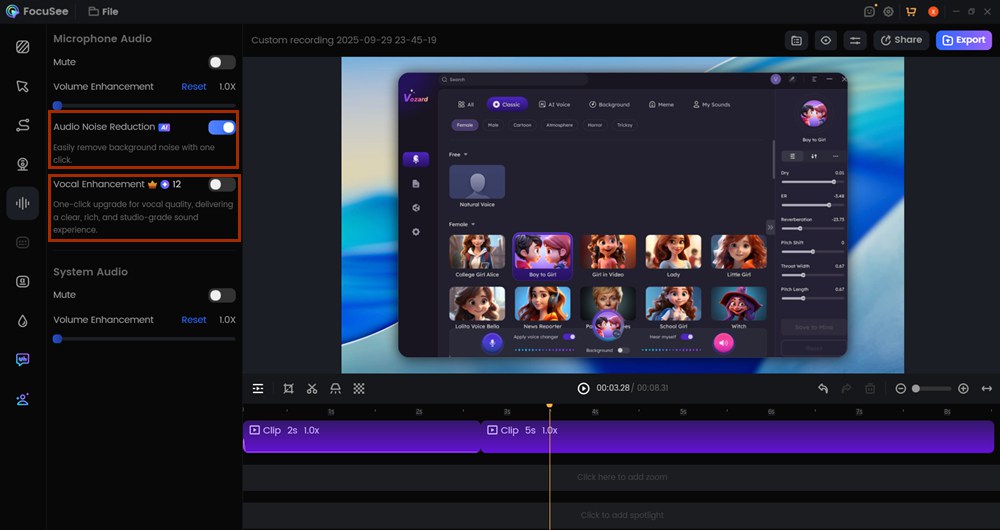
AI Audio Enhancement
Additionally, FocuSee includes an AI Smart Cut feature. Instead of manually dragging sliders in a browser window, this tool instantly detects and trims out filler words and long pauses. For educators, content creators, and professionals who need guaranteed high-quality audio without manual troubleshooting, investing in this paid application is a highly effective procedure. It bypasses internet connectivity issues entirely, giving you complete control over your content.
Frequently Asked Questions
When users begin their search, they often have specific concerns regarding privacy and compatibility. Addressing these questions will help you confidently choose the right application.
What is the best free online voice recorder right now?
The optimal choice depends entirely on your specific objective. For instant link sharing without an account, Vocaroo is highly recommended. For basic audio trimming and local processing, 123Apps provides the most intuitive user interface.
Do I need to install anything to record voice online?
No. Tools like Vocaroo, Rev, and 123Apps function entirely within your web browser. They rely on web technologies to capture audio directly, acting as a genuine no-install solution.
Is it safe to use a free browser voice recorder?
Yes, provided you understand how the specific tool handles data. If you are worried about privacy, use a tool like 123Apps that processes audio locally within your browser cache. This ensures the data never uploads to a remote server.
Which format is better for recording voice: MP3 or WAV?
MP3 files are compressed, making them excellent for quick sharing and smaller file sizes via email. WAV files are uncompressed and offer higher fidelity, making them the preferred choice if you plan to do further editing or professional voiceover work.
Can I record audio without creating an account?
Absolutely. Stick to the zero-install options listed in this guide, such as Vocaroo or 123Apps, which require zero registration to operate fully.
Can I use an online voice recorder on Mac and Windows?
Yes. Web-based applications operate seamlessly across all different operating systems, provided your web browser is fully updated.
Will my recordings be stored online or locally?
This varies by tool. Vocaroo and Reverb upload the file to their servers to generate a shareable link. Tools like 123Apps process the file directly on your local machine’s memory, ensuring greater privacy. Always check the specific tool’s privacy policy before recording sensitive information.
Conclusion
Locating a truly free online voice recorder without hidden limits solves a major workflow bottleneck. By selecting the correct tool for your specific needs, adjusting your system’s audio enhancements, and securing your microphone permissions, you can easily bypass the common frustrations of poor web audio.
For basic tasks and quick sharing, a browser-based tool is an excellent choice. If you later decide that you need guaranteed professional results without internet dependencies, downloading a premium desktop solution like FocuSee will streamline your recording process beautifully. Take a moment to adjust your computer’s sound settings today, open up one of the recommended web tools, and experience a flawless, stress-free recording procedure.