Top 8 Mobile Screen Recorders with Audio: System Sound & Mic Solutions

You have likely been there: you capture what you think is the perfect gameplay moment or tutorial, only to realize later that the video is completely silent. Finding a reliable mobile screen recorder with audio is often more complicated than it should be, primarily due to confusing system permissions and hardware limitations.
Take the story of Alex, for example. Alex wants to record a mobile game clip for TikTok and needs both the gameplay audio and his live commentary. He tries the built-in recorder, but the first video has no game sound—just a frustrating silence. This is a common obstacle for creators. Whether you are facing the same struggle as Alex or simply need to record a meeting, this guide provides the specific app permissions and tools required to fix your audio routing once and for all.
To ensure absolute accuracy, the methods and tools below were rigorously verified on a Samsung Galaxy S23 (Android 14) and an iPhone 15 (iOS 17). We did this to confirm exactly which apps can bypass the dreaded “no sound issue.”
Quick Decision: Built-in Recorders vs. Professional Tools
Before diving into the specific apps, it is crucial to determine if a mobile-only solution fits your needs. While tools like the iOS built-in screen recording feature or Android 10 screen recorder are excellent for quick, raw captures, they often fail at complex tasks.
If you are creating casual clips, a native app is sufficient. However, if you are producing tutorials or high-quality content, you may encounter limitations with editing and audio mixing on a small touchscreen.

Built-in Recorders vs. Professional Tools
Manual Mobile Recording is convenient but often results in large, unpolished files that require significant trimming. You might struggle to balance microphone audio with loud internal audio, leading to a mix where your voice is drowned out. Furthermore, mobile apps rarely offer advanced features like zoom-in effects or cursor highlights to guide the viewer’s eye.
In contrast, a Professional Desktop Workflow involves mirroring your mobile screen to a computer. This method allows you to use desktop-class processing for video quality and audio enhancement. If your goal is to produce polished, “ready-to-share” content without the headache of editing on a 6-inch screen, moving your workflow to a desktop environment is the superior strategy.
7 Best Native & Free Mobile Screen Recorders (Android & iPhone)
If you need a quick, on-the-go solution that runs directly on your phone, these seven apps are the best free mobile screen recorder with audio options available today. We have categorized them by operating system and primary use case.
For iPhone Users
1. iOS Built-in Recorder (The Standard)
The gold standard for iPhone users. Accessible via the Control Center, it captures system audio flawlessly. For iPhone users, this is the most reliable method to capture system audio without downloading third-party software.
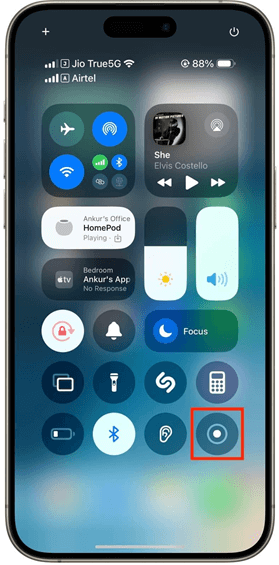
Tap Record
- How to Activate Mic: Long-press the record button in the Control Center and tap the microphone icon until it turns red.
- Pros: Native integration, no watermarks, high bitrate.
- Cons: Limited editing; you cannot adjust the audio balance between game sound and voice after recording.
For Android Users
2. Android 10+ Native Recorder (Quick Settings)
Found in Quick Settings, this tool allows you to select “Media sounds,” “Mic,” or both. It is the most reliable method for screen recorder with internal audio without root access.
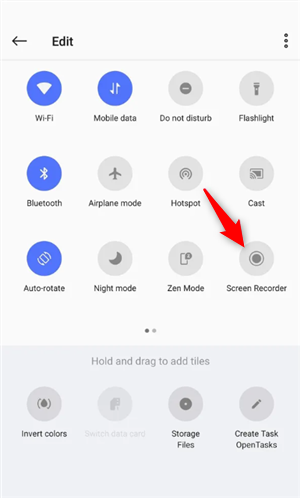
Add the Recorder
- Best For: Samsung, Pixel, and OnePlus owners running modern Android versions.
- Audio Note: Ensures system sound is captured directly from the sound card, resulting in crystal clear audio.
- Important Privacy Warning: Due to Google’s strict privacy policies, native Android recorders generally cannot record voice calls (VoIP) from apps like Discord, WhatsApp, or Zoom. Even with “Mic” enabled, the system often blocks the audio from the other party.
- Verdict: The best screen recorder with audio for Samsung devices out of the box.
3. AZ Screen Recorder (Best Free Third-Party)
A versatile screen recorder for Android that offers floating control buttons and facecam support. It remains a top choice for users on older devices or those who need specific resolution settings.
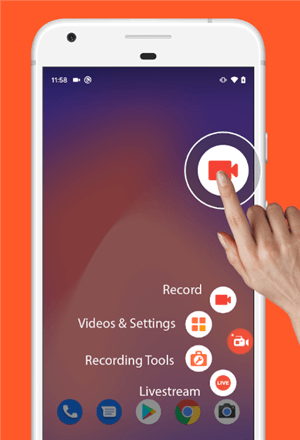
Android Screen Recorders – AZ Screen Recorder
- Key Feature: Screen recorder with audio and face cam overlay, perfect for reaction videos.
- Caveat: The free version includes ads and watermarks (removable via payment).
- Settings Tip: Ensure you enable “Internal Audio” in settings; otherwise, it defaults to the microphone.
4. XRecorder (Good for Gaming)
Ideal for gamers, offering a dedicated “Game Mode” and smooth 1080p recording. It handles internal audio well but requires Android 10 or higher.
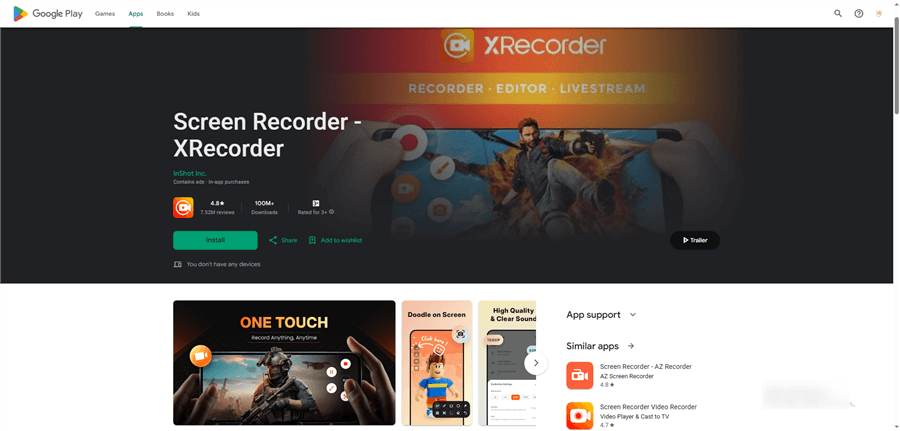
Android Screen Recorders – XRecorder
- Best For: Users searching for a screen recorder that records game audio specifically for high-action games like PUBG or COD Mobile.
- Performance: Optimized to reduce lag during record gameplay sessions.
- Export: Easy MP4 export directly to YouTube or social media.
5. Mobizen (Legacy Favorite for Older Devices)
A legacy favorite, famous for its “Clean Recording Mode” which removes the watermark for free.
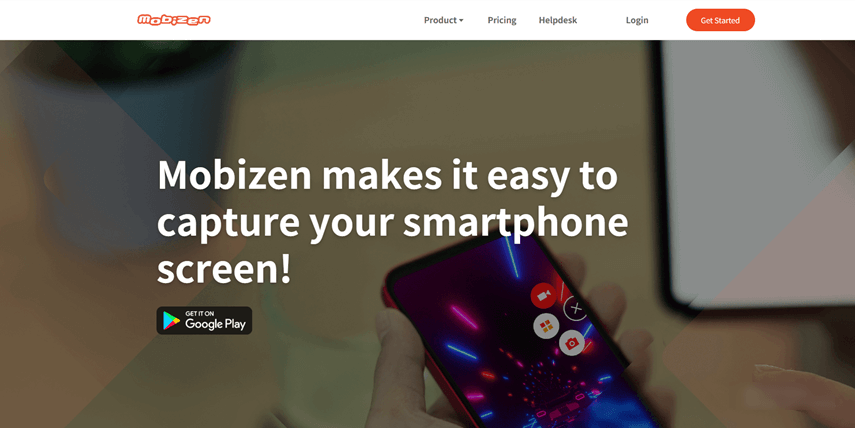
Android Screen Recorders – Mobizen
- Compatibility: Excellent screen recorder with audio for Motorola and older LG devices.
- Critical Audio Note for Android < 10: On devices running Android 9 or lower, Google blocked internal audio recording APIs. To record internal sound on these older devices, Mobizen requires the proprietary “RSound” plugin or a specific earphone-splitter setup. Without this hardware/software bridge, you will only be able to record audio via the microphone.
6. Google Play Games (Best for Internal Audio Reliability)
Surprisingly powerful, this app is the most stable choice to record gameplay with internal audio on older devices, as it links directly to your Google account.
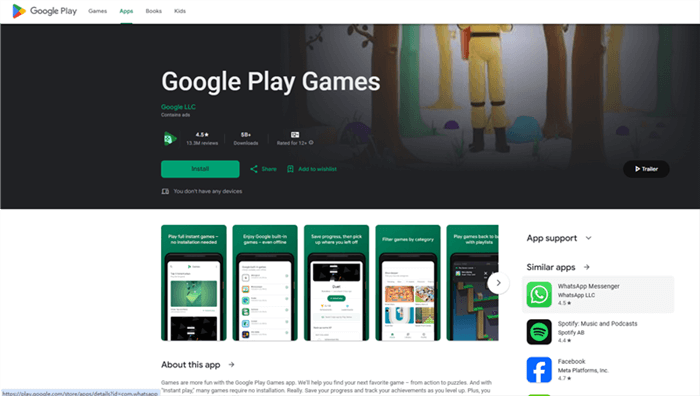
Google Play Games
- Integration: Often pre-installed, making it a hidden gem for a screen recorder with internal audio no root.
- Simplicity: Automatically detects games and offers a “Record” button upon launch.
- Limitation: It is strictly designed for games; recording standard apps is difficult.
7. InfiniteX (Lightweight Alternative)
A lightweight alternative known for simple MP4 export and minimal battery drain, perfect for older phones struggling with performance.
- Target: Users needing a screen recorder with audio for Xiaomi or budget devices with limited RAM.
- Focus: Pure recording without bloatware.
- Audio: Supports both mic and internal audio recording (on supported Android versions).
#8 Professional Alternative: FocuSee (Desktop Workflow)
If you have tried the mobile apps above and found them frustrating to edit—or if you simply need higher quality for professional tutorials—we recommend shifting your workflow to the desktop.
FocuSee is not a mobile app; it is desktop software that records your mirrored phone screen. This is the “Editor’s Choice” for creators who need to produce polished content without struggling with a small touchscreen interface.
You don’t need complex equipment. Simply connect your iPhone or Android to your computer via USB cable or AirPlay/Wi-Fi. FocuSee captures the mirrored feed directly.
Why Use a Desktop Mirror Recorder?
- AI Audio Enhancement: Mobile mics often pick up handling noise (fingers tapping on the screen). FocuSee uses your computer’s microphone or a connected USB mic, and its AI cleans up your voice narration, ensuring your instructions are clear.
- Automated Editing: Unlike standard apps that capture a static feed, FocuSee’s Smart Focus & Auto-Zoom automatically highlights key actions, making your mobile tutorial look professionally produced without manual keyframing.
- Privacy First: The Privacy Blur feature allows you to mask notifications or personal info instantly during the editing phase.
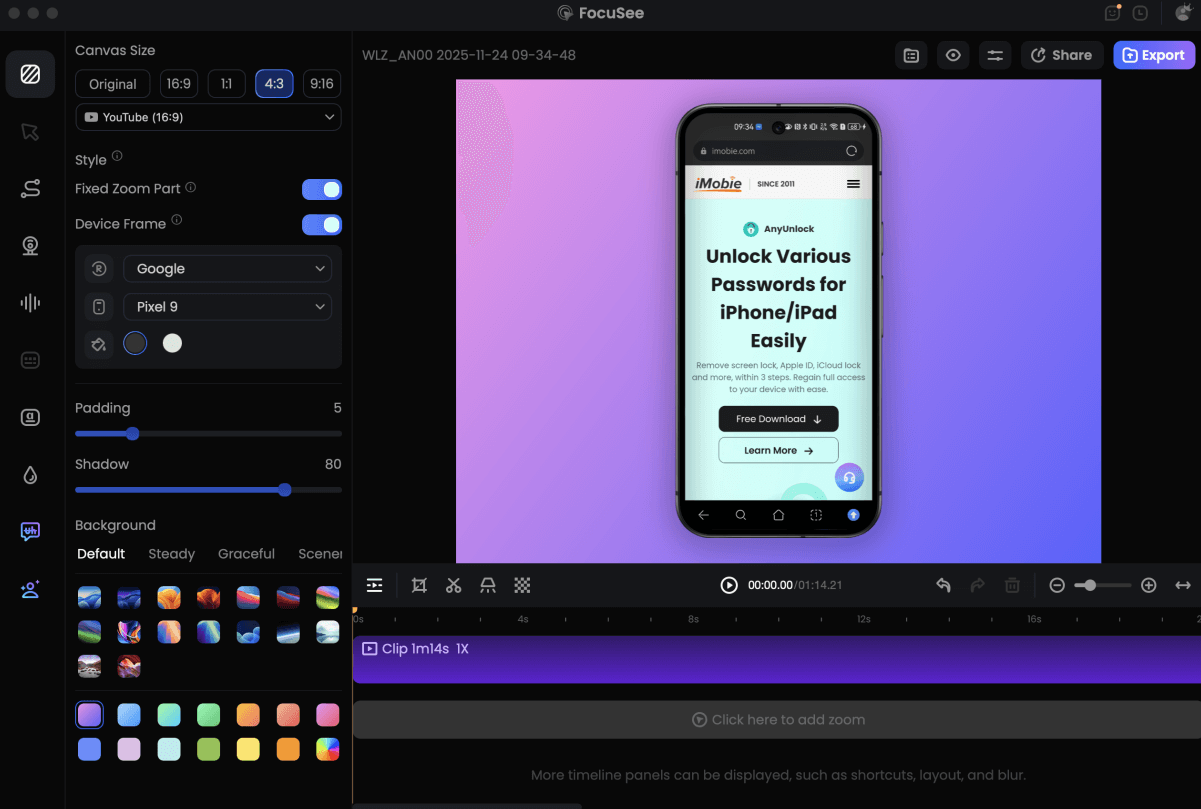
Record Android Phone Screen
Why Is There No Sound? Understanding Internal Audio vs. Mic
The #1 reason people think a screen recorder is “broken” is because they confuse internal audio (system/app sound) with microphone audio (their voice). Most recorders force you to choose the audio source before you start recording.
If you select “Mic” only, the game sounds will be recorded via the speaker into the mic, resulting in poor quality. If you select “Internal,” your voice won’t be captured unless the app supports mixing both.

Bluetooth Block Internal Audio
The “Bluetooth Trap”
Here’s a critical tip that most other guides miss: The Bluetooth Trap. Bluetooth earbuds can silently reroute audio capture in a way that results in missing or quiet sound.
When you wear Bluetooth headphones, the phone routes audio away from the internal speakers. Many screen recording apps (especially on Android) struggle to “catch” this diverted audio stream. If you are recording and hearing silence in playback, disconnect your Bluetooth headset and record using the phone’s speakers and built-in mic.
Troubleshooting Checklist
For best results, follow this decision tree if you encounter the no sound issue:
- Check Source: Select the correct audio mode (system/media vs. mic vs. both).
- Disconnect Bluetooth: Temporarily disconnect Bluetooth audio devices if sound is missing.
- Check for DRM: Know that DRM protected content (like Netflix, Disney+, Prime Video) will block recording entirely, causing a black screen or muted audio regardless of your settings. This is a copyright protection feature, not a bug.
Recording Like a Pro: Settings for Quality & Privacy
Getting the audio right is only half the battle; visual settings define the professional quality of your video. To ensure your video isn’t blurry or laggy, you must adjust the bitrate and FPS (Frames Per Second).
- FPS: For smooth gameplay, aim for 60 FPS.
- Bitrate: Aim for at least 12 Mbps. Note that higher settings result in larger file sizes.
- Resolution: Stick to 1080p for the best balance of quality and storage.
Recall our earlier example: fixing the audio is great, but if the video is choppy, viewers will still scroll past. Increasing your recording resolution to 1080p and bitrate eliminates the lag and blocky visuals.
Privacy & Notifications
Equally important is privacy. Nothing ruins a professional recording faster than a personal text message popping up mid-video. Always enable “Do Not Disturb” mode before you hit record to block notifications.
If you forget this step or need to hide sensitive data post-recording, this is where a desktop workflow like FocuSee becomes invaluable. Its ability to apply privacy blur effects during the editing phase ensures that even if a notification slips through, you can mask it without scrapping the entire take.
Frequently Asked Questions About Mobile Screen Recording
What’s the best mobile screen recorder with audio?
For quick captures, the native iOS and Android recorders are best because they require no installation. For professional tutorials requiring zooming, cursor highlights, and audio cleanup, mirroring your screen to FocuSee on a desktop is the top choice.
How do I record my screen with internal audio on Android?
Swipe down to access Quick Settings, tap “Screen Record,” and in the sound settings menu, select “Media sounds.” Note that this feature is standard on Android 10 or newer.
Why can’t I record my voice call on Discord or WhatsApp?
On Android, Google restricts apps from recording internal audio during Voice over IP (VoIP) calls to protect user privacy. Even if you enable “Mic” and “System Sound,” the OS will usually block the audio from the other caller.
Does iPhone screen recording capture internal audio?
Yes, by default, the iOS recorder captures system sound. However, if your ringer is off (silent mode) or volume is down completely, some apps may mute the recording feed.
How can I fix the audio out of sync in my recording?
Audio sync issues often occur due to low processing power or variable frame rates. Try lowering the video resolution or bitrate in your settings to reduce the strain on your processor.
Can I record Netflix/Disney+/Prime Video audio with screen recording?
Generally, no. Streaming apps use DRM (Digital Rights Management), which blocks screen capture, resulting in a black screen or video with no audio.
Conclusion
The frustration of a silent recording—the feeling that your phone is working against you—is a struggle every creator faces eventually. But as we have explored, the solution is usually a matter of selecting the right tool and checking your app permissions.
Whether you rely on the Android 10 screen recorder for quick clips or use the iOS built-in screen recording features, ensuring you select “Media + Mic” and disable Bluetooth is the key to success.
If you find that mobile apps are limiting your creativity or you are tired of editing on a small screen, consider upgrading your workflow. Download FocuSee to mirror your screen to a desktop, automate your post-production, and produce professional-grade mobile content without the stress.