10 Best Screen Recorder Mobile Apps of 2026: Expert Tested & Ranked

Looking for the best mobile screen recorder? The right app depends on your device and recording goals—not just what ranks first in the app store.
We tested these recorders on iPhone 14 Pro (iOS 17), Samsung Galaxy S23, and Google Pixel 7 (Android 13/14), focusing on recording quality, stability, internal audio support, and watermark behavior. Whether you’re a marketer creating app walkthroughs, a content creator making tutorials, or an educator recording lessons, this guide highlights the tools that truly deliver professional results without advanced video editing skills.
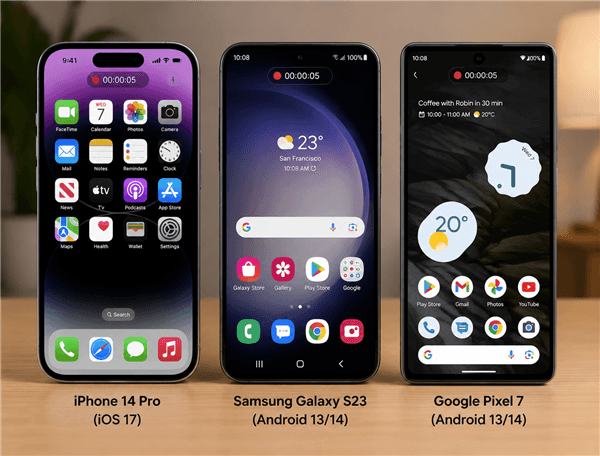
Hands-on Testing Devices
Quick Decision Guide: Which Mobile Recorder Fits Your Goal?
Before diving into the list, it is crucial to understand the three main categories of mobile screen recording tools. Your choice should depend entirely on your end goal.
- Built-in Tools (Native): Best for privacy and quick captures. No watermarks, but limited settings.
- Third-Party Apps: Best for gamers and tutorials needing FaceCam, drawing tools, or specific bitrate controls.
- Desktop-Mirrored Recording: Best for professional editing. Mirror your phone to a PC/Mac for superior post-production.
Safety First: The “Red Flag” Checklist
Before installing any third-party app, protect your data. We analyzed the permission requests of every app on this list. Use this checklist to stay safe:
| Permission | Status | Why? |
| Microphone | ✅ Allow | Required to record your voice. |
| Storage / Photos | ✅ Allow | Required to save the video file. |
| Display Over Other Apps | ✅ Allow | Required for the floating control buttons. |
| Contacts | 🚩 DENY | No screen recorder needs your contact list. |
| Location | 🚩 DENY | Unnecessary for recording video. |
| Phone / Call Logs | 🚩 DENY | High privacy risk. |
Comparison: Top Mobile Recorders at a Glance
We ranked these apps based on user-friendliness, watermark intrusion, and audio capabilities.
| App Name | Platform | Watermark (Free) | Internal Audio | Best For |
| iOS Native | iOS | No | Yes (Limited) | Quick iPhone captures |
| Android Native | Android | No | Yes | Quick Android captures |
| AZ Screen Recorder | Android | No | Yes | General purpose & settings control |
| XRecorder | Android | No | Yes | Drawing on screen |
| Mobizen | Android | Yes (Removable) | Yes | Older / Samsung devices |
| Glip | Android | No | Yes | 60fps gaming |
| Google Play Games | Android | No | No (Mic only) | Casual gaming integration |
| ADV Screen Recorder | Android | No | Yes | Advanced engine control |
| Infinite | Android | No | Yes | Ad-free experience |
| FocuSee | PC / Mac | No | Yes | Professional tutorials |
The Native Powerhouses (Apps 1 & 2)
Often, the best app is the one you already have.
1. iOS Built-in Screen Recorder (iPhone/iPad)
Apple’s official screen recording tool, built directly into iOS with no downloads required. It’s designed for maximum privacy, stability, and ease of use. For iPhone users, this is the gold standard for safety and simplicity. It is integrated directly into the Control Center.
How to enable: Go to Settings > Control Center and tap the green “+” next to Screen Recording.
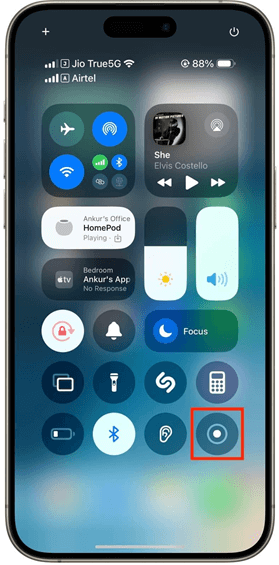
Tap Record
The “Gotcha”: While great for games, iOS restricts internal audio during communication. If you try to record a Zoom call, FaceTime, or phone call, iOS will often block the other person’s audio due to privacy laws. You’ll get video—but silence.
Pro Tip: Long-press the record icon in Control Center to toggle the microphone on or off.
2. Android Built-in Screen Recorder
A native screen recorder is included in most modern Android phones (Android 11+), with flexible audio options and no watermarks. Since Android 11, most devices (Samsung, Pixel, OnePlus) include a robust built-in recorder.
How to enable: Swipe down twice to open Quick Settings. Look for Screen Record. If it’s missing, tap the pencil icon to add it.
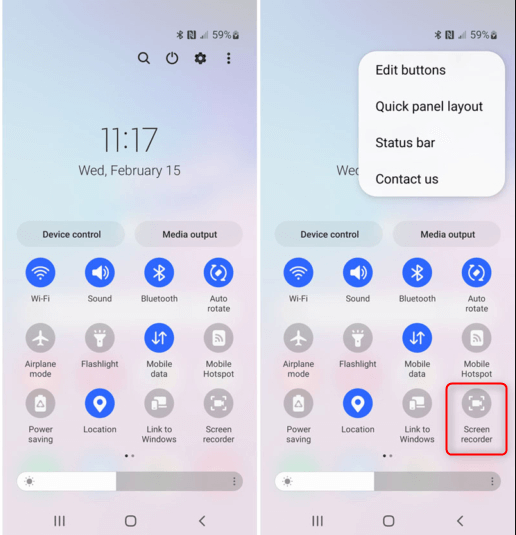
Quick Settings
Audio Check: Before recording, choose: Media sounds, Media sounds and mic, or None.
Version Check: Go to Settings > About Phone > Software Information to confirm Android 11 or higher.
7 Best Android Screen Recorders
For users who need more control over video quality, frame rate, and overlays, here are the best Android screen recorders to consider.
3. AZ Screen Recorder (Best All-Rounder)
One of the most trusted Android screen recorders, known for stability and high-quality output.
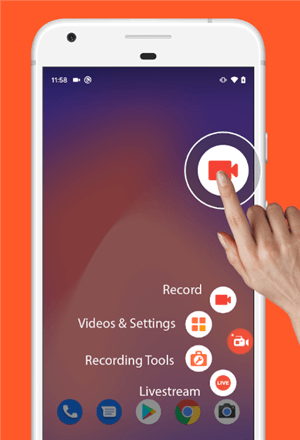
Android Screen Recorders – AZ Screen Recorder
Why we like it: Supports 1080p at 60fps and handles high-motion content smoothly.
Key Feature: Manual bitrate control (e.g., reduce from 12 Mbps to 8 Mbps if video lags).
4. XRecorder (Best for Tutorials)
A lightweight recorder with built-in drawing tools for on-screen explanations.
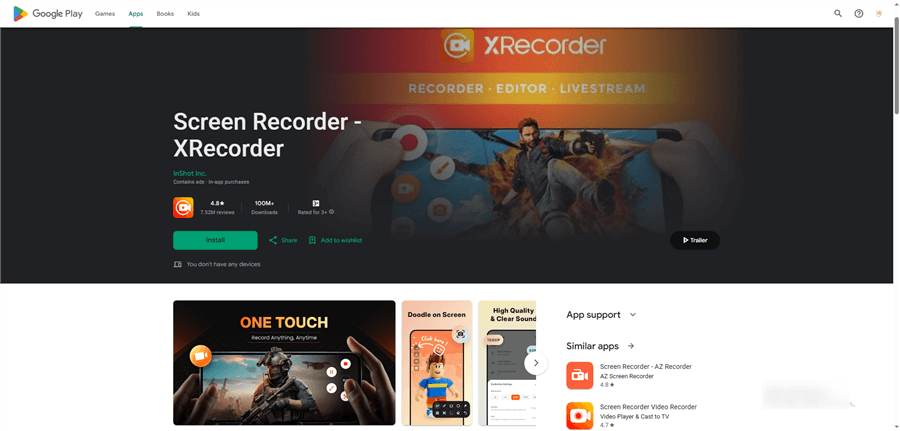
Android Screen Recorders – XRecorder
Why we like it: Floating controls stay out of the way, and you can draw on the screen while recording.
Key Feature: Shake to stop gesture to end recordings without showing menus.
5. Mobizen (Best for Older Devices)
A long-running screen recorder optimized for lower-end or older Android phones.
Android Screen Recorders – Mobizen
Why we like it: “Clean Recording Mode” reduces system load and removes watermarks.
Key Feature: Device-specific optimization, especially for Samsung models.
6. Glip (Best for High-FPS Gaming)
A gamer-focused recorder that captures smooth gameplay and highlights.
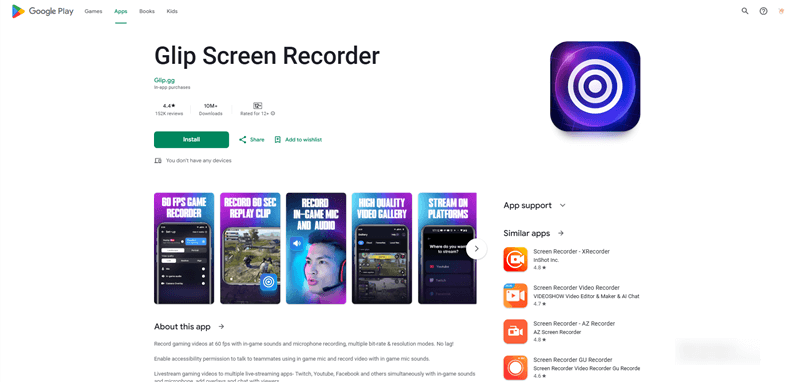
Glip Screen Recorder
Why we like it: Records at 60fps and up to 120fps on supported devices, with internal audio and cloud storage.
Key Feature: Replay Mode saves the last 60 seconds after something cool happens.
7. Google Play Games (Best for Casual Gamers)
Google’s official gaming hub app has a built-in screen recorder.
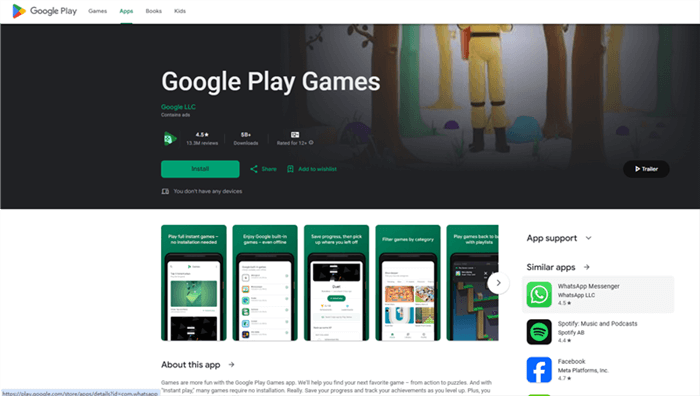
Google Play Games
Why we like it: No extra app needed—just tap Play and record instantly.
Key Feature: Launches the game and recorder at the same time.
8. ADV Screen Recorder
A customizable screen recorder with two recording engines for better compatibility.
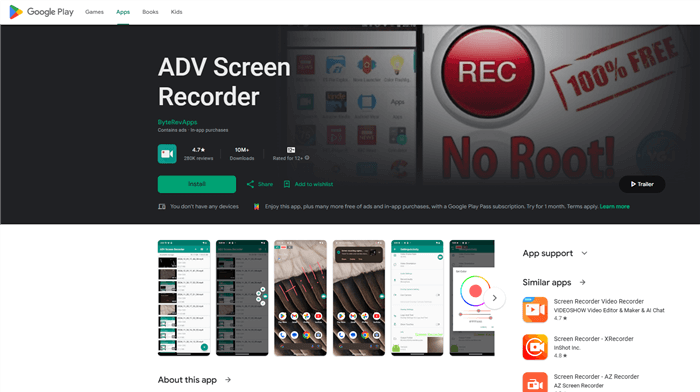
ADV Screen Recorder
Why we like it: If one engine crashes, the other usually works. It also supports pause/resume.
Key Feature: Custom overlay text and banner controls.
9. Infinite (Best Ad-Free Experience)
A premium Android screen recorder focused on simplicity and zero distractions.
Why we like it: Clean, minimalist interface with no ads.
Key Feature: Completely clutter-free UI.
The Professional Upgrade: Desktop-Mirrored Recording (App 10)
10. FocuSee (Best for Pro Tutorials)
Important: This solution requires a PC or Mac.
If you are serious about creating professional content, editing on a 6-inch phone screen is a bottleneck. The “Pro” workflow involves mirroring your phone screen to a computer and recording it there.
FocuSee is designed to solve the “boring screen recording” problem. It is not just a recorder; it automates the editing process.
- Why use a computer? Editing 4K footage on a phone drains battery and storage. A desktop workflow allows for higher quality processing.
- Automatic Zoom: If you click a button on your mirrored phone screen, FocuSee detects the action and automatically zooms in, saving you hours of manual keyframing.
- Polished Backgrounds: It automatically fills the black bars on the side of vertical videos with a blurred background or custom wallpaper, making your mobile clips look native on YouTube.
If you hate manual editing but want professional results, this tethered workflow is the industry secret.
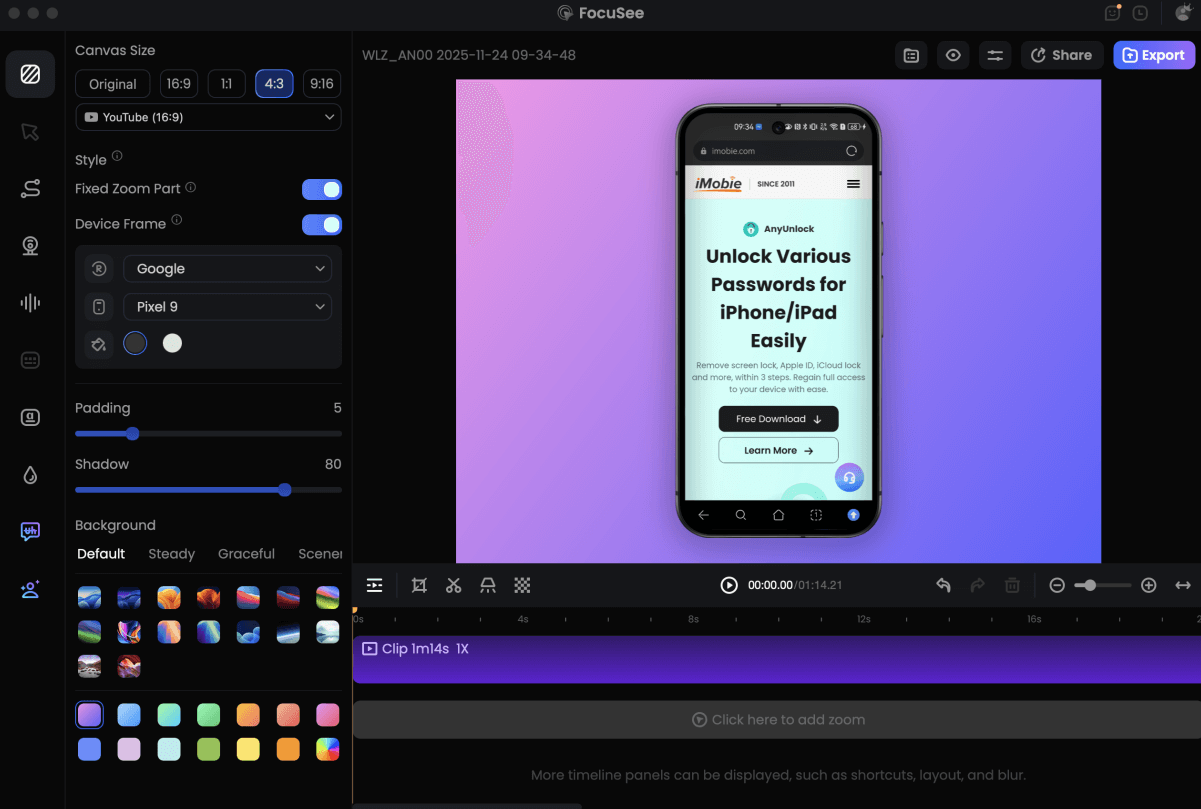
Record Android Phone Screen
Troubleshooting: Why Is My Recording Broken?
Even with the best apps, technical issues happen. Here is how to fix the most common ones:
The Black Screen (DRM):
- Symptom: You recorded Netflix or Disney+, but the video is black with audio.
- Cause: Digital Rights Management (DRM) prevents piracy.
- Fix: There is no legal fix. You cannot screen record protected streaming apps.
No Internal Sound:
- Symptom: You can hear the game, but the video is silent.
- Fix 1 (Android): Ensure your Android version is 10+. Older versions restrict internal audio; you must switch audio source to “Microphone” and turn up your volume.
- Fix 2 (iPhone): Check if your mute switch is on. Paradoxically, some games silence their output to the recorder if the physical mute switch is active.
Lag and Stuttering:
- Symptom: The video looks choppy.
- Fix: Your settings are too high for your processor. Lower the resolution from 1080p to 720p, and drop the bitrate from 12Mbps to 8Mbps.
Storage Full:
- Pro Tip: High-quality video eats space fast. 1 minute of 1080p/60fps footage can take up 100MB to 200MB. Ensure you have at least 2-3GB of free space before hitting record.
Conclusion
You don’t need to suffer through low-quality clips or shady apps that spy on your data.
- For safety and speed: Use the native iOS or Android tools.
- For gameplay and control: Download AZ Screen Recorder or Glip.
- For professional polish: Connect your phone to a computer and use FocuSee to automate your editing.
Ready to upgrade your content? Check your storage, set your permissions, and start capturing.
Frequently Asked Questions
What is the best mobile screen recording app?
The best mobile screen recording app depends on your needs. For quick and simple recordings, the built-in screen recorder on iPhone and Android is usually the best choice because it is free, stable, and does not add watermarks. If you need advanced features such as facecam recording, internal audio capture, overlays, or editing tools, third-party apps like AZ Screen Recorder and XRecorder offer more customization options.
Does Android have a built-in screen recorder?
Yes. Most modern Android phones include a built-in screen recorder that can be accessed from the Quick Settings panel. It is a reliable option for capturing basic screen activity without installing additional apps. However, third-party Android screen recorders may offer extra features such as advanced audio controls, webcam overlays, brush tools, and video editing options.
Does iPhone have a built-in screen recorder?
Yes. iPhone has a built-in screen recording feature that allows you to capture your screen without downloading any apps. You can enable it from Control Center and choose whether to record microphone audio. It is a simple and watermark-free solution for recording app demos, tutorials, gameplay, and other screen activities.
Which screen recorder has the best quality?
The best-quality screen recorder depends on your device and recording needs. Native iPhone and Android screen recorders usually provide the most stable performance and highest compatibility. For users who need more control over resolution, frame rate, bitrate, and overlays, advanced apps like AZ Screen Recorder can provide additional customization options.
Does Android screen recorder support internal audio recording?
Yes. Most modern Android devices support internal audio recording, especially those running Android 10 or later. Many third-party screen recorders, including AZ Screen Recorder and XRecorder, allow users to capture in-game sounds and app audio. However, some apps with DRM protection, such as streaming platforms, may block screen recording or internal audio capture.
Which is better, AZ Screen Recorder or XRecorder?
Both AZ Screen Recorder and XRecorder are popular Android screen recording apps, but they focus on different user needs. AZ Screen Recorder provides more advanced controls, including customizable recording settings, overlays, and additional tools for experienced users. XRecorder offers a simpler interface and is easier for beginners who want quick, hassle-free screen recording.
What is the best free mobile screen recorder?
For most users, the built-in screen recorder on iPhone and Android is the best free option because it is secure, stable, and does not include watermarks. Among third-party apps, AZ Screen Recorder and XRecorder offer strong free versions with features such as HD recording, basic editing, and screen capture customization.
Which mobile screen recorder apps include editing features?
Many third-party mobile screen recorders include basic editing tools such as trimming, adding text, annotations, and simple effects. XRecorder and Mobizen are popular choices for users who want to edit videos directly on their phones. For more advanced editing, such as automatic zoom effects, polished presentations, and professional-looking tutorials, a desktop workflow may provide more flexibility.