How to Do Screen Recording in OnePlus: The Ultimate OxygenOS Guide

Facing a critical moment you need to capture, only to realize your recording tool is missing or silent, is a frustration many users know too well. You assume the process will be automatic—just hit a button and go. The result, however, is often a confusing search for the file, a video that has absolutely no sound, or a “black screen” where your content should be.
If you are struggling with how to do screen recording in oneplus devices, you are not alone. Whether you can’t find the Screen recorder tile, are battling DRM restrictions in certain apps, or are tired of silent clips, this guide provides the definitive solution. We will walk you through the exact procedure to add the recorder to your Quick Settings, configure internal audio correctly, and ensure your tutorials are clear with visual touch indicators.
How to Screen Record on OnePlus via Quick Settings
The most common obstacle users face is simply locating the tool. Unlike some competitors, OnePlus often hides the Screen recorder tile by default to keep the interface clean. Many users pull down their notification shade repeatedly, assuming the feature was removed in an update.
Here is the step-by-step procedure to locate, enable, and launch the recorder on any OxygenOS device (covering OnePlus Nord, OnePlus 9, 10, OnePlus 11, and OnePlus 12 running Android 11 through 14).
Step 1: Access the Quick Settings Panel
Swipe down twice from the top of your screen to fully expand the Quick Settings menu.
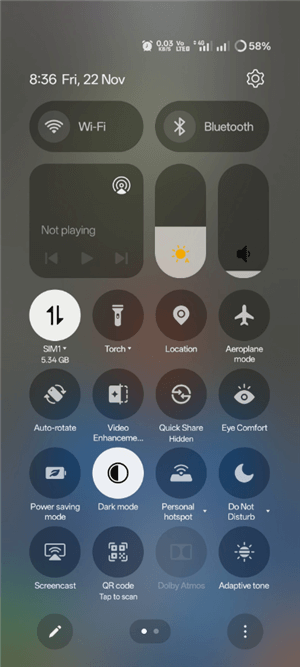
Quick Settings Menu
Step 2: Enter Edit Mode
Look for the edit icon.
- On OxygenOS 10–11: Tap the “Pencil” icon (usually top right).
- On OxygenOS 12–14: Tap the three vertical dots in the top right corner and select “Edit tiles.”
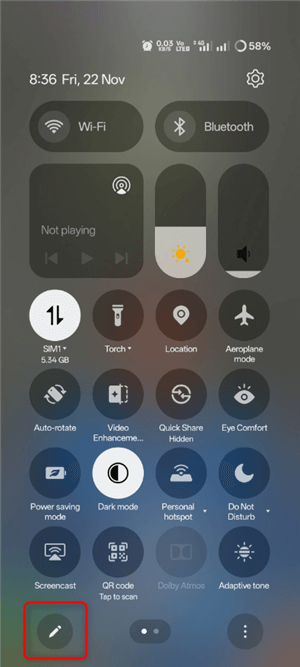
Enter Edit Mode
Step 3: Add the Recorder
Scroll down to the bottom section. This area contains inactive tiles available to be added.
- Visual Cue: In newer OxygenOS versions (13/14), look for the green “Plus” (+) symbol on the tiles in the bottom section.
- Action: Find the icon labeled “Screen Recorder.” Press and hold the tile (or tap the green plus sign), then drag it up into the active area of your Quick Settings.
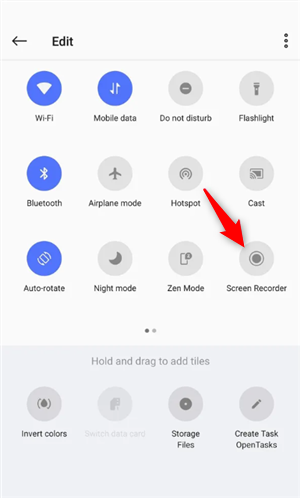
Add the Recorder
Critical Step: The First-Time Setup & Permissions
When you tap the screen recorder tile for the first time, you will be prompted with several permission requests. Do not skip these.
- Microphone: Required to record your voice.
- Storage/Photos: Required to save the video file.
- Display over other apps: This is the most important one. It allows the floating control widget to appear on top of games or apps.
If you deny any of these, the recorder may crash or fail to start. Always select “Allow” or “While using the app.”
How to Screen Record on OnePlus with Sound
One of the most frequent complaints is recording a silent video. This usually happens because the audio source defaults to “None” or is set incorrectly for your specific goal.
Step 1. Select Source Before Recording
Here’s a critical tip that defines the workflow on OnePlus: You must configure the audio source before you press the record button. Once the recording countdown begins, you cannot switch audio inputs. Many users accidentally start recording from Quick Settings without checking these preferences, assuming the phone will automatically capture what they hear.
Step 2. How to Configure Audio Sources
Tap the gear icon on the floating controls to open the settings. Depending on your OxygenOS version, you will see options to toggle sound sources.
- Record System Sound (Internal Audio): Toggle this ON to capture game audio, music, or app sounds directly from the device. This provides crisp, digital audio without background noise—essential for gamers asking “how to screen record on oneplus with internal audio.”
- Record Microphone Sound: Toggle this ON if you want to narrate over your video via the external mic.
Important Note on Simultaneous Audio (Android 12+)
- OxygenOS 12, 13, 14: You can enable both System Sound and Microphone Sound simultaneously. This is perfect for tutorials where you need to explain what is happening (Microphone) while the viewer hears the app’s feedback (System sound).
- Older Versions (OxygenOS 10/11): On some older devices (like early OnePlus 7T or Nord builds), the system may limit you to choosing only one source at a time. If you are on an older OS, you will need to choose the priority source.
Where Are Screen Recordings Saved on OnePlus?
After finishing a recording, a common moment of panic sets in: “Where did the file go?” OnePlus segregates these files to keep your main camera feed clean, which can make them hard to find if you don’t know where to look.
Locating Your Files
By default, your videos are stored in a specific directory. You can access them via two methods:
- Gallery / Photos App: Open the Gallery app. Instead of the main “Photos” tab, tap “Albums” or “Collections” and scroll down to find a folder named “Screen Recordings.”
- File Manager: If you need the raw file for editing or transfer, navigate to My Files > Internal Storage > Movies > Screen Recordings.
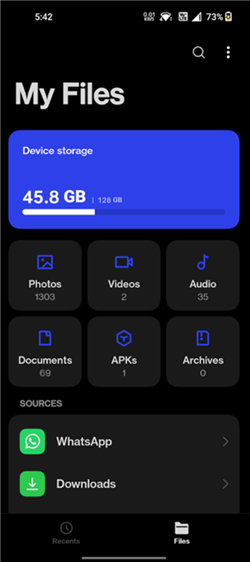
File Manager
Protecting Your Privacy
Before hitting record, ensure you don’t accidentally capture sensitive texts or emails.
- Hide Notifications: In the screen recorder settings, enable “Hide floating widget” to keep the controls invisible in the final video.
- Do Not Disturb: We strongly recommend activating Do Not Disturb mode from the Quick Settings. This prevents pop-up banners from ruining your take with personal messages or email alerts.
Troubleshooting: Why Is OnePlus Screen Record Not Working?
Even with the correct settings, you might encounter technical hiccups. If you find your OnePlus screen record not working, it is rarely a hardware failure. Instead, it is usually due to software permissions, battery aggression, or app-specific restrictions.
1. The “Black Screen” Issue
- Symptom: You record a video, but upon playback, the screen is pitch black while the audio continues.
- Cause: DRM (Digital Rights Management) Protection.
- Expert Insight: Apps containing sensitive data (Banking apps like Chase, PayPal) or copyrighted content (Netflix, Disney+, Prime Video) block screen capture at the system level. This is an Android security feature, not a OnePlus bug. You cannot bypass this natively.
2. Recording Stops Randomly
- Symptom: The recording cuts off after a few minutes without you touching the stop button.
- Cause: Aggressive Battery Optimization.
- Solution: OnePlus phones are known for killing background processes to save battery. Go to Settings > Battery > Advanced settings > Optimize battery use. Find “Screen Recorder” and set it to “Don’t optimize” or “unrestricted.”
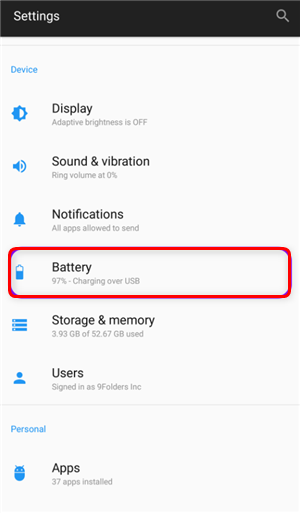
Battery Settings
3. No Audio Captured
- Symptom: OnePlus screen record no sound.
- Solution: As detailed in the Audio section, ensure you select a source before the countdown. Also, check that your phone’s physical volume slider (the Alert Slider) isn’t silencing the media volume inadvertently, although the internal recorder usually bypasses this.
Advanced Method: Polishing Content with FocuSee
If you are recording a quick bug report or a clip for a friend, the native OnePlus tool is perfect. However, if you are looking to create high-quality educational content, YouTube tutorials, or professional presentations, raw mobile footage often feels static and unengaging when viewed on a desktop screen.
While the OnePlus recorder captures the data, it lacks post-production features like zooming in on small buttons or highlighting specific text. This is where a hybrid workflow using a desktop tool like FocuSee becomes valuable.
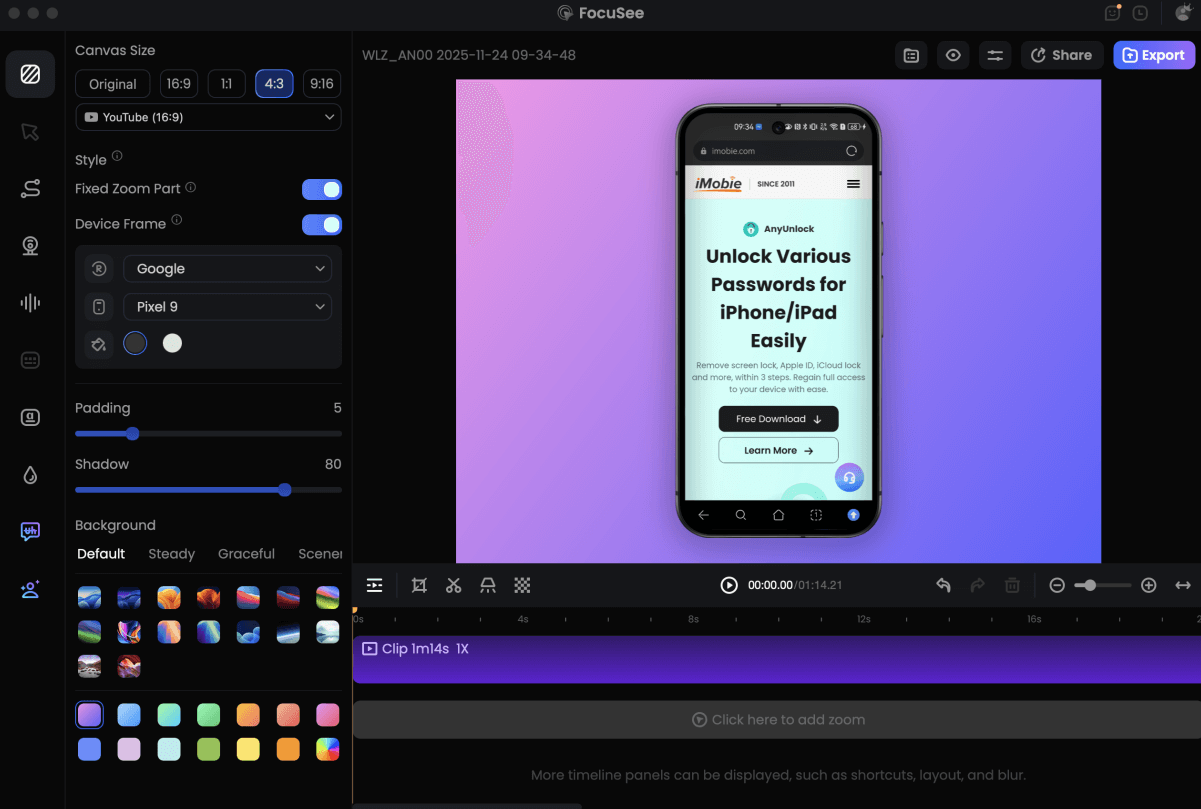
Record Android Phone Screen
When to Upgrade Your Workflow
FocuSee is a screen recording suite for Windows and macOS that focuses on automating the editing process. It is distinct from the “raw capture” of your phone.
- The Problem: Mobile screens are tall and narrow. When displayed on a monitor, details get lost.
- The Solution: You can record on your OnePlus, transfer the file to your computer, and use FocuSee’s “Import & Re-Edit” feature.
Key Benefits for Creators
- Auto-Zoom: The software detects where the action is happening and automatically zooms in, ensuring viewers don’t miss small details.
- Cursor Effects: Even if you forgot to turn on “Show Touches,” FocuSee can simulate cursor interactions or highlight click areas during the edit.
- Speed: It automates the “boring” parts of editing, letting you turn a raw OnePlus screen capture into a professional tutorial in minutes.
Frequently Asked Questions
Can OnePlus screen recorder record gameplay audio?
Yes. To capture high-fidelity gameplay sound without picking up your finger taps or background noise, go to the screen recorder settings and select Internal Audio (or “System sound“). This records the audio directly from the game logic.
How do I stop screen recording on OnePlus?
To stop recording, tap the floating timer widget on your screen. This will expand the controls; tap the red “Stop” square (or the pause button if you want to resume later). The video will automatically save to your Gallery.
Does screen recording use a lot of storage space?
Yes, high-resolution video files can grow quickly. If you are running low on storage space, consider lowering the video definition (e.g., from 1080p to 720p) or bitrate in the recorder settings.
Why does my OnePlus recording show a black screen in some apps?
This occurs because the specific app prevents screen capture for security or copyright reasons. Apps involving financial transactions or copyrighted video streams (like Netflix) will always output a black screen on Android 12, 13, and 14.
What should I do if the screen recorder is missing from Quick Settings?
First, ensure you have checked the “Edit Tiles” section (look for the green ‘+’ icon on newer OxygenOS versions). If it is still missing, go to Settings > Apps > App Management, find “Screen Recorder,” and clear its cache. Restarting your device is also a quick fix for temporary UI glitches.
Conclusion
Mastering how to do screen recording in oneplus transforms your device from a simple phone into a powerful content creation tool. By configuring your Quick Settings properly, enabling visual touch indicators, and understanding the nuances of internal audio permissions, you can avoid the frustration of silent videos or lost files.
You now have a proven procedure to capture everything from software bugs to gaming highlights with confidence. Whether you stick to the native tool for quick clips or export your footage to FocuSee for professional polish, you are equipped to record, edit, and share your screen without limits.