How Do You Screen Record on a LG Phone? (All Models & Versions 2026)

If you are holding an LG Stylo, G7, or V40 and currently swiping endlessly through menus looking for a “Record” button, you are not missing something obvious—you are likely facing a specific software limitation.
There is nothing more frustrating than needing to capture a technical glitch to send to customer support, only to find that every guide online assumes you are using a Samsung Galaxy or the latest iPhone. You search for the button, it isn’t there, and you feel like your device is obsolete when you need it most.
If you are wondering how to screen record on an LG, the answer depends entirely on which version of Android your phone is “stuck” on. The process changes drastically depending on whether you are holding a flagship LG V60 or a budget-friendly LG Stylo series.
In this guide, I will walk you through the specific, tested methods for every version of LG UX. We will cover how to find the hidden native recorder on newer models (and the specific icons to look for), the necessary workarounds for older devices that lack the feature entirely, and how to fix common headaches like “tinny” audio or black screens.
Quick Decision Guide: Native Recording vs. Desktop Helpers
Before you start digging through your notification shade, it is important to identify the right tool for the job. Not all screen recording needs are the same—sending a quick, raw clip of a bug report requires a different method than trying to save a long video call without filling up your storage.
Below is a comparison of the three primary methods available to LG users:
| Feature | Built-in LG Screen Recorder | Third-Party Android Apps | FocuSee (Desktop Companion) |
| Best For | Fast, raw captures (Gaming/bugs) | Older phones (Android 9 or lower) | File transfer, compression & zooming |
| Availability | Android 10+ (V60, Velvet, Wing) | All Android Versions | Windows/macOS |
| Audio Quality | Standard (Internal System Sound) | Low/Medium (Microphone dependent) | High (AI Noise Reduction) |
| Main Draw | No installation needed | The only option for Stylos | Fixes “shaky” mobile clips |
Which method should you choose?
- Method 1 (Native): Best for users on Android 10+ (LG V60, Velvet, G8, V50) who have the specific “Screen Record” tile hidden.
- Method 2 (Third-Party App): Essential for users on older firmware (LG Stylo series, V40, G7) where the native feature typically does not exist.
- Desktop Helper (FocuSee): Best if your recorded file is too large to email, or if you need to highlight a specific part of the screen (like an error code) so support teams can actually read it.
Method 1: Using the Built-in Screen Recorder (Android 10+)
If you are using a newer device like the LG Velvet, LG V60, or LG G8 running Android 10, 11, or 12, screen recording is built directly into the system.
However, many users think their phone is broken because they cannot find the button. It is usually just hidden to declutter the menu.
How to Add and Use the Native Recorder
LG’s interface (LG UX) is slightly different from standard Android. Follow these steps carefully to unhide the tile.
Step 1. Access Quick Settings: Swipe down twice from the very top of your screen to fully expand the notification shade.

Access Quick Settings
Step 2. Locate the Edit Button: This varies by model and carrier:
- Most Models (Velvet/V60): Look for a small Pencil icon in the top right corner.
- Older Flagships (G8/V50): You might see three vertical dots in the top right. Tap that, then select “Button order” or “Edit buttons.”
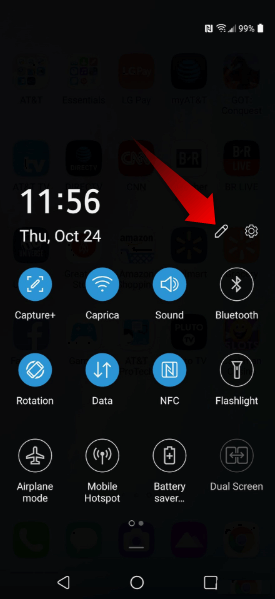
Locate the Edit Button
Step 3. Drag and Drop: You will see two sections: the top is your active list, and the bottom is the available list (often grayed out or labeled “Drag to add tiles”).
- Scroll horizontally through the bottom list.
- Look for a pink or purple tile labeled “Screen Record.”
- Critical Step: Long-press the icon and drag it up into the active area.
Step 4. Save the Layout: Tap the Checkmark icon or “Done” at the top right to save. If you just back out, it won’t save!
Step 5. Start Recording: Tap the newly added Screen Record tile. A countdown (3-2-1) will begin.
Configuring Audio Settings
Upon launching the tool, you will often be prompted to select an audio source. This is the definitive solution for how to screen record on LG with internal audio:
- Media Sounds (Internal): Records only what the phone plays (game audio, Spotify). This is the cleanest option.
- Microphone: Records your voiceover and the room noise.
- No Sound: Captures video only (saves storage space).
Once finished, stop the recording by pulling down the notification shade and tapping “Stop” (usually a square icon). The file saves to Gallery > Screen Recordings.
Method 2: Solutions for Older LG Models (Stylo, G7, V40)
If you have an LG Stylo 4/5/6, LG G7 ThinQ, or LG K-Series, you have likely searched the Quick Settings mentioned above and found absolutely nothing.
The Reality Check: On Android 9 (Pie) and older, the “Screen Record” feature isn’t hidden—it simply does not exist. Google did not build native screen recording into Android until Android 10, and LG did not back-port it to older budget models.
The Workaround: Third-Party Apps
Since the OS lacks the tool, you must install a safe third-party app. The most reliable options tested on older LG hardware are AZ Screen Recorder or XRecorder.
Step 1. Install the App: Download AZ Screen Recorder from the Google Play Store.
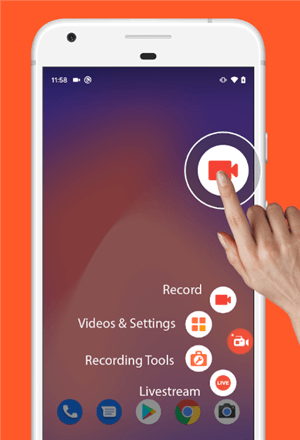
Android Screen Recorders – AZ Screen Recorder
Step 2. The “Display Over Other Apps” Permission:
When you first launch the app, it will ask for a special permission. You must say YES. This allows the app to place a small floating “bubble” or control bar on your screen so you can hit “Record” without opening the app every time.
The Audio Quality Warning (Read This!):
- The Limitation: On Android 9 and lower, Android screen recording apps are generally blocked from recording direct internal audio due to old Google policies.
- The Workaround: You must set the audio source to Microphone.
- How to Capture Game Sound: You have to turn your phone’s speaker volume up (around 70-80%) so the microphone can “hear” the game music coming from the speaker.
- Warning: The audio will sound “tinny” or distant. Also, the mic will pick up the sound of your thumbs tapping the screen and your hands shuffling against the case. This is unavoidable on older devices, so try to hold the phone still.
Using FocuSee to Record Your LG Android Screen
If you want a clean, high-quality recording of your LG phone screen — with smooth performance, clear visuals, and share-ready file sizes — FocuSee lets you capture everything directly on your Windows or Mac computer.
Instead of struggling with blurry, shaky, oversized mobile recordings, you can mirror your LG phone to your desktop and let FocuSee handle the recording and optimization from the start.
Why Use FocuSee for LG Screen Recording?
FocuSee is a desktop screen recorder that captures what’s displayed on your LG phone (via screen mirroring or casting to your computer), solving common problems with clarity, stability, and file size at the source.
- Clear and Lightweight (Share-Ready Files): Mirror your LG phone to your computer, record with FocuSee, and export a clean video.
Compared to native mobile screen recordings, the files are smaller, the image is sharper, and it’s much easier to send via email or support tickets. - Automatically Highlight Key Areas (Auto-Zoom): When recording bugs or tutorials, error messages are often tiny.
FocuSee automatically zooms in on the area you tap, so the viewer can immediately see what went wrong. - Cleaner Audio (AI Audio Enhancement): If you narrate while recording, FocuSee’s AI Audio Enhancement removes background noise and tapping sounds, making your voice clear and easy to understand.
Step-by-Step: Record Your LG Phone Screen with FocuSee
Step 1. Download & Install FocuSee: Install FocuSee on your Windows or macOS computer and launch it.
Step 2. Open FocuSee and Set Your Audio/Camera: Choose your microphone, system audio, and webcam (optional). Choose the Device to prepare for Android screen capture.
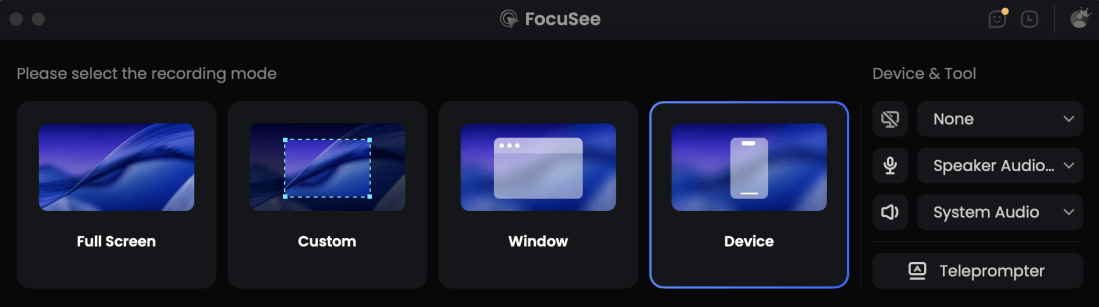
Choose the Device Recording Model
Step 3. Connect Your LG Phone: Plug your phone into the computer with a USB cable. Enable USB Debugging in Developer Options. Allow permissions when prompted. Once detected, your phone screen will appear in FocuSee.
Step 4. Click Record: Press the REC button and wait for the countdown.
Step 5. Edit & Export: Trim, crop, or adjust your video, then export it in MP4 or GIF.
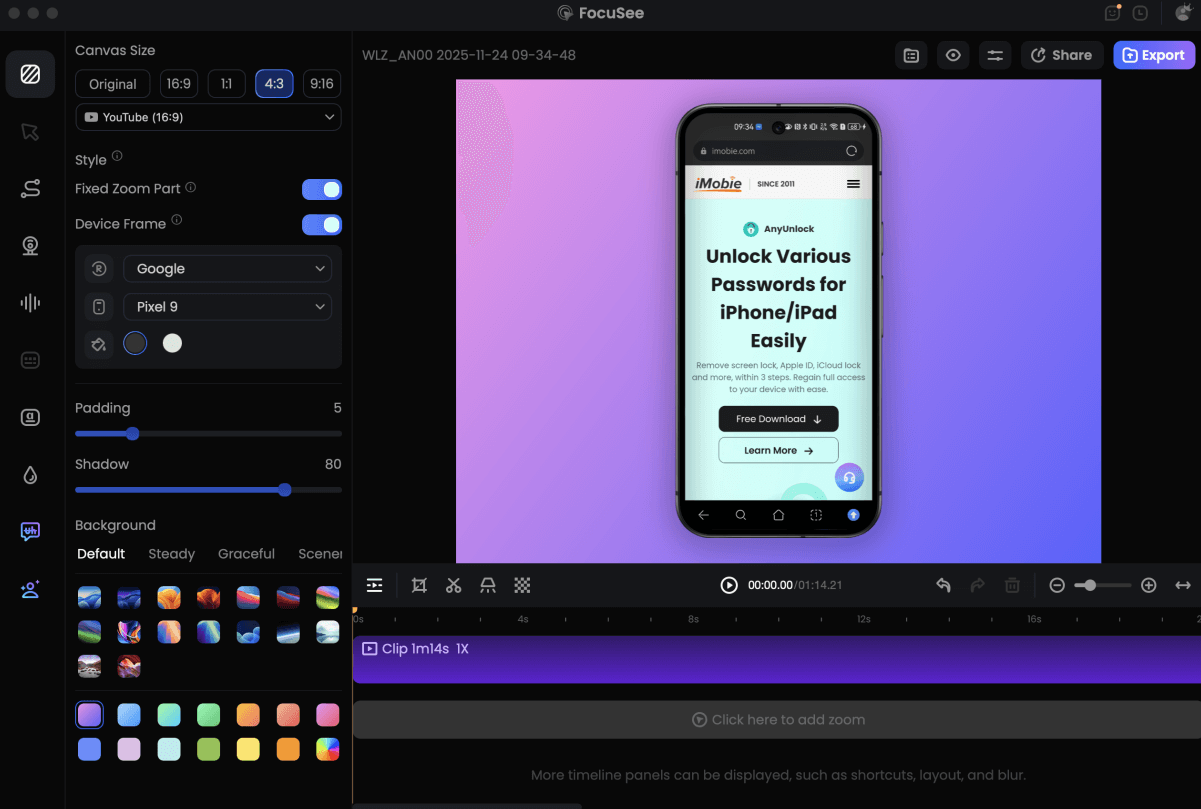
Record Android Phone Screen
Troubleshooting: Black Screens, No Audio, and Glitches
Even with the correct tools, technical glitches can occur. If your lg screen recorder is not working properly, the issue usually stems from permissions or strict copyright protections.
Why is the Screen Black? (The DRM Block)
If you try to record a movie on Netflix or a banking app to show a transaction error, the resulting video might be completely black with only audio playing.
- The Cause: This is DRM (Digital Rights Management). Apps with sensitive financial data or copyrighted media automatically block screen recorders to prevent piracy.
- The “Analog” Workaround: There is no setting to turn this off. The only way to capture this is to physically use a second phone to record the screen of your LG phone.
- Pro Tip: Turn down the brightness on your LG phone and record in a dimly lit room to reduce glare and reflections on the glass.
Solving Audio Problems
If your recording has no sound, check your source input settings immediately:
- Check “Silent” Mode: If you are recording “Media Sounds” (Internal), ensure your physical volume buttons are turned up. If the phone is on mute, the recorder often records silence.
- The Mic Conflict: You cannot use the microphone in two apps at once. If you are on a Zoom call or Discord voice chat, the screen recorder cannot access the mic at the same time. You must choose one or the other.
Where Are My Files?
If you tap “Stop” and the notification disappears, do not panic. The file is likely in one of two places:
- Gallery App: Look for a folder specifically named “Screen Recordings” or “Captures.”
- File Manager: If it’s not in the Gallery, open the “My Files” app. Navigate to
Internal Storage > DCIM > Screen Recordings.
Frequently Asked Questions
How do I screen record on my LG Stylo 6?
The LG Stylo 6 usually runs Android 10, so it should have the native tile. Swipe down twice, tap the “Pencil” icon, and drag the “Screen Record” tile from the bottom list to the top. If you have the Stylo 5 or 4, this feature is missing, and you must download an app like AZ Screen Recorder.
How do I stop screen recording on an LG phone?
To stop recording, pull down the notification shade from the top of the screen. You will see a notification bar for the recorder—tap the “Stop” (square) icon. Some third-party apps also allow you to stop recording by physically shaking the phone or turning the screen off.
How to screen record on LG with sound?
When you tap the Screen Record tile, a prompt will appear. Select “Media sounds” to record the app’s audio clearly (best for games). Select “Mic” if you need to narrate. Note that on older devices using third-party apps, “Internal Audio” might not be an option, and you will have to use the microphone to record the speaker’s sound.
Why does my LG screen recording have no sound?
This usually happens if “No Sound” was accidentally selected in the start-up prompt, or if your phone is in Silent/Vibrate mode while trying to record Media Sounds. Ensure your volume is up before you hit record.
What if my LG phone doesn’t have a screen recording feature?
If your phone is an older model (Android 9 or below), the hardware is capable, but the software is not. To enable this functionality, you must download a trusted app from the Google Play Store, such as XRecorder or AZ Screen Recorder.
Conclusion
Finding the solution to how to screen record on a LG usually comes down to knowing exactly which generation of phone you are holding.
If you are on a V60 or Velvet, the tool is there—you just need to dig into the “Edit” menu and drag that purple tile into view. If you are keeping a trusty LG Stylo or G7 running, you aren’t out of luck; you just need a third-party app and a quiet room to record the audio.
By following these specific steps, you can bypass the confusion of missing buttons and black screens. And remember, if you end up with a shaky, noisy recording that’s too big to share, you can always move it to your computer and use FocuSee to clean up the noise, zoom in on the important details, and compress the file so it’s ready to send.
(Note: As LG has exited the mobile business, software updates have stopped for many models. The third-party methods listed above are “future-proof” and will continue to work even if your OS is no longer updated.)
Download FocuSee for free today to make your mobile recordings shareable, clear, and professional.