How Do I Record on My iPhone? The Ultimate Guide for Video, Audio, & Screen

Whether you want to capture your iPhone screen, record a video, or save an audio note, your iPhone has built-in tools for each type of recording. The right method depends on what you want to capture.
Here’s the quickest way to choose:
Quick Start: Choose the Right Recording Method
| Best Tool | Best For | |
| iPhone screen | Screen Recording | Tutorials, demos, gameplay |
| Video around you | Camera | Events, vlogs, demonstrations |
| Voice or audio | Voice Memos | Interviews, meetings, voice notes |
Want to Record Your iPhone Screen?
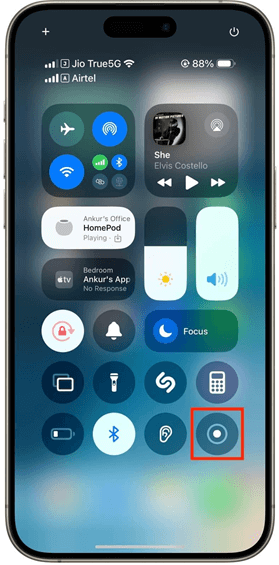
Use Screen Recording from the Control Center. You can capture what’s happening on your screen and optionally turn on your microphone to add voice narration.
Tap Record
Want to Record a Video?
Open the Camera app and switch to Video mode. You can adjust the recording quality based on your needs before you start.
Want to Record Audio Only?
Use Voice Memos to record conversations, lectures, ideas, or other audio without creating a video file.
The sections below walk you through each method, including how to record your iPhone screen with sound, where your recordings are saved, and what to do when screen recording isn’t working.
How to Screen Record on iPhone (Step-by-Step)
If you want to capture an app, tutorial, gameplay session, or anything else happening on your iPhone screen, you can use the built-in Screen Recording feature. On the latest iPhone models, including the iPhone 17 series, screen recording is available directly from the Control Center, so you don’t need to install a separate app.
Here’s how to screen record on your iPhone.
Step 1: Add Screen Recording to Control Center
On a current iPhone running iOS 26 or later:
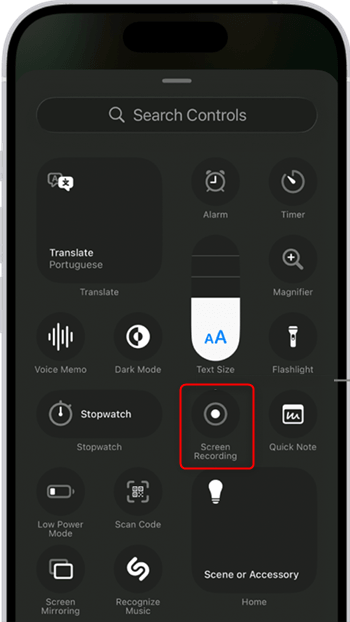
- Swipe down from the top-right corner of the screen to open Control Center.
- Touch and hold an empty area of the Control Center.
- Tap Add a Control.
- Select Screen Recording.
Add Screen Recording to Control Center
Once you’ve added the control, you won’t need to add it again for future recordings.
Step 2: Start Recording Your Screen
Open Control Center again and tap the Screen Recording button. A three-second countdown will appear. Close Control Center and perform the actions you want to capture. You can now record app interactions, scrolling, demonstrations, gameplay, and other activity on your screen.
Step 3: Record Your Screen with Your Voice
Need to explain what you’re doing while recording? You can turn on the iPhone’s microphone before you start.
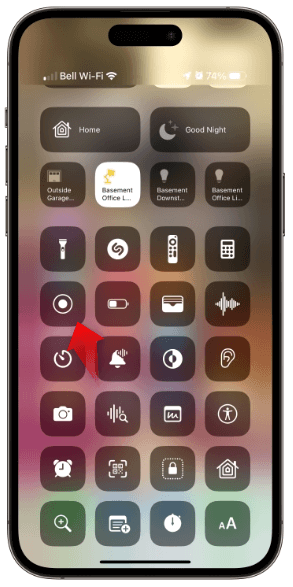
- Open Control Center.
- Touch and hold the Screen Recording button.
- Tap Microphone to turn it on.
- Tap Start Recording.
- Wait for the three-second countdown.
Tap the Screen Recording Icon
Your iPhone will then capture the screen along with microphone audio. This is especially useful for tutorials, walkthroughs, product demonstrations, and other videos that need narration.
Step 4: Stop the Screen Recording
When you’re finished, tap the red recording indicator at the top of the screen, then tap the button to stop recording.
Your screen recording is automatically saved to the Photos app. To find all your screen recordings, open Photos, go to Collections, scroll to Media Types, and select Screen Recordings.
A Quick Note About Audio
If you want to capture the sounds produced by the app you’re recording, the result can depend on the app and its recording permissions. Some apps may not allow their audio or video content to be recorded.
Also, iPhone can’t record the screen and use screen mirroring at the same time.
If you’re creating a tutorial or walkthrough, turn on the microphone before you start and close unnecessary notifications. This helps you avoid recording a silent video or revealing private messages on screen.
How to Record Video on iPhone
If you want to record something around you rather than what’s happening on your screen, the built-in Camera app is the simplest option. You can record everyday videos, demonstrations, events, or social media clips without installing another app.
Step 1: Open the Camera App
Open Camera on your iPhone and swipe to Video mode.
Step 2: Choose Your Video Settings
Before recording, check the resolution and frame rate shown on the screen. Depending on your iPhone model, you may be able to choose options such as HD or 4K and different frame rates.
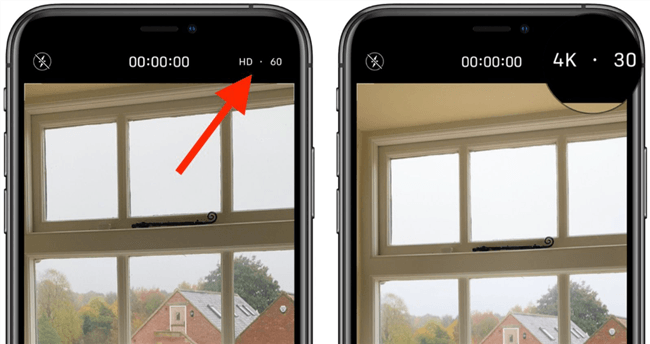
Choose Your Video Settings
Higher resolution and faster frame rates can produce better-looking footage, but they also create larger video files. For everyday recording, the default settings are usually enough.
Step 3: Start and Stop Recording
Tap the Record button to start recording. You can also press either volume button on supported iPhone models.
While recording, you can:
- Zoom in or out using the onscreen controls or by pinching the display.
- Tap the shutter button to take a still photo without stopping the video.
- Pause and resume recording when supported.
Tap the Record button again, or use a supported volume or Camera Control button, to stop recording. The video is saved automatically to the Photos app.
Useful iPhone Video Recording Modes
The Camera app also includes several specialized recording modes, depending on your iPhone model:
- Cinematic mode adds a depth-of-field effect for a more polished look.
- Slo-mo records footage that can be played back in slow motion.
- Time-lapse captures footage at intervals to create a sped-up video.
- Action mode provides enhanced stabilization when you’re recording while moving.
On newer models, including the iPhone 17 series, supported devices also offer Dual Capture, which records the front and rear camera views at the same time.
For most users, however, the standard Video mode is all you need for everyday recording.
How to Record Audio on iPhone
If you only need to capture someone’s voice, a lecture, a meeting, or a quick idea, you don’t need to record video. The built-in Voice Memos app turns your iPhone into a simple audio recorder.
Step 1: Open Voice Memos
Open the Voice Memos app on your iPhone. If you can’t find it, look for it in your Utilities folder or search for “Voice Memos.”
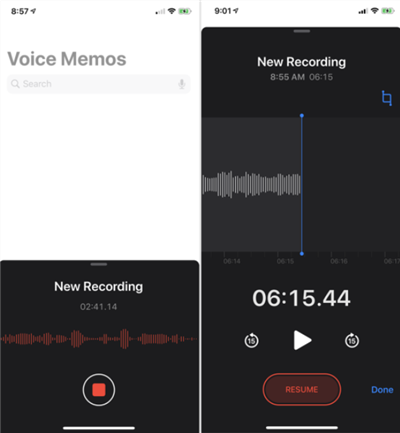
Voice Memos
Step 2: Start Recording
Tap the Record button to start capturing audio. You can record using the iPhone’s built-in microphone, a supported headset, or a compatible external microphone. While recording, you can pause and resume when needed.
Step 3: Stop and Save Your Recording
Tap the Stop button when you’re finished. Your recording is saved automatically in the Voice Memos app. Depending on your settings, it may be named “New Recording” or automatically named based on your location. You can tap the recording’s name to rename it later.
How to Save a Voice Recording to Files
Voice Memos keeps your recordings inside the app, but you can export one whenever you need a regular audio file that can be uploaded, emailed, or moved to another location.
- Open Voice Memos and select the recording.
- Tap the More button, then tap Share.
- Choose Save to Files.
- Select a folder under On My iPhone or iCloud Drive.
- Tap Save.
The standard export is an .m4a audio file. If you are working with a recording that contains supported layers or effects, iOS 26 also provides an Editable export option for workflows where you need to preserve those elements.
Can You Edit a Voice Recording on iPhone?
Yes. Voice Memos includes basic editing tools that let you trim a recording, replace sections, or save an edited version separately from the original.
For a simple voice note, interview, lecture, or meeting recording, Voice Memos is usually all you need. If you need to turn the recording into a polished video or tutorial, you can transfer the file to your computer and continue editing there.
Where Are Your iPhone Recordings Saved?
The location of your recording depends on which iPhone tool you used:
- Screen recordings: Saved automatically in the Photos app. You can find them under Collections → Media Types → Screen Recordings.
- Camera videos: Saved in the Photos app alongside your other photos and videos.
- Voice Memos: Saved inside the Voice Memos app. To use the recording elsewhere, tap More → Share → Save to Files.
If you can’t find a recording, check that your iPhone has enough available storage and that the recording finished successfully.
Comparison: Native Recording vs. Professional Workflows
Native iPhone tools are excellent for quick, raw captures. However, they often fall short when you need to create professional documentation or tutorials for work.
If you have ever recorded a process for a colleague, you likely noticed that the raw footage can be messy. It might show you fumbling with menus, notifications popping up, or the viewer struggling to see which tiny button you tapped.
If you are creating a recording on iPhone step by step for professional purposes, consider the difference between raw mobile capture and polished production.
| Feature | Raw iPhone Recording | Polished Tutorial (Post-Production) |
| Visual Polish | Static, unedited footage. | Auto-zoom on clicks to guide the eye. |
| Cursor / Touch | No visual feedback for taps. | Highlights clicks and touch gestures. |
| Editing Speed | Requires manual export & complex editing. | Automates zoom, layout, and subtitles. |
| Audio | Often captures background hiss. | AI audio enhancement and noise reduction. |
For casual use, native tools function well. However, for creating instructional content, the lack of visual cues can create a bottleneck.
How to Edit and Polish Your Recordings (Back at Your Desk)
Once you have captured your screen recording or video on your iPhone, the next challenge is turning that raw file into something professional.
If you are sending instructions to a team member or posting a guide online, raw footage can be hard to follow on a desktop screen because vertical video often appears small with black bars on the sides.
FocuSee is a screen recording and video creation tool that solves this specific “post-production” problem. While it runs on your desktop (Windows or macOS), it is the perfect companion for polishing mobile content. Instead of spending hours in complex editing software, FocuSee automates the cleanup process.
Transforming Raw Clips into Tutorials
You can transfer your iPhone recording to your computer (via AirDrop or cable) and import it into FocuSee. The software then applies professional touches automatically:
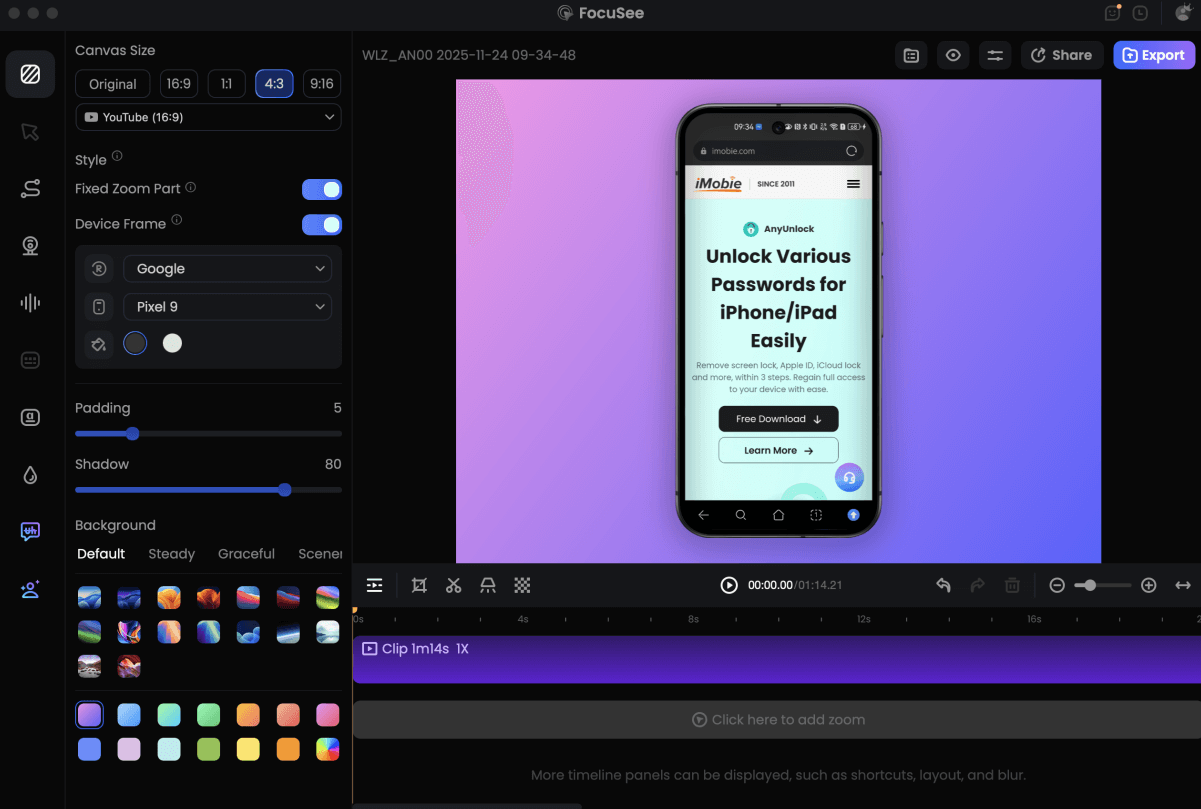
Record Android Phone Screen
- Auto-Zoom on Action: FocuSee analyzes the video and automatically zooms in on the areas of interest. This solves the issue where desktop viewers cannot read small text on mobile recordings.
- Instant Subtitles: For users who search for “how to record with sound” but end up with quiet audio, FocuSee’s auto-captioning ensures your instructions are readable even if the viewer has their sound off.
- Background Polish: Mobile recordings often have awkward black bars on the side. FocuSee automatically applies a professional background blur or canvas, giving your vertical video a polished look suitable for YouTube Shorts, TikTok, or professional presentations.
By automating zoom, captions, and layout, FocuSee allows you to produce high-quality iPhone recording tutorials without needing to be a video editor.
Frequently Asked Questions
How do I record my iPhone screen with sound?
To record your voice while screen recording, open Control Center, touch and hold the Screen Recording button, turn on Microphone, and tap Start Recording. Your iPhone will then capture the screen along with your microphone audio.
Can I screen record on iPhone 11, 12, 13, and 17?
Yes. iPhone 11, iPhone 12, iPhone 13, iPhone 17, and iPhone 17 Pro Max all support Apple’s built-in Screen Recording feature. The basic recording process is essentially the same across these models, so you don’t need a separate screen recording app based on your iPhone model.
Why is my iPhone screen recording not working?
If Screen Recording isn’t working, check that the feature has been added to Control Center and that your iPhone has enough available storage. Some apps may also restrict screen recording because of copyright or security protections. If you need to record your voice, make sure the microphone is enabled before starting.
How long can I record on my iPhone?
There is no fixed recording time limit for normal iPhone screen recordings. The practical limit depends mainly on your available storage and battery life. Longer or higher-quality recordings require more storage, so check your available space before starting a lengthy recording.
How do I record audio on my iPhone without recording video?
Use the built-in Voice Memos app. Tap Record to start and Stop when you’re finished. Your recording is saved in Voice Memos, and you can export it to Files if you need to share or edit it elsewhere.
Are iPhone screen recordings private?
Screen recordings are saved on your iPhone by default, but they capture whatever appears on your screen. Before recording, close sensitive information and consider enabling a focus mode to prevent private notifications from appearing in the video.
Conclusion
Your iPhone gives you everything you need to record screens, video, and audio. Use Screen Recording for what’s happening on your display, Camera for video, and Voice Memos for audio.
If you want to turn those recordings into polished tutorials or demos, FocuSee makes it easy to add automatic zoom, subtitles, and other finishing touches.
Ready to polish your iPhone recordings? Try FocuSee for free.
Ready to transform your iPhone recordings into professional videos instantly? Download FocuSee for free and let AI handle the zoom and polish for you.