How to Remove Background Noise from Video on Samsung

You have just captured the perfect moment on your Galaxy device. The lighting is excellent, the subject is in focus, and the composition is flawless. But upon playback, the audio tells a different story. Instead of clear dialogue, your recording is cluttered with the rumble of wind, the hum of traffic, or the chatter of a busy coffee shop.
This is a frustratingly common scenario. You record short updates for work or social media, loving the Samsung video quality, but finding that outdoor noise often renders your voice unintelligible. You are likely searching for how to remove background noise from video on Samsung devices, wondering if you need expensive equipment or if your phone can fix it internally.
The good news is that Samsung video noise reduction is entirely possible. Whether you need a quick fix for Instagram or professional-grade clarity for a client presentation, there is a solution available.
This guide prioritizes mobile-first solutions, starting with native tools for basic fixes and dedicated Android apps for deeper cleaning. For users dealing with severely damaged audio who are willing to use a computer, we include an advanced desktop option at the end.
Method 1: Using Samsung’s Built-in Video Editor
Many people instinctively ask: “Does the Samsung Gallery have a magic ‘Denoise’ button?”
The honest answer is no. As of One UI 6, the native video editor does not possess a dedicated AI noise removal tool that isolates voice frequencies with a single tap.
Critical Distinction: This method is not recommended if you are trying to save dialogue or a speaking clip. However, if your video is a montage, a travel clip, or “B-roll” where the ambient sound is annoying, this technique—called “masking”—is the fastest, highest-quality fix because it doesn’t process or distort your audio.
Step-by-Step: Adjusting Audio Levels and Masking
If your video suffers from a constant background hum and you don’t strictly need to hear the original audio clearly, use this workflow:
- Open the Video: Navigate to your Samsung Gallery and select the video.
- Enter Edit Mode: Tap the Pencil Icon at the bottom of the screen.
- Access Audio Tools: Locate and tap the Speaker Icon (usually found at the bottom left or within the mixer menu).
- Lower Original Volume: Lower the “Video volume” slider to approximately 20-40%. This pushes the hiss into the background.
- Add Background Music: Tap the Add Background Music option and select a track.
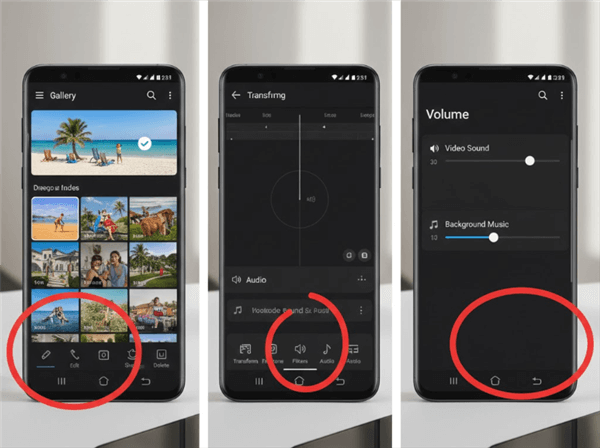
Adjusting Audio Levels in Samsung Gallery
This fills the silence where noise is most audible. The human ear focuses on the music, ignoring the lower-volume static.
Method 2: Best Android Apps to Clean Up Audio
If you are recording a tutorial, a vlog, or an interview, Method 1 won’t work because masking covers up your voice. You need to actively remove the unwanted frequencies. Since the native editor lacks this algorithm, you will need a third-party Samsung app to remove background noise from video.
Here are the two best workflows: one for general editing and one for dedicated noise removal.
Option A: Using CapCut (For Content Creators)
CapCut is widely used because it effectively suppresses static noise like air conditioners or fans.
Step 1. Import Footage: Open CapCut and start a ‘New Project’ with your Samsung video file.
Step 2. Locate Denoise Feature: Tap on your video clip in the timeline so it is highlighted. Scroll through the bottom toolbar until you find Reduce Noise.
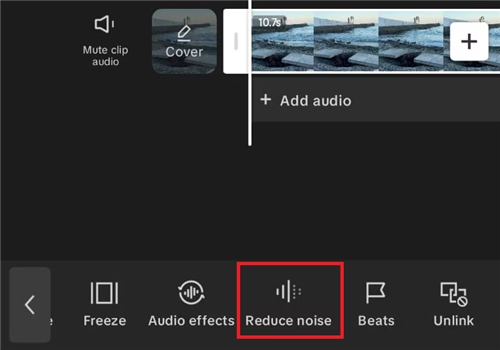
Apply Noise Reduction
Step 3. Toggle On: Switch the feature on.
Step 4. Export: Save the video in 1080p or 4K.
Option B: Using “Noise Reducer – Audio & Video” (For Quick, Dedicated Fixes)
If you don’t want a full video editor and just want to clean a file, dedicated apps like Noise Reducer – Audio & Video (available on the Play Store) are often more direct.
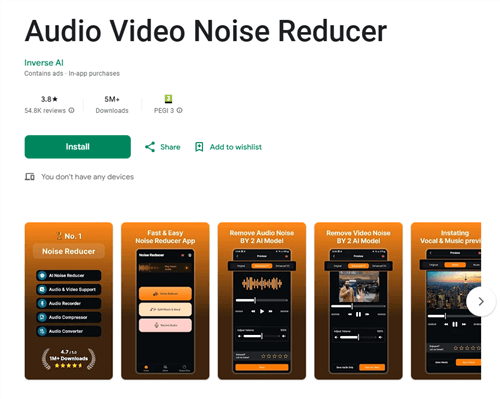
Noise Reducer App
- Import File: Open the app and tap Import File (Video). Select your Samsung video.
- Process: The app will typically analyze the file immediately.
- Adjust Intensity: Look for a “Denoise Level” or “Strength” slider.
- Save: Tap “Save as” or “Export” and choose “Video Format” (MP4) to save it back to your gallery.
Warning: Avoid the “Robotic Voice” Effect
A common mistake is applying 100% noise reduction immediately. This strips the “body” or bass from your voice, creating a metallic, robotic sound artifact.
Recommendation: Start with an intensity of 20-30%. It is better to have a tiny bit of background noise and a natural-sounding voice than a completely silent background with a distorted, robotic voice.
Comparison: Which Tool fits your Goal?
Before we look at preventative measures or advanced desktop options, here is a quick breakdown to help you decide.
| Feature | Samsung Native Tools | Mobile Apps (CapCut/ Noise Reducer) | Desktop AI Software |
| Primary Function | Volume masking | Frequency cutting | AI voice reconstruction |
| Best For | B-roll, montages | Vlogs, social dialogue | Professional presentations |
| Convenience | Instant (Gallery) | High (App-based) | Low (File transfer) |
| Voice Quality | N/A (no cleanup) | Good (artifact risk) | Excellent (context-aware) |
Pro Tip: How to Prevent Noise with “Zoom-in Mic”
The most effective way to handle noise is to prevent it during recording. While you cannot always control the environment, Samsung devices (Galaxy S20 series and newer) include a hidden hardware feature called Zoom-in Mic.
When enabled, the phone’s microphones will physically focus on the subject you are zooming in on, while dampening sound coming from the sides and rear (where the camera operator usually stands).
How to Enable Zoom-in Mic:
- Open your Camera app.
- Tap the Settings (Gear icon) in the top left corner.
- Select Advanced Recording Options.
- Toggle Zoom-in Mic to ON.
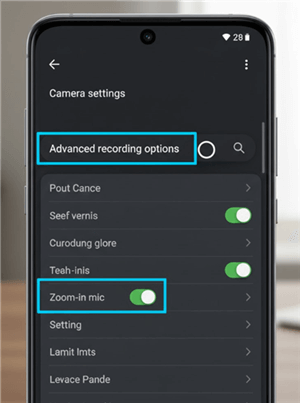
Enable Zoom-in Mic
This feature only activates when you physically zoom in on the screen while recording. It is incredibly effective for filming a speaker in a crowded room.
Advanced Alternative: Studio-Quality Audio with FocuSee (PC/Mac)
We understand that most users prefer a phone-only solution. However, mobile processors have limits. If you have recorded a critical video—perhaps a one-time interview or a presentation—and the mobile apps from Method 2 are making the voice sound robotic or distorted, you may need more processing power.
In these specific “rescue” scenarios, transferring the file to a desktop to use a tool like FocuSee is the professional standard.
Unlike simple mobile filters that chop off frequencies, FocuSee utilizes AI Audio Enhancement to distinguish human speech from complex environmental chaos (like wind gusts) and reconstructs the voice.
When to switch to FocuSee:
- You have heavy wind noise (which mobile apps struggle to fix).
- The “robotic” voice effect from mobile apps is unacceptable for your project.
- You need to add auto-captions to aid clarity.
Step 1. Transfer your video from Samsung to PC (using Quick Share or USB).
Step 2. Import into FocuSee.
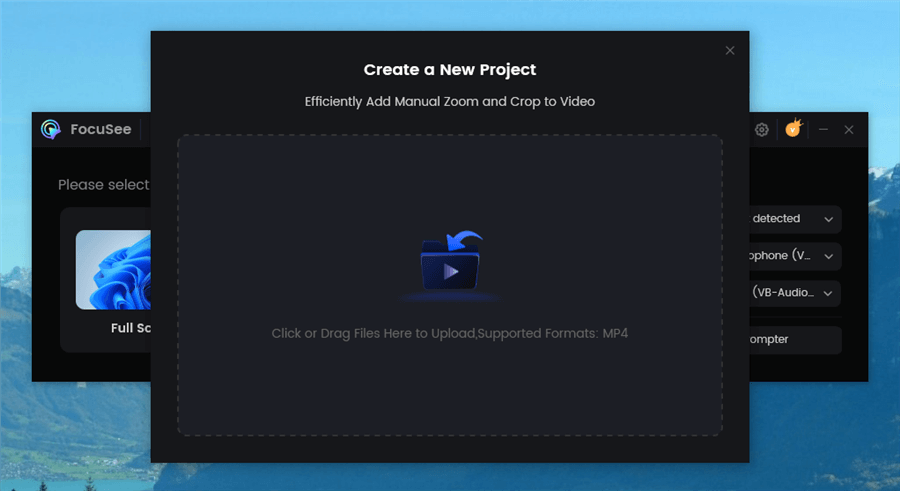
Upload Your Footage
Step 3. Toggle AI Audio Enhancement and let the software process the track.
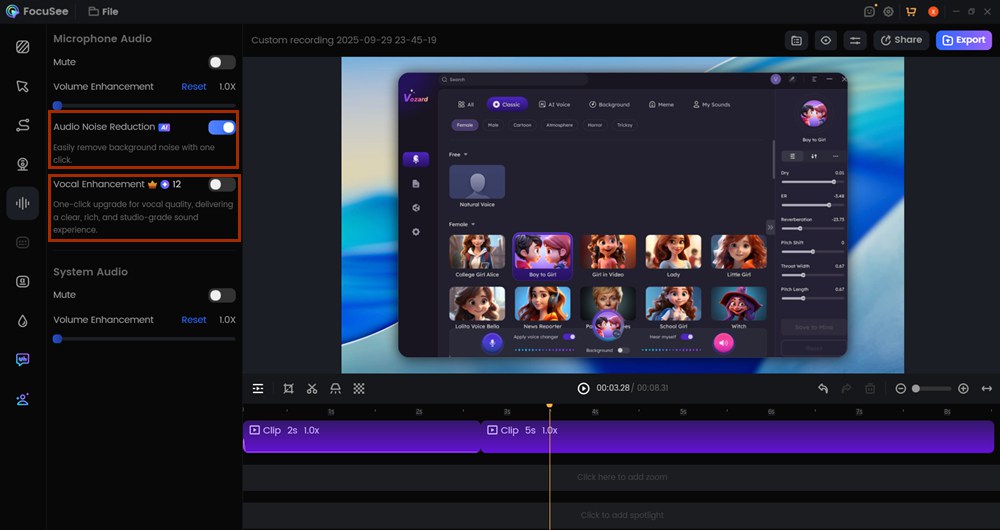
Audio Noise Reduction
Step 4. Export the cleaned video.
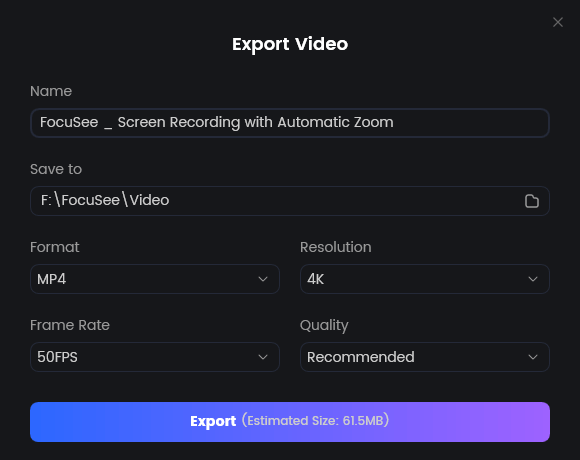
Export Your Video
This isn’t necessary for every Instagram story, but it is a powerful backup plan when quality is non-negotiable.
Frequently Asked Questions
Does Samsung have a built-in noise reduction feature for videos?
For post-recording editing, no. As of One UI 6, there is no “Denoise” button in the Gallery. However, for pre-recording, the “Zoom-in Mic” feature (detailed in the Pro Tip section above) works as a hardware-based noise reducer.
Why does my voice sound robotic after using a noise reduction app?
This is caused by “artifacts.” Mobile apps often struggle to distinguish between your voice and the noise frequencies. When they cut the noise, they accidentally cut parts of your voice, too. Lowering the intensity slider to 20-30% usually fixes this.
Can I remove wind noise from a video on my phone?
Wind noise is difficult because it physically distorts the microphone (clipping). Software can reduce the rumble, but it cannot fully fix the distortion. A physical windscreen (or “dead cat”) is the only perfect solution, though AI desktop tools generally handle wind better than mobile apps.
Is there a free way to clean up video and audio on Samsung?
Yes. Method 1 (Samsung Gallery) is free, but only masks noise. For actual removal, apps like CapCut offer free versions that include basic noise reduction features suitable for social media.
Conclusion
Choosing the right method to remove background noise from Samsung video footage comes down to the importance of the clip.
- For Scenery & B-Roll: Stick to Method 1. It’s native, fast, and maintains high fidelity by masking noise with music.
- For Social Media Dialogue: Use Method 2 (CapCut or Noise Reducer). It is the best balance of convenience and quality for creators.
- For Critical/Professional Footage: If the mobile results sound robotic, consider the Advanced Alternative (FocuSee) on desktop to leverage deeper AI processing.
Start by checking your camera settings today to enable “Zoom-in Mic”—your future self will thank you for the cleaner audio.