Screen Studio Alternatives for Fast-Moving Product Teams

Imagine this: you’ve just finalized a beautiful, cinematic product walkthrough for tomorrow’s highly anticipated feature launch. Then, at 11:00 PM, a developer pushes a minor update that moves the primary navigation bar two inches to the left. Suddenly, your entire video is obsolete, and you are staring down a midnight re-recording session.
For product marketing leads navigating rapid bi-weekly release cycles, this constant loop of recording, editing, and trashing outdated videos is exhausting. Traditional video workflows simply break down under the pressure of a constantly evolving UI.
While tools like Screen Studio produce gorgeous polish, the manual editing required to maintain these videos slows startups to a crawl. You don’t just need a screen capture tool; you need a comprehensive demo operations system that scales. This guide evaluates the most effective tools and workflows to eliminate production bottlenecks, seamlessly collaborate across Mac and PC teams, and keep your onboarding content continuously up to date.
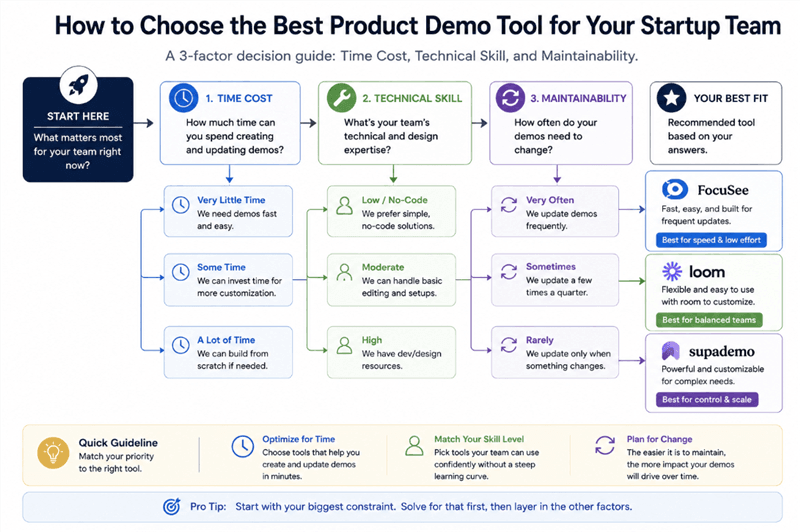
How to Choose the Best Product Demo Tools for Startup teams
Shifting from “Screen Recorders” to “Demo Operations”
Before committing to new software, it is vital to understand that the market is shifting. We are moving away from passive video files and toward holistic systems that handle recording, approval, sharing, and analytics.
To build a highly effective team workflow, you should categorize tools based on your primary output goal. Here is how the modern toolkit breaks down:
1. Speed and Async Communication (Loom)
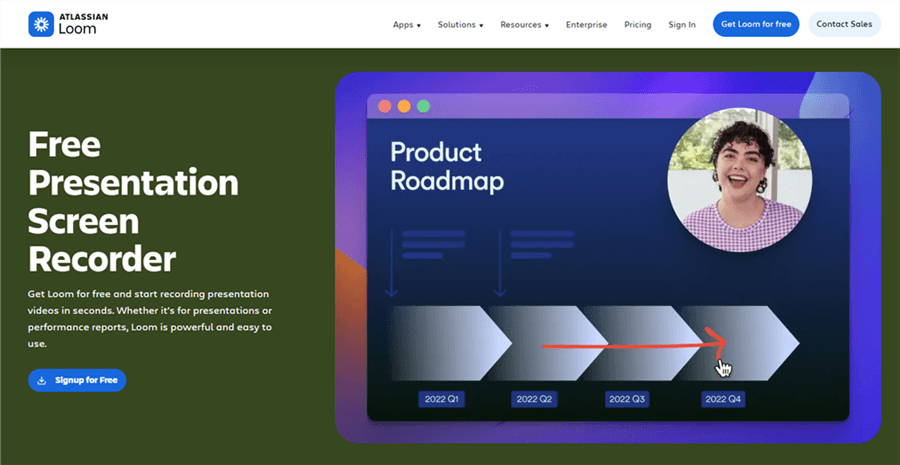
Video Presentation Software – Loom
When minimizing friction between recording and sharing is your top priority, Loom remains the industry standard.
- Best For: Internal team updates, rapid bug reporting to Jira, and quick async communication.
- Biggest Limitation: Lacks cinematic motion, 3D visual effects, and professional polish.
- Time Cost: Very Low. Record and send in seconds.
2. Transcript-Driven Workflows (Descript)
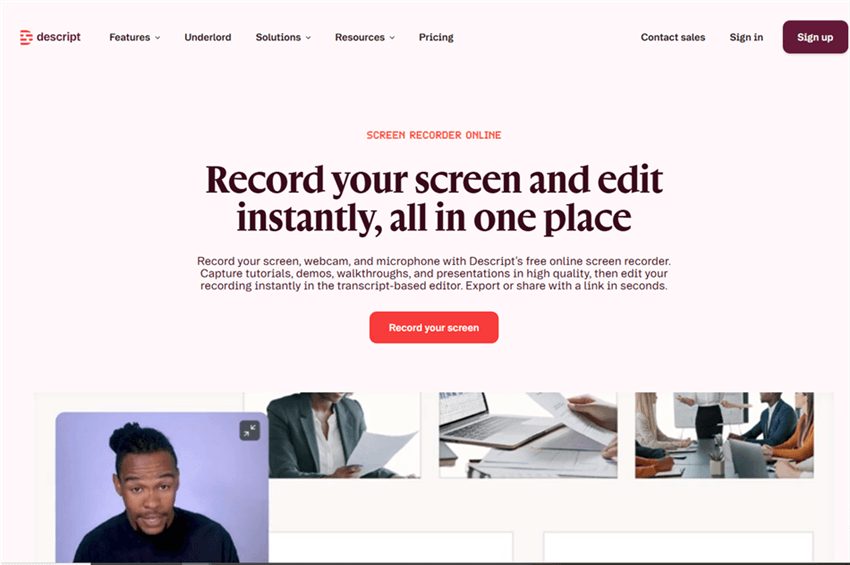
Screen Studio Alternative for Windows – Descript
If you frequently record narrated tutorials, Descript shifts the bottleneck from a complex video timeline to a simple text document.
- Best For: Narrated product demos, heavy voiceover editing, and studio-quality voice cleanup.
- Biggest Limitation: Timeline still relies on linear video files. If your product UI changes, you still have to re-record the visual footage.
- Time Cost: Medium.
3. Cinematic Screen Recorders (Screen Studio, FocuSee, Supercut)
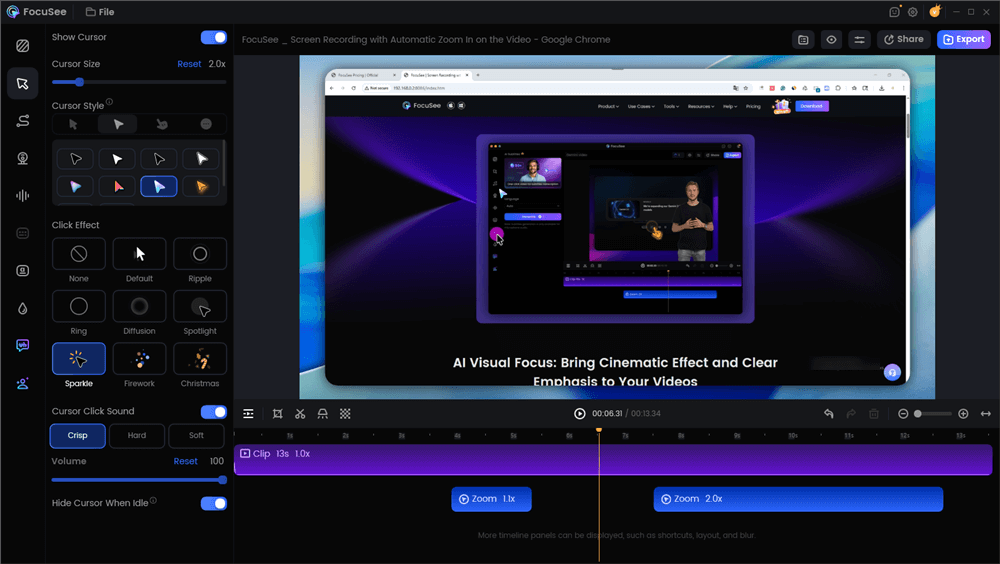
Edit the Video with Auto Effects
FocuSee automatically applies auto-zoom, smooth cursor movement, and click highlights during the recording phase, eliminating the manual editing timeline.
- Best For: High-impact feature launches, social media assets, and polished landing page videos.
- Biggest Limitation: High Maintenance Risk. While AI makes recording fast, an MP4 is still a rigid file. If your SaaS dashboard changes, these tools cannot patch the video; you must re-record the entire sequence.
- Time Cost: Medium. The initial creation is fast, but maintenance costs add up over time.
4. Interactive Product Experiences (Arcade, Storylane, Supademo)
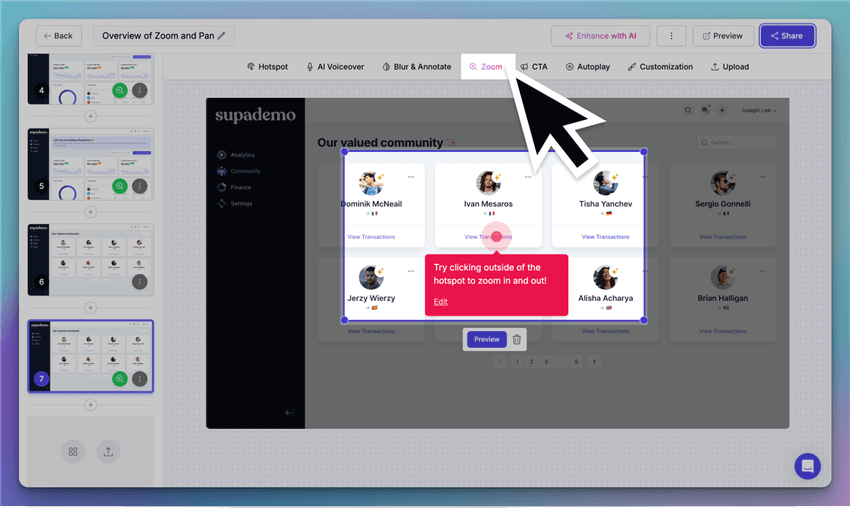
Best Walkthrough Video Maker – Supademo
Interactive platforms capture HTML/CSS or isolated screenshots to create clickable hotspots rather than generating a standard video file.
- Best For: Detailed knowledge bases, customer education, and embedded interactive onboarding.
- Biggest Limitation: Lacks the passive, cinematic emotional impact of an auto-playing launch video.
- Time Cost: Very Low Maintenance. When the interface updates, you simply swap out a single screen in the sequence without trashing the whole demo.
💡 Pro-Tip: Fast-moving teams usually care more about update speed than cinematic perfection. Mixing a cinematic recording tool (like FocuSee or Screen Studio) for marketing launches with an interactive tool (like Arcade) for documentation ensures you have the right asset for every scenario.
The Cross-Platform Challenge: Making Cinematic Demos Scale
A major challenge for marketing, product, and customer-success teams is maintaining consistent brand quality across multiple contributors. Screen Studio is beloved for its polish, but it is strictly limited to macOS. If your Product Manager records a demo on a Windows Dell XPS, but your Marketer edits on a MacBook Pro, standardizing that workflow is a logistical nightmare.
If you need cinematic polish but operate in a mixed-device environment, alternatives like FocuSee, Guidde, or Supercut become necessary. FocuSee, for example, functions on both Windows and macOS, instantly applying Smart Focus and Auto-Zoom to basic captures.
However, scaling this across a team requires more than just buying licenses. You need strict operational logistics.
⚠️ Warning: The Mac/PC Collaboration Trap
You cannot just say “we use reusable templates” and expect it to work. To maintain uniform branding, your team needs a centralized cloud workspace or the ability to export and share a.jsonsettings file via Slack. Furthermore, watch out for frame-rate mismatches. Lock both your Mac and PC recording settings to 60fps before applying templates, or your automatic zoom transitions will stutter terribly on the final export.
It is also crucial to be realistic about limitations. While tools like FocuSee and Screen Studio handle automatic subtitles and AI audio enhancement beautifully , they do not solve the UI update problem. They are fantastic for speed, but if a button moves next week, you are still doing a full re-record.
The Complete Demo Operations Workflow: From Record to Analytics
The biggest mistake fast-moving software teams make is treating a product demo as just a video file. If you want a scalable, repeatable process that doesn’t break every two weeks, you must implement an end-to-end operational workflow.
Here is how modern product teams manage the lifecycle of a demo:
Step 1: Capture & Creation
Decide on the medium based on the lifecycle stage. If it’s a high-profile launch, use a cinematic recorder (Screen Studio/FocuSee) for a 4K social asset. If it’s for the help center, use an interactive capture tool (Arcade/Storylane). Ensure all contributors load the team’s pre-approved visual template file before hitting record.
Step 2: Editing & Localization
For voice-heavy videos, drop the export into a tool like Descript to rapidly trim filler words via the text transcript. Apply automatic subtitles—which is critical, as over 80% of social media videos are watched on mute.
Step 3: Async Approval
Never send a raw 1GB MP4 file over Slack for feedback. Route your drafts through a dedicated Slack channel using integrations with tools like Frame.io or Loom. This allows Legal and Product leads to leave time-stamped comments directly on the video, preventing version-control chaos.
Step 4: Publishing & Centralization
Demos should live in a centralized, easily updatable location. Embed interactive Arcade walkthroughs directly into your Zendesk help articles or Webflow landing pages. When a UI update happens, you update the centralized Arcade file, and it dynamically pushes the fix to every embedded location automatically.
Step 5: Analytics & Iteration
A demo is only useful if it drives user adoption. Connect your interactive demos or video hosts to HubSpot or utilize their native analytics dashboards. Track the “drop-off rate” (where users stop clicking) and “completion rate.” If analytics show users abandoning an interactive walkthrough at Step 4, you know exactly which part of your UI—or your demo—needs to be simplified.
[Image Placeholder]
Alt-text: A diagram explaining the full demo operations workflow, moving from recording to Frame.io approvals, to Webflow publishing, and HubSpot analytics.
Frequently Asked Questions
To ensure you select the perfect software setup, here are answers to the most common questions regarding modern product marketing workflows.
What is the best Screen Studio alternative for Windows users?
For teams that need cinematic auto-zoom and cursor tracking but work on PCs, FocuSee and Supercut are highly recommended. They provide similar motion-tracking features while adding cross-platform compatibility, ensuring your Windows and macOS users can produce identical output.
How do we handle video maintenance when our software UI changes weekly?
If your interface updates frequently, you should pivot away from traditional video files for your documentation. Adopt interactive demo platforms like Arcade or Supademo. Because they capture code or individual screenshots, you can seamlessly replace a single outdated screen without re-recording the entire tutorial.
How do cross-platform startup teams share video templates effectively?
Do not rely on manual settings. Teams should use software that supports centralized cloud dashboards, allowing administrators to lock in brand colors, cursor styles, and zoom speeds. Alternatively, designate one team member to build the brand profile, export the settings configuration file, and pin it to your team’s Slack channel.
Should we use video demos or interactive walkthroughs?
Use both, but strategically. Cinematic videos (MP4/GIF) grab attention on social feeds and Product Hunt launches because they play automatically. Interactive demos are superior for deep-dive customer education and onboarding because they let users learn at their own pace and are vastly easier for your team to update.
Empower Your Team with a Scalable System
Maintaining accurate feature demos doesn’t have to mean midnight re-recording sessions and endless timeline editing. When your product UI changes every week, relying on fragmented, manual video tools will inevitably break your production pipeline.
By shifting your mindset from “finding a screen recorder” to “building a demo operations workflow,” you can finally get ahead of rapid release cycles. Categorize your tools properly: use Loom for async speed, cinematic tools for high-impact launches, and interactive platforms for sustainable, easily updated documentation.
Regain control of your production pipeline today by establishing clear guidelines for recording, approval, and analytics. When you implement a truly scalable system, your team will spend less time doing tedious timeline edits, and more time actually helping your users succeed.