A reliable screen recorder with an editor makes creating videos easier than ever. Whether you’re recording gameplay, tutorials, or presentations, you can capture and edit everything in one app without switching tools. With so many options available, it can be hard to choose the best one.
That’s why we’ve compiled a list of 8 top screen recorders with editors, helping you create professional, polished videos quickly and efficiently while focusing on your content.
What is a Screen Recorder with Editor?
With a screen recorder that includes an editor, you can quickly make changes to the video within the same program. You could edit all of your videos in one location rather than recording them and then transferring them to another piece of software. This speeds up the process whether you’re making professional presentations, guidelines, or lessons.
Features like text inserting, editing, cutting, and even adding background music are typically included in these apps. It’s a one-stop shop for anyone looking to share content that is clear and professional.
Quick Comparison: Best Screen Recorders with Editors
| Auto-Zoom | Camera Layout | Ease of Use | Pricing | |
| FocuSee | ✅ Yes | ✅ Yes | Very Easy | Free Trial / Paid |
| Camtasia | ⚠️ Manual Zoom | ✅ Yes | Moderate | ~$180+/year |
| Movavi Screen Recorder | ❌ No | ✅ Yes | Easy | ~$45/year |
| Icecream Screen Recorder | ❌ No | ⚠️ Basic Webcam Overlay | Easy | ~$30 one-time |
| ScreenPal | ⚠️ Manual Zoom | ✅ Yes | Very Easy | From $4/mo |
| Loom | ❌ No | ✅ Yes | Very Easy | Free / From $12.50/mo |
| Screencastify | ❌ No | ✅ Yes | Easy | Free / From $7/mo |
| Filmora | ⚠️ AI Zoom & Manual Zoom | ✅ Yes | Moderate | From $9.99/mo |
Top 8 Screen Recorders with Editor
FocuSee
Video making is quick and simple with FocuSee. It automatically converts your screen recordings into polished movies with smooth zooms, highlights, and professional backdrops, saving you hours of trimming and editing.
When you’re showing a product, giving a sales presentation, or providing lessons, FocuSee enables you to do tasks in minutes as opposed to hours. It works well on both Mac and Windows and offers everything you need to create excellent movies without the trouble of complex editing.

Show Mouse Cursor
Key Features:
- Automatic editing with zoom effects, highlights, and background adjustments.
- Record the webcam, screen, and voice all at once.
- Combined teleprompter to ensure the script follows.
- Capture and display keyboard shortcuts for clearer tutorials.
- Customizable zoom, cursor effects, and presets for consistent style.
- Export in 4K video or GIF with multiple sharing options.
- Works on both Windows and macOS.
Pros:
- Saves hours of editing with automatic effects.
- Simple to use and suitable for newcomers.
- A one-stop shop for sharing, editing, and recording.
- Affordable compared to outsourcing or pro software.
- High-quality exports up to 4K.
Cons:
- Limited advanced editing compared to professional software.
- Ideal for business videos, presentations, and lessons (not major film editing).
- Windows 10+ or macOS 10.13+ is required.
Pricing:
- Free trial available
- Standard: $19.99/month or $49.99/year
- Advanced: $24.99/month or $79.99/year
- Lifetime: $199.99 one-time purchase
Movavi Screen Recorder
A simple program called Movavi Screen Recorder makes screen recording easy and stress-free. Movavi makes it easy to record webinars, business meetings, online courses, and even YouTube videos with only a few clicks.
This screen recorder with an editor is perfect for users who want reliable recordings without complicated tools. Its simple design suits professionals, teachers, students, and content creators.
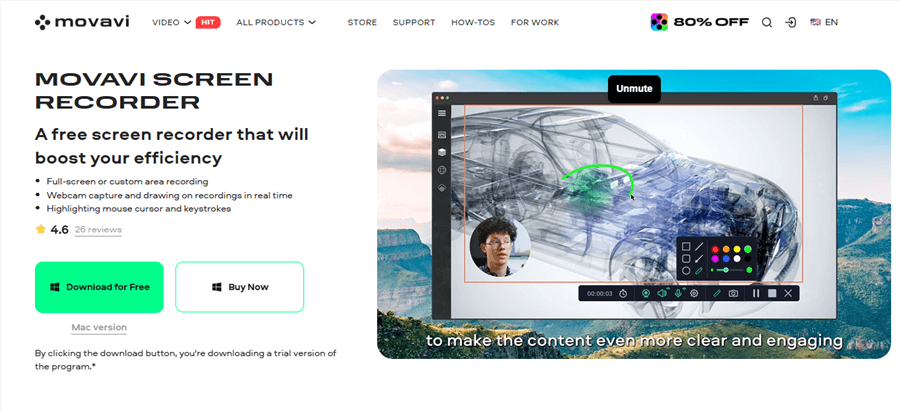
Screen Recorder and Video Editor – Movavi
Key Features:
- Record your full screen or just a selected area
- Capture webcam along with your screen
- Highlight mouse clicks and keystrokes
- Record system sound and microphone at the same time
- Save videos in HD or 4K quality
- Schedule recordings to start automatically
Pros:
- Very easy to use
- Produces clear video and audio
- Great for classes, meetings, and content creation
- Affordable one-time price
Cons:
- Free trial has a watermark and 7 7-day limit
- Only basic editing tools are available
- Can’t record copy-protected videos
Pricing:
- Monthly Subscription: $19.95/month
- Annual Subscription: $44.95/year (discounted)
- Free Trial: 7 days with watermark
Icecream Screen Recorder
It takes only a few clicks to record your screen with sound with Icecream Screen Recorder. Meetings, lectures, games, and lessons may all be easily recorded. It is compatible with Windows, Mac, and Android, making it a helpful tool for everyone.
Video editing software with screen recording lets you record all or part of your screen, add your webcam, and draw or write on it. You can also take screenshots, schedule recordings, and share videos quickly and easily.
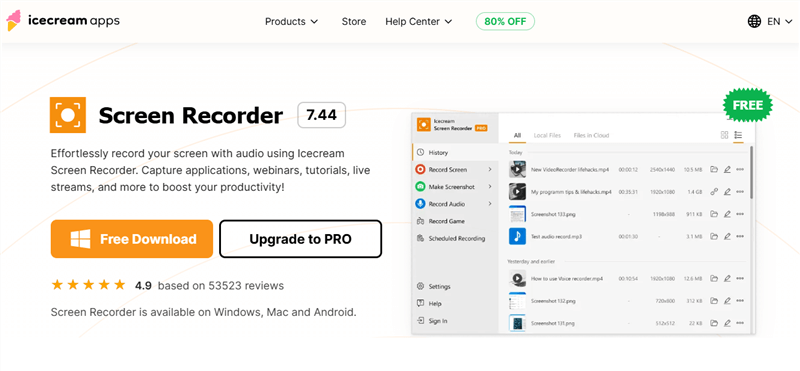
Screen Recorder and Video Editor – Icecream Screen Recorder
Key Features:
- Record full screen, selected area, or multiple monitors
- Capture system audio and microphone simultaneously
- Add webcam overlay to recordings
- Annotate with text, arrows, and drawings
- Schedule recordings automatically
- Take screenshots in different formats
- Share recordings instantly with built-in upload
Pros:
- Easy to use with a simple interface
- Free version available with useful features
- Supports annotations and editing tools
- Works on Windows, Mac, and Android
- Instant sharing and scheduled recording
Cons:
- The free version has limited advanced features
- Some editing options are basic compared to pro editors
- Watermark appears in the free plan
Pricing:
- Free Version: Basic recording features with limitations
- PRO License: Starts at approximately $29.95/year
- Lifetime License: Available as a one-time purchase
ScreenPal
ScreenPal improves the process of creating videos for schools, companies, and artists alike. Videos may be edited, shared, and recorded using your webcam, screen, or both. ScreenPal provides all the resources you need in one place, whether you’re creating presentations, training videos, or tutorials.
It is made to be compatible with Chromebooks, iOS, Android, Macs, and Windows.ScreenPal lets you share, store, and collaborate easily without complex software.
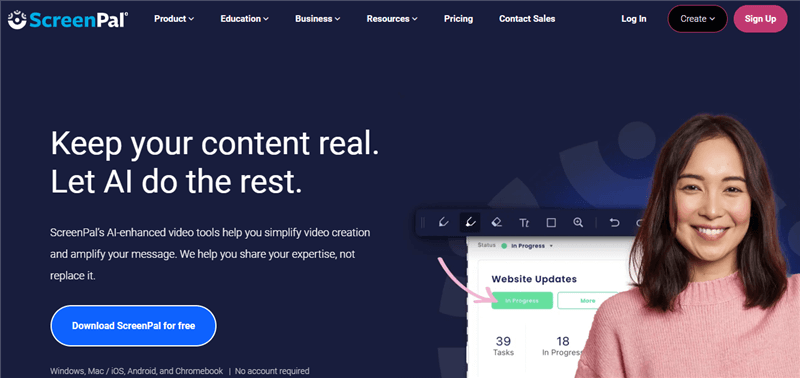
Screen Recorder and Video Editor – ScreenPal
Key Features:
- Screen & webcam recording
- Simple video editing (text, overlays, music, trimming, cutting)
- Button, poll, and quiz interactive
- Video hosting with sharing & embedding options
- Captions, translations, and dubbing
- Works on all major devices (desktop & mobile)
Pros
- Very easy to use for beginners
- Works on multiple platforms
- Great for both personal and professional use
- Offers free version with essential tools
- Interactive elements boost engagement
Cons
- Advanced features require paid plans
- Free version adds limitations like storage caps
- Heavy editing may feel limited compared to pro video editors
Pricing:
- Solo Deluxe: $4/month (billed annually)
- Solo Max: $10/month (billed annually)
- Team Business: $8/user/month (billed annually)
Camtasia
Camtasia streamlines the process of creating videos. You may edit all of your screen, camera, and audio recordings in one location. It is intended for anyone who wants to produce tutorials, training films, or presentations that appear professional without requiring complex editing abilities.
Camtasia screen recording and editing software helps you maintain consistent, readable, and clear information by highlighting your cursor and allowing you to make remarks.
Screen Recorder and Video Editor – Camtasia
Key Features:
- Record screen, webcam, and audio on separate tracks
- Simple drag and drop editing with effects and transitions
- Customizable templates and themes for a professional look
- Built-in captions and translations for accessibility
- Cursor effects and annotations for clear instructions
Pros
- Very easy to use, even for beginners
- All-in-one screen recorder and editor
- Great for tutorials, training, and education
- Professional templates included
Cons
- Higher price compared to basic editors
- Can feel heavy on older computers
- Focused mainly on screen-based videos
Pricing:
- Essentials $179.88/year: Record & edit videos.
- Create $249/year: Adds text editing & audio cleanup.
- Pro $599/year: Team tools, translations & assets.
- Enterprise: Custom plans available.
Loom
Loom prevents pointless meetings and lengthy emails, allowing quicker and more efficient communication. You may quickly share your message with coworkers or clients by recording your screen, camera, or both with a few clicks.
Loom, which was created for contemporary remote work, makes it simple to communicate changes, provide comments, and clarify concepts. Fast, clear communication with easy editing and Slack/Google integration.
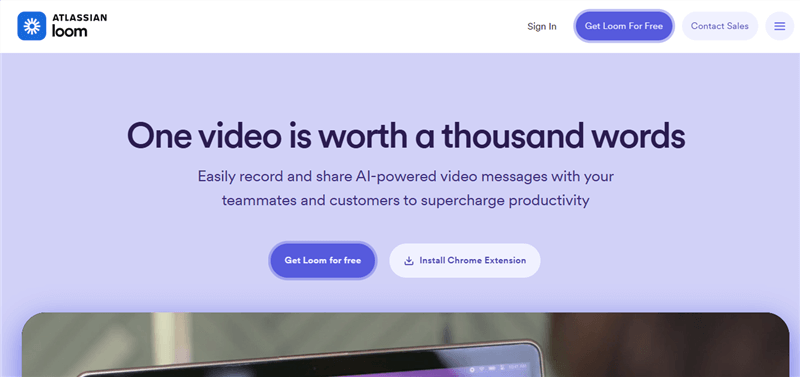
Screen Recorder and Video Editor – Loom
Key Features:
- One-click screen and camera recording
- Easy sharing and embedding across platforms
- Trim, stitch, and edit video clips
- Transcriptions and closed captions in 50+ languages
- Video privacy controls with enterprise-grade security
- Custom backgrounds, CTAs, and viewer insights
Pros
- No high learning curves, very simple to use
- Compatible with Chrome, iOS, Android, Windows, and Mac
- Great for remote teams and async communication
- Strong integrations with popular work tools
Cons
- Free plan has limited recording length
- Advanced editing features are basic compared to full editors
- Heavy use of cloud storage may be required
Pricing:
- Starter: Free (25 videos, 5-minute limit)
- Business: $18/user/month
- Business + AI: $24/user/month
- Enterprise: Custom pricing
Screencastify
Screencastify is a popular screen recorder with an editor that helps teachers, students, and professionals create interactive video content. It’s easy to use, works on Chromebooks, and lets you record, edit, translate, and share videos quickly. Millions of users around the world rely on it for lessons, tutorials, and presentations.
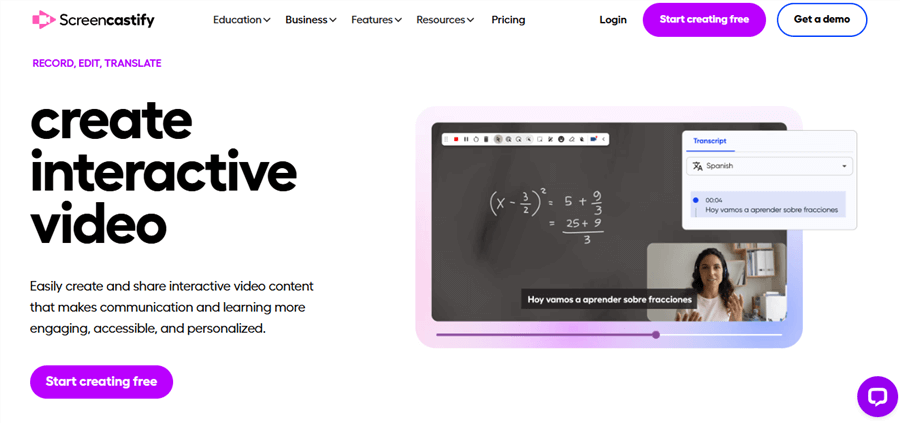
Screen Recorder and Video Editor – Screencastify
Key Features
- Record screen, webcam, or both.
- Trim, crop, and edit videos easily.
- AI-powered titles, captions, and descriptions.
- Add interactive quizzes and questions.
- Translate captions into 50+ languages.
- Save and share videos via Google Drive or YouTube.
- Use a premium library for interactive lessons.
Pros
- Simple and user-friendly interface.
- Works on Chromebooks and browsers.
- Supports multiple languages.
- Perfect for teaching and training.
Cons
- Free plan limited to 10 videos.
- Max 30-minute recording in the free plan.
- Some AI and export features require a premium.
- Limited interactive questions on the free plan.
- Editing options are basic.
Pricing:
- Free: 10 videos; Starter $7, Pro $10 for full features.
Filmora
You can record your screen, camera, and audio with only a few clicks with Filmora Screen Recorder. It’s perfect for recording classes, workshops, games, and online meetings because it’s easy to set up and has high video and sound quality.
Filmora’s built-in screen recorder and video editor make recording and editing easy. You can clip, add effects, and highlight mouse clicks instantly, creating professional videos without extra software.
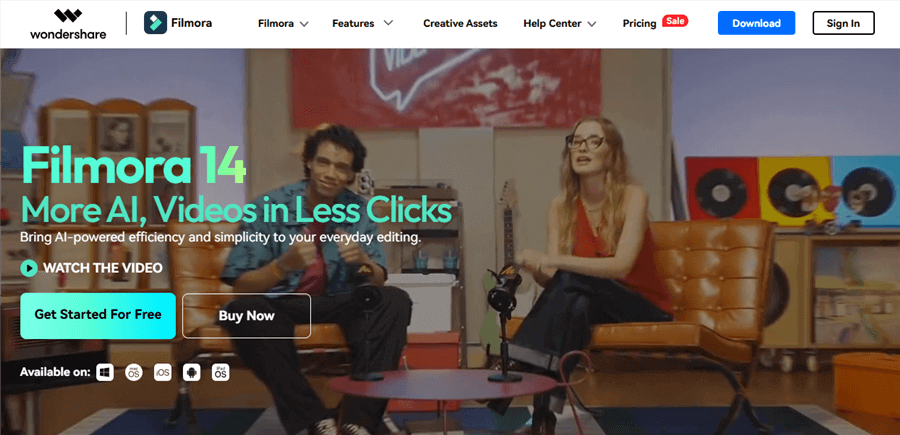
Screen Recorder and Video Editor – Filmora
Key Features:
- Record screen, webcam, and audio together
- Customize recording area and resolution
- Capture both system sound and microphone
- Show keystrokes and mouse clicks on screen
- Set recording timers for hands-free capture
- Edit recordings directly with Filmora’s video editor
Pros:
- Easy to use with simple controls
- Screen + webcam recording for engaging videos
- Built-in editing tools save extra steps
- Works great for tutorials, lectures, games, and meetings
Cons:
- Free version adds a watermark
- Requires a good PC for smooth high high-quality recording
Pricing:
- Basic $9.99/month: Cloud, assets, 4K export
- Advanced $34.99/year: More storage + AI tools
- Perpetual $49.99: One-time, lifetime use
Best Screen Recorders with Editors by Use Case
Different users have different recording and editing needs. Here are the best tools for common scenarios.
| Recommended Tool | Best For | |
| Software Tutorials | FocuSee | Polished tutorials with auto zoom and cursor effects |
| Product Demos | FocuSee | Feature walkthroughs with minimal editing |
| Sales Videos | FocuSee | Fast, professional demo creation |
| YouTube Tutorials | Camtasia | Advanced editing and customization |
| Live Streaming | OBS Studio | Flexible recording and streaming |
| Training Videos | ScreenPal | Training and educational content |
FAQs on Screen Recorder with Editor
Can screen recorders edit videos?
Yes. Many modern screen recorders include built-in editing tools that let you trim clips, cut unwanted sections, add annotations, insert captions, and enhance recordings without using separate video editing software.
What features should a screen recorder with editor have?
A good screen recorder with editor should offer screen and webcam recording, trimming tools, annotations, captions, zoom effects, audio editing, and flexible export options. Advanced tools may also include AI-powered editing features.
Can I add zoom effects after recording?
Yes. Many screen recorders with editing capabilities allow you to add zoom effects during post-production. Some tools, such as FocuSee, can automatically generate zoom effects and cursor highlights to save editing time.
Can I record my screen and webcam at the same time?
Yes. Most modern screen recording software supports simultaneous screen and webcam recording, making it ideal for tutorials, presentations, online courses, and product demonstrations.
What is the difference between a screen recorder and a video editor?
A screen recorder captures on-screen activity, while a video editor modifies and enhances recorded footage. A screen recorder with editor combines both functions in a single workflow, reducing the need for multiple applications.
Are free screen recorders with editors good enough?
Free tools can be suitable for basic recording and simple edits. However, paid options often provide advanced features such as automatic zoom effects, AI editing, captions, higher export quality, and watermark-free videos.
Which screen recorder is best for tutorials?
The best choice depends on your workflow. For quick tutorial creation with minimal editing, tools like FocuSee can automatically add zoom effects, cursor highlights, and visual emphasis. For advanced manual editing, Camtasia is a popular option.
Which screen recorder is best for product demos?
For product demonstrations and software walkthroughs, screen recorders that support automatic zooming, annotations, and webcam recording tend to be the most effective. FocuSee is particularly suited for creating polished product demo videos quickly.
Can AI edit screen recordings automatically?
Yes. Some modern screen recorders use AI to automate editing tasks such as zoom effects, cursor tracking, subtitle generation, silence removal, and visual emphasis, significantly reducing post-production work.
Final Words
Screen recording is a useful tool for learning, sharing ideas, and capturing important moments. Using the right screen recorder with an editor makes it easy and lets you focus on your work. FocuSee is a great choice if you want something simple and quick. For more complex requirements, you may select a tool with additional capabilities to quickly produce movies of expert quality.