What is the Best Video Recording App for Mac with Virtual Backgrounds for Calls and Demos?

A messy or distracting background during Zoom calls or product demos can quickly reduce how professional you look. Most users are trying to solve one simple problem: how to look clean and polished on camera without setting up a green screen or complex studio setup.
This article helps you quickly understand which Mac video tools are actually right for your workflow—whether you need live virtual backgrounds for meetings or polished async recordings for product demos and tutorials—so you can avoid choosing the wrong app and ending up with low-quality video results.
The key is choosing the right type of tool, because Mac video apps are mainly split into live virtual camera tools for meetings and async screen recorders for prerecorded demos.
Live vs Async Video Tools for Mac: What’s the Difference?
Mac video recording tools generally fall into two categories:
- Live Virtual Camera Tools (Zoom/Google Meet/Teams): Used for real-time calls. They act as a virtual camera and send your video feed directly into meeting apps with background blur or replacement.
- Async Screen Recorders (Demos/Tutorials): Used for prerecorded videos. They capture your screen and webcam, then enhance the recording with AI features like auto-zoom, captions, and background cleanup.
In short: live tools are for meetings, async tools are for polished recorded content.
This guide is based on real-world testing across SaaS demo and onboarding scenarios, using Apple Silicon Macs (M2–M4 MacBook Air/Pro, iMac, Mac Studio) on macOS Sonoma and Sequoia. We also evaluated common setups with Logitech Brio webcams, Sony cameras (via Continuity Camera), and popular USB microphones like Blue Yeti and Rode, focusing on speed, visual quality, and workflow performance across live and async video tools.
Comparison of the Best Mac Video Recording Apps with Virtual Backgrounds
| Best For | Virtual Background / Blur Quality | Live Virtual Camera | Ideal Use Cases | |
| Loom | Async communication | Basic background blur | No | Internal updates & quick walkthroughs |
| Airtime (formerly mmhmm) | Live presentations | Excellent real-time virtual backgrounds | Yes | Zoom demos, webinars & sales calls |
| Screen Studio | Cinematic Mac recordings | High-quality webcam blur & overlays | No | SaaS demos & polished tutorials |
| OBS Studio | Advanced production | Customizable with plugins & chroma key | Yes | Streaming & multi-camera setups |
| FocuSee | Automated async demos | AI webcam blur & background cleanup | No | Product demos & onboarding videos |
5 Best Video Recording Apps for Mac with Virtual Backgrounds
Choosing the best video recording app for Mac depends on how you communicate. Some tools are optimized for live Zoom calls with real-time virtual backgrounds, while others focus on polished async demos with AI editing and cinematic effects.
Below are five of the best Mac video recording apps for virtual backgrounds, webcam blur, and professional-looking demos.
1. Loom — Best for Fast Async Updates
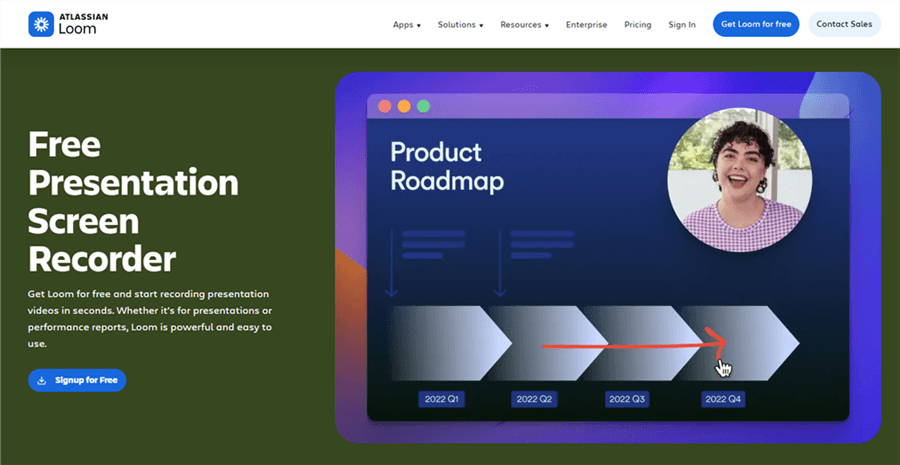
Video Presentation Software – Loom
Loom is one of the most popular async video communication tools for teams. It lets you quickly record your screen, webcam, and microphone, then instantly share the video through a cloud link.
Key Features
- One-click screen and webcam recording
- Instant cloud hosting and sharing
- AI-generated transcripts and summaries
- Webcam overlay with basic background blur
- Simple trimming and editing tools
Virtual Background & Webcam Features
Loom supports webcam background blur during recordings, helping hide messy rooms or distracting environments. However, its AI segmentation is relatively basic compared to dedicated virtual background tools, so edge detection may appear soft during movement.
Best For
- Quick internal updates
- Team communication
- Async feedback videos
- Fast client walkthroughs without heavy editing
Limitations
- Limited visual polish
- Basic editing workflow
- Not designed for live Zoom virtual camera use
2. Airtime (Formerly mmhmm) — Best for Live Zoom and Google Meet Calls
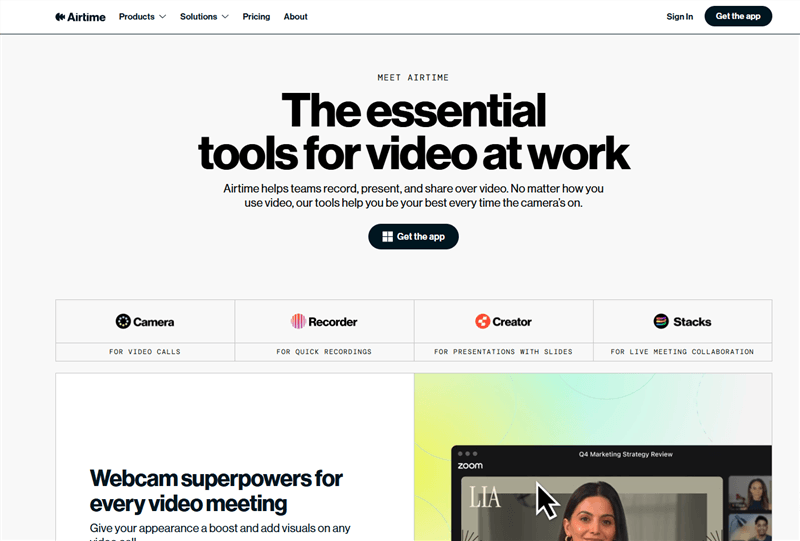
Airtime Overview
Airtime, previously known as mmhmm, is designed specifically for live presentations and virtual meetings. It works as a virtual camera, allowing you to appear in front of slides, presentations, or custom virtual backgrounds during Zoom, Teams, and Google Meet calls.
The platform now includes two products:
- Airtime Camera for live meetings and webcam enhancement
Airtime Creator for presentations and recorded video content
Key Features
- Virtual camera output for live meetings
- AI-powered virtual backgrounds and background blur
- Presentation overlays and slide integration
- Real-time presenter controls
- Branding and custom visual layouts
Virtual Background & Webcam Features
Airtime offers some of the best real-time virtual background effects available on Mac. Its AI-powered background replacement can accurately separate your face and body from your room without requiring a physical green screen, especially on Apple Silicon Macs. You can also customize layouts, add branded elements, and place yourself dynamically alongside slides or content.
Best For
- Live sales demos
- Zoom and Google Meet presentations
- Webinars and workshops
- Customer onboarding calls
- Teams that want more professional live video presence
Limitations
- Premium features require a paid subscription
Takes some practice to operate smoothly during live presentations - Better suited for live communication than cinematic async demo production
Airtime was previously known as mmhmm. Existing mmhmm users are automatically migrated to the Airtime platform and tools.
3. Screen Studio — Best for Cinematic Mac Recordings
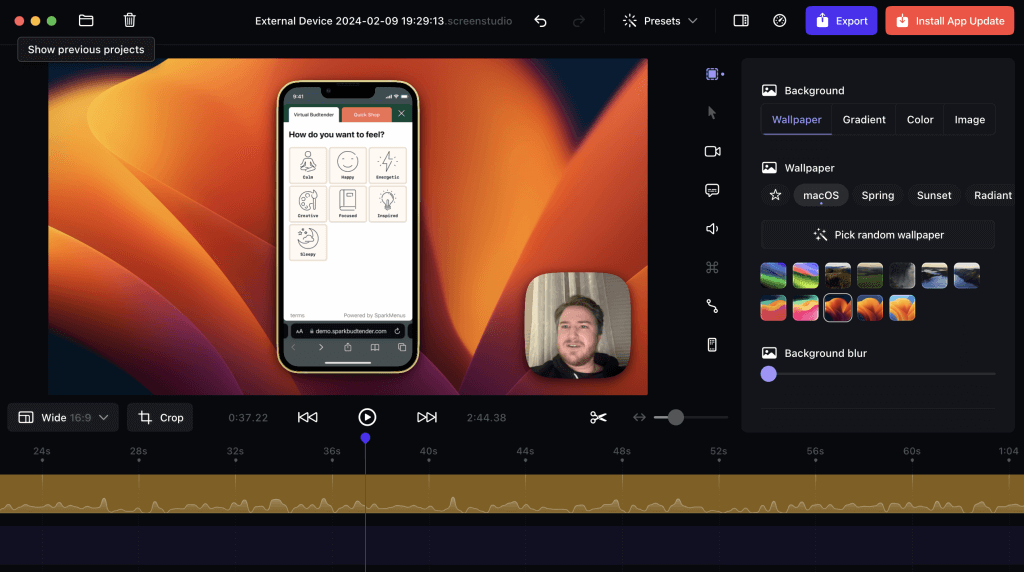
Screen Studio
Screen Studio is a macOS-focused screen recorder built for visually polished product demos and tutorials. It automatically applies smooth zooms, cursor tracking, and motion effects to make recordings feel professionally edited.
Key Features
- Automatic zoom and cursor tracking
- Smooth camera movement effects
- Webcam overlays with stylish layouts
- High-resolution exports
- Minimal editing workflow
Virtual Background & Webcam Features
Screen Studio supports webcam background blur and clean webcam overlays that blend naturally into product demos. Its webcam presentation feels much more polished than standard meeting tools, making it ideal for premium SaaS walkthroughs.
Best For
- Product demos
- YouTube tutorials
- SaaS onboarding videos
- Marketing videos
- High-end async presentations
Limitations
- macOS only
- Large export file sizes
- Does not function as a live virtual camera for Zoom or Meet
4. OBS Studio — Best for Advanced Production Control
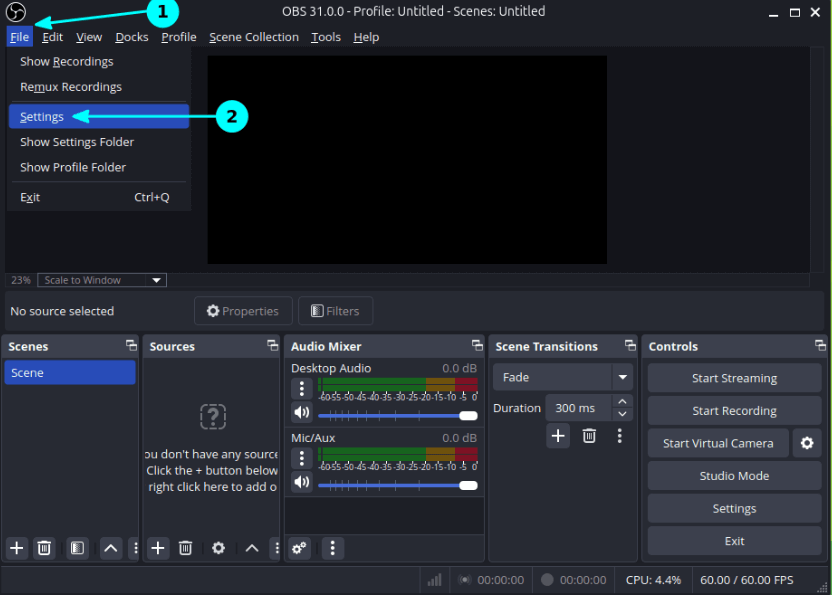
OBS Studio is a powerful open-source recording and streaming platform widely used by creators and technical users. It offers complete control over scenes, overlays, webcam layouts, and live virtual camera output.
Key Features
- Fully customizable recording scenes
- Virtual camera support
- Chroma key and green screen tools
- Multi-source recording and streaming
- Plugin ecosystem for advanced workflows
Virtual Background & Webcam Features
OBS supports virtual backgrounds through chroma keying and AI plugins. Users can create highly customized webcam scenes with overlays, animated backgrounds, and studio-style layouts. However, setup is significantly more technical than most modern AI tools.
Best For
- Advanced creators
- Live streaming
- Webinar production
- Multi-camera setups
- Technical production teams
Limitations
- Steep learning curve
- Complex setup process
- Overkill for simple async recordings
5. FocuSee — Best for Automated Async Product Demos
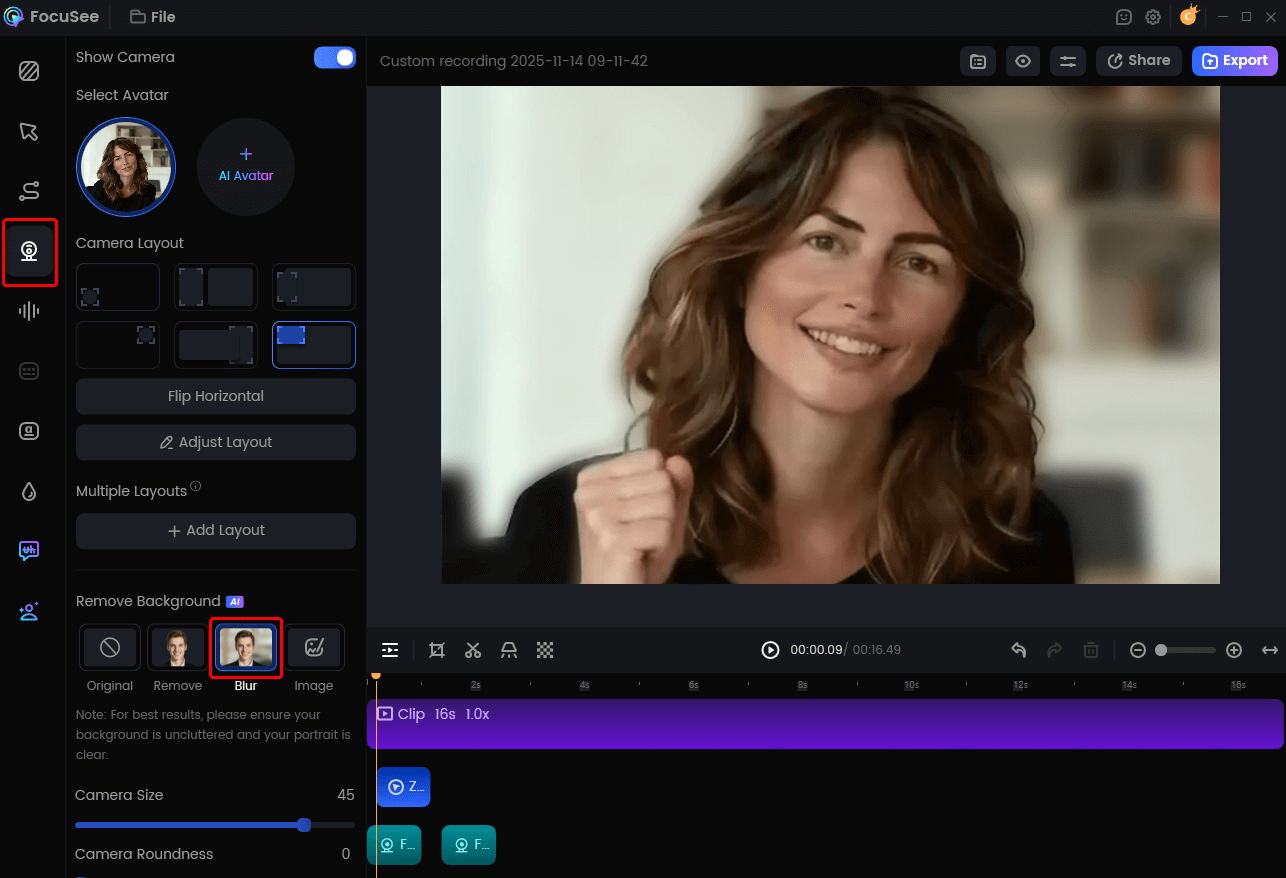
Remove Camera Background
FocuSee is an AI-powered screen recorder designed for polished async demos and tutorials. It combines automatic editing, webcam enhancement, captions, and smart motion effects into a streamlined workflow.
Key Features
- AI-powered Smart Focus and Auto Zoom
- Automatic captions and noise reduction
- Webcam recording with background blur
- Cursor highlighting and motion effects
- Fast editing workflow for demos and tutorials
Virtual Background & Webcam Features
FocuSee uses AI background blur and virtual background technology to separate presenters from distracting environments without requiring a green screen. Its webcam effects are designed specifically for async product demos, helping videos feel cleaner and more professional with minimal editing effort.
Best For
- SaaS product demos
- Tutorial videos
- Customer onboarding
- Async presentations
- Creators who want polished videos without manual editing
Limitations
- Not designed for live Zoom or Google Meet calls
- Watermark limitations on the free version
- Like most AI background tools, edge detection may struggle when holding physical objects on camera
Which Mac Video Recording App Should You Choose?
The best app ultimately depends on your workflow.
- Choose mmhmm if you need professional virtual backgrounds during live Zoom or Google Meet calls.
- Choose Loom if your priority is speed and quick async communication.
- Choose Screen Studio if you want cinematic macOS recordings with premium visual polish.
- Choose OBS Studio if you need full production control and advanced customization.
- Choose FocuSee if you want an AI-powered workflow for polished async demos with automatic editing and webcam enhancement.
How to Make Your Setup Look Professional
An overlooked factor in video production is that software alone does not create a professional look. Camera framing, lighting direction, eye contact, and microphone quality impact viewer trust significantly more than stylized AI effects.
To achieve the best results with any software, you must optimize your physical environment. This prevents the AI from working too hard and reduces the glitchy edges around your shoulders:
- Position your primary light source: Place your key light directly in front of you or at a slight 45-degree angle. Good front-facing lighting gives the AI a sharp outline of your silhouette, making background removal flawless. Backlighting (like sitting with a window behind you) will instantly break most AI blur tools.
- Adjust your camera framing: Position your webcam at true eye level. Looking down at a laptop camera breaks engagement. Eye-level framing creates natural eye contact for video calls and investor updates.
- Ensure clear audio: Never rely on a built-in laptop microphone. Use a dedicated external USB mic and enable noise reduction to capture crisp voice audio.
FAQs: Video Recording & Virtual Backgrounds on Mac
Can I use tools like FocuSee or Screen Studio live on Zoom?
No. These are asynchronous screen recorders meant for prerecorded videos. If you want advanced virtual backgrounds and presentation overlays on live Zoom or Google Meet calls, you should use a virtual camera tool like mmhmm or OBS Studio.
Do I need a green screen for professional virtual backgrounds?
No, provided you have a modern Apple Silicon Mac and good lighting. The Neural Engine in M-series Macs accurately detects your outline and separates you from your background. Good front-facing lighting is usually all you need.
Why does my virtual background glitch when I move my hands?
This usually happens due to low lighting or using older Intel-based processors that struggle to process AI edge-detection in real-time. Adding a dedicated key light to your face will drastically improve the AI’s ability to separate you from your background.
Can I add captions and transcripts automatically?
Yes. Dedicated async tools like FocuSee and Loom handle transcription automatically. This is a major advantage over recording locally with QuickTime, as auto-captions greatly increase engagement for clients watching without sound.
Conclusion
Creating polished, professional video communication shouldn’t require a Hollywood studio, nor should it crash your Mac. When your webcam background is cluttered, it detracts from the value of your client demos and onboarding videos.
The secret to solving this is choosing the right tool for the right moment. For live discovery calls, leverage virtual cameras like mmhmm to pipe a clean feed into Zoom. For asynchronous, prerecorded walkthroughs, dedicated apps like Loom (for speed), Screen Studio (for premium cinematic polish), or FocuSee (for automated zooming and captions) will save you hours of manual editing. By pairing the right software with basic eye-level framing and decent lighting, you can instantly make your sales demos feel more trustworthy and regain control over your presentations.