FocuSee vs Screen Studio for SaaS Product Demos: Which is Better for Marketing Teams?

Screen Studio creates some of the most cinematic screen recordings I’ve ever used. The automatic zooms, smooth cursor motion, and polished camera movements look fantastic. But during our latest product launch, one major issue became impossible to ignore: our Windows team couldn’t use it.
What started as a simple demo production workflow quickly turned into a collaboration bottleneck. Mac users handled recording and editing, while Windows teammates were locked out of the process entirely.
That’s when we started testing FocuSee as an alternative.
After using both tools across real SaaS marketing workflows, we found that the biggest difference isn’t just visual style — it’s how each tool approaches speed, collaboration, and scalable product demo creation.
Here’s the complete breakdown of FocuSee vs Screen Studio.
FocuSee vs Screen Studio: Quick Comparison
| FocuSee | Screen Studio | |
| Best For | Product demos, tutorials, onboarding | Cinematic demos & creator videos |
| Platform Support | Windows + macOS | macOS only |
| Auto Zoom | Yes | Yes |
| Cursor Effects | Advanced highlights & smoothing | Smooth cinematic cursor motion |
| 3D Motion | Subtle, clarity-focused motion | No |
| AI Smart Cut | Remove pauses & filler words | Limited |
| Automatic Captions | 55+ languages | Yes |
| Annotation Tools | Arrows, callouts, highlights | No |
| Teleprompter | Built-in | No |
| Webcam & Avatar | Webcam + AI avatar | Webcam overlay |
| Editing Workflow | Fast all-in-one editing | More cinematic workflow |
| Export Formats | 16:9, 9:16, 1:1, MP4, GIF | Mainly video export |
| Team Workflow | Cross-platform sharing | Mac-only workflow |
| Learning Curve | Beginner-friendly | Beginner-friendly |
| Best Choice If… | You want scalable demos with editing flexibility | You want cinematic visuals on macOS |
Who Should Use FocuSee or Screen Studio?
Both FocuSee and Screen Studio automate screen-recording effects such as auto-zoom, cursor tracking, and polished motion. But they are optimized for different workflows and creator styles.
Choose FocuSee if you:
- Create product demos, tutorials, or educational walkthroughs regularly
- Use both Windows and macOS devices across your team
- Want faster production with less manual editing
- Need built-in tools like captions, teleprompter, annotations, and AI Smart Cut
- Produce videos for onboarding, documentation, SaaS marketing, or async communication
- Prefer cleaner, clarity-focused motion over heavy cinematic effects
- Need to quickly repurpose videos into vertical, square, or social formats
Choose Screen Studio if you:
- Work exclusively on macOS
- Prioritize cinematic camera movement and visual aesthetics
- Create launch videos, social content, or founder-style product showcases
- Prefer dramatic motion blur and highly animated transitions
- Mainly produce solo creator content rather than collaborative team workflows
- Want a lightweight recording experience focused heavily on presentation polish
Neither tool is objectively “better” for everyone. The right choice depends on whether you value cinematic storytelling or fast, scalable product communication.
FocuSee vs Screen Studio: Evaluating the operational impact
When selecting a screen recorder for SaaS marketing teams, feature lists only tell half the story. You have to look at how the software impacts your daily operations, review cycles, and team collaboration.
The real decision between these two tools comes down to cross-platform support, processing speed, and default visual philosophy.
The Operational Decision Matrix
- Operational Safety & OS Risk: Relying on a Mac-only app like Screen Studio alienated our Windows users and created bottlenecked dependencies. FocuSee’s native support for both macOS and Windows 11 guaranteed that we could standardize our training and output across the entire organization.
- Production Time & Render Costs: Both tools drastically reduce editing time via demo automation, but render speeds matter when you’re on a deadline. In our tests, exporting a 3-minute, 4K video took roughly 45 seconds on an M2 MacBook using FocuSee, compared to slightly longer processing times when dealing with heavy motion blur layers in other software.
- Technical Skill Required: Both FocuSee and Screen Studio are built for marketing professionals, offering intuitive interfaces that require zero formal video editing training. You simply record, let the software apply the zooms, tweak if necessary, and export.
- Conversion Success Rate: Screen Studio produces highly cinematic, sweeping motions. FocuSee defaults to a more static, functional zoom. We found that the functional approach actually increased our product comprehension rates, allowing our team to conduct rapid A/B testing on landing page videos.
From Recording to Export: The Real Workflow Difference
The biggest difference between FocuSee and Screen Studio is not just visual style — it’s how quickly you can move from recording to a finished video.
With FocuSee, the entire workflow happens inside a single interface. You can record, edit, enhance, caption, and export without constantly switching between separate tools or timelines.
Here’s the typical workflow we used during our product launch:
Step 1. Open FocuSee and select the recording area, webcam overlay, microphone, and system audio.
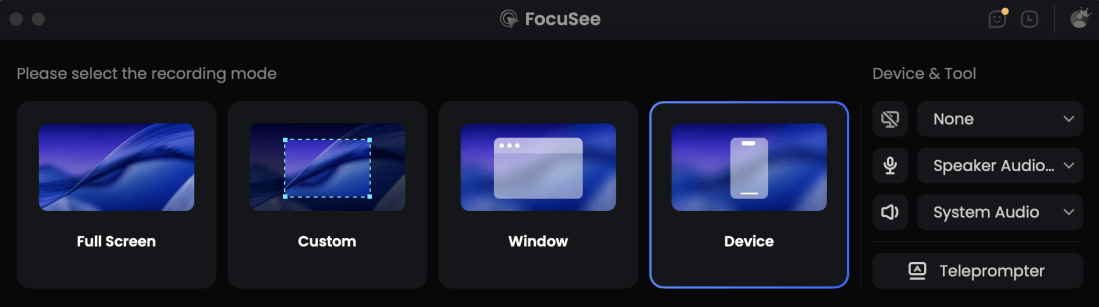
Choose the Recording Model
Step 2. Paste the demo script into the built-in teleprompter and adjust the opacity so the product UI remains visible while recording.
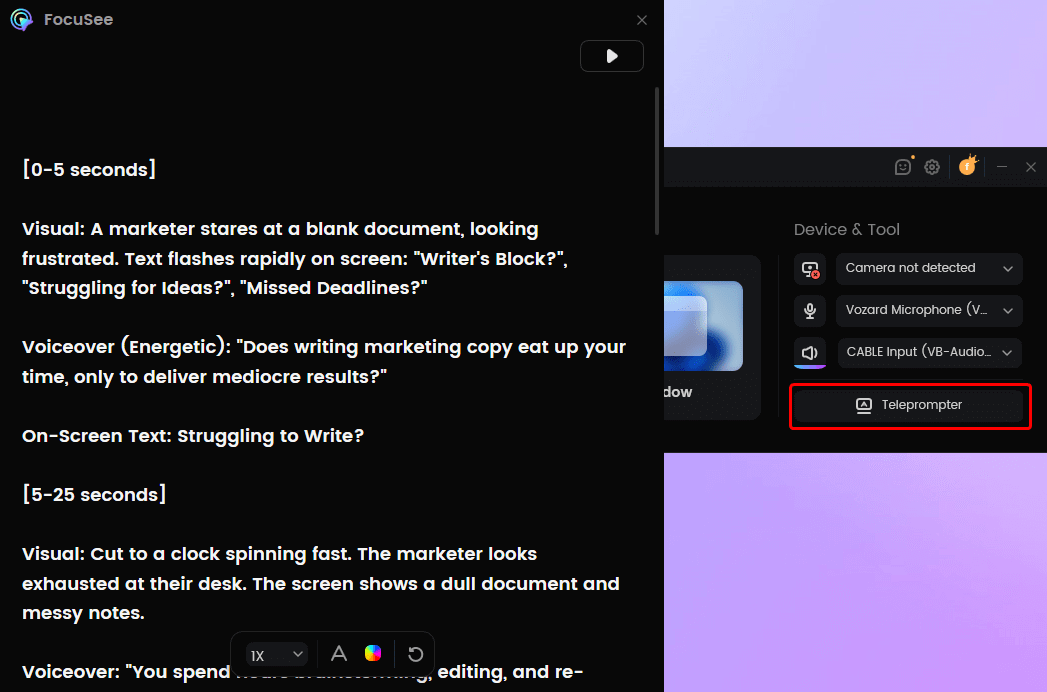
FocuSee Teleprompter
Step 3. Start recording. FocuSee automatically tracks cursor movement, applies smooth zoom effects, and captures webcam, screen, and audio simultaneously.

Show Mouse Cursor
Step 4. Once recording ends, the AI automatically detects pauses, filler words, cursor actions, and key interaction moments.
Step 5. Review the timeline and quickly fine-tune zoom regions, annotations, captions, or cursor highlights if needed.
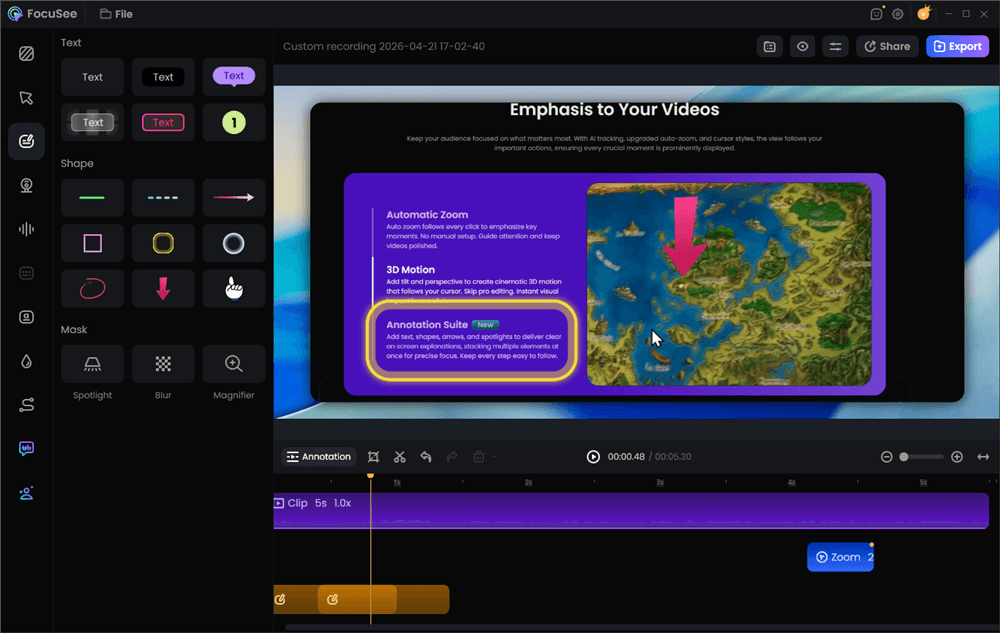
Add Annotations for Clarity
Step 6. Export the final video in 16:9, 9:16, square, GIF, or other formats optimized for tutorials, onboarding, social media, or product demos.
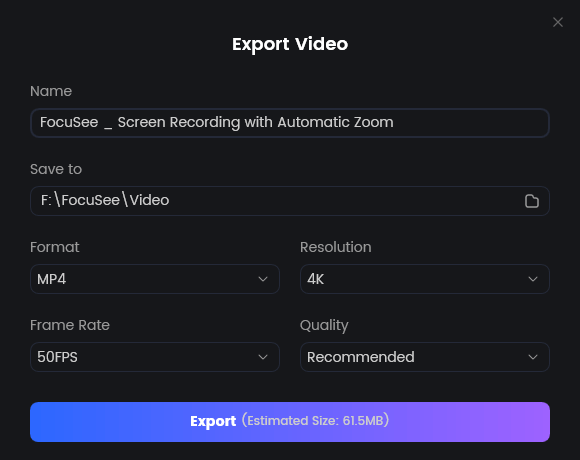
Export Your Video
Because FocuSee supports both Windows and macOS natively, the workflow remains consistent regardless of which operating system your team uses. Anyone can independently record, edit, and export polished videos without relying on a separate device or editing tool.
The workflow philosophy shift: Creator vs. Conversion
Here is a critical insight that completely changed how our team produces videos: the core difference in the FocuSee vs Screen Studio comparison is workflow philosophy.
Screen Studio is optimized for Mac-native cinematic polish. It applies heavy, buttery motion blur and sweeping camera pans. This makes it highly attractive for solo founders, creators, and premium, one-off launch videos where you want the software to look like a blockbuster movie.
However, highly cinematic motion does not automatically create better-performing product demos.
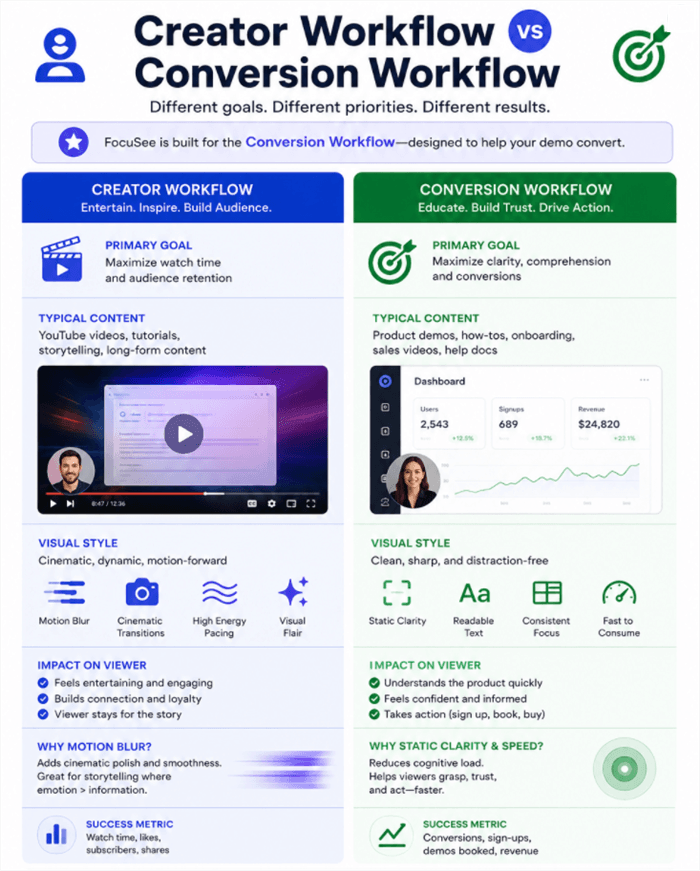
Creator Workflow vs Conversion Workflow
The “Creator Workflow” prioritizes aesthetics, motion blur, and visual storytelling.
The “Conversion Workflow” prioritizes clarity, pacing, and user comprehension.
When we tested heavily motion-blurred videos on our onboarding pages, users complained that the sweeping camera movements made them dizzy or caused them to miss where the cursor actually clicked. By switching to FocuSee—which defaults to a cleaner, static zoom without excessive motion blur—our beta testers saw a 15% drop in viewers rewinding the video to understand the UI.
In SaaS marketing, visual clarity often matters more than visual flair. If your prospects can’t clearly read the text on the button you just clicked, the cinematic blur is hurting your conversion rate.
Workflow speed showdown: Script to 4K export in minutes
When we were under the gun for our 48-hour launch deadline, end-to-end production speed was the only metric that mattered.
With FocuSee, the built-in tools allowed us to consolidate our tech stack. Instead of juggling a separate teleprompter app, a screen recorder, and an editing timeline, we did everything in one window.
Here is how the speed showdown played out in practice:
I pasted my script into FocuSee’s built-in teleprompter. Crucially, FocuSee lets you adjust the teleprompter’s opacity. I set it to 40% so I could read the text while still clearly seeing the complex analytics dashboard underneath it, and I set the scroll speed to a comfortable 120 words per minute.
I hit record. FocuSee captured my screen, my webcam overlay, my system audio, and my microphone simultaneously.
Once the recording stopped, FocuSee’s AI Smart Cut immediately highlighted my long pauses and the “umms” I made while navigating. With one click, those filler words were deleted. The AI applied cursor smoothing, click highlights, and auto-generated 50+ language automatic captions. After spending about two minutes tweaking a few AI zoom bounding boxes, I hit the 4K export button.
For a marketing team prioritizing rapid, scalable output, this single-interface workflow drastically outpaces constantly importing and exporting files across different specialized apps.
FAQs: Choosing the best software for product demo videos
When selecting a primary screen recording tool for your organization, several technical and logistical questions arise. Here are clear answers based on our hands-on testing.
Can FocuSee create videos that look as polished as Screen Studio?
Yes, but the aesthetic is different. FocuSee automatically applies auto zoom, smooth cursor tracking, and beautiful background gradients to generate a highly professional look. However, it leans toward clean, static clarity rather than Screen Studio’s heavy cinematic motion blur.
Which tool is better for cross-platform startup teams?
FocuSee is the definitive choice here. It provides native Windows 11 support and macOS compatibility, ensuring you can standardizing training and share project files across your entire company. Screen Studio is strictly a Mac-only app.
Can both tools record webcam, system audio, and screen simultaneously?
Yes. Both tools capture your screen, microphone, and system audio at the same time. FocuSee adds flexibility by allowing you to record a separate audio track, and provides a customizable webcam overlay (including an AI Virtual Avatar if you aren’t camera-ready).
How do I fix AI mistakes if the auto-zoom highlights the wrong part of the screen?
In FocuSee, simply click the “Zoom” node on the bottom timeline, and manually drag the bounding box on the canvas to the correct UI element. It takes seconds to override the AI.
Regain control of your team’s video output
Scaling a go-to-market strategy is incredibly difficult when your software actively creates operational silos. If you manage a mixed-device team, relying on a Mac-only application like Screen Studio creates unnecessary friction, delays review cycles, and forces your Windows users to seek out inferior, unapproved alternatives.
By shifting to FocuSee, our team stopped arguing over manual timeline edits and cinematic motion blur, and started focusing on what actually drives revenue: producing clear, high-converting product walkthroughs at scale. FocuSee provides the cross-platform flexibility, the rendering speed, and the functional clarity required to keep a busy marketing team moving.
Regain control of your team’s output and ensure every landing page video is visually consistent, regardless of who records it. Download FocuSee for free today to build a scalable, cross-platform demo automation workflow that actually supports your entire organization.