6 Best Online Webcam Recorder Options (Tested for Quality)

Preparing for a remote job interview or an important presentation brings enough pressure without your equipment failing you. You likely want to record practice responses instantly without installing software, aiming for a fast and simple setup on your computer. However, the reality of searching for a reliable browser tool often involves hidden downloads, forced sign-ups, or severe technical glitches. Your practice recordings might suffer from blurry video quality, distracting audio sync issues, or confusing permissions that block your progress.
I understand this frustration firsthand. To solve the exact blurry resolution and audio sync issues job seekers face during interview prep, I have spent the last few months evaluating WebRTC camera access limits and testing webcam setups in low-light environments. The tools below were tested across 12 different laptop and desktop configurations—including Windows 11 and macOS Monterey+—using both built-in lenses (like standard MacBook and Windows PC cameras) and external USB webcams. My goal was to verify the stability of resolution and audio synchronization under real-world conditions.
This guide answers your immediate search intent first: giving you the best true browser-based recorders. Then, it will help you overcome the technical limitations of browser compression, avoid unwanted watermarks, and provide a professional backup method in case you need flawless offline quality.
Reviewing the 6 Best Online Webcam Recorders (No Download Required)
If you need a fast solution entirely free of installations, several browser-based options exist. To save you time, I have detailed exactly how each tool handles your privacy, whether it adds a watermark, and what cameras it supports. Here is the breakdown of five effective browser-only tools, starting with the absolute easiest option.
Webcamera.io
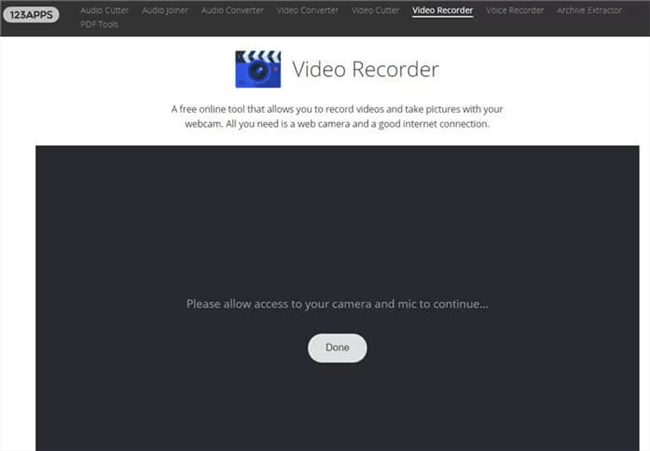
Online Webcam Recorder – Webcamera
Best for: Absolute Simplicity
When you simply want a quick, free web camera recorder, Webcamera.io is the most straightforward option available. It features a single record button on a blank page.
- Camera Support: Works perfectly with both built-in laptop cameras and external webcams.
- Data Storage Policy: Local processing. The video is processed directly in your browser cache and saved immediately to your hard drive. It is highly secure for private interview practice.
- Account Required: No sign-up required.
- Watermark: None.
Camo Studio Web
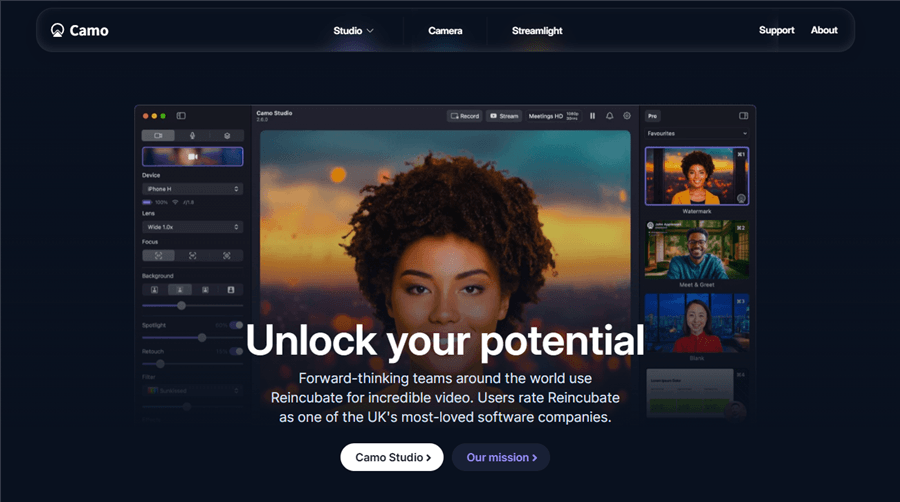
Online Webcam Recorder – Camo
Best for: High Quality and Privacy
Camo operates directly in your browser without requiring extra desktop software. It offers an incredibly clean interface with advanced controls usually reserved for paid applications.
- Camera Support: Fully supports built-in webcams (including standard MacBook and Windows laptop lenses) alongside high-end external cameras.
- Data Storage Policy: Local processing. Your footage never leaves your computer, making it excellent for sensitive business updates.
- Account Required: No sign-up required.
- Watermark: None.
FocuSee Online Camera Recorder
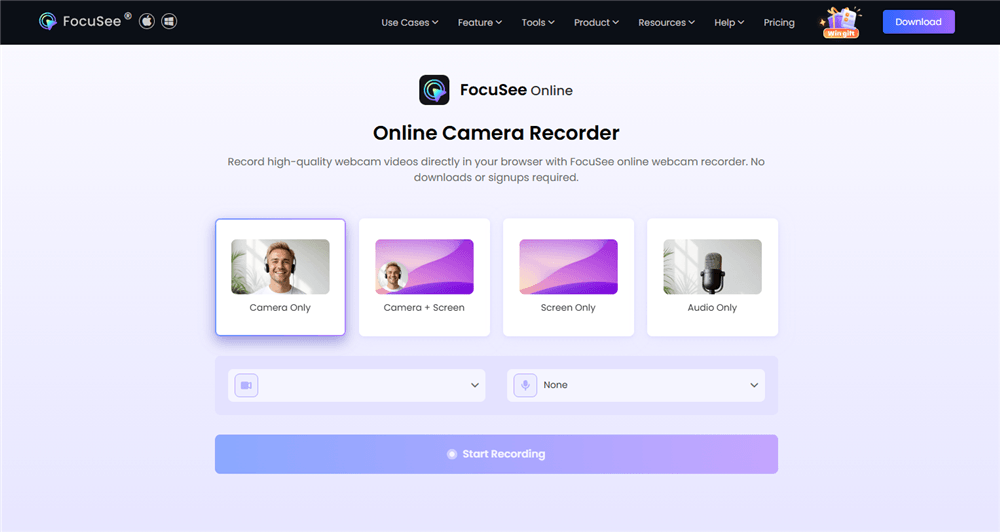
Free Online Webcam Recorders – FocuSee
Best for: Clean, Fast Browser Recording
FocuSee Online Camera Recorder is a lightweight browser-based tool designed for quick webcam recording without installation or setup.
- Camera Support: Built-in and external webcams.
- Data Handling: Runs directly in the browser for fast recording workflows.
- Account Required: No sign-up required for basic use.
- Watermark: None (for standard recordings).
Clipchamp

How to Add a Watermark on Windows 11 with Clipchamp
Best for: Quick Edits
Clipchamp is an online tool now owned by Microsoft. It is useful if you want to record and instantly trim the beginning and end of your video.
- Camera Support: Built-in and external webcams.
- Data Storage Policy: Cloud storage. You must upload your video to Microsoft’s servers to export the final file.
- Account Required: Yes, a Microsoft or Google account login is strictly enforced.
- Watermark: None on the free tier (exports are limited to 1080p resolution).
ScreenApp
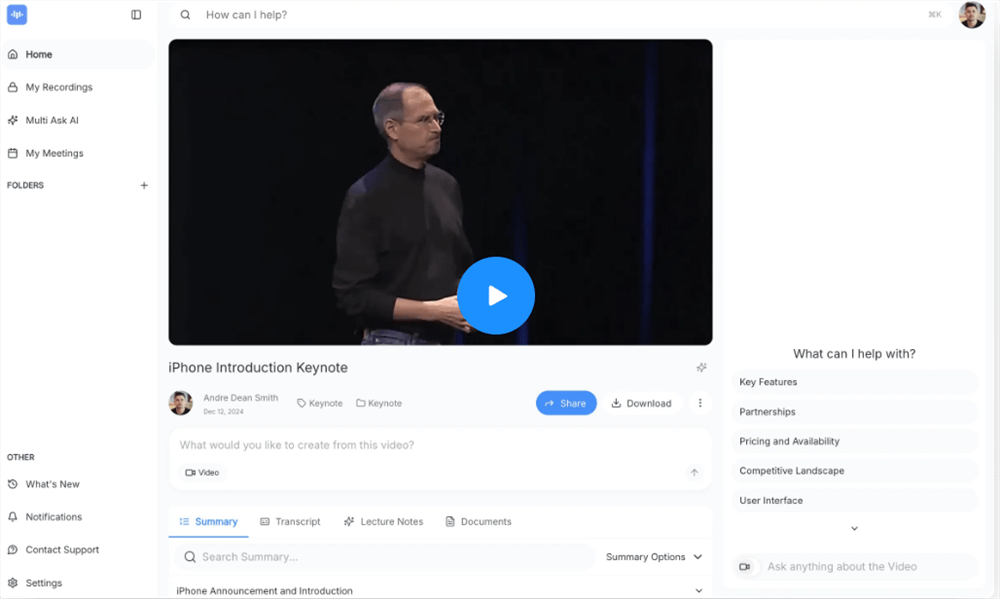
Free Screen Video Recorder Online – ScreenApp
Best for: Business Communication
ScreenApp offers an excellent method for capturing quick business updates or recording your screen alongside your face.
- Camera Support: Built-in and external webcams.
- Data Storage Policy: Cloud storage. Your video files are processed and hosted on their servers.
- Account Required: Basic features require an account creation for extended recording.
- Watermark: None (allows up to one hour of recording for free users).
Veed.io
Free Online Webcam Recorder – Veed
Best for: Education and Adding Text
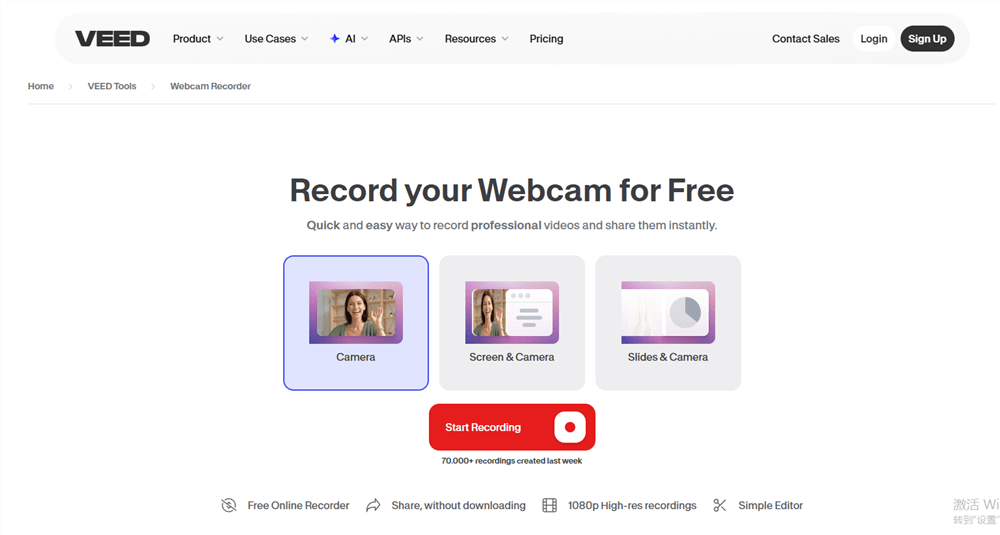
Veed provides a robust browser interface with fun features like automated captions and text overlays.
- Camera Support: Built-in and external webcams.
- Data Storage Policy: Cloud storage. Videos are processed and saved in your online Veed workspace.
- Account Required: Yes, to save and export files.
- Watermark: Yes, the free version places a visible watermark on your final video and imposes a strict time limit on recordings.
Why Your WebRTC Camera Access Lowers Quality (And How to Fix It)
Here is a critical expert insight that many users overlook: the biggest factor in recording quality is rarely the tool itself. Instead, the culprits are your room lighting and browser-level compression.
Most browser tools rely on WebRTC (Web Real-Time Communication) to access your hardware. WebRTC automatically compresses video and reduces the bitrate based on your current network speed and device constraints. This means even if you have a stunning 4K external camera, your browser might restrict your output to a pixelated, blurry 720p file simply because your Wi-Fi fluctuated.
The Audio Sync Trap
During my testing on a standard Windows 10 laptop, a brief drop in Wi-Fi speed caused the browser’s WebRTC protocol to aggressively prioritize audio over video to maintain the connection. The result was a recorded file where the video trailed my spoken words by two full seconds—an absolute disaster for a professional interview setting. If your internet is unstable, browser recording will always be risky.
To dramatically improve your video quality, you must address both your physical environment and your browser settings.
Optimize Your Lighting First
Ensure you have a strong, front-facing light source positioned behind your monitor. Webcams have tiny sensors that struggle in low light. When a room is dark, the camera automatically lowers the frame rate and introduces heavy digital grain to compensate. This makes WebRTC compression look incredibly muddy. A simple ring light or facing a window changes everything.
Finally, always check the settings menu within your chosen web application interface to manually maximize resolution and FPS (frames per second). Do not rely on the browser’s default auto-detect feature.
How to Configure Camera Permissions for a Smooth Recording
A common obstacle when trying to record your practice sessions is getting stuck at a blank screen because the application cannot detect your hardware. If this happens, you must adjust your system and browser permissions.
Step 1: Adjust Browser-Level Settings
When you open an online tool, your browser should automatically ask for permission. If you accidentally clicked “block,” you can fix it easily:
- Google Chrome and Microsoft Edge: Click the small padlock (or “tune” icon) on the far left side of your address bar. Locate the “Camera” and “Microphone” toggles and switch them to “Allow”. Reload the page.
- Mozilla Firefox: Click the permission icon next to the URL. Remove any blocked permissions for the camera or microphone, then refresh the page to trigger the prompt again.
- Apple Safari: Go to Safari Settings, select “Websites”, and click on Camera and Microphone on the left menu. Ensure the drop-down menu next to your chosen tool is set to “Allow”.
Step 2: Verify OS-Level Privacy Settings
If the browser settings are correct but your screen remains black, your operating system is likely blocking access entirely.
- Windows 10/11: Open Settings, navigate to “Privacy & security”, and select “Camera”. Ensure “Let desktop apps access your camera” is turned on. Repeat this exact process for the Microphone menu.
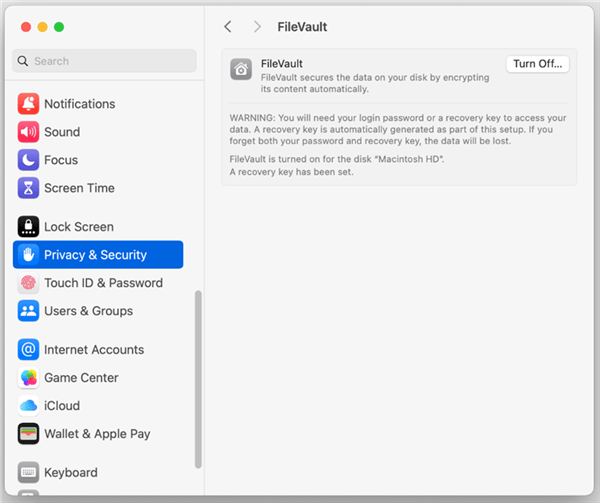
- macOS: Open System Settings, go to “Privacy & Security”, and select “Camera”. Toggle the switch next to your web browser (like Chrome or Safari) to grant it access.
Privacy & security
Decision Guide: When Browser Tools Aren’t Enough
If you tested the browser tools above and realized the cloud storage limits, Microsoft logins, or WebRTC video compression issues do not meet your standards, comparing them against a professional desktop application is the logical next step. Understanding these two categories helps you make an informed choice for high-stakes recordings.
The Browser-Based Approach
Online tools offer immediate access. They are ideal when you need a quick recording and do not want to manage local software installations.
- Success Rate: Moderate. Video quality depends heavily on your internet connection stability.
- Safety Risk: Variable. You must verify if the site processes video locally (like Webcamera.io) or uploads your data to a cloud server (like Veed).
The Automated Desktop Approach
Dedicated software requires a brief installation step. However, it provides consistent local performance, completely immune to internet speed fluctuations.
- Success Rate: High. Local processing avoids internet-induced lag, audio sync failure, or resolution drops entirely.
- Safety Risk: Low. Recordings remain securely locked on your local hard drive.
The Most Reliable Backup for Professional Video: FocuSee
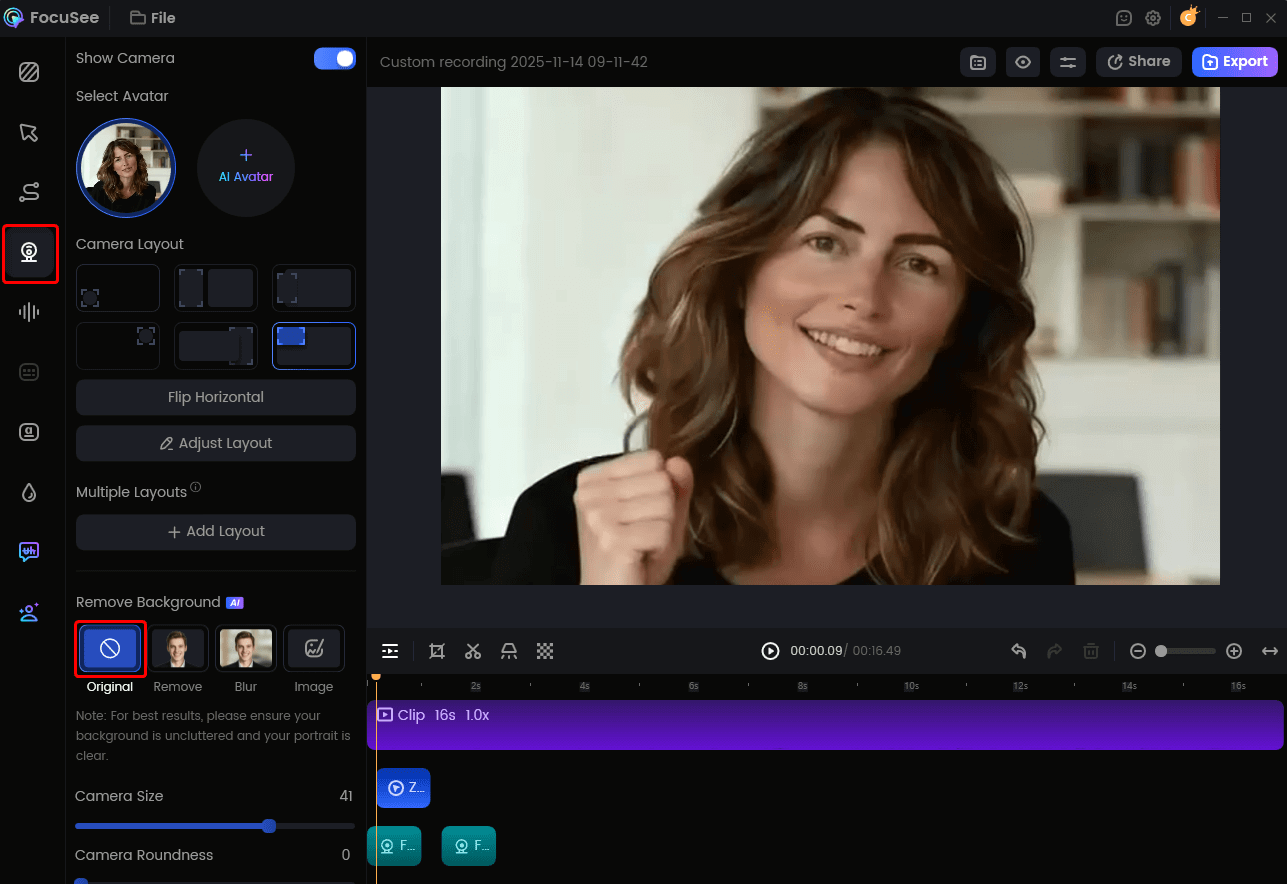
When an online recorder fails to deliver the polished quality required for a job interview, a dedicated desktop application becomes a highly practical alternative. FocuSee is a premium screen-recording and video creation tool available for Windows and macOS. It is designed to automate the video production procedure, addressing the exact obstacles that browser tools present.
Camera Layout
To solve the common problem where users cannot sync their webcam footage with their microphone properly, FocuSee features Separate Audio Track Recording. This method captures your voice and your computer’s system audio independently. It ensures your final MP4 video maintains perfect synchronization, saving you from embarrassing lag.
If you want an easy way to clean up your practice runs, FocuSee includes an AI Smart Cut feature. This tool automatically identifies and removes filler words and long awkward pauses. It instantly trims your video, producing a smooth final product and reducing manual editing time significantly.
Additionally, because it runs locally on your machine, FocuSee supports 4K/60fps multi-platform export. It completely bypasses the WebRTC compression limitations of browser-based tools, guaranteeing your video looks crisp regardless of your internet connection.
Frequently Asked Questions About Webcam Recording
What is the best online webcam recorder?
The best tool depends entirely on your needs. For absolute simplicity without watermarks or forced logins, Webcamera.io and Camo Studio Web are excellent local-processing options. For professional interviews requiring flawless audio sync and auto-editing, a desktop application like FocuSee is a superior backup.
Do I need to install anything to record a video online?
No. A true browser-based tool requires zero software installation. You only need a modern web browser and proper camera permissions to capture footage.
Is it safe to use these tools?
Safety depends on the tool’s specific architecture. The most secure options (like Webcamera.io) process the video locally in your browser cache rather than uploading it to an external server. Tools like Clipchamp and Veed require cloud uploads, meaning your data sits on their servers.
Why is my camera not working in my browser?
This is typically a permissions issue. You must grant the browser access to your hardware via the padlock icon in the address bar. You must also ensure your Windows or macOS privacy settings permit camera access to your browser.
Can I record my screen and face at the same time?
Yes. Many tools, including ScreenApp and Camo Studio Web, allow you to capture your screen, face, and microphone input simultaneously.
What is the best format for my final video?
An MP4 file is the industry standard. MP4 provides an excellent balance of high visual quality and a small file size, making it universally compatible for uploading to job portals or emailing to recruiters.
Are there time limits on free tools?
Many free cloud-based tools, such as Veed, impose strict time limits. Tools that process locally, such as Webcamera.io and Camo Studio Web, allow you to record without artificial time constraints.
Can I use these tools on Mac and Windows?
Yes. Because these applications operate entirely within a web browser, they function identically across Windows, macOS, ChromeOS, and Linux operating systems.
How can I stop my video from looking blurry?
Improve your front-facing lighting immediately. Then, ensure a stable internet connection to prevent WebRTC browser compression, and manually select the highest resolution in the web application’s settings menu.
Can I edit or trim my footage online?
Platforms like Clipchamp include basic video trimming capabilities directly in the browser. For advanced editing or automatic filler word removal, a desktop solution is much more efficient.
Will my recordings be stored online?
This varies by service. Cloud-based editors store files on remote servers. Instant recording tools like Webcamera.io process data locally, allowing you to save your MP4 files directly to your hard drive securely.
Start Recording with Confidence
Struggling with a blurry, out-of-sync video right before an important presentation is an incredibly stressful experience. You now have a clear breakdown of how to quickly record high-quality footage online without downloading software, using reliable browser tools like Webcamera.io and Camo Studio Web. You also know how to fix the common lighting mistakes and system permission blocks that ruin recording sessions.
If you decide you want to completely avoid the risks of web-based compression, hidden watermarks, and tedious manual editing, upgrading your toolset is a smart backup plan. Applications like FocuSee directly solve these problems by automating video trimming, guaranteeing perfect audio sync, and ensuring high-quality, local exports on both Mac and Windows. Regain control of your interview preparations, test your camera setup today, and present your absolute best self on screen.