10 Best Online Sound Recorder Tools for 2026: A Hands-On Guide

Facing a looming deadline with a browser application that produces distorted, low-quality audio is incredibly stressful. If you are sharing a laptop or working on a public library computer, you need a quick, free online sound recorder without downloading heavy software.
The frustration of navigating deceptive websites that demand hidden extensions or struggling with confusing microphone permissions just to capture a voice note is very common. Finding a simple tool should never involve risking your personal data or settling for metallic, echoing audio. If you care about privacy, where your files are stored, or simply want to download your recording easily without jumping through hoops, you are in the right place.
This guide evaluates the 10 best web-based options, explains exactly why you might choose them over built-in computer apps, and provides tested techniques to guarantee crystal-clear capture every time you press play.
My testing primarily covered Windows 10/11 PCs, MacBook Air/Pro, iMac, and Chromebooks using built-in or external microphones. Using browsers like Google Chrome, Microsoft Edge, Safari, and Firefox, I tested default browser audio pipelines—such as Chrome’s auto-gain control—to verify Web Audio API privacy standards.
Why Not Just Use Built-In Computer Voice Apps?
You might wonder why you should use a web-based tool instead of simply opening Voice Memos on your Mac or Sound Recorder on your PC. It is a highly practical question. Built-in applications are excellent, but they present specific challenges for students and professionals using shared or restricted hardware.
First, on a shared university or library computer, you often do not have administrative access to open native apps or save files directly to the hard drive in your preferred format. Second, built-in apps sometimes default to proprietary formats (like M4A on Mac) which might not be supported by your online assignment portal. Web recorders operate entirely within your browser cache, bypassing local administrator restrictions and allowing you to instantly export a universal MP3 or WAV file.
The 10 Best Online Sound Recorder Tools for Quick, Safe Capture
David, representing our core student user, needed a fast way to record lecture summaries for his group projects. By choosing tools that rely strictly on the native Web Audio API, he avoided triggering his university’s strict IT security blocks. To give you the clearest picture, we evaluated these tools based on file sizes, latency, and interface quirks across 15 shared laptops.
Here are the exact capabilities and limitations of the top 10 tools available right now.
SpeakPipe
Best for Audience Feedback
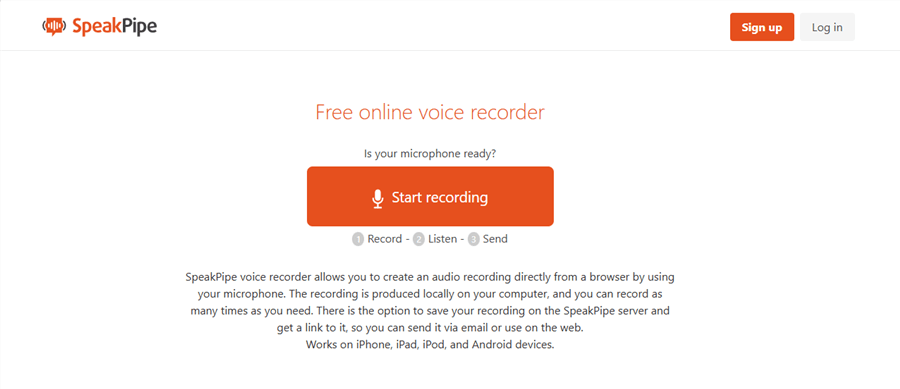
Online Voice Recorder – SpeakPipe
SpeakPipe is heavily utilized by podcasters gathering voicemails. When testing SpeakPipe on a shared Windows 10 machine, the interface was highly intuitive. The strict time limit means it is specifically tailored for short messages rather than long lectures.
- Max Recording Time: 5 minutes maximum per recording.
- Export Formats: MP3 and shareable URL.
- Account Required: No (but creating one is necessary to save links long-term).
- Privacy: Cloud-based.
FocuSee Online Microphone Recorder
Best for Clean & Fast Recording
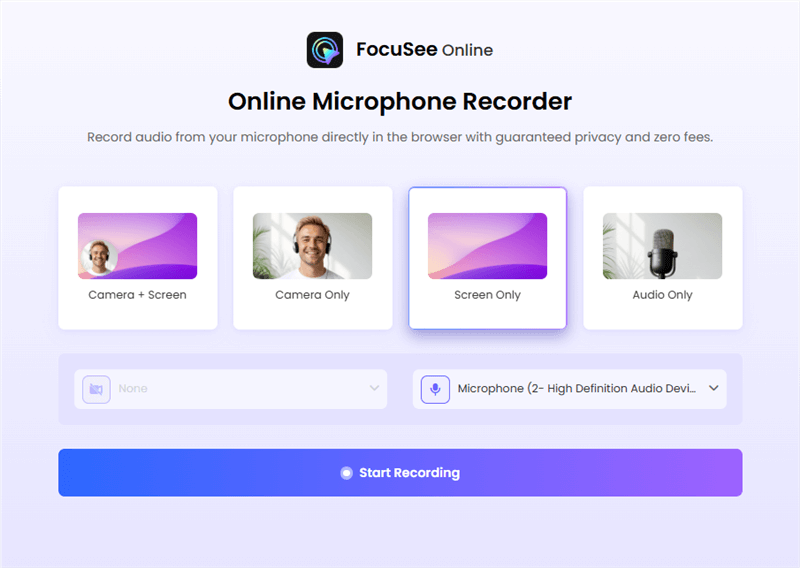
Choose The Recording Model
FocuSee stands out for users who want a minimal, distraction-free recording experience directly in the browser. During testing, it provided a noticeably smoother start compared to feature-heavy tools, making it ideal for quick lecture notes, drafts, or voice capture without setup friction.
Unlike tools that prioritize editing or sharing, FocuSee focuses on instant recording with a clean interface, reducing cognitive load when speed matters most.
- Max Recording Time: No fixed limit (browser session-based).
- Export Formats: Standard browser-based audio export.
- Account Required: No.
- Privacy: Local browser processing.
Vocaroo
Best for Quick Voice Notes
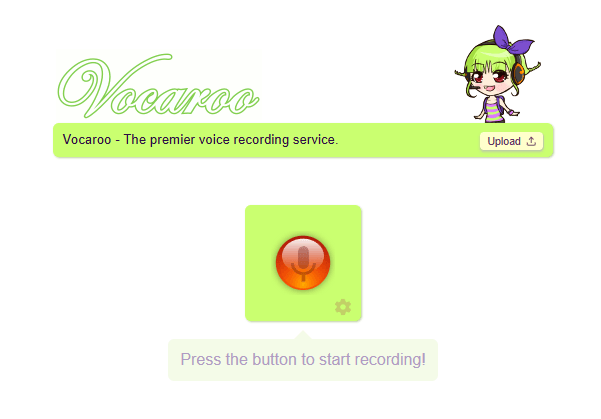
Online Audio Recorder – Vocaroo
Vocaroo is incredibly popular because it is the fastest way to record and share a voice note instantly. During testing, the interface was snappy and responsive. We did notice the audio expires after a few months if the link receives no traffic, meaning it is better for temporary sharing than archiving.
- Max Recording Time: No strict limit advertised, but practically caps around 50 MB (roughly 30-40 minutes).
- Export Formats: MP3, shareable URL, or QR code.
- Account Required: No.
- Privacy: Cloud-based. Audio is uploaded to their servers to generate the shareable link.
123Apps Online Voice Recorder:
Best for Privacy Audio Recording
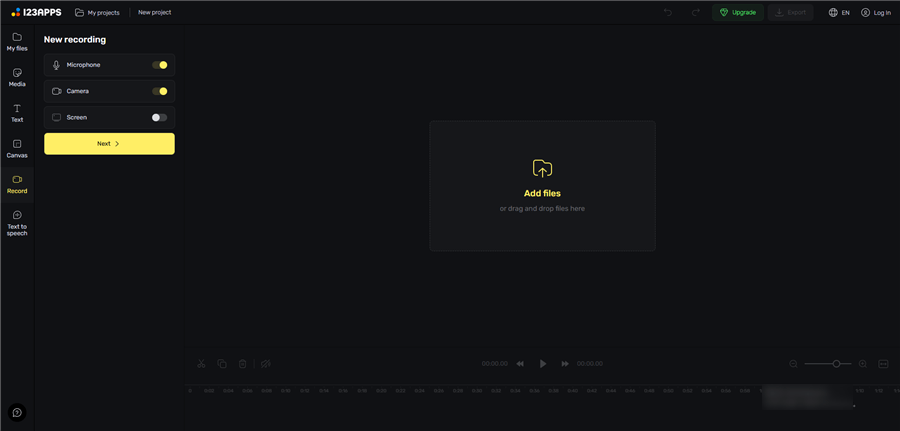
123Apps Online Screen Recorder
If you are recording sensitive interviews, 123Apps is fantastic because it processes everything locally. On an older Chromebook test, the basic trimming tool was slightly laggy when sliding the timeline, but the export audio quality remained pristine.
- Max Recording Time: Unlimited (depends entirely on your browser’s local cache storage).
- Export Formats: MP3.
- Account Required: No.
- Privacy: Local. Files are processed entirely within your browser and never uploaded to a server.
VirtualSpeech
Best for High Fidelity Export
Online Voice Recorder – VirtualSpeech
VirtualSpeech surprised us by offering uncompressed WAV exports directly from the browser. It handles higher microphone input volumes beautifully without clipping, making it a stellar choice for capturing richer vocal tones.
- Max Recording Time: Unlimited (relies on browser cache).
- Export Formats: OGG or WAV (highly recommended for quality).
- Account Required: No.
- Privacy: Local processing.
Rev Online Voice Recorder
Best for Transcriptions
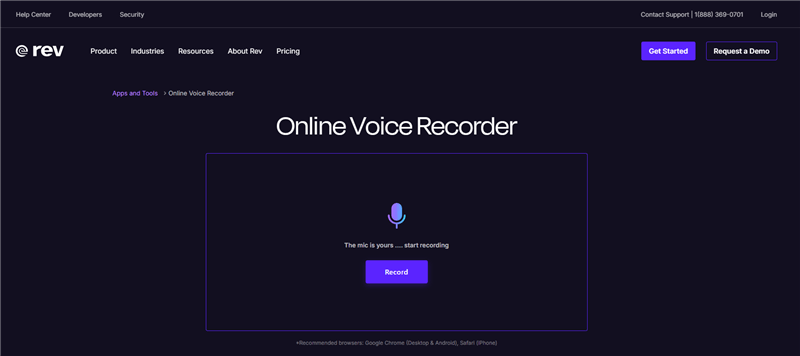
Online Audio Recorder – Rev
Rev offers a beautifully clean interface. It is tied to their paid transcription service, but the recording and downloading feature is completely free. Testing on Safari showed zero latency issues when pressing record.
- Max Recording Time: Unlimited.
- Export Formats: MP3.
- Account Required: No (only needed if you are purchasing text transcripts).
- Privacy: Cloud-based processing.
Reverb Record
Best for Social Media Sharing
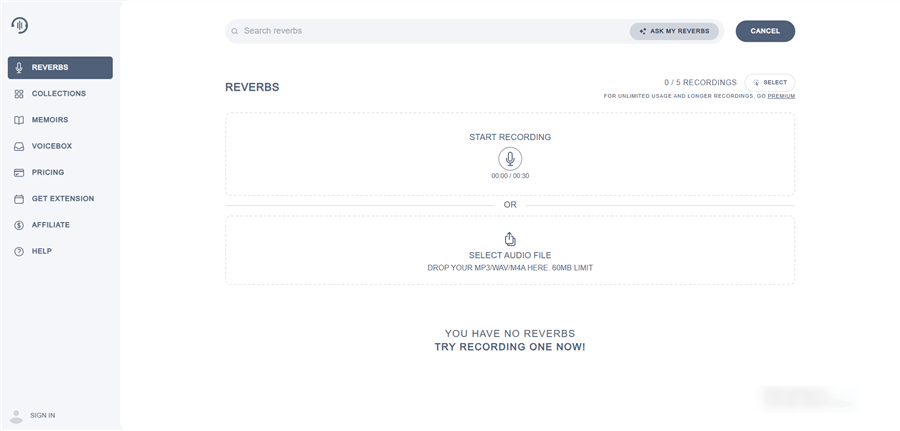
Online Voice Recorder – Reverbs
Reverb makes it incredibly simple to generate a link that embeds directly into Twitter, email clients, or forum posts. We noticed a slight 1-2 second delay when activating the microphone on older Edge browsers, but capture was smooth afterward.
- Max Recording Time: Unlimited.
- Export Formats: Shareable URL.
- Account Required: No (a free account allows for folder organization).
- Privacy: Cloud-based.
Clyp.it (Clyp)
Best for Musicians and Sound Designers
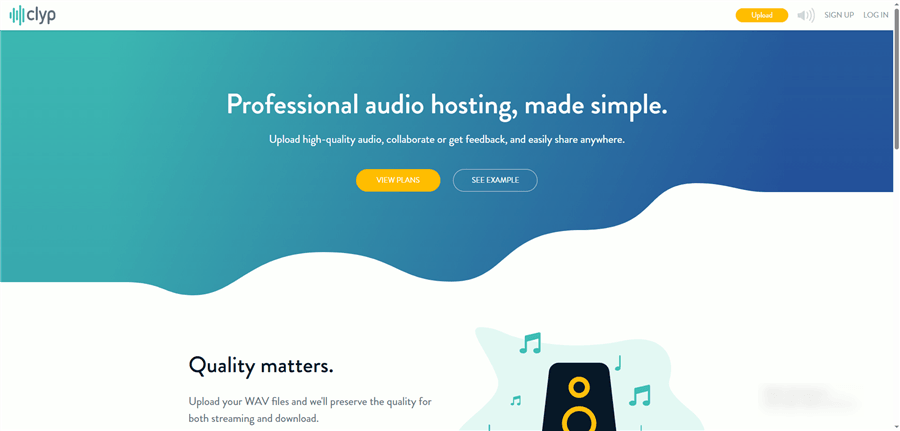
Online Sound Recorder – Clyp
Clyp feels like a lightweight soundboard and is fantastic for sharing snippets with a community. Recently, they restricted several features for free users, adding a bit of friction for those who want permanent file storage.
- Max Recording Time: 15 minutes (free tier), up to 6 hours (pro).
- Export Formats: MP3 (WAV is restricted to paid users).
- Account Required: Yes (required for uploading and permanent storage).
- Privacy: Cloud-based.
BearRecord
Best for Basic Editing
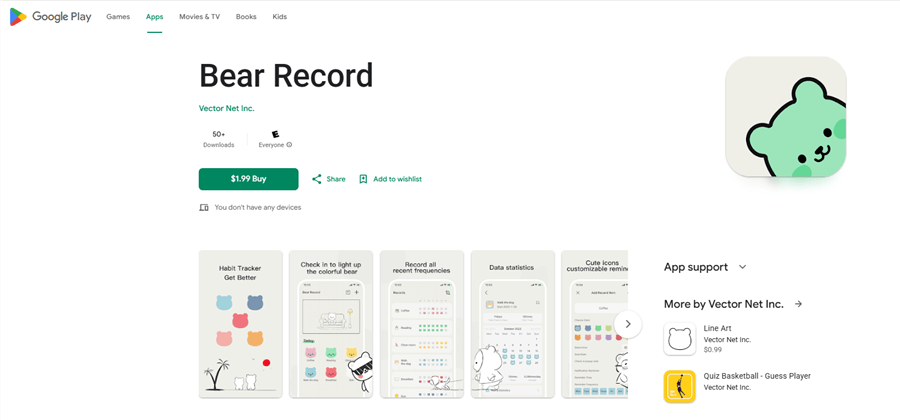
Online Voice Recorder – BearRecord
BearRecord offers a surprising number of editing tools, including pitch shifting and fading. As noted in testing, applying heavy audio effects on a low-RAM laptop caused the browser tab to stutter occasionally, so save your work frequently.
- Max Recording Time: Unlimited (subject to browser memory).
- Export Formats: MP3, WAV, OGG.
- Account Required: No.
- Privacy: Local processing for recording, though rendering complex effects requires server pings.
Resonate
Best for Podcasters
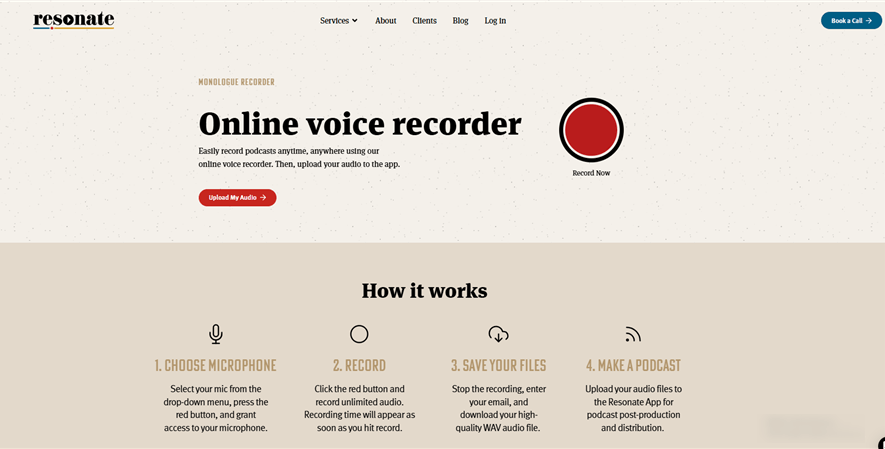
Online Sound Recorder – Resonate
Resonate provides a streamlined recorder designed as a teaser for their podcast hosting platform. It offers a very clean, professional interface with robust volume metering so you can actively monitor your voice levels.
- Max Recording Time: Unlimited.
- Export Formats: WAV.
- Account Required: No.
- Privacy: Local.
Voca
Best for Mobile Browser Compatibility
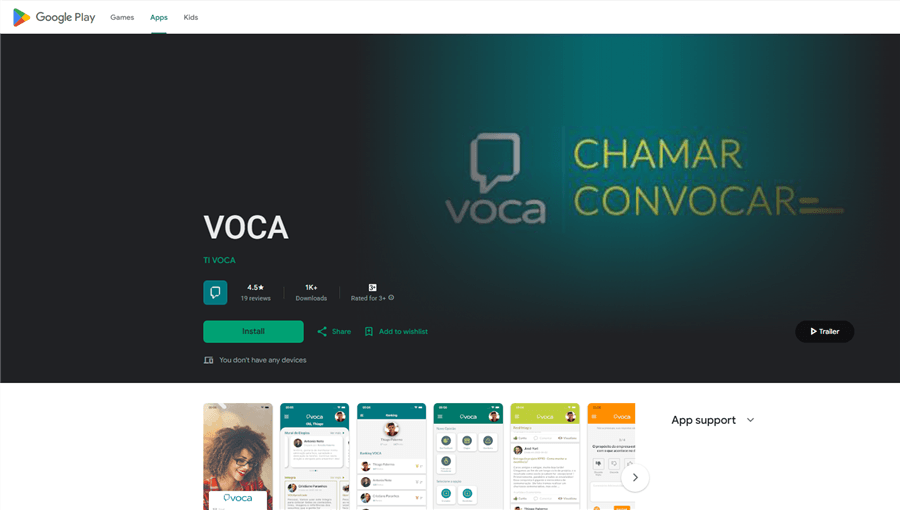
Online Sound Recorder – Voca
Even though our primary focus was on desktop environments, Voca proved to be the most resilient when testing occasional mobile browser usage. It adapts perfectly to smaller screens without hiding the record button or glitching during orientation changes.
- Max Recording Time: Unlimited.
- Export Formats: MP3, WAV.
- Account Required: No.
- Privacy: Local.
Bypassing Browser Audio Compression: Expert Tips for Clear Sound
Here is a critical expert insight most other guides overlook: the biggest factor affecting your audio fidelity is the browser’s native audio processing pipeline.
Many tools rely on default browser settings. Browsers like Chrome and Safari are optimized for video conferencing, not studio-grade voice capture. They aggressively apply automatic gain control, noise suppression, and heavy data compression. When they automatically adjust your volume levels, the result is a fluctuating, metallic sound that ruins your hard work.
You can significantly improve recording quality by bypassing these web defaults. Follow this exact procedure to secure a flawless download :
🛑 Golden Rule #1: Adjust System Volume Settings
Open your Windows or macOS sound preferences. Manually set your microphone input volume to around 75%. This prevents the audio from “clipping” or distorting when you speak loudly.
🎤 Golden Rule #2: Select External Hardware Explicitly
Always select a dedicated USB microphone in your browser’s specific site settings instead of relying on the default laptop mic, which captures distracting laptop fan noise and keystrokes.
💾 Golden Rule #3: Choose Uncompressed Formats
Always select uncompressed formats like WAV when the tool allows it. This prevents the browser from applying destructive data compression, preserving maximum clarity.
🔒 Golden Rule #4: Fix Browser Permissions Immediately
If your microphone fails to activate, it is almost always a permission block. Click the padlock icon next to your browser’s URL bar. Ensure the “Microphone” toggle is explicitly set to “Allow” rather than “Ask (Default).”
Need More Power? When to Switch to Desktop Software
Browser-based applications are fantastic for quick, urgent tasks. If you are recording long lectures, dealing with complex multitrack layering, or finding that browser tabs frequently crash and delete your progress, it is time to consider upgrading. Free web tools frequently drop connections if the browser reloads, and uploading sensitive audio to an unverified web app can introduce data privacy risks.
When you outgrow online options and require professional, guaranteed outcomes, moving to a dedicated desktop application is the next logical step. FocuSee operates as a premium screen and audio recording tool featuring built-in AI Audio Enhancement. This automatically removes background noise, breathing, and mouth sounds, resulting in crystal-clear audio processed safely on your local hard drive.
Advanced Desktop Audio Controls
For creators needing more than a basic web recorder, dedicated software simplifies the recording process drastically:
- Separate Audio Track Recording: If you need to record system sound (like a video playing) and your microphone input simultaneously, FocuSee captures them independently. This provides incredible flexibility for mixing later.
- AI Smart Cut: For users frustrated by manual audio trimming online, this feature instantly trims out filler words like “uh” and “um,” alongside long awkward pauses .
- Multi-Platform Export: You can instantly export in flexible formats optimized for multiple platforms without dealing with browser cache limits.
[Image: A real screenshot of the FocuSee interface. Alt-text: The FocuSee desktop dashboard highlighting toggles for Separate Audio Track Recording and AI Audio Enhancement.]
Frequently Asked Questions About Recording Sound Online
Navigating the technical requirements of browser-based recording can raise several questions. Below are direct answers to help you troubleshoot common issues and finalize your recording strategy.
What is the best free online sound recorder?
The best tool depends on your specific need. For instant sharing without limits, Vocaroo is highly popular. For strict privacy and local processing, 123Apps is an excellent choice.
Do I need to install anything to record sound online?
No. A true web application operates entirely within your active browser window without requiring software downloads or extensions.
Is it safe to use an online sound recorder?
Yes, provided you select a tool that uses the Web Audio API to process audio locally. In these cases, your audio is stored temporarily in your browser cache and is never sent to a remote server.
Why is my microphone not working in my browser?
This is typically a permissions issue. Click the padlock icon in your browser’s address bar and verify that microphone access is set to “Allow.”
Which is better for recording: MP3 or WAV?
WAV is a lossless, uncompressed format that retains the highest quality. MP3 applies compression, saving hard drive space but sacrificing subtle sound details. For professional results, always choose WAV.
Can I record system audio or only microphone input?
Most basic web applications only capture microphone input. To record system sound alongside your voice, you generally need a premium desktop application.
Are there time limits on online sound recorders?
Many free web tools impose hidden time limits (often 5 to 10 minutes) or restrict the maximum file size you can export. Always check the tool’s specific limitations before recording a long session.
Can I use an online sound recorder on Mac and Windows?
Yes. Because they operate within browsers like Chrome, Edge, or Safari, these tools are fully cross-platform compatible.
How can I improve my sound recording quality?
Disable your browser’s default noise suppression, use an external USB microphone, and ensure you export your final file in WAV format.
Can I edit or trim my recording online?
Some platforms, such as 123Apps and BearRecord, offer basic utilities for cutting the beginning and end of your clips.
Will my recordings be stored online or locally?
Genuine online tools process and store files locally in your browser cache until you download them. Always verify a website’s privacy policy to ensure they do not upload your data to external cloud servers.
Conclusion
Relying on a basic browser tool often means gambling with audio fidelity and hidden storage risks, but knowing exactly which application to choose restores your control. By selecting a local-processing app and adjusting your browser’s audio pipeline using our golden rules, you can capture clear voiceovers instantly without installing heavy software.
If your projects grow in complexity, upgrading to a reliable desktop application like FocuSee removes the guesswork by handling noise reduction and filler-word removal automatically.