Best After Effects Camera Movement Plugins: Hands-On Comparison

Creating smooth camera movement in After Effects can be surprisingly time-consuming. Simple moves such as orbiting around a 3D object, keeping the camera locked to a target, or adding natural handheld motion can require multiple layers, keyframes, expressions, and Graph Editor adjustments.
To find out which tools actually make the process easier, we tested a selection of After Effects camera plugins using the same set of common camera-animation tasks. We looked at setup time, camera control, targeting, lens and focus controls, motion quality, keyframe editing, compatibility, and overall ease of use.
How We Tested the After Effects Camera Plugins
We evaluated each tool against the same camera-animation scenarios instead of judging features from product descriptions alone. Test scenarios:
- 3D Orbit — Create a smooth camera orbit around a 3D object.
- Target Tracking — Keep the camera pointed at a moving 3D layer.
- Dolly Zoom — Create a controlled dolly-zoom effect.
- Handheld Movement — Add subtle, natural camera shake without making the shot distracting.
- Focus Control — Adjust depth of field and focus between subjects.
- Keyframe Refinement — Modify the generated movement manually in After Effects.
- Workflow Speed — Compare the number of setup steps required for the same result.
- Compatibility — Check installation and basic operation on the After Effects versions and operating systems used in our tests.
We also recorded the setup process and compared the final camera motion rather than relying solely on advertised features.
Top Recommendations: The Best After Effects Camera Plugins
When evaluating an After Effects camera movement plugin, it is essential to distinguish between the two primary categories available: Camera Rigs (for control) and Handheld Generators (for realism). We have moved beyond theoretical categories to give you the specific tools used by industry veterans.
| HandyCam | Sure Target 2 | Motion Tool / Verified Alternative | After Effects Native | |
| Best For | Overall camera control | Free target-based moves | Handheld motion | Maximum control |
| Camera Rig | ✓ | ✓ | — | ✓ |
| Targeting | ✓ | ✓ | — | ✓ |
| Dolly Zoom | ✓ | — | — | ✓ |
| Handheld | ✓ | — | ✓ | Manual |
| Ease of Use | Easy | Medium | Easy | Hard |
| Price | $39.95 | Free | — | Included |
1. Camera Rigs for Controlled Parallax
Native After Effects cameras can be notoriously difficult to control; a simple orbit often requires parenting the camera to a null object and animating the rotation. Rig plugins automate this structure, providing sliders for orbit, pan, and dolly zoom.
Our Top Pick: HandyCam — Best Overall for 3D Camera Control
Best for: Motion designers who need fast control over orbiting, targeting, lens movement, and camera animation.
Best After Effects Camera Movement Plugin – HandyCam
HandyCam was the strongest all-around option in our testing because it puts several common camera controls into a single interface. Instead of building a camera-and-null hierarchy manually, you can control orbit, target layers, lens settings, focus, and dolly zoom from the rig.
What stood out most was the targeting workflow. You can point the camera at a selected layer while continuing to move the camera through 3D space, which makes it much easier to create controlled product shots, title animations, and parallax scenes.
What we liked:
- Easy orbit controls
- Look-at targeting
- Lens controls in millimeters
- One-click dolly zoom
- Handheld movement controls
- Camera animation can be baked for handoff
What we didn’t like:
- It is still an After Effects workflow, so you need to understand basic 3D layers and cameras.
- It is unnecessary for simple zooms or screen-recording tutorials.
Our verdict: If your main goal is controlling a real 3D camera inside After Effects, HandyCam is the first plugin we would test.
Sure Target 2 — Best Free Option, With Compatibility Caveats
Best for: Users who want a free way to control an After Effects camera around predefined targets.
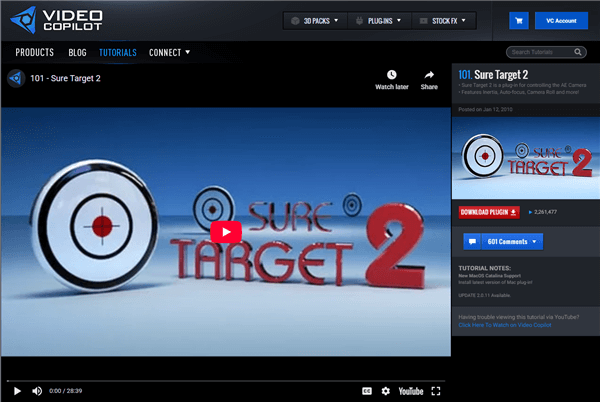
Best After Effects Camera Movement Plugin – Sure Target 2
Sure Target 2 is one of the classic After Effects camera-control tools. It provides features such as inertia, auto-focus, and camera roll, and its target-based workflow can still be useful for kinetic typography and simple 3D camera sequences.
The biggest issue is not its feature set but its age. The official Video Copilot page dates the plugin back to 2010, and community discussions have documented compatibility workarounds with newer After Effects versions.
What we liked
- Free
- Target-based camera animation
- Inertia and auto-focus
- Useful for simple camera sequences
What we didn’t like
- Very old plugin
- Compatibility should be checked before using it in a current production workflow
- Less flexible than newer camera-rig tools
Our verdict: Worth trying if you want a free option, but we would not choose it for a new production pipeline without first confirming compatibility with your current After Effects version.
2. Handheld and Shake Generators for Realism
If your native camera moves feel sterile or robotic, you need a handheld generator. These tools inject organic imperfection into your composition using algorithms or real-world motion capture data.
Our Top Pick: Motion 4 (by Mister Horse)
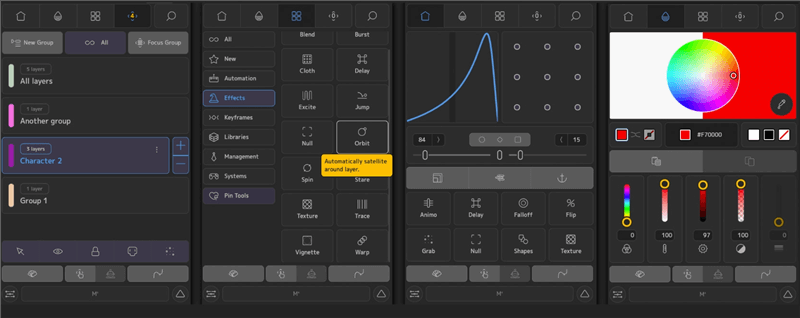
Best After Effects Camera Movement Plugin – Motion 4
While known for its transitions, the “Handheld Camera” preset within Motion 4 is a powerhouse. It doesn’t just vibrate the screen; it simulates the weight of a heavy cinema camera.
It is a one-click solution. You drag the effect onto your camera layer, and it generates procedural sway and jitter that loops perfectly.
Pro Choice: ProCam (by 3DQUAKERS)
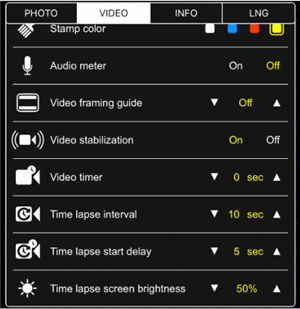
Best After Effects Camera Movement Plugin – ProCam
For those who need extreme granular control, ProCam offers simulations of specific real-world camera bodies and lenses.
If you need to match the movement of a 3D text layer to live-action footage shot on a specific DSLR, ProCam’s physics engine helps match that specific sensor weight and shake profile.
Workflow Comparison: Manual Keyframes vs. Plugins vs. Automated Tools
Selecting the right method for camera animation depends heavily on your project constraints and required level of control. We can categorize the workflows into three distinct approaches: Manual Keyframing, Dedicated AE Plugins, and Automated Screen Tools.
After Effects Native Camera vs Camera Plugins
| AE Native Camera | Camera Plugins | Screen Recording Tools | |
| Setup | Slow | Fast | Very Fast |
| Camera Control | Very High | High | Limited |
| Learning Curve | High | Medium | Low |
| Best For | Custom 3D scenes | Camera rigs & cinematic movement | Software tutorials & product demos |
1. Native After Effects Camera
- Pros: Maximum control over camera position, rotation, depth of field, keyframes, expressions, and Bézier curves. No additional plugin cost.
- Cons: Building and refining complex camera movement can take considerable time, especially when working with multiple 3D layers.
- Best for: Motion designers creating custom 3D scenes where precise camera control is more important than setup speed.
2. Dedicated After Effects Camera Plugins
- Pros: Camera rigs, targeting, orbiting, lens controls, and other common movements can be set up with fewer manual steps.
- Cons: Most plugins add an extra learning curve and may not be necessary for simple camera movements.
- Best for: Motion designers who frequently create 3D camera movements and want to reduce repetitive setup and keyframing.
When You Don’t Need an After Effects Camera Plugin
For many of Daniel’s projects, specifically software tutorials and UI walkthroughs, setting up a HandyCam rig proved to be inefficient. He found that building a complex 3D camera environment just to follow a mouse cursor was a waste of resources. This is where FocuSee serves as a specialized alternative—not as a plugin for After Effects, but as a replacement for it in specific scenarios.
If you are strictly recording screen interactions, manual camera keyframing takes too much time. FocuSee’s Smart Focus & Auto-Zoom feature provides an immediate solution. Instead of importing screen captures into AE and manually setting position keyframes to follow the mouse, FocuSee automatically detects cursor movement and clicks, zooming in to keep the viewer focused on the relevant action.
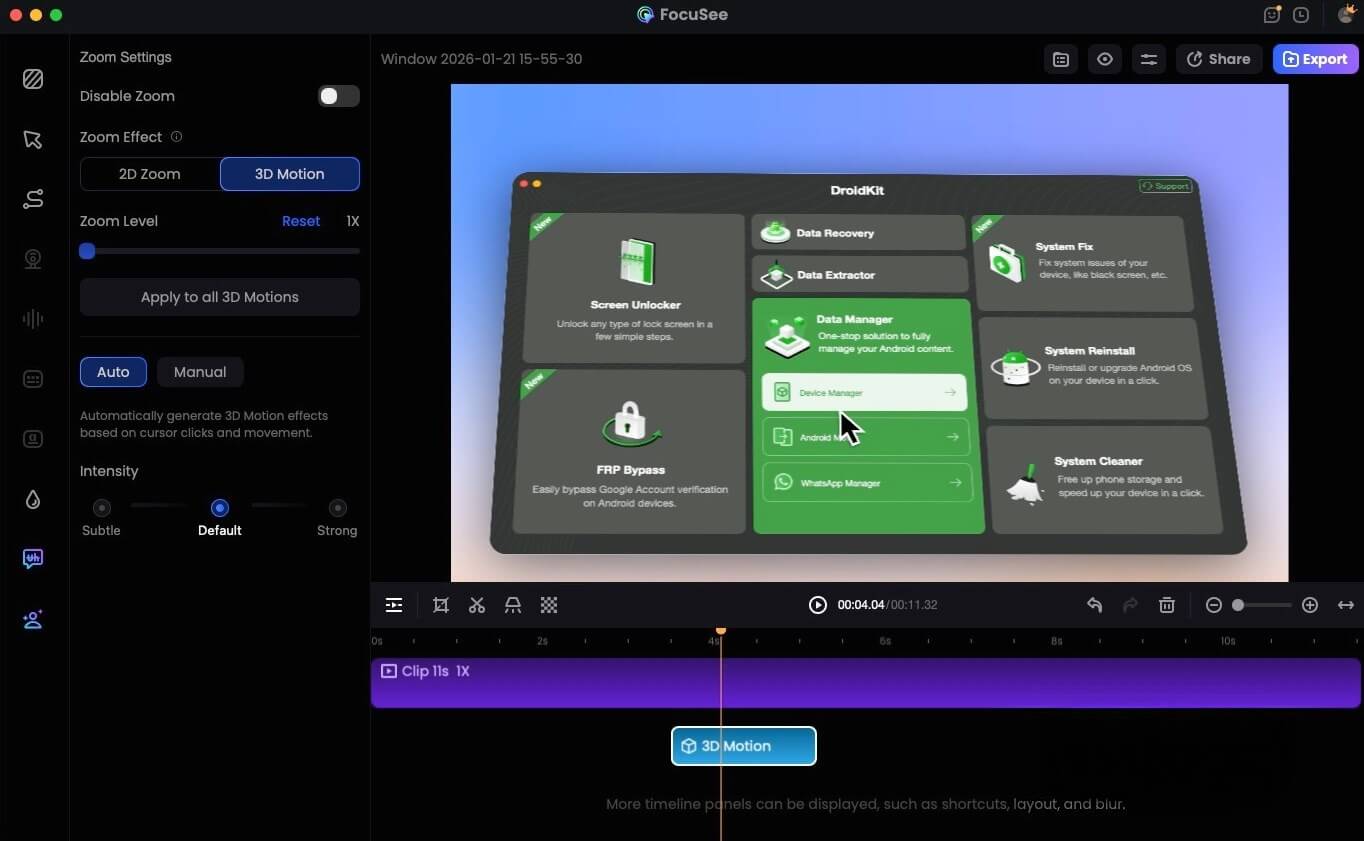
FocuSee 3D Motion
While it cannot replace a tool like HandyCam for title sequences, it excels at what it does. If you struggle because your tutorial camera movement looks inconsistent, FocuSee applies standardized, smooth motion curves automatically. For users who want cinematic motion without building camera rigs, FocuSee allows you to export these auto-edited videos directly. This bypasses the need for a heavy motion graphics plugin when the deliverable is a straightforward software demo.
Expert Workflow: Combining Plugins with Manual Control
A common misconception is that using an After Effectscamera movement plugin means surrendering creative control. However, seasoned professionals view these tools differently. Camera movement plugins are most effective when used as workflow accelerators.
In a professional workflow, you should utilize a tool like HandyCam to generate a clean base animation. This handles the heavy lifting of setting up the parallax hierarchy and keyframe automation. Once the base move is generated, the real work begins. You must manually fine-tune the timing and easing.
The Hybrid Technique: Bake and Refine
Plugins often use “expressions” (code) to drive motion, which can be hard to edit. Here is the pro workflow to regain control:
- Generate the Base: Use your plugin to create the general camera trajectory and focus points.
- Bake to Keyframes: Most plugins, including HandyCam, allow you to “bake” the camera expression into editable keyframes. In AE, you can also go to Animation > Keyframe Assistant > Convert Expression to Keyframes.
- Refine the Graph: Open the Graph Editor (Shift+F3).
- The “Hover” Trick: Select the keyframes at the apex of your camera move. In the curve editor, flatten the handles horizontally. This creates a moment of suspension—a “hover”—before the camera returns, adding a distinct cinematic motion feel that plugins rarely achieve on default settings.
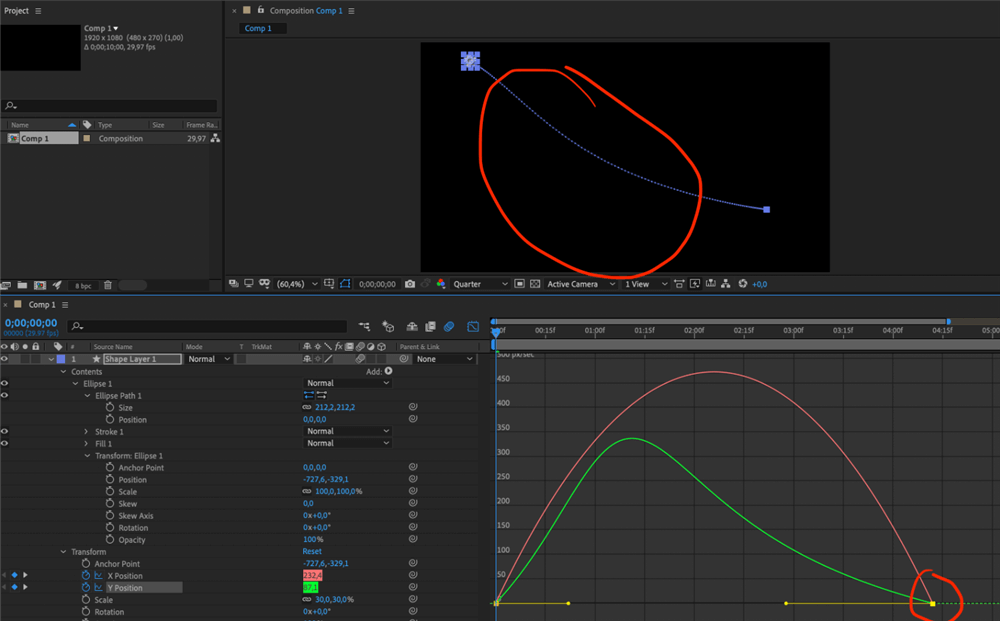
Graph Editor
Performance: GPU Acceleration and Hardware Requirements
A major concern for motion designers is performance: Will a complex after effects camera motion plugin bring your render speed to a crawl? The answer depends on your system configuration and the specific plugin type.
Hardware Considerations
In our testing on Mac Studio (M1/M2 Max) and Windows workstations with NVIDIA RTX cards, rig plugins like HandyCam and Sure Target are lightweight. They manipulate null objects and coordinate data, which is CPU-dependent but generally fast.
However, plugins that generate motion smoothing, artificial motion blur, or depth of field (like ProCam‘s lens simulation) are computationally expensive.
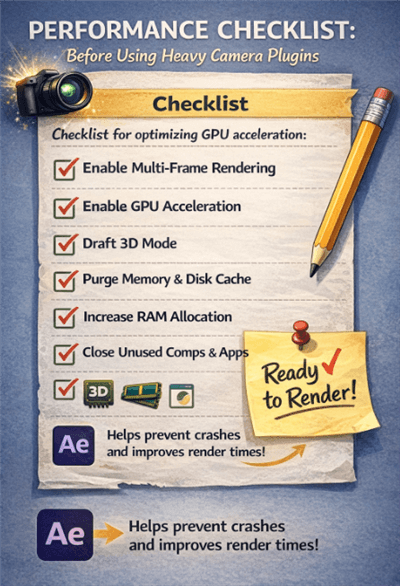
Performance Checklist
Optimizing Playback
To ensure smooth playback when using these tools:
- GPU Drivers: On Windows, ensure you are using NVIDIA Studio Drivers, not Game Ready Drivers. Studio drivers are optimized for Adobe’s CUDA calculations.
- Draft 3D: In the latest versions of After Effects, enable “Draft 3D” in the composition window. This disables lights and shadows while you animate your camera rig, keeping the viewport snappy.
- Multi-Frame Rendering: Verify that the plugin supports After Effects’ Multi-Frame Rendering (MFR). This allows the software to utilize all CPU cores effectively.
FAQ: After Effects Camera Movement Plugins
What is the best After Effects camera movement plugin?
HandyCam is a strong choice for dedicated 3D camera control, with tools for orbiting, targeting, lens movement, dolly zooms, and handheld motion.
Are After Effects camera plugins worth it?
They can save time if you regularly create complex 3D camera movements. For occasional or simple animations, After Effects’ native camera tools may be enough.
Can I use camera plugins with existing 3D layers?
Yes. Most camera plugins work with After Effects’ native 3D camera and layers, allowing you to control camera movement without rebuilding your scene.
Do I need a plugin for simple zooms?
Usually not. Native After Effects tools are sufficient for basic zooms, while plugins are more useful for complex movements such as orbiting, targeting, dolly zooms, and focus changes.
Conclusion
Creating professional motion graphics doesn’t mean you have to fight the Graph Editor for every single project. Whether you choose a dedicated rig like HandyCam for complex 3D scenes, a shake generator like Motion 4 for realism, or leverage FocuSee for instant screen recordings, the goal is efficiency. These tools allow you to bypass the technical drudgery of manual keyframing and focus on the creative direction your clients pay for.
If you are ready to stop wasting hours on repetitive camera tasks, start by assessing your most frequent project types. For complex motion graphics, investing in HandyCam is the professional standard. However, for tutorials and demos, FocuSee offers a faster, smarter way to achieve a polished look without opening After Effects at all.