How to Hide Mouse Cursor in Roblox: The Ultimate Guide for PC & Mac

Nothing breaks game immersion faster than a stray pointer hovering over your crosshair during an intense firefight. If you are searching for how to hide the mouse cursor in Roblox to improve your aim or capture cleaner screenshots, you are not alone. You want a seamless experience where the interface disappears, and only the game remains.
How to Hide Mouse Cursor in Roblox
However, Roblox is unique. Unlike standalone PC titles, it is a platform where individual developers control the user interface. This means the solution to remove the mouse cursor in Roblox depends heavily on your hardware, the specific game you are playing, and which version of the Roblox launcher you are using. Facing a cluttered screen when you need precision most is a massive obstacle to performance. In this guide, we will walk you through the exact steps to lock that cursor away and reclaim your gameplay.
Using Shift Lock and First-Person Mode (Best for Gameplay)
For most players, utilizing the native camera tools is the fastest way to fix how the mouse works in Roblox. These methods force the game engine to prioritize camera movement over pointer navigation, effectively hiding the cursor.
The Shift Lock Technique
This is the most reliable method for third-person action games. When enabled, it locks the camera to your character’s orientation and fixes the reticle in the center of the screen.
- Launch your Roblox experience and press Esc to open the menu.
- Navigate to the Settings tab.
- Find the Shift Lock Switch option and toggle it to On.
- Return to the game and press the Shift key on your keyboard.
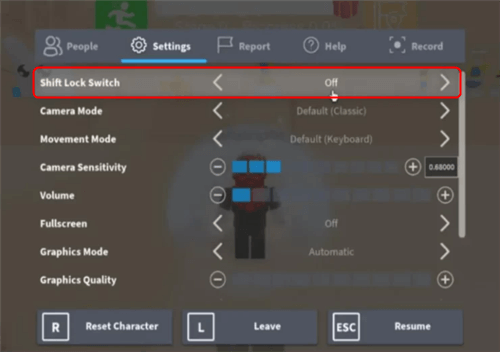
Shift Lock Switch
Once activated, the Roblox shift lock feature will lock the mouse cursor to the center and render it invisible or change it to a static crosshair. This configures your setup to keep the camera tight on the action, allowing you to track targets smoothly without the standard Windows pointer distracting you.
First-Person Mode & Camera Settings
If Shift Lock isn’t available, try entering roblox first person mode. Simply zoom all the way in using your mouse scroll wheel until your character model disappears. This mode typically hides the cursor automatically to allow for 360-degree camera rotation.
Critical Step: If zooming doesn’t work, check the developer settings.
- Go to Settings.
- Look for Camera Mode.
- If the developer has locked this to “Classic” or “Fixed,” you may not be able to zoom in.
- Ensure it is set to “Default” or “Follow” if the option is available to you.
Troubleshooting: When the Cursor Won’t Hide (Fullscreen & Mac)
Sometimes, even with the correct settings, you might face a stubborn cursor that refuses to disappear. This is a common issue with roblox fullscreen optimization and varies significantly between the standard Roblox Player and the Microsoft Store App.
The ‘Esc’ Menu Reset
A frequent glitch occurs when the application loses “focus,” causing the system cursor to overlay the game. To fix this:
- Press Esc to open the Roblox menu.
- Move your mouse in a circle a few times.
- Press Esc again to close the menu.
This forces the application to re-register your input device, often triggering the correct Roblox mouse behavior and hiding the pointer.
Crucial Fix: Windows Store App vs. Roblox Player
Based on our testing, the version of Roblox you use matters immensely. The Microsoft Store version (UWP) is known to have more persistent cursor overlay issues than the standalone RobloxPlayerLauncher.exe.
If you are struggling to remove mouse cursor Roblox glitches on the Store app, switching to the direct web launcher is the most effective fix. Here is how to do it:
- Uninstall: Go to “Add or remove programs” in Windows and uninstall the “Roblox” app (the one with the square icon).
- Download: Go to the official Roblox website in your browser.
- Install: Click the green “Play” button on any game. This will prompt the download of the RobloxPlayerLauncher.exe.
- Play: Launch the game through the website or the new desktop player. This version handles exclusive full-screen mode much better than the Store app.
macOS Specifics
On a Mac, the top menu bar can interfere with Roblox player controls. If the cursor persists, ensure you are in true full-screen mode (Green maximize button) rather than just a maximized window.
Pro Tip: If the cursor gets stuck in the center of your screen on a Mac, move your mouse rapidly to the bottom-right corner of the screen (or the dock area). This is a known workaround for macOS users to temporarily displace a stuck cursor from the center view so it doesn’t obstruct your aim.
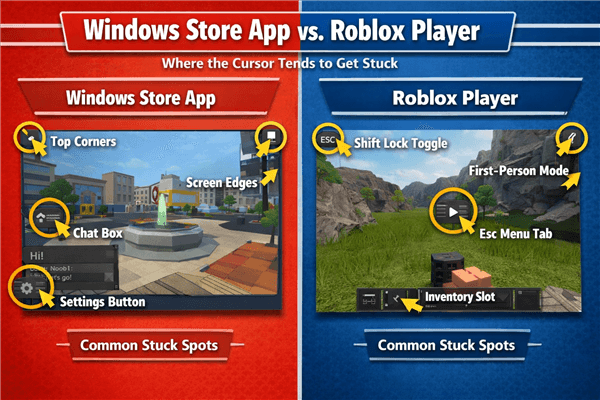
Windows Store App vs. Roblox Player
The “Force” Method: Can You Hide It Globally?
Players often ask why they can’t simply press a button to hide cursor roblox game-wide, or if there is a way to force it hidden when a developer disables Shift Lock.
The honest answer is: Not easily, and not without risks.
Roblox is not a single game; it is a platform where developers script distinct behaviors using MouseBehavior properties.
- LockCenter: The system hides the cursor because it is effectively “captured” by the camera (common in FPS games).
- Default: This allows the mouse to move freely for menus (RPGs, Tycoons).
If a developer has explicitly disabled Shift Lock and set the mouse behavior to ‘Default,’ you are likely stuck with the cursor. While some users attempt to use third-party overlays to hide the cursor, we generally advise against this as it can trigger Roblox’s anti-cheat detection (Hyperion). If the “Esc” reset and the “Launcher Switch” (Method 2) don’t work, the cursor visibility is likely a hard-coded design choice by the game creator.
Related Article: How to Hide the Cursor When Screen Recording >
Comparison: Solving for Gameplay vs. Solving for Content
Before deciding on a method, it is vital to distinguish between hiding the cursor for your own live gameplay and hiding it for video recording.
If you are a gamer, you need the cursor gone now so you can aim. If you are a content creator, you might be okay with seeing the cursor while you play, as long as your viewers don’t see it in the final YouTube video.
| Feature | Native Settings (Shift Lock / First Person) | Content Creator Tools (FocuSee) |
| Primary Goal | Improve aiming accuracy | Make videos look clean and polished |
| When it Works | During live gameplay | After recording (post-production) |
| Cursor Visibility | Hidden or locked to the center | Customizable (hide, highlight, smooth) |
| Setup Time | Instant (in-game toggle) | Low (simple software setup) |
| Best For | Competitive gamers (FPS / PvP) | YouTubers, tutorials, roleplay videos |
If your goal is a strictly better aim while playing, stick to the in-game methods above. However, if you are recording content, relying solely on Roblox’s native behavior can lead to jittery footage. The next section explores how specialized tools can solve this for your audience.
How to Record Clean Roblox Gameplay with FocuSee (For Creators)
For content creators, the challenge isn’t just playing; it’s producing video where the Roblox invisible cursor look is maintained for the audience.
The tool below (FocuSee) does not hide the cursor on your monitor while you are playing. If you are playing a Tycoon game where you need the mouse to click buttons, you will still see it. However, FocuSee can remove it from the final video export, ensuring your upload looks cinematic and professional.
FocuSee addresses specific creator pain points that native recording tools miss:
Eliminate Immersion-Breaking Cursors: If you are worried that your mouse cursor stays visible and breaks the “movie” feel of your roleplay video, FocuSee’s Cursor Effects allow you to completely hide the cursor in the exported file.

Show Mouse Cursor
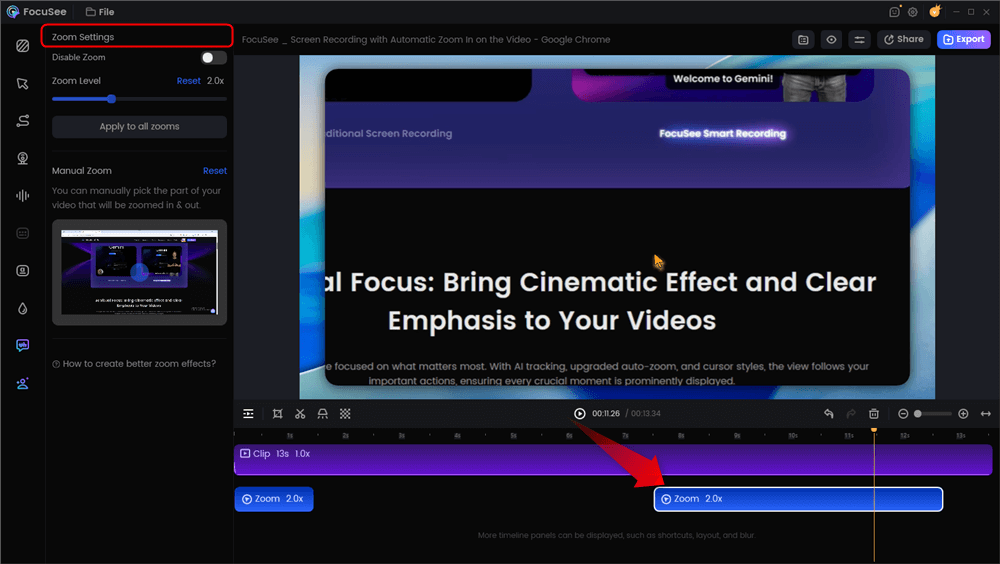
Fix Erratic Camera Movement: When the cursor interferes with camera movement, raw footage can be nauseating for viewers. FocuSee uses Smart Focus & Auto-Zoom to automatically track key actions, smoothing out jittery mouse movements.
Automatic Zoom Effects
Professional Polish Without Complex Editing: Many creators don’t know if Roblox has a built-in option to hide the cursor for recordings specifically. FocuSee bypasses this limitation by handling the visual cleanup in post-production automatically.
By separating your gameplay needs from your production values, you ensure your viewers get the best experience possible.
Frequently Asked Questions (FAQ)
How do I hide the mouse cursor in Roblox?
The most effective methods are enabling the Shift Lock Switch in settings or zooming into First-Person mode. If these don’t work, ensure you are using the official Roblox Player (from the website) rather than the Microsoft Store app.
What is Shift Lock and does it hide the cursor?
Shift Lock is a setting that locks the camera to your character’s movement. Yes, when activated (usually by pressing Shift), it centers and hides the standard mouse cursor, replacing it with a reticle.
Why does my cursor still show in Roblox fullscreen?
This is often due to the application losing “focus.” Try pressing Esc twice to refresh the menu. If the problem persists, uninstall the Windows Store version of Roblox and install the standard launcher from the Roblox website, which handles full-screen optimization much better.
Can I hide the cursor in all Roblox games?
Not always. Since developers control Roblox mouse behavior, some games (like point-and-click Tycoons) require the cursor to be visible for gameplay and may disable Shift Lock. If the developer has disabled these features, there is no native way to force the cursor to hide.
Is there a way to hide the cursor on Mac in Roblox?
Yes, the methods are the same (Shift Lock/First Person). However, Mac users should ensure the Roblox window is in proper full-screen mode to prevent the top menu bar from interfering with visibility. A quick fix for a stuck cursor on Mac is to move the mouse rapidly to the bottom-right corner.
Conclusion
Regaining control over your interface is the first step toward mastering your favorite Roblox experiences. By utilizing native tools like Shift Lock, checking your camera settings, or switching to the official website launcher, you can eliminate the visual clutter that ruins immersion.
If your goal extends beyond gameplay to creating high-quality content, FocuSee offers the professional edge you need to clean up your recordings. It solves the visibility problem for your audience without forcing you to struggle with game controls. Download FocuSee today to automatically polish your recordings and share your gameplay exactly how it was meant to be seen.