Can You Screen Record Someone Else’s Phone? (Legal Methods & Real Solutions 2026)

Trying to help a non-tech-savvy parent or friend fix a phone issue remotely can feel like guiding someone through a maze in the dark. Chris, for example, was trying to help his dad troubleshoot a crashing iPhone app, but vague descriptions like “the thing went away” left him guessing.
If you’re asking, “Can you screen record someone else’s phone?” to troubleshoot an error, document a problem, or save a tutorial, the answer is yes—with the other person’s knowledge and permission. Instead of hidden monitoring apps, you can use screen sharing or remote-support features that let the phone owner actively share their screen and agree to the recording.
This guide covers practical, consent-based ways to view and record another person’s screen for legitimate purposes like tech support, troubleshooting, training, and collaboration. The key rule: the phone owner should know what is being shared and agree before recording begins.
Can You Screen Record Someone Else’s Phone With Permission?
The key distinction isn’t simply whose phone you’re recording—it’s whether the phone owner has knowingly agreed to share and record their screen.
For legitimate tech support, you can use built-in screen-sharing features, video calls, or remote-support tools to see what’s happening on another person’s device. The other person remains aware of the session and can stop sharing at any time. Depending on the tool and situation, you may then record the shared session on your own computer or device, provided everyone involved has agreed to the recording.
For example, Chris can start a FaceTime call with his dad and ask him to share his iPhone screen. Once his dad knowingly starts screen sharing, Chris can view the error and, where the feature and circumstances allow, record the support session with his dad’s permission. This gives Chris the information he needs without installing hidden monitoring software or attempting to access the phone secretly.
That’s the approach this guide follows: permission first, screen sharing second, recording third. If the phone owner hasn’t agreed to the screen sharing or recording, don’t proceed.
Quick Decision Guide: The Best Way to Record a Phone Screen Remotely
Before choosing a method, it is critical to evaluate the technical skill of the person holding the phone and your current setup.
We compared three primary approaches: asking the user to record locally, recording via a desktop computer (the most reliable method), and recording directly from your own phone (the “on the go” method).
Comparison: Which Method Fits Your Situation?
| Local Recording | Remote Desktop Capture | Phone-to-Phone | |
| Success Rate | Low. The user must manage the recording. | High. You control everything. | Medium. Easy start, audio may fail. |
| Audio Clarity | Poor. Hard to mix voice & system. | Excellent. Separate tracks. | Variable. iOS limits audio. |
| Risk of Error | High. Forgets or no storage. | Low. User just joins. | Low. You handle it. |
| Best For | Same room, help. | Serious troubleshooting. | Quick remote fixes. |
For the most detailed support scenarios, recording a live stream on your desktop is superior. However, we will also cover the Phone-to-Phone method for when you are away from your computer.
How to Record a Shared Screen Session on PC/Mac
In real-world support scenarios, the most reliable method isn’t “recording their phone directly”—it’s capturing their screen via a consent-based screen share session (FaceTime/Zoom/Meet) and recording the session on a computer. This creates an automatic audit trail and produces a clear video you can pause and review.
To capture a remote screen during a call, specialized tools like FocuSee (available for Windows and macOS) can automate the process. While you can use standard screen recorders (like QuickTime or OBS), dedicated tools solve specific pain points like zooming in on small mobile interfaces or handling audio echo.
Here is why a desktop workflow is effective for remote support:
1. Handling Orientation Changes (Portrait vs. Landscape)
When viewing a mobile screen on a desktop monitor, the phone interface appears as a tall, narrow strip with black bars. If the user rotates their phone to show a specific app, standard recorders often fail to adjust, leaving you with a tiny, sideways video. Tools with Smart Focus or auto-zoom features automatically detect the active phone screen area within the FaceTime window, zooming in to emphasize key actions. This ensures you can clearly see error messages without squinting.
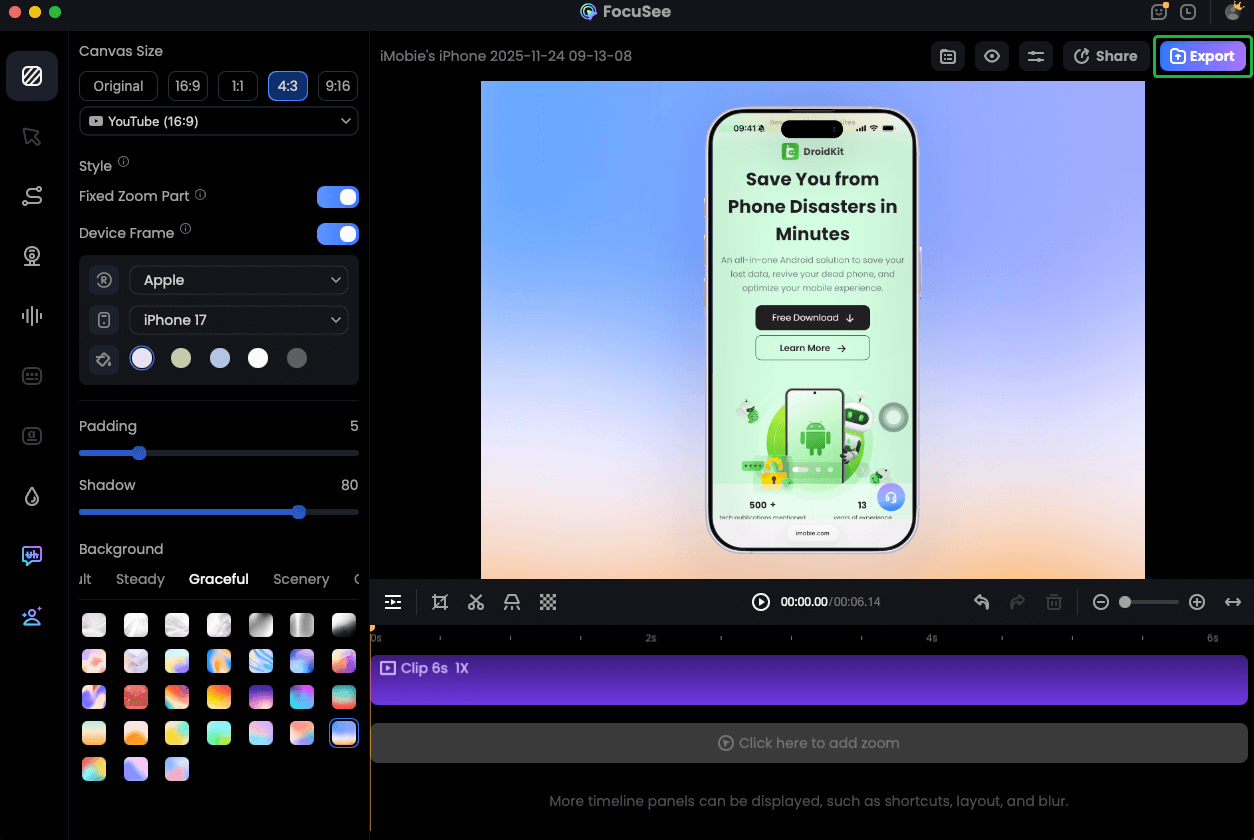
Record iPhone Screen
2. Automatic Subtitles for Documentation
If you are recording a tutorial to send back to the user (e.g., “Here is how to fix it next time”), having a transcript is invaluable. Automated tools can transcribe your conversation, creating a searchable record of the solution directly embedded in the video.
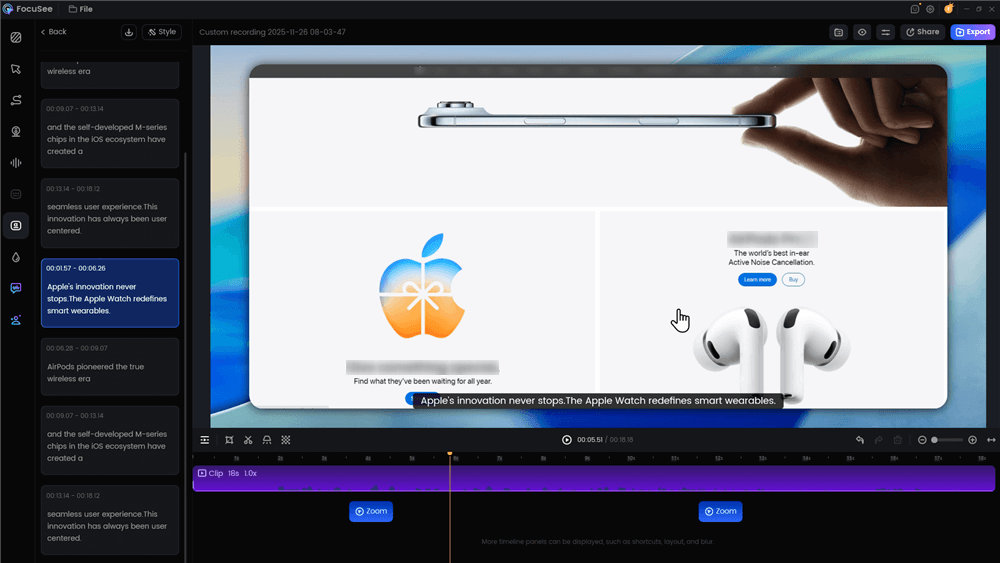
Automatic Subtitle Generation
3. Solving the Audio Puzzle
“Audio is confusing—do I record voice, system sound, or both?”
- The Free Way: If you are using QuickTime or a basic recorder, you must manually select your microphone as the audio source. However, this often records the other person’s voice coming out of your speakers, picking up room noise and echo.
- The Automated Way: Specialized software records the microphone (your voice) and system audio (their voice from the call) on separate tracks. This prevents feedback loops and allows you to adjust volume levels later if the connection was poor.
The “On the Go” Solution: Can I Record Directly on My iPhone?
A common blind spot in tech support guides is the scenario where you are not at a computer. Can you screen record a FaceTime call on your iPhone while viewing their shared screen? The answer is yes, but with a major catch regarding audio.
How to do it:
Step 1. Start the FaceTime call and ask them to share their screen (steps below).
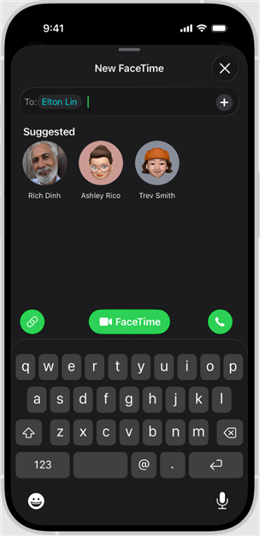
Start the FaceTime Call
Step 2. Open your iPhone’s Control Center. Tap the Screen Record button.
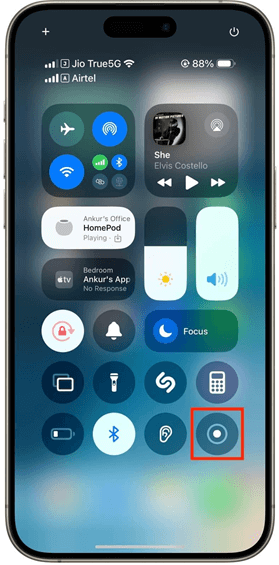
Tap Record
The Limitation (Why Desktop is Better)
Apple’s privacy restrictions are strict. When you screen record on an iPhone during a call:
- Video: It will successfully capture the video of their shared screen.
- Audio: It will usually record your microphone, but it often mutes the audio coming from the other person to prevent unauthorized call recording.
- Result: You might end up with a video of their screen and your voice saying “Click this,” but silence when they reply.
This method is fine for a quick visual reference, but if you need to hear their explanation of the bug, the Desktop method described above is far safer.
How to Set Up the Screen Share (The “Other Person’s” View)
You cannot record a remote screen unless the other person broadcasts it to you. This is the primary hurdle when the user is not tech-savvy. Here is how to guide them through the process.
Before they start sharing, ask them to turn on Do Not Disturb (Focus Mode). This prevents their private text messages or embarrassing notifications from popping up on screen while you are recording.
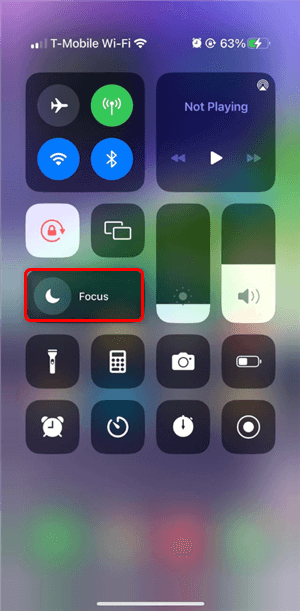
Do Not Disturb Mode
For iPhone Users (FaceTime Screen Share)
If you are asking can you screen record someone else’s iPhone, the answer relies on SharePlay. Guide the user through these steps:
- Start a FaceTime call.
- Tell them to tap the screen once to see the controls.
- Ask them to tap the Share Content button (an icon of a screen with a person in front of it).
- Select Share My Screen. A countdown will begin.
Important iOS Behavior: When they swipe away from FaceTime to go to their home screen (to show you the bug), their camera will turn off (you won’t see their face), but the screen share will continue (you will see their phone interface). Warn them about this transition so they don’t think the call dropped.
For Android Users (Zoom or Google Meet)
To screen record someone else’s Android phone, a third-party app like Zoom or Google Meet is standard:
- Send them a meeting link via text.
- Once they join, ask them to tap the screen to reveal the toolbar.
- Tap the Share button (often an arrow pointing up or a rectangle icon).
- They must confirm the device permission prompts warning that “Zoom will start capturing everything that’s displayed on your screen.” Instruct them to tap “Start Now.”
Once their screen is visible on your monitor, start your preferred desktop recorder to capture the session.
Alternative Method: Using Local Recording (With Permission)
If you are in the same room as the device owner, or if the user is comfortable with technology, you might not need a remote setup. You can use local methods, though they come with limitations regarding file transfer and quality.
Method A: The “Second Phone” Technique
This is the fastest, albeit lowest quality, solution. Simply use your own phone’s camera to record their screen while they demonstrate the issue. This bypasses all device permission prompts and technical setup, but the resulting video may suffer from glare and background noise.
Method B: Built-in Screen Recorders
Both iOS and Android have native recording tools. If the user is capable:
iOS: Go to Settings > Control Center and add “Screen Recording.” The user swipes down and taps the record icon.
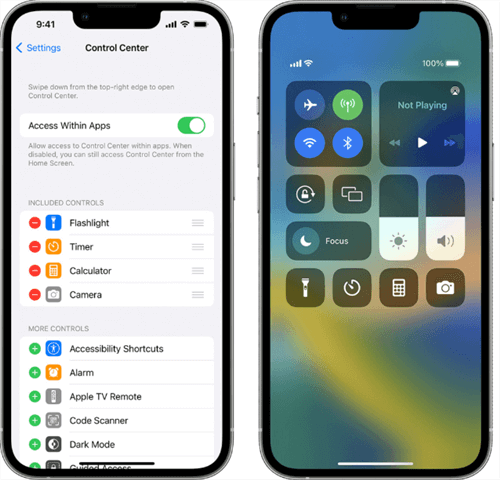
Control Center
Android: Swipe down twice to access Quick Settings and select “Screen Record.”
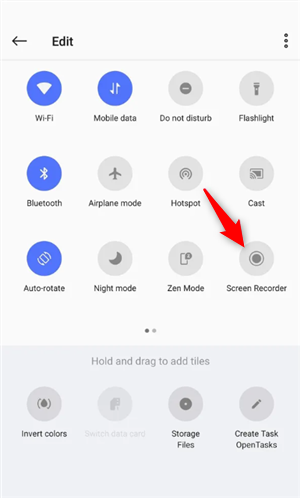
Add the Recorder
The Drawback: The video file is saved to their gallery. High-resolution screen recordings create massive files. If you are asking how to record someone else’s phone screen with permission remotely, they may struggle to email or text you the large video file afterward. This often leads to the frustration of “It won’t send,” bringing you back to the remote desktop method as the superior choice.
Is It Legal to Screen Record Someone Else’s Phone? (Privacy Warning)
A common query is “can i record someone else’s phone screen without them knowing?” The answer is that while technically possible with illegal software, doing so is a severe violation of privacy and likely illegal.
We must distinguish between ethical support and spyware. In our support scenario, the user actively tapped a button to share their screen. The notification/recording indicator on their phone (a green or orange dot) confirmed the activity. This transparency is key.
- One-Party Consent States: In some jurisdictions, only one person in the conversation needs to agree to the recording. However, this generally applies to audio, not unauthorized access to a device’s visual interface.
- Two-Party Consent States: Many regions (such as California and Florida) require all parties to agree to be recorded.
- Privacy Laws: Accessing a device without authorization violates computer fraud and abuse acts in many countries.
The Spyware Trap
Avoid any remote screen recording app that markets itself as “invisible” or “undetectable.” These are often stalkerware. They require physical access to the victim’s phone to install, violate privacy laws, and can expose both the victim and the installer to identity theft. Always stick to transparent, permission-based tools like TeamViewer, AnyDesk, or standard video conferencing apps.
Troubleshooting: Black Screens and Audio Echo
Even with the correct setup, you might encounter technical blocks. In our testing, the moment of frustration often hit when trying to view specific sensitive apps.
Why Do I See a Black Screen?
If you are trying to screen record someone else’s phone for tech support involving a banking app or a streaming service (like Netflix), you will likely see a black screen on your computer. This is Digital Rights Management (DRM) or security protection.
The Fix: There is no legal bypass for DRM. For banking issues, ask the user to describe the screen verbally rather than trying to capture the image. Do not search for “DRM bypass” tools, as these are often malware.
Dealing with Audio Echo
When recording a call where you are also speaking, audio feedback loops are common.
- Free Fix: Use headphones. If you record the call via speakers, your microphone will pick up the other person’s voice again, creating an echo. Lowering your speaker volume can also help.
- Software Fix: If you record frequently, tools like FocuSee isolate system sound (the call audio) from your microphone input, ensuring the final video has crisp, distinct audio from both sides without manual tweaking.
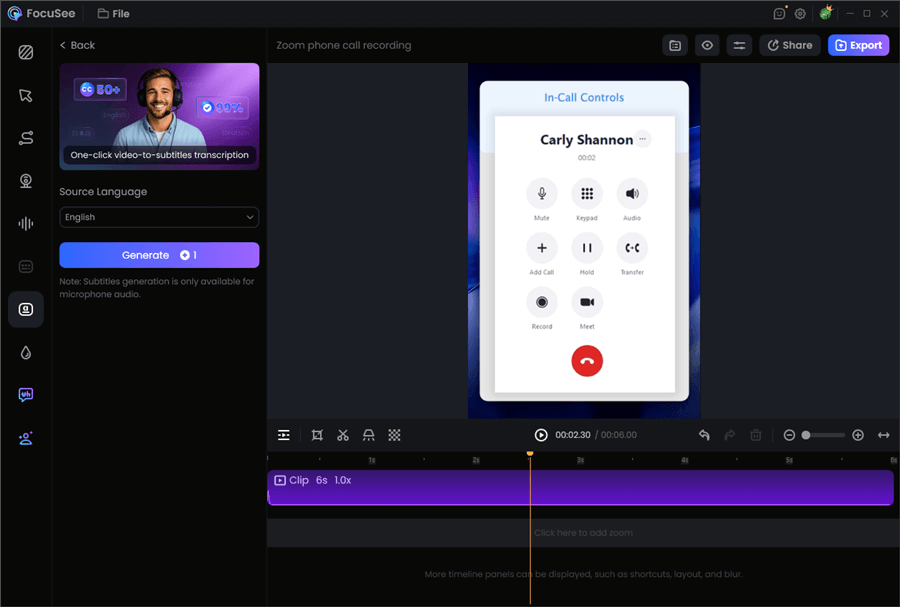
Record Zoom Phone Call with FocuSee
Frequently Asked Questions About Remote Phone Recording
Can I screen record someone else’s phone remotely?
Yes, but only if they initiate a screen-sharing session via apps like FaceTime, Zoom, or Google Meet. You can then record that view on your computer. You cannot trigger a recording on their device remotely without MDM (mobile device management) software, which is reserved for corporate environments.
Do remote access apps allow screen recording?
Yes. Tools like TeamViewer, AnyDesk, and Chrome Remote Desktop allow you to view (and sometimes control) an Android device. Most of these desktop clients have a built-in record function. However, on iOS, these tools usually only allow “viewing” the screen, not controlling it, due to Apple’s security restrictions.
What’s the safest way to record a phone screen demo with permission?
The safest method is a screen share and record phone screen workflow. It requires no sketchy app installations on the phone, relies on trusted platforms (Zoom/Apple), and ensures the user is fully aware they are being recorded, protecting you from legal complications related to privacy laws.
Can someone tell if I’m recording their screen?
If you are using a desktop recorder to capture a FaceTime or Zoom stream, the app itself might not notify them that you are recording, but they will know they are sharing their screen. Transparency is your responsibility. Always verbally confirm, “I’m going to record this so we can review the steps later.”
Conclusion: Take the Frustration Out of Tech Support
The helpless feeling of trying to fix a “broken” phone over a voice call—where you can’t see the screen and the other person can’t explain the error—is entirely avoidable. You don’t need to resort to sketchy apps or ask non-tech-savvy relatives to grapple with file transfers.
By combining standard screen sharing tools with a recording solution—whether it’s a simple desktop recorder or a specialized tool like FocuSee—you can regain control of the situation. You get a high-quality video of the problem, and they get a solution without the stress.
Ready to streamline your remote support sessions? Download FocuSee for free today and turn chaotic tech support calls into clear, actionable video guides.